

Your chipset is the traffic cop sitting between your CPU, RAM, storage, and every PCIe lane in the box, and knowing exactly which one you have decides whether a BIOS update, a faster NVMe drive, or a new CPU is even possible. Maybe you’re planning an upgrade. Maybe a driver page is asking for a model you can’t remember. Either way, figuring out your chipset takes about two minutes once you know where to look, and you don’t need to open the case or buy anything to do it.
This walkthrough covers the reliable ways to identify your chipset on Windows, from built-in tools to free utilities to the label printed on the board itself. It’s the same first step we lean on before recommending a board in guides like our best motherboard for i9-13900k roundup or the best motherboard for i7-14700K picks, because chipset compatibility is what makes or breaks a build. If you’re on Team Red instead, the same logic drives our best motherboard for Ryzen 7 9800X3D shortlist. Let’s find yours.
What you’ll need
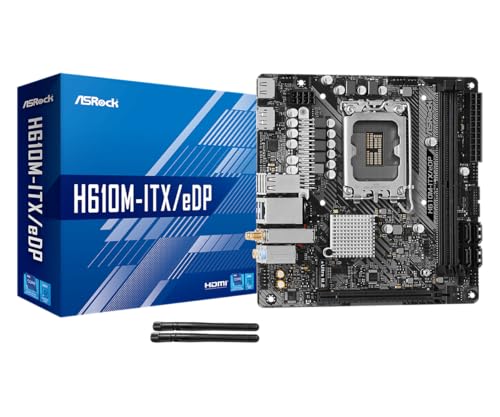
Good news here. You don’t need tools, a screwdriver, or admin tricks for most methods. A running Windows PC, a couple of minutes, and maybe one small free download is the whole kit. That said, having your motherboard’s model number handy speeds everything up, so if you kept the box or the manual, grab it. A photo of the board printed on the packaging often shows the model on the label, and the manual usually lists the chipset in the first spec table. If you’re checking the chipset because you’re weighing a whole new board, it helps to know what a modern budget option actually offers. The ASRock H610M-ITX/eDP is a fair reference point at $89.99: a Mini-ITX board built on Intel’s H610 chipset, supporting 14th, 13th, and 12th Gen Core processors on the LGA1700 socket with DDR4, PCIe 4.0, HDMI, DisplayPort, Wi-Fi 5, and Dr.MOS power delivery. It carries a 4-star rating, and it’s a clean example of how a chipset name (H610) tells you the tier and feature set at a glance.
Pros
- eDP 1.4 header is rare at this tier, ideal for custom AIO and panel builds
- Dr.MOS 50A 6-phase VRM adequate for 65W LGA1700 CPUs in SFF cases
- PCIe 4.0 x16 slot preserves GPU bandwidth despite H610 chipset limits
- Integrated WiFi 5 and Bluetooth 5.1 plus Intel Gigabit LAN cover connectivity
Cons
- Limited owner fedback available at time of writing, making reliability signal thin
- H610 blocks CPU overclocking and caps DR4 at 3200MHz with no XMP scaling
- Single M.2 slot is Gen3 x4 only, no Gen4 NVMe or secondary M.2
The ASRock H610M-ITX/eDP is a budget LGA1700 Mini-ITX board built around Intel's entry H610 chipset with DDR4 memory and a dedicated eDP 1.4 panel connector. It targets SFF builders, embedded system integrators, and digital signage projects rather than gamers chasing K-series CPUs or high-frequency RAM tuning.
The standout is the eDP 1.4 header, which lets integrators drive a laptop-style FHD 60Hz panel directly, useful for all-in-one and industrial builds. For general desktop use, HDMI 2.1 outputs 4K 60Hz and DisplayPort 1.4 handles up to 8K 60Hz, both dependent on the installed CPU's iGPU capabilities.
Trade-offs are typical at H610 tier: no CPU or memory overclocking, DDR4-3200 ceiling, a single Gen3 x4 M.2, and no rear USB-C. The 6-phase 50A Dr.MOS VRM is fine for 65W non-K chips like a Core i5-13400, but pairing with a 14700K in a hot SFF case is not the intended use.
Buy this if you need a compact LGA1700 board with eDP for a panel PC, signage kiosk, or budget SFF office build. Skip this if you want DR5, K-series overclocking headroom, Gen4 NVMe, or dual M.2 storage on a modern Intel platform.
Socket and chipset: LGA1700 with H610 chipset supports 12th, 13th, and 14th Gen Core CPUs. H610 disables CPU multiplier and memory overclocking, so pair with locked SKUs like Core i3-12100, i5-13400, or i5-14400 for best value rather than K-series parts.
Memory support: 2 DR4 DIMM slots run dual-channel up to 3200MHz with XMP 2.0 and ECC UDIMM in non-ECC mode. Confirm kits against ASRock's QVL, since Mini-ITX 2-DIMM layouts are typically friendlier to Hynix and Micron dies at 3200 CL16.
Storage and PCIe: One PCIe 4.0 x16 slot for GPU, one Ultra M.2 slot (PCIe Gen3 x4 and SATA3), and 4 SATA3ports. Only one M.2, so plan bot NVMe plus SATA SDs for bulk storage in SFF builds.
Form factor and I/O: Standard 6.7 by 6.7 inch Mini-ITX footprint fits ITX cases and thin mITX chassis. Rear I/O includes HDMI 2.1, DisplayPort 1.4, 2 USB 3.2 Gen1, 4 USB 2.0, and Gigabit LAN. Note CNVi Bluetooth shares bandwidth with one rear USB 2.0 port.
Step 1: Use System Information (no download required)
The fastest built-in route is System Information. Press Windows key + R, type msinfo32, and hit Enter. The System Summary page loads first, and you’ll see fields like BaseBoard Manufacturer and BaseBoard Product. Those don’t name the chipset directly, but they hand you the exact motherboard model, which is half the battle. Write down what you see, something like “ASUS PRIME B650-PLUS” or “MSI PRO Z790-A”. The same page also lists BaseBoard Version and your BIOS Version/Date, two details worth copying if you plan to check for a firmware update later.
Why does the board model matter so much? Because the chipset is baked into the model name in most cases. That letter-plus-number code (B650, Z790, X670E, H610) is the chipset. So if BaseBoard Product reads “TUF GAMING B760M-PLUS,” your chipset is B760. It’s that direct. System Information won’t lie to you, and it works on every Windows 10 and 11 machine without installing a thing. If you’d rather stay on the keyboard, the same data is available by running systeminfo in Command Prompt, which prints the System Manufacturer and System Model lines within a few seconds.
Step 2: Read it straight from Device Manager
Device Manager gives you a second opinion, and it sometimes names the chipset outright. Right-click the Start button, choose Device Manager, then expand the “System devices” branch. Scroll through and you’ll spot entries referencing the chipset family, like “Intel(R) 700 Series Chipset” or an AMD equivalent. The naming here is broader than the exact model, but it confirms the platform generation, and that alone rules out a big chunk of wrong answers when you’re pattern-matching a model number.
There’s a more precise trick too. Expand “IDE ATA/ATAPI controllers” or look under the SATA/AHCI controller entry. Double-click one, open the Details tab, and switch the property dropdown to “Hardware Ids.” The strings there contain vendor and device codes that map to a specific chipset. You’ll see a four-character vendor ID (8086 for Intel, 1022 for AMD) followed by a device ID; paste that device ID into a search engine with the word “chipset” and it resolves to the exact silicon. It’s a little cryptic, sure. But if the model number route left you guessing, these IDs settle it.
Step 3: Install CPU-Z for the definitive answer
When you want zero ambiguity, CPU-Z is the enthusiast standard. It’s free, tiny, and safe from the official CPUID site. Download it, install it, and open the app. Click the Mainboard tab. Right there you’ll find the Motherboard section listing manufacturer and model, and directly below it a Chipset section that names the northbridge, the southbridge, and the revision. The southbridge line is the one that maps to the marketing name most people recognize, while the revision number matters when a board shipped in more than one hardware stepping.
This is the answer people mean when they say “check your chipset.” CPU-Z reads the hardware registers directly, so it doesn’t depend on how Windows labeled anything. You’ll see the chipset vendor (Intel or AMD), the exact family, and often the specific model with its rev number. If you don’t want to install anything, CPU-Z also ships a portable ZIP build that runs from a folder with no setup, which is handy on a work machine or a system you don’t want to clutter. We reach for CPU-Z constantly while researching boards for lists like the best motherboard for 9800X3D, because it removes the guesswork before anyone spends money on a BIOS-dependent CPU swap.
Step 4: Check the board label or BIOS directly
Software not cooperating, or the PC won’t boot into Windows? Go to the source. If you can safely open the side panel, the chipset name is silkscreened right on the PCB, usually near the CPU socket or the PCIe slots, printed as the model code in plain white text. Power down, unplug, and hold the power button for a few seconds to drain residual charge before you touch anything. The full board model is often printed between the RAM slots and the CPU socket, and a smaller chipset code sometimes sits under the heatsink covering the southbridge chip lower on the board.
You can also catch it during boot. Restart and tap Delete or F2 (the key varies by brand) to enter BIOS/UEFI. Modern UEFI dashboards show the motherboard model and BIOS version on the main EZ Mode screen, and the model name contains the chipset code. If your BIOS opens straight into an advanced view, the same details usually sit on a “Main” or “Information” tab at the top. This method is handy when a machine is mid-build or won’t load an operating system yet. No Windows required.
Step 5: Cross-reference the manufacturer’s spec page
Once you’ve got the board model from any step above, punch it into the maker’s website. Search “ASUS ROG STRIX B650E-F specifications” or whatever your model is, and the official product page confirms the chipset in the tech specs table. This closes the loop and catches the rare edge case where a board name doesn’t obviously spell out the chipset. Bookmark the support tab while you’re there, since it hosts the BIOS downloads and the CPU support list you’ll want if an upgrade is the reason you started digging.
The spec page is also where the useful context lives: how many PCIe 5.0 lanes the chipset feeds, memory speed ceilings, USB port counts, and the CPU support list. That last part matters most for upgrades. A B550 board and an X570 board both take Ryzen chips, but their feature sets differ, and the same platform logic separates the boards in our best 7800X3D motherboard guide from cheaper alternatives. Knowing your chipset tells you which CPUs and BIOS versions you can actually run, and it flags whether a newer processor needs a firmware update applied before it will even POST.
Troubleshooting common issues
CPU-Z shows a generic or blank chipset
Occasionally CPU-Z reports the chipset as “unknown” or shows only a partial name, usually on a very new platform or after a stale install. Grab the latest version from the official site first, since chipset databases get updated with each release. If it still won’t resolve, fall back to the motherboard model in the Mainboard tab and look that model up on the manufacturer page. The model always maps to a chipset even when the utility can’t label it.
The board model doesn’t obviously name a chipset
Some OEM and prebuilt systems use custom board names that hide the chipset, like Dell or HP proprietary boards. In that case, skip the model-decoding approach and rely on CPU-Z or Device Manager’s Hardware Ids, which read the silicon itself. You can also search your PC’s full model number plus “motherboard specs” to find community teardowns that list the chipset, and the OEM support page for the system often names it under the expanded technical specifications.
Windows won’t boot at all
If you can’t get into Windows, the BIOS/UEFI screen and the physical PCB label are your friends. Both show the info without an operating system. Tap the BIOS key during startup, or power everything down and read the silkscreen near the socket. It’s slower, but it never fails you when software is out of reach.
What the chipset name actually tells you
Once you’ve confirmed it, the code itself is a cheat sheet. On Intel, the first letter signals the tier: Z boards unlock overclocking and the most lanes, B boards hit the value bracket, and H boards keep things basic like that H610 example. AMD follows a similar pattern with X, B, and A series, where an added E suffix (X670E) marks the fuller PCIe 5.0 rollout. The number after the letter marks the generation. Higher usually means newer sockets and faster PCIe and memory support.
Wrapping up
Checking your chipset comes down to one quick move: open System Information or CPU-Z, read the board model, and the chipset code is right there. For a bulletproof answer, CPU-Z names it directly; for a no-software situation, the PCB label or BIOS screen delivers. Once you know it, you know your upgrade ceiling, your BIOS options, and which CPUs will drop in without drama. That single piece of info is the foundation every smart build starts from, and it’s why we check it before recommending anything in our motherboard guides. Now you can find it in under two minutes, anytime.
Common questions
Is the chipset the same as the motherboard model?
Not quite, but they’re tightly linked. The motherboard model is the full product name, like “MSI PRO B760M-A,” while the chipset is the silicon that name is built around, here B760. Most boards embed the chipset code right in the model, so reading one usually reveals the other.
Can I check my chipset without opening the case?
Yes, and that’s the easiest path. System Information (msinfo32), Device Manager, and CPU-Z all report the chipset or board model from within Windows. You’d only open the case if the PC won’t boot or software isn’t available.
Why does knowing my chipset matter for upgrades?
The chipset sets the rules for what your system supports: which CPUs, how fast your RAM can run, how many PCIe lanes feed your GPU and NVMe drives, and whether overclocking is even on the table. Before buying a new CPU or a fast SSD, the chipset tells you if it’ll actually work.
Does CPU-Z cost anything or carry risk?
CPU-Z is completely free and widely trusted across the PC community. Download it only from the official CPUID website to avoid bundled junk from mirror sites. It reads hardware data, doesn’t modify anything, and is a staple of every enthusiast’s toolkit.




























Write Your Review
No reviews yet. Be the first to share your experience!