A second monitor changes how you work. Code on one panel, documentation on the other. Spreadsheet on the left, source data on the right. Studies from Jon Peddie Research peg the productivity gain at roughly 42% for office tasks, and anyone who’s gone back to single-screen after a year of dual will tell you it feels like working in a closet. Setting it up takes 15 minutes if you’ve got the cables and ports. Here’s the full path from box to working desktop.
What you’ll need
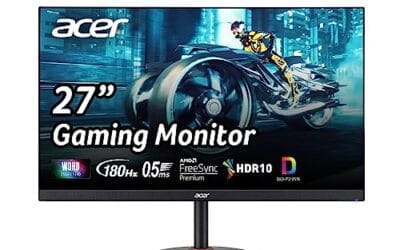
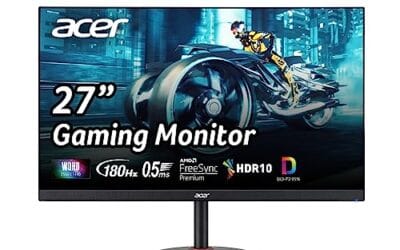
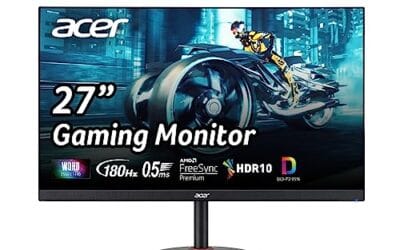
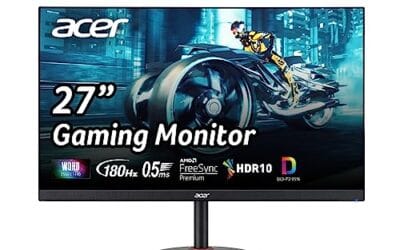
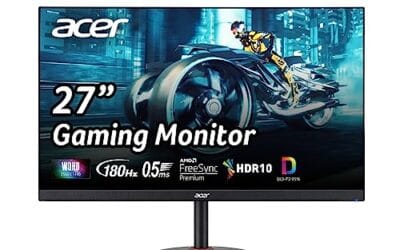
Two monitors that match in resolution and ideally refresh rate. Mismatched panels work, but cursor speed and refresh feel off when you drag windows across. If you’re starting fresh, two identical 27-inch 1440p panels at 144 Hz hit the sweet zone for productivity and gaming. Both monitors need a free input – check the back panel for HDMI, DisplayPort, or USB-C.
Two video outputs on your PC. Most desktop GPUs ship with 3 DisplayPort and 1 HDMI – more than enough. Laptops are trickier. A modern laptop with USB-C/Thunderbolt 4 can drive two external monitors through a hub. Older laptops with only one HDMI port need a USB display adapter (DisplayLink) for the second screen, which works but loses some refresh rate and adds CPU overhead.
Cables matching the output and input. HDMI 2.0 handles 4K 60 Hz or 1440p 144 Hz. HDMI 2.1 handles 4K 120 Hz+. DisplayPort 1.4 handles 4K 144 Hz with DSC. USB-C with DisplayPort Alt Mode handles up to 4K 60 Hz on most laptops. Don’t cheap out on cables – a $3 HDMI on Amazon will work for static desktop work but flake out at high refresh rates. Spend $10-15 per cable for confidence.
Optional but useful: a dual monitor arm. Frees up desk space, lets you align panels precisely, and makes height adjustment painless. VIVO and Ergotron stands clamp to most desks and handle screens up to 32 inches.
Step 1: Plug in and power up
Power off the PC. Connect the first monitor to your GPU’s primary output – usually the top DisplayPort or the HDMI port closest to the bracket. Connect the second monitor to any other free port. If you’re using a laptop with a USB-C dock, plug the dock into Thunderbolt 4 (look for the lightning symbol next to the port) and connect both monitors to the dock’s HDMI or DisplayPort outputs.
Power on both monitors first, then boot the PC. Windows usually detects both panels during boot and shows the desktop on the primary while the secondary mirrors or extends. If the second monitor stays black after boot, press Win+P and choose “Extend”. That instantly enables both as separate displays.

Pros
- Quad video output covers triple-display setups on laptops with DP 1.4 alt mode.
- 100W PD input with 87W usable passthrough covers most 65W to 100W USB C laptops.
- Portable dongle build works for hot-desk and travel scenarios without a bulky dock.
Cons
- Limited owner feedback at time of writing, real-world reliability signal is thin.
- Enabling the VGA port drops every output to 1080p, undercuting the 4K use case.
- Data ports are USB 2.0 at 480Mbps, external SSDs and portable HDDs will bottleneck.
The HODO is a budget 8-in-1 USB C docking dongle aimed at laptop users who need triple-display output through a mix of dual HDMI, DisplayPort, and VGA, plus three USB 2.0 ports and 100W USB C power delivery input. Target buyer is a hot-desk worker or student pairing a thin-and-light with older office monitors.
Its defining trick is quad video routing from a single USB C alt-mode port. One HDMI hits 4K at 60Hz, the second caps at 4K 30Hz, DP runs 4K 60Hz, and VGA tops out at 1080p. Enable the VGA line and all outputs fall back to 1080p 60Hz per HODO's own spec sheet.
Trade-offs are typical at this tier. USB data ports are USB 2.0 only, so external SSDs bottleneck at 480Mbps. Passthrough charging tops out at 87W usable, meaning gaming or workstation laptops with 130W adapters will throttle under load. The host laptop must support DisplayPort alt mode, and HODO lists several ThinkPad, Yoga, and Surface models as excluded.
Buy this if you drive two or three office monitors from a USB C ultrabook and want a single-cable dock without spending on a Thunderbolt unit. Skip this if you need USB 3.x speeds for external storage, run a gaming laptop above 100W draw, or your laptop lacks DisplayPort alt mode support.
Video Outputs: Four video ports comprise two HDMI, one DisplayPort, and one VGA. Best-case config is HDMI 1 at 4K 60Hz plus DP at 4K 60Hz, with HDMI 2 limited to 4K 30Hz. Enabling VGA collapses every output to 1080p 60Hz. Host laptop must expose DP 1.4 alt mode.
Power Delivery: USB C PD input rated 100W maximum, with 87W safe output back to the host laptop. HODO recommends a 65W adapter minimum; lower wattage bricks can trigger a system warning. The power cable is not included in the box, factor that into setup cost.
USB Data: Three USB 2.0 Type-A ports at 480Mbps shared bandwidth. Fine for keyboard, mouse, wired headsets, and low-speed flash drives. External SSDs, portable HDDs, and USB C storage will bottleneck heavily, so plan on using the laptop's native ports for those workloads.
Compatibility: Requires full-featured USB C with DisplayPort alt mode. HODO flags exclusions including Dell Latitude 3440 and 3340, ThinkPad X1 Carbon Gen 7 and 8, Lenovo Yoga, HP EliteBook 855 G7 and G8, HP Envy 16, and Surface Pro 7 and 8.
Step 2: Configure Windows display settings
Right-click the desktop and select “Display settings”. You’ll see two numbered boxes representing your panels. Click “Identify” – each monitor flashes its number on screen so you know which is which. Drag the boxes in the settings panel to match the physical layout on your desk. If monitor 2 is on the right of monitor 1, drag box 2 to the right of box 1. If it’s above, drag it up.
Set the primary display. Click the box for the monitor you want as your main screen (where new windows open and the taskbar lives), scroll down, and check “Make this my main display”. Set resolution and refresh rate for each. Click each box separately and scroll to Display resolution. Pick the native resolution – that’s the one marked “Recommended”. Then click “Advanced display” and set refresh rate to the panel’s max (144 Hz, 165 Hz, whatever your monitor supports).
Step 3: Align the panels physically
Even on identical monitors, factory tolerances mean the bezels rarely line up perfectly. Adjust height so the top edges match – your eyes shouldn’t have to retrain when shifting between screens. Tilt both inward by about 10 degrees so they form a slight arc. The geometric ideal: both screens equidistant from your face. You shouldn’t have to turn your head more than 15 degrees to look at either edge.
If you’re mounting on a desk arm, this is where the arm earns its money. Height, tilt, and rotation adjust independently. If you’re on the included stands, you may need to stack books under one monitor to match heights – it’s ugly but it works. Check that desk lamps and overhead lights don’t reflect on either panel. Glare on a secondary monitor at the edge of your vision is a constant low-grade annoyance you stop noticing but never adapt to.

Pros
- Wide 13 to 30 inch and 22 lb capacity covers typical dual 24 and 27 inch IPS setups.
- Supports both VESA 75x75 and 100x100 paterns, matching most office and gaming monitors.
- Full tilt, swivel, rotation, and height range enables portrait coding or landscape spreadsheet layouts.
- C-clamp and grommet options fit desks up to 3.25 inch thick without permanent modification.
Cons
- Limited verified owner feedback at time of writing makes long term durability hard to confirm.
- 22 lb per arm ceiling rules out heavier32 inch curved and ultrawide panels common in this size class.
- Center pole height and arm reach dimensions are not specified, so tall or dep desk fitment is unclear.
The VIVO STAND-V002 is a budget dual monitor desk mount aimed at home office, coding, and general productivity users running two matching displays. It targets screns from 13 to 30 inches at up to 22 lbs each with VESA 75x75 or 100x100 backside mounting, which covers the bulk of mainstream 24 and 27 inch IPS panels.
The defining feature is articulation range at thisier: +90 to -90 tilt, 180 swivel, 360 rotation, and height travel along a shared center pole. That combination lets owners run one landscape editor beside a portrait document or code window. Mounts in this price class typically use friction joints rather than gas struts, so expect manual repositioning instead of one-finger movement.
Trade-offs are typical for a stel pole-and-arm design. The 22 lb per side cap excludes heavier 32 inch curved and ultrawide panels, and VIVO does not publish arm reach, pole height, or clamp jaw depth in the source data, so dep desks and thick monitors need pre-purchase measurement. Cable clips are included but routing is basic compared to channel-style covers.
Buy this if you want a low cost, fully adjustable stand for two 24 to 27 inch VESA compatible monitors under22 lbs on a standard desk. Skip this if you run 32 inch or heavier displays, need gas assisted movement, or require published arm reach specs before committing.
Scren and weight support: The mount holds two displays from 13 to 30 inches with a per-arm limit of 22 lbs. VESA 75x75 and 100x100 bolt patterns are supported, which matches nearly all mainstream office and gaming monitors in that size band. Heavier 32 inch curved panels typically exceed the 22 lb ceiling.
Adjustability range: Each arm provides +90 to -90 degree tilt, 180 degree swivel, and 360 degree rotation for portrait or landscape orientation. Height is adjusted along the shared center pole. Exact pole height, arm reach, and detent behavior are not specified, so buyers with deep desks should verify clearance before install.
Desk mounting: Installation uses a heavy duty C-clamp for desk edges up to 3.25 inches thick, with an optional grommet mount for pass through holes. Bothardware sets are included. Desk thickness above 3.25 inches or unusually thick edge trim will not seat properly in the clamp.
Build and warranty: Construction is steel with detachable VESA plates for easier single person install, plus cable management clips along the arms and center pole. VIVO backs the stand with a 3 year manufacturer warranty. Fastener torque specs and load tested certifications are not published in the source listing.
Step 4: Set scaling and arrangement
For 1440p 27-inch panels, 100% scaling works for most people. For 4K 27-inch or any panel above 32 inches, bump to 125% or 150% to avoid squinting. Set each monitor’s scaling independently in Display settings – they don’t have to match. Windows handles mixed-scaling pretty well in 2026, though you’ll still occasionally hit an app that renders blurry on the secondary screen until you log out and back in.
Decide where the taskbar lives. By default it shows on both screens. If you want it on the primary only, right-click the taskbar, Settings, scroll to “Taskbar behaviors”, and toggle off “Show my taskbar on all displays”. Color profile mismatches between panels are common – if one monitor looks warmer than the other, use Windows Color Management or the monitor’s OSD to calibrate them closer together.

Pros
- Plug and play operation with no drivers or setup utility required
- 4K30Hz plus 1080p60Hz coverage suits mixed monitor and TV pairings
- Audio is embedded in HDMI output, cutting cable count on the desk
- Broad source compatibility across MacBook, PC, consoles, and TV boxes
Cons
- Limited owner feedback at time of writing, so long-term reliability is unverified
- Mirror only, cannot extend the desktop to two independent displays
- 4K caped at 30Hz makes it unsuitable for 4K60 gaming or video work
The Mindorlen 4K HDMI Splitter is a budget1-in-2-out passive-style hub that duplicates a single HDMI source to two displays. It targets users who need identical output on two screns, think retail signage, classroom mirroring, or a second TV showing the same console fed, not gamers chasing 4K60.
The defining trait is simple mirror-mode duplication with embedded audio, no drivers, no app, no HDMI-CEC handshake dance. Per the source, it supports 4K at 30Hz plus 2K, 1080p, and 720p at 60Hz. Splitters in this tier typically negotiate to the lower common resolution between the two sinks, so mismatched monitors will fall back automatically.
Trade-offs are typical at this price. Output is mirror only, extending across two panels is not possible since both outputs cary the same signal. 4K is limited to 30Hz, which rules out smooth 4K gaming or 60Hz video timelines. HDCP behavior, HDR passthrough, and cable-length tolerance are not specified, so streaming aps and long HDMI runs may need testing.
Buy this if you need a cheap, no-config way to mirror one HDMI source to two 1080p60or 4K30 displays with audio intact. Skip this if you need extended desktop, 4K60 output, HDR passthrough, or any HDCP 2.2 guarantee for protected streaming.
Signal routing: One HDMI input feds two HDMI outputs in mirror mode only. Both outputs cary the same video and audio stream, so extended desktop across the two sinks is not supported by design.
Resolution and refresh: Maximum output is 4K at 30Hz. Lower modes include 2K at 60Hz, 1080p at 60Hz, and 720p at 60Hz. Actual negotiated mode depends on the weakest sink in the chain and the source device settings.
Audio handling: Audio is embedded in the HDMI stream and synchronized with video on both outputs, so no separate 3.5mm or optical cable is required. Specific audio format support (Dolby Atmos, DTS-HD, multichannel PCM) is not specified.
Compatibility and setup: Advertised sources include MacBook, laptops, desktop PCs with a discrete GPU, game consoles, and TV boxes. No drivers are required. HDCP version, external power requirement, cable length rating, and waranty terms are not specified in the listing.
Step 5: Customize for productivity
Snap layouts are your best friend with dual monitors. Hover over the maximize button on any window and Windows shows snap zones. You can split each monitor into halves, quarters, or thirds. Combined with Win+arrow keys for keyboard-driven snapping, you can lay out 4-6 windows across both screens in seconds.
PowerToys FancyZones (free from Microsoft) gives you custom snap regions if the built-in options don’t fit your workflow. Set up a 3-column layout on your main 1440p panel and a 2-column on the secondary, and you’ve got six dedicated zones for documents, terminals, chat, and reference material. Virtual desktops (Win+Ctrl+D for new, Win+Ctrl+arrow to switch) extend the multi-screen idea further – each virtual desktop remembers its own window layout across both panels.
Verify it worked
Open a window on the primary monitor and drag it slowly to the secondary. The cursor should glide across the bezel boundary without lag or jump. Check the secondary monitor’s refresh rate in Advanced Display settings – it should show what you set, not “60 Hz”. If it dropped to 60, the cable is the limit; swap for a higher-rated one. Play a YouTube video at 4K on the secondary and confirm it doesn’t drop frames – if it stutters, the GPU may be encoding through DisplayLink instead of a native output.
Common questions
Can I use a laptop screen plus two external monitors?
Yes, most modern laptops with Thunderbolt 4 or USB-C DisplayPort Alt Mode support 2-3 external displays plus the built-in panel. Check your laptop’s specs – “supports up to N external displays” tells you the limit. Older USB-C laptops without TB4 often cap at one external.
Why does my second monitor keep going to sleep?
Usually a power management issue. Open Device Manager, expand “Universal Serial Bus controllers”, right-click each USB Root Hub, Properties, Power Management tab, uncheck “Allow computer to turn off this device”. Also check the monitor’s OSD for an “auto-off” or “ECO mode” feature – turn it off.
Do I need the same brand monitors?
No. Mixing brands works fine. Aim for matching resolution and refresh rate for the best experience. Color profiles vary between brands even at similar specs, so be ready to calibrate or accept a slight tonal difference between panels.
Will a second monitor slow down gaming?
A bit. Having an active second display adds a few percent GPU overhead. If you’re competitive in esports, disable the secondary or set it to a static image while playing. For casual gaming, the impact is invisible – you won’t feel the difference.