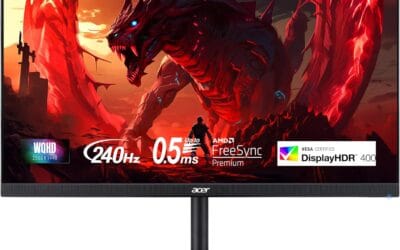
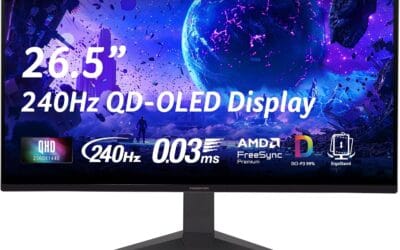
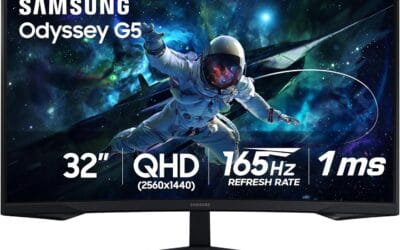
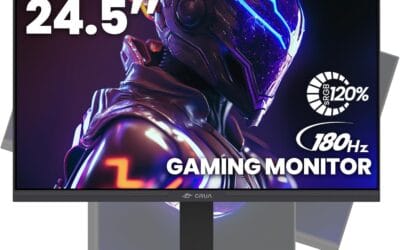
The productivity bump from a second screen is one of the few PC upgrades that delivers exactly what reviewers promise. Spreadsheets stop feeling cramped. Code and docs sit side by side. Reference tabs quit hiding behind your main window. Here’s the catch: most beginners blow the budget on the wrong thing. A flashy 34″ ultrawide sounds great until you try to snap two Excel sheets to it and realize one fat panel doesn’t beat two skinny ones for real work. A matched pair of 27″ 1080p monitors at roughly $180 for the 2-pack will outperform that ultrawide for anyone living in spreadsheets, IDEs, or browser-heavy workflows. This guide skips the marketing fluff and walks through what a first dual setup actually needs in 2026.
Before you spend any money
Three questions, answered honestly, will save you a return trip to Amazon.
First: does your GPU or integrated graphics have 2+ display outputs? Flip your tower around. Count the HDMI, DisplayPort, and USB-C ports on the GPU bracket (not the motherboard, if you have a dedicated card). Two outputs is the minimum. Laptops usually have one HDMI plus a USB-C with DisplayPort Alt Mode, which is enough but might need a dongle.
Second: does your desk fit two 24-27″ panels side by side? A standard 60-inch desk handles two 27″ monitors with a little breathing room. A 48-inch desk maxes out at two 24″ panels. Measure before you order. Returns are annoying.
Third: what’s the main task? Coding and spreadsheets love vertical pixel count, so 1440p at 27″ is the smart pick. Photo work wants color accuracy over refresh rate. Gaming pulls you toward 144Hz and a single primary screen. Different jobs, different specs.
The three specs that actually matter
Forget the spec-sheet circus for a minute. Three numbers do the heavy lifting.
Resolution. At 24″ diagonal, 1080p is genuinely fine. Text is crisp, icons aren’t tiny, and you’re not paying a 1440p tax for pixels you won’t notice. Stretch that same 1080p to 27″ and things get slightly soft. So the rule of thumb: 24″ = 1080p is okay, 27″ = 1440p ideally. That said, twin 27″ 1080p panels at $180 for both is still a solid starter buy if budget’s tight. The pixel density is fine for daily work; you’ll just see it on fine text.
Refresh rate. Anywhere from 75Hz to 100Hz is plenty for productivity. The jump from 60Hz to 75Hz is real (scrolling feels smoother), but past 100Hz you’re paying for gaming headroom you won’t use in Word. Skip 144Hz unless you also game.
Connectivity. Match your GPU’s outputs to the monitor’s inputs. Modern GPUs lean DisplayPort + HDMI. Older laptops might be HDMI + USB-C. Confirm before checkout. A $9 adapter solves most mismatches, but it’s nicer to skip it.
What doesn’t matter at this stage? HDR (most budget panels fake it badly), ultrawide (defeats the side-by-side workflow), OLED (overkill and pricey). Save those for round two.
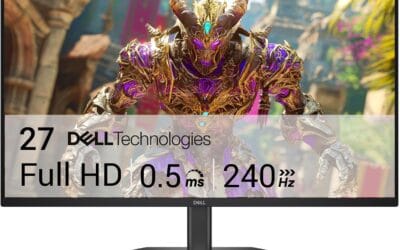
Once you’ve settled on 27″ and you want a pre-matched pair so you skip the color-calibration headache, this 2-pack handles it:
What everyone overcomplicates
A few things get way more attention online than they deserve.
Bezel obsession. Yes, thinner bezels look cleaner. No, the millimeter gap between two panels isn’t going to wreck your workflow. What matters more is aligning the top edges so your mouse doesn’t snag when crossing screens. Stack a couple of books under the shorter monitor if the stands don’t match. Done.
The identical-model fetish. A matched 2-pack is the easy button, and it’s worth the small premium because brightness and color match out of the box. But mixing two different brands isn’t a crime. If both panels are the same resolution, same refresh rate, and same panel type (IPS to IPS, not IPS next to TN), you’ll be fine after five minutes in Windows display settings.
Color profile panic. Windows 11 handles per-monitor color profiles automatically in 2026. You don’t need a colorimeter unless you’re editing for print.
VESA mount worry. Almost every monitor sold in 2026 supports VESA 100×100. Confirm it on the spec sheet, then move on. You don’t need an arm on day one anyway.
For folks who lean toward the immersive, slightly-wrapped look, a gentle 1500R curve on a 27″ pair holds up well without crossing into ultrawide weirdness:
A good first dual setup looks like this
Two paths, depending on budget.
Path A: Two 24″ 1080p monitors side by side. Total spend, $160-200. This is the right call for a 48-50″ desk, a laptop with modest graphics, or anyone who just wants more screen and doesn’t want to overthink it. Text is crisp at 24″ 1080p, and the smaller footprint means less neck swivel.
Path B: Two 27″ 1440p monitors, around $400 total. This is the productivity dream pair. More vertical lines of code, more spreadsheet rows, sharper text. Needs a 60″+ desk and a GPU that can push 2560×1440 on two outputs (any GPU from the last five years handles it for non-gaming work).
Either way, center your chair on the seam between the two panels if you use both equally. If one’s clearly primary, put that one straight ahead and angle the secondary inward at maybe 15 degrees. A VESA arm for the primary monitor is a nice year-two upgrade. Not day one. Get used to the layout first.
Three tiers to consider
Budget tier (~$150-250 for the pair). A 24″ 1080p matched pair gets the job done. Fine pixel density at this size, the two-pack pricing kills standalone monitors, and you’ve got room left in the budget for a decent dual HDMI cable set.
Mid tier (~$300-400 for the pair). Step up to 27″ and either keep 1080p (if your eyes are forgiving) or stretch to 1440p. The 27″ curved 2-pack lands here and feels like a noticeable upgrade in immersion without ultrawide compromises.
Single-add tier (~$80). You already have one monitor and just need a matched (or close-enough) second. Pick something with the same resolution as your current panel. A 24″ 1080p 100Hz from Philips is the easy pickup at this price.
Mistakes to skip
A handful of beginner traps come up over and over.
Buying mismatched panels on impulse. Two monitors with different brightness uniformity is genuinely jarring. One looks yellowish, the other blueish, and you spend a weekend trying to fix it. The cure: matched pairs, or at minimum the same panel family.
Skipping VESA support to save $10. A monitor without VESA holes locks you into the included stand forever. By year two, you’ll want a dual arm to reclaim desk space. Future you will be annoyed.
Going too big too soon. Two 32″ panels need roughly 72 inches of desk. Most apartment desks are 48-60 inches. Measure first. Bigger is not better when you’re craning your neck to see the corner of the second screen.
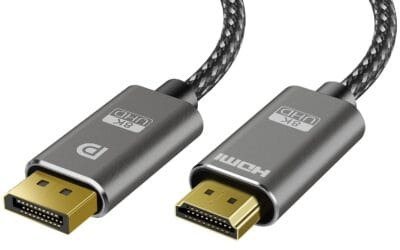
Cheap HDMI cables for high refresh rates. A $4 random cable can drop a 144Hz signal to 60Hz or cause flicker. Spend $15 on a certified HDMI 2.1 or DisplayPort 1.4 cable. Don’t cheap out on the last link in the chain.
Common beginner questions
How do I extend my display vs duplicate?
Press Windows + P, pick Extend. That spreads your desktop across both panels so each one shows different content. Duplicate clones the same image to both, which you don’t want for productivity. On Mac, open System Settings, Displays, and uncheck Mirror Displays. Takes ten seconds.
Do both monitors need to be the same model?
No, but it helps. A matched pair saves the calibration headache and looks cleaner. Mixing is fine if both panels share resolution, refresh rate, and panel type. Watch out for stand height differences. A short book or a $20 riser handles that easily.
What about a monitor arm – is it worth it?
Eventually, yes. Not at first purchase. The included stands work fine for the first six months while you figure out your ideal layout. A dual arm runs $80-150 and reclaims about a foot of desk depth. Buy it once your setup feels permanent.
Can I run two 4K monitors on integrated graphics?
Modern Intel iGPUs (12th gen and newer) and AMD Radeon graphics on Ryzen 5000+ chips handle dual 4K for desktop work fine. Video editing or gaming at 4K is a different story. For browsers, Office, and code, integrated graphics in 2026 is enough.
HDMI or DisplayPort?
DisplayPort if your GPU and monitor both support it. Higher bandwidth, daisy-chain capability on some models, and better at 1440p/144Hz combos. HDMI works perfectly fine for 1080p and most 1440p setups. Use whatever cable came in the box, then upgrade only if you hit a refresh-rate cap.
Why does my taskbar only show on one monitor?
Default Windows behavior. Right-click the taskbar, open Taskbar settings, scroll to Taskbar behaviors, and toggle Show my taskbar on all displays. You can also pick whether icons appear on every taskbar or only the one where the app is open. Small fix, big quality-of-life bump.
Is a third monitor worth adding?
For most people, no. Two screens cover 90% of multitasking gains. A third panel is great for streamers, traders, or anyone running constant reference dashboards. Otherwise it’s mostly desk clutter. Master the dual layout first, then decide.