

Buy a laptop if you need the same computer at home and somewhere else most weeks. Buy a desktop tower if you work or play at one desk and want more control over the display, cooling, and parts you can replace later. For school, check your program’s software requirements first. For gaming, make the choice around the games and screen you actually plan to use.
Start with your calendar. If you’re taking a computer to class on Tuesday and working from the kitchen on Thursday, portability earns its keep. If every gaming session starts at the same desk, the money that would’ve paid for a built-in screen and battery can go toward the parts that matter there.
Laptop vs. desktop at a glance
| What matters | Laptop | Desktop tower |
|---|---|---|
| Portability | Screen, keyboard, trackpad, and battery travel together | Best kept at a desk with wall power and a separate display |
| Gaming | Compare the exact laptop GPU, power limit, and screen | Choose a graphics card around your monitor and target settings |
| Upgrades | RAM and SSD access vary by model. The CPU and GPU are usually fixed | RAM, storage, and graphics are often replaceable with compatible parts |
| Power and cooling | Runs on battery, with performance and runtime depending on the workload | More room for coolers and fans, with wall power required |
| Desk setup | Works on its own or with compatible external displays and accessories | Choose the monitor, keyboard, mouse, and webcam around your setup |
| Upfront cost | Core accessories are built in. Add a dock or monitor if needed | Budget for gear you don’t already own |
What you get with each design
Laptop
One computer, one bag. Your screen, input devices, battery, and usually a webcam are already there when you sit down. That’s handy if you move between a lecture hall, library, and kitchen table. For a daily commute, check the combined weight of the laptop and charger, plus whether both fit comfortably in the bag you use now.
Battery ratings are a starting point for comparing machines. Look for runtime with a workload close to yours, since a video call or game can drain the battery faster than a document editor. If you sometimes leave the charger behind, prioritize enough unplugged time for your longest block away from an outlet. If the laptop spends most days docked, put more of your budget toward the screen and keyboard you use during those hours.
Desktop tower
A tower separates the computer from your monitor and input devices. You can keep a good keyboard and screen through several PC upgrades, or choose a bigger display for a timeline, spreadsheet, or game. Tower sizes vary. Measure the actual spot where it’ll sit and leave room for airflow, plugs, and access to the rear ports.
Gaming performance and cooling
At a fixed desk, a desktop gives you more room for a graphics card and cooling hardware. With a laptop, the power and cooling limits come with the chassis. Look up the full GPU name and the laptop maker’s configured graphics power. Likewise, check how a configuration performs in the specific games, resolution, and settings you care about before you buy.
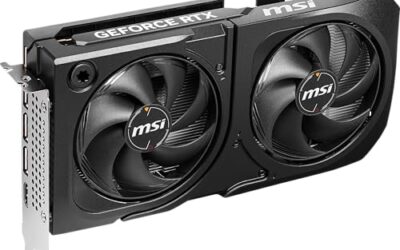
The RTX 5060 illustrates the naming trap. NVIDIA lists 3,840 CUDA cores for the desktop GeForce RTX 5060 and 3,328 for the GeForce RTX 5060 Laptop GPU. Both have 8 GB of GDDR7. Those figures identify distinct parts. Frame rates also depend on the game, CPU, settings, and the power available to the GPU. NVIDIA desktop GPU specifications and NVIDIA laptop GPU specifications.
Say you’re moving from a 1080p screen to 1440p. The higher resolution asks the GPU to render more pixels, so use frame-rate data for 1440p when you compare systems. Our 1080p versus 1440p gaming guide explains what that change means for your monitor and hardware budget. If you’ll game in two places, check the laptop with its supplied charger as well as its unplugged behavior. The plugged-in experience is the relevant one for most long gaming sessions.
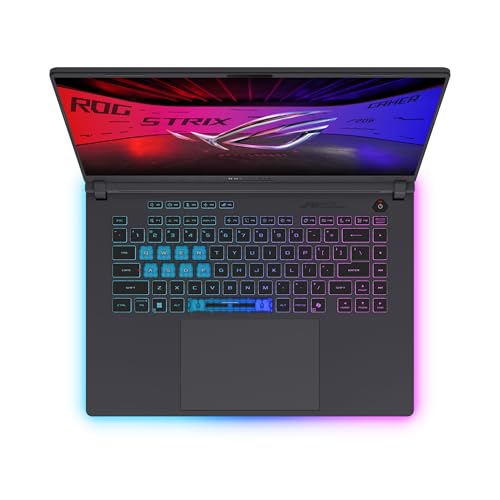
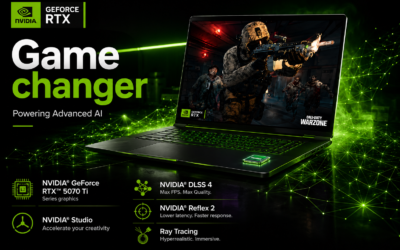
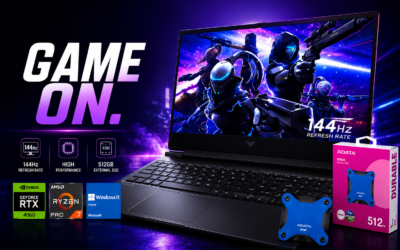
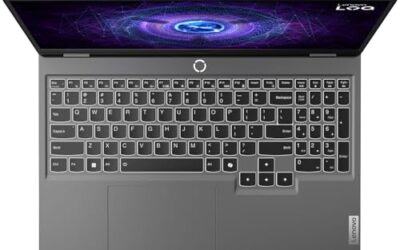
For a concrete laptop example, the ASUS ROG Strix G16 (G615JMR-AS74) combines the RTX 5060 Laptop GPU with a 16-inch, 165 Hz display, 16 GB of RAM, and a 1 TB SSD. The refresh rate describes the screen’s capability. Actual frame rates still depend on what you’re playing. ASUS configuration specifications.

Pros
- RTX 5060 with DLSS 4 frame generation lifts native FHD+ performance in demanding titles.
- Core i7-14650HX 16-core HX chip avoids CPU bottlenecks common with lower H-class parts.
- 165Hz 3ms FHD+ panel with ACR film reduces glare in bright rooms.
- End-to-end vapor chamber plus liquid metal on chipset targets sustained thermal headroom.
- WiFi 7 and PCIe Gen 4 SD future-proof network and storage at this tier.
Cons
- Limited owner feedback at time of writing makes long-term reliability hard to judge.
- 16GB DDR5-5600 is baseline for modern titles and may need upgrade for heavier multitasking.
- FHD+ 1920x1200 panel caps visual fidelity when the RTX 5060 could push 1440p upscaled.
The ROG Strix G16 (2025), model G615JMR-AS74, is a mid-range 16-inch gaming laptop built around an NVIDIA RTX 5060 Laptop GPU and Intel Core i7-14650HX. It targets buyers who want current-gen Blackwell features like DLSS 4 for FHD+ high-refresh gaming without paying flagship prices for x70 or xx80-class silicon.
The defining feature is the RTX 5060 paired with the 165Hz FHD+16:10 panel. On a native 1920x1200 workload, RTX 5060-class mobile GPUs typically handle high settings in modern AA titles with DLS 4 frame generation carying the heavierray-traced scenes. ASUS does not publish TGP in the source data, which materially affects real-world FPS.
Trade-offs at this tier are honest. 16GB of DDR5-5600 is now the flor for modern gaming, not the ceiling, and heavy Chrome plus Discord plus game workloads can pressure it. The FHD+ panel is a deliberate cost lever, and ACR film helps with glare but does not replace a QHD option. Vapor chamber cooling and liquid metal on the chipset suggest ASUS is targeting sustained clocks under load.
Buy this if you want a16-inch Blackwellera gaming laptop for high-refresh FHD+ play with headroom for streaming or light creator work. Skip this if you need QHD or Mini-LED, more than 16GB RAM out of the box, or a proven track record from established owner reviews.
GPU and gaming target: The RTX 5060 Laptop GPU uses NVIDIA Blackwell with DLSS 4 and Max-Q technologies. At the native 1920x1200 FHD+ resolution of the built-in panel, this class of mobile GPU typically sustains high settings in current AA titles, with frame generation helping ray-traced workloads. Source does not specify TGP.
CPU and multitasking: The Core i7-14650HX is a Raptor Lake HX-class 16-core hybrid part built for laptops that need desktop-adjacent CPU throughput. It pairs well with RTX 5060 for streaming via OBS NVENC, light Blender, and DaVinci Resolve timelines without becoming a bottleneck in CPU-heavy esports titles.
Memory, storage, and connectivity: 16GB of DDR5-5600 handles current games at1080p or 1200p, though heavy multitaskers will want to plan for a SODIMM upgrade if suported. The 1TB PCIe Gen 4 NVMe SSD holds a handful of modern AA installs. WiFi 7 covers current-gen wireless standards.
Thermals and battery: ROG Intelligent Cooling uses an end-to-end vapor chamber, tri-fan layout, and Conductonaut Extreme liquid metal on the chipset. That configuration is aimed at holding bost clocks under sustained load in a 16-inch chassis. Battery life, weight, and chassis dimensions are not specified in the source data.
Work, school, and everyday use
For work that moves with you, a laptop can be your only machine. At home, plug in a monitor and use the built-in screen for chat or notes. Before buying a dock, check the laptop’s video outputs and the dock’s supported monitor count, resolutions, and refresh rates. For a Windows setup with two working screens, Windows key + P and Extend give you one workspace spanning both. Microsoft’s multiple-monitor guide.
For work that happens at one desk, start with your heaviest recurring job. If you’re editing multicamera footage every week, match the CPU, GPU, and memory to your editing app and footage, and allow enough local storage for current projects. A tower makes sense if you expect to add drives as that work grows. For documents and video calls, a midrange setup with a comfortable monitor and a decent webcam can matter more than extra graphics power.
For college or school, check the required apps, operating system, and any rules about bringing a computer to class. Then weigh screen size against what you’ll carry each day. If a program has demanding software you use infrequently, find out whether the department offers lab machines. That can free your laptop budget for a lighter machine and a better fit for the rest of the week. See our student laptop buying guide for more on choosing by workload.
For browsing, bills, and streaming at home, either form can handle the work with suitable specs. The difference is where you sit. A shared family desk benefits from a permanent screen and keyboard. A laptop is easier to move from room to room and put away when the table’s needed for dinner.
A simple way to size either computer is to write down your busiest hour. A video call with a browser, a shared document, and a spreadsheet open gives you a more useful picture than the phrase “office work.” For creative work, check how much storage your active projects, source files, and scratch files occupy together. That can help you choose between buying more internal storage now and keeping finished projects on another drive.
Upgrades and repairs
Consider what you’ll want to change in two or three years. If that’s a graphics card, a tower is usually the better starting point. Before counting on that upgrade, check the case clearance, power supply wattage and connectors, and motherboard support. Some prebuilts use proprietary parts or tight cases, so a large chassis alone tells you little about what will fit.
On a laptop, check the service manual for memory slots, soldered RAM, SSD access, and battery replacement. If the RAM is soldered, order enough for the work you expect it to do over its life. If memory is replaceable, check the supported capacity and the number of free slots before budgeting an upgrade. Our RAM upgrade guide for desktops and laptops walks through those checks.
Compare the cost of a complete setup
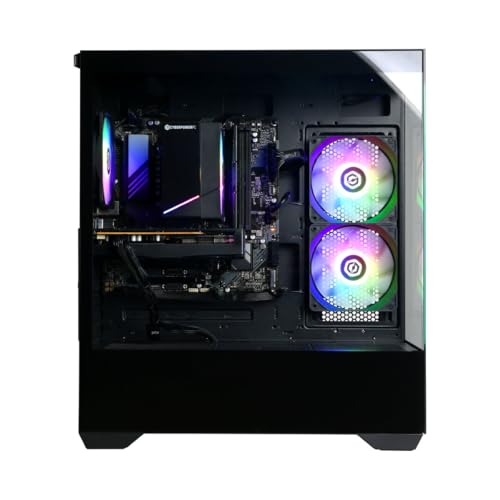
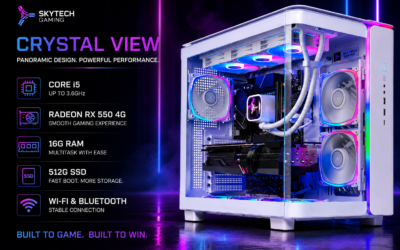
On November 26, 2026, the ASUS laptop above was listed new at $1,493.99 in the U.S. The CyberPowerPC Gamer Xtreme tower (GXiVR8060A47) was listed new at $1,141.99. The tower pairs a desktop RTX 5060 with a Core i5-14400F, 16 GB of RAM, and a 1 TB SSD. These are two real configurations for comparing setup costs, and retailer prices can change. CyberPowerPC’s configuration specifications.
The system prices differ by $352 before tax. If you set aside $180 for a monitor and $60 for any desk accessories you’re missing, the tower setup comes to $1,381.99. If you already own everything, the gap stays at $352. If you’d add a separate monitor to the laptop too, include that on its side of the budget. Use your own prices for gear you actually need. For more tower options, see our prebuilt gaming PCs under $2,000.
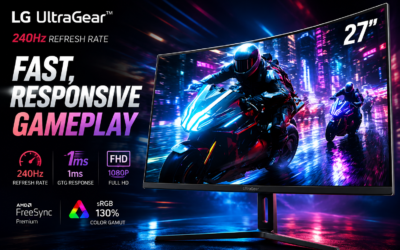
Give the screen a separate line in the budget. A crisp 27-inch monitor can be a meaningful part of a desk setup if you routinely keep two windows side by side. A smaller built-in panel may be a better fit if you work on crowded tables. Price the screen you would actually use in each setting.
Which should you buy?
- One fixed gaming desk. Choose a desktop if you already own a monitor you like or plan to change the GPU later.
- School, travel, or hybrid work. Start with a laptop and choose the weight, display, ports, and battery life around your days away from home.
- Gaming in two homes. Choose a gaming laptop if you want the same installed games and files in both places. Include the charger in what you’ll carry.
- A shared computer at home. Pick a tower for a permanent family workstation, or a laptop if the family needs the table for other things.
Buy for the places you need to use the computer and the hardware you’ll keep. If the PC can stay at one desk for its entire useful life, a tower gives you more options as that setup changes. The CyberPowerPC is one example of what that layout looks like in a prebuilt system.

Pros
- RTX 5060 8GB paired with i5-14400F suits 1080p high-refresh gaming
- DR5 memory and B760 chipset align with current Intel LGA1700 platform
- 1TB PCIe 4.0 NVMe SD gives usable game library capacity from day one
Cons
- Limited owner feedback at time of writing, buyer signal is thin
- 8GB VRAM tightens headroom for 1440p ultra textures and ray tracing loads
- PSU wattage, cooler type, and case model are not specified in source
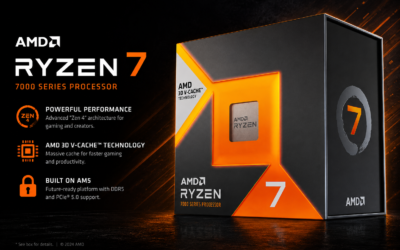
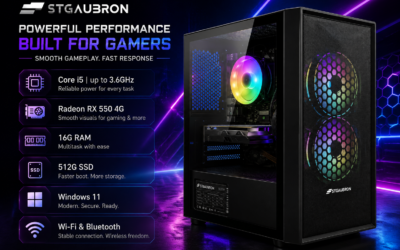
This is a mid-range prebuilt gaming tower built around an Intel Core i5-14400F, an NVIDIA GeForce RTX 5060 8GB, 16GB of DDR5, and a 1TB PCIe 4.0 NVMe SSD on a B760 chipset. The target buyer wants a ready-to-run 1080p high-refresh rig without sourcing parts or tuning BIOS.
The defining pairing here is the RTX 5060 8GB with a 10-core i5-14400F. Cards in this class typically deliver 1080p ultra at high refresh in most modern titles and 1440p with DLSS upscaling enabled. The i5-14400F rarely bottlenecks this GPU tier, leaving frametimes GPU-bound where you want them.
Trade-offs are typical at this tier. 8GB of VRAM limits headroom for 1440p ultra textures and heavy ray tracing, and the source does not specify PSU wattage, cooler class, or case model, all of which drive thermals, transient behavior, and future GPU upgrades. Warranty is one year parts and labor, standard for boutique prebuilts.
Buy this if you want a plug-and-play 1080p high-refresh gaming PC with Windows 11,iFi 6, and peripherals included. Skip this if you plan to game at 1440p ultra with ray tracing, need more than 8GB of VRAM for AI or content work, or want documented PSU and cooling specs before purchase.
GPU class and resolution fit: The RTX 5060 8GB is a mainstream 1080p card that stretches to 1440p with DLSS Quality or Balanced. Esports titles at 1080p should saturate high-refresh panels, while AA titles at 1440p ultra will lean on frame generation to stay smooth.
CPU pairing: The Core i5-14400F runs 10 cores at 2.5GHz base on LGA1700 with a B760 board. That is a balanced match for the RTX 5060, avoiding CPU bottlenecks in GPU-bound scenarios and giving headroom for OBS NVENC streaming alongside gameplay.
Memory and storage: 16GB of DDR5 is the current baseline for new releases, and the 1TB PCIe 4.0 NVMe SSD keps level loads and shader compilation quick. Exact DR5 speed, timings, and SD model are not specified in source.
Display outputs and connectivity: The GPU exposes 1x HDMI and 2x DisplayPort, enough for a triple-monitor setup at typical gaming refresh rates. WiFi 6, Bluetooth 5.3, 2x USB-A 3.2, and 6x USB-A 2.0 cover peripherals, though USB-C on the chassis is not listed.
Frequently asked questions
Can a desktop stay on during a power outage?
Yes, with a suitably rated uninterruptible power supply, or UPS. Size it for the actual power drawn by the tower and the monitor if you need the screen during an outage. Check the manufacturer’s runtime chart for that load. A small UPS may give you enough time to save your work and shut down.
Is an all-in-one desktop a middle ground?
Yes, if you want a tidy stationary setup. An all-in-one houses the computer and display together, leaving fewer pieces on the desk. Check memory and storage access for the specific model. Also consider whether you can keep using the screen when you eventually replace the computer, since that depends on the model’s display inputs.








Write Your Review
No reviews yet. Be the first to share your experience!