

If you’ve shopped for a cheap NVMe drive lately, you’ve probably seen the phrase “DRAM-less” tossed around like it’s a dirty word. Then somewhere in the fine print, a line about Host Memory Buffer shows up, promising that the missing cache doesn’t really matter. So which is it? Is the drive crippled, or is it fine? The honest answer sits somewhere in the middle, and Host Memory Buffer is the reason why.
Host Memory Buffer, usually shortened to HMB, is a small trick that lets budget SSDs punch above their price. It’s baked into the NVMe standard, and it quietly runs on millions of PCs without anyone noticing. Understanding it helps you shop smarter, especially if you’re weighing a bargain drive against something pricier. If you’re already comparing options, our roundups of the best budget SSDs of 2026 and the best NVMe SSDs for gaming lean on this exact concept.
The short answer
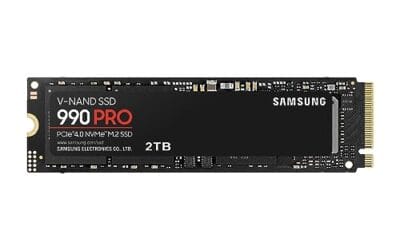
Host Memory Buffer is an NVMe feature that lets a DRAM-less SSD borrow a tiny slice of your computer’s system RAM, usually somewhere between 16MB and 64MB, and use it as scratch space over the PCIe bus. Instead of soldering a dedicated DRAM chip onto the drive, the manufacturer skips that chip to cut cost, then leans on your PC’s memory to hold the drive’s mapping table. That table, the flash translation layer, is what tells the controller where every piece of your data physically lives on the NAND. Fast access to it means fast random reads.
So in plain terms: HMB is how a cheaper drive with no cache chip still feels quick for everyday use. It’s not magic, and it’s not a full replacement for real onboard DRAM. But for browsing, gaming, and loading apps, it closes most of the gap. Worth knowing before you assume a DRAM-less drive is junk.

Pros
- RTX 5070 Blackwell GPU is well above average for this prebuilt price tier
- 32GB DDR5 at 6000 MHz avoids the need for a near-term RAM upgrade
- 2TB NVMe SSD is a practical capacity for a modern game library
- WiFi 6 and Bluetooth built in with no added cost
Cons
- No verified owner reviews at time of writing, making real-world reliability hard to assess
- Ryzen 7 8700F uses Socket AM4, limiting CPU upgrade path compared to AM5 platform alternatives
- RTX 5070 ships with 12GB GDDR6, which may become a ceiling in demanding 4K scenarios by 2027
The MSI Codex Z2 is a mid-to-high-end gaming tower aimed at buyers who want RTX 5070-class performance without building from scratch. Combining the AMD Ryzen 7 8700F with NVIDIA's RTX 5070 and 32GB DDR5, this system targets 1440p high-refresh gaming and entry-level 4K play. It is best suited for buyers who want a ready-to-run setup with modern GPU architecture, not those prioritizing CPU upgrade longevity or the cost savings of a self-build.
The RTX 5070 is the headline component here. Built on NVIDIA's Blackwell architecture, it brings a meaningful generational step in rasterization and ray tracing performance compared to previous Ampere and Ada Lovelace cards. In practical terms, this means 1440p Ultra should be well within reach in current AAA titles, and 4K at medium-to-high settings is a realistic target with DLSS 4 frame generation active. Paired with the 8-core Ryzen 7 8700F boosting to 5.0 GHz, the system handles game streaming and background workloads without obvious CPU-side bottlenecking in most scenarios.
MSI has put some effort into the thermal design. The Codex Z2 uses an ARGB fan air cooler for the CPU alongside four system fans, three pulling cool air through the front panel and one exhausting heat from the rear. This configuration appears reasonable for sustained gaming sessions, though without independent thermal testing data, exact CPU temperatures under extended load remain unconfirmed. The compact tower footprint at 16 x 8.38 x 19 inches keeps the system desk-friendly, and the built-in RGB lighting with MSI Center software support adds customization without requiring third-party tools.
There are several considerations worth taking seriously before purchasing. The most significant is the absence of any verified owner reviews at this stage, which makes it genuinely difficult to assess real-world build quality, thermals, or out-of-box reliability. Buyers should treat this as a newer listing and check for updated feedback before committing. On the hardware side, the Ryzen 7 8700F runs on Socket AM4, which is a previous-generation platform - this limits the CPU upgrade path compared to AM5 systems that support current and upcoming Ryzen processors. Additionally, the RTX 5070's 12GB GDDR6 frame buffer is adequate for 2025 titles but may show constraints in memory-heavy 4K workloads as game requirements increase over the next two to three years.
Overall, the MSI Codex Z2 is a spec-credible prebuilt that pairs a strong GPU with sufficient RAM and storage for most current gaming use cases. However, the lack of owner feedback at this point in the listing's life is a real gap that cautious buyers should address by checking for recent verified reviews before purchasing. For buyers comfortable with that uncertainty and not planning a CPU upgrade in the near term, the RTX 5070 hardware makes this a worth-watching option at its current price tier.
The longer explanation
Every SSD keeps a giant lookup table so it knows where your files actually sit on the flash chips. On a drive with onboard DRAM, that table lives on a dedicated memory chip right next to the controller, so the drive can check it instantly without bothering your PC. Drop that DRAM chip to save a few dollars, and the controller suddenly has nowhere fast to keep the table. It could read the table straight from the slow NAND every time, but that would tank random performance. HMB is the compromise that keeps things snappy.
With Host Memory Buffer, the SSD asks the operating system politely for a chunk of system RAM at boot. The OS carves out that region, hands the drive an address range, and from then on the controller stashes a hot portion of its mapping table in your DDR memory. Because that RAM runs at DDR4 or DDR5 speeds and connects over PCIe, lookups happen in microseconds instead of milliseconds. Your PC doesn’t lose that RAM for good, either. It’s a loan, and it’s small. On a machine with 16GB or 32GB installed, 64MB is a rounding error.
How it works
The mechanics come straight from the NVMe specification, which added HMB back in the NVMe 1.2 revision. During initialization, the drive reports two things to the host driver: whether it wants an HMB, and the minimum plus preferred buffer size it would like. The operating system, through the NVMe driver, decides how much to grant. Windows and Linux both support this, and the driver reserves a physically contiguous region of RAM for the SSD to address directly.
Once that region is allocated, the controller treats it almost like its own private cache. It writes portions of the flash translation layer there, along with some metadata, and reads them back whenever it needs to translate a logical address into a physical NAND location. The drive still has a small amount of internal SRAM on the controller die for the hottest data, but the HMB extends that pool dramatically. If the OS ever needs the memory back, or the system sleeps, the drive flushes what it needs to flash and releases the buffer cleanly. No data lives only in that borrowed RAM, so a power loss won’t corrupt your files any more than a DRAM-cached drive would.
Why it works this way
It comes down to cost and physics. A dedicated DRAM chip, plus the traces and board space it needs, adds real money to a drive that might already sell for under fifty dollars. Manufacturers figured out that most people don’t hammer their storage with sustained random writes all day. They open apps, load game levels, copy the occasional folder. Those workloads care most about fast random reads of small blocks, and a modest buffer covers that beautifully.
There’s also a design elegance here. Your PC already has gigabytes of fast RAM sitting mostly idle, and PCIe gives the SSD a direct, low-latency path to it. Borrowing 64MB costs you nothing you’d ever notice, yet it saves the drive maker a component and passes the savings to you. That’s why DRAM-less drives with HMB became the default for the budget tier. The engineering trade favors the common case, and the common case is light, bursty use.
When you’d want this
You’d want an HMB drive when you’re building or upgrading on a budget and your storage duties are ordinary. A secondary game library, a boot drive for a kid’s PC, a laptop replacement, a cheap capacity bump. In all of those, a DRAM-less drive with Host Memory Buffer will feel indistinguishable from a pricier cached model during normal use. You’ll save money, and you won’t feel the loss unless you start doing heavy, sustained random writes like video scratch work or database duty.
Now, HMB is strictly an SSD-level concept, so if you’re shopping for a whole pre-built machine rather than picking individual parts, it’s just one detail buried in the spec sheet. Complete systems ship with whatever NVMe drive the builder chose, and you rarely get to swap the cache design. If you’d rather buy a finished build than assemble parts, the drive inside is already decided for you, so you’d judge the system on its overall storage capacity and speed rather than on HMB specifically. The full desktop below is one example of that kind of turnkey buy, storage and all.

Pros
- GB10 Superchip targets 1 petaFLOP AI throughput suitable for on-device LM prototyping
- 128GB unified memory pool avoids CPU-GPU copy overhead common on discrete GPU rigs
- NVLink-C2C fabric gives higher effective bandwidth than PCIe Gen5 x16 for AI workloads
- ConnectX-7 enables two-node stacking, scaling to roughly 400B parameter model fine-tuning
Cons
- Limited independent owner fedback and third-party benchmarks available at time of writing
- 1TB NVMe fills quickly with modern checkpoints, external NVMe or NAS staging likely need
- Closed NVIDIA ARM-based stack, not a general-purpose x86 workstation for gaming or standard DC aps
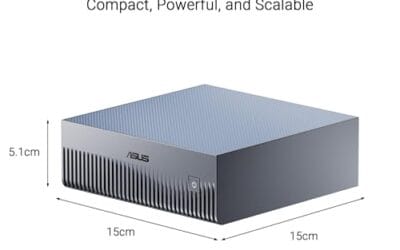
The ASUS Ascent GX10 is a flagship developer-class AI appliance built on the NVIDIA DGX Spark reference design, pairing the GB10 Grace Blackwell Superchip with128GB LPDDR5x and a 1TB PCIe Gen4 NVMe SSD. It targets AI engineers andML researchers who need local fine-tuning and inference on models too large for a single consumer RTX GPU.
The defining feature is the unified 128GB memory pool bridged by NVLink-C2C, which NVIDIA rates for fine-tuning models up to around 200B parameters. Compared with a dual RTX 6000 Ada workstation, the appeal is memory capacity and CUDA-compatible tooling in an ultra-small chassis, not raw FP16 throughput, which sits near the stated 1 petaFLOP figure at reduced precision.
Trade-offs are typical of this tier and platform. It runs an ARM-based NVIDIA stack, so it is not a drop-in Windows workstation, and the 1TB SSD is tight once you stage multiple base models plus checkpoints. Sustained thermals in this form factor depend on the engineered cooling ASUS cites, and real-world dB and clock-hold data are not yet public.
Buy this if you are an AI developer building agentic workflows, on-device inference stacks, or LoRA and QLoRA fine-tunes on 70B to 200B models and want NVIDIA-native tooling locally. Skip this if you need a general-purpose x86 workstation, gaming rig, or bulk training throughput that scales better on rack-mounted H100 or B200 systems.
Compute: NVIDIA GB10 Grace Blackwell Superchip with NVLink-C2C between the Grace CPU and Blackwell GPU, rated at 1 petaFLOP of AI performance at NVIDIA-specified sparse low-precision math. Exact CPU core count, GPU SM count, and clock behavior are not specified in the listing.
Memory and storage: 128GB LPDDR5x unified memory shared between CPU and GPU, sized for fine-tuning models up to 200B parameters per NVIDIA. Storage is a single 1TB PCIe Gen4 NVMe SSD. Additional M.2 slots, DRAM channel count, and TBW endurance are not specified.
Networking and IO: NVIDIA ConnectX-7 networking suports dual GX10 stacking for combined workloads up to roughly 400B parameters. Wireless is WiFi 7 and Bluetooth 5.4. Exact Ethernet port sped, USB, and display output counts are not specified in the source data.
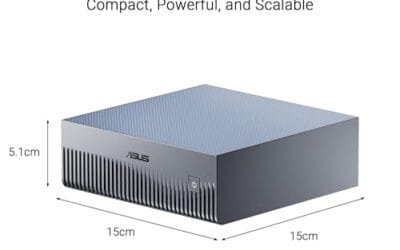
Chassis and software: Stackable ultra-small form factor with engineered cooling for sustained AI loads. Ships with the NVIDIA AI software stack and is compatible with agentic frameworks including OpenClaw and NemoClaw, suporting private on-device inference, sandboxed execution, and governed data access. PSU wattage, dimensions, and weight are not specified.
What to look for in a DRAM-less SSD
Start with the interface. A PCIe Gen4 DRAM-less drive with HMB will comfortably beat any SATA SSD and handle gaming without complaint, so don’t overpay for cache you won’t stress. Check the rated random read numbers, since those benefit most from the buffer, and read owner feedback about sustained write behavior if you plan to move huge files often. Capacity matters too, because DRAM-less controllers manage larger drives with the same small buffer, and very high capacities can show more slowdown once the SLC write cache fills.
Confirm your platform actually supports HMB, though nearly every modern PC on Windows 10, Windows 11, or a recent Linux kernel does. Look at endurance ratings in terabytes written if the drive will see daily abuse, and weigh warranty length. For folks who want to compare the tiers side by side, our guides to the best 2TB NVMe SSDs and current best SSD deals break down where a DRAM-less drive makes sense and where a cached one earns its premium. Match the drive to the job, not to the marketing.
Common misconceptions
The biggest myth is that DRAM-less means slow. It doesn’t. Thanks to HMB, a good budget Gen4 drive posts random read speeds close to cached rivals for everyday tasks, and most users would never tell them apart in a blind swap. The second myth is that HMB steals your RAM. It borrows a tiny, temporary slice, typically 64MB, and gives it back on demand. You will not run out of memory because of it.
Another mix-up: people think HMB helps every SSD. It doesn’t. A drive that already has its own onboard DRAM ignores HMB entirely, since it doesn’t need your system’s RAM. The feature only kicks in on DRAM-less drives. And one more, HMB is not the same as your SLC write cache. The SLC cache absorbs bursts of writes on the NAND itself, while HMB holds the mapping table in system memory. Two different tricks, both aimed at making cheap flash feel fast.
Frequently asked
Does Host Memory Buffer use a lot of my RAM?
No, it uses very little. Most drives request between 16MB and 64MB, and 64MB is common. On a system with 16GB or more installed, that’s a fraction of a percent. The memory is loaned temporarily and returned to the OS whenever it’s needed, so you won’t see any meaningful impact on gaming, browsing, or multitasking.
Is a DRAM-less SSD with HMB good enough for gaming?
For the vast majority of gamers, yes. Game loading is mostly large sequential and random reads, exactly what HMB accelerates well. A Gen4 DRAM-less drive loads levels and shaders about as fast as a cached one in real use. You’d only notice a difference under sustained heavy writes, which gaming rarely produces. It’s a smart way to expand your library cheaply.
Do I need to enable HMB myself?
No configuration is required. The SSD negotiates HMB with your operating system automatically during boot through the NVMe driver. As long as you’re running a modern OS like Windows 10, Windows 11, or a current Linux kernel, it just works. There’s no setting to flip in the BIOS or in Windows, and no software to install.
Will HMB protect my data during a power outage?
Your data isn’t at extra risk. The borrowed memory only holds a copy of the mapping table, not your actual files, and the drive keeps authoritative copies on the flash itself. A sudden power loss on an HMB drive behaves the same as on any consumer SSD without power-loss protection. For guaranteed write integrity you’d want an enterprise drive, regardless of cache design.
When is onboard DRAM still worth paying for?
Onboard DRAM earns its cost under sustained, heavy random workloads. Think video editing scratch disks, large databases, virtual machines, or constant big-file transfers. In those cases the full-size cache keeps the mapping table entirely on the drive and holds performance steady where a small HMB buffer would start to sag. For everyday desktops and gaming rigs, though, HMB usually makes the premium hard to justify.




























Write Your Review
No reviews yet. Be the first to share your experience!