

Both plug into a single USB-C port and sprout a fistful of extra connections, so people use “hub” and “docking station” as if they’re the same thing. They’re not. A USB-C hub is a light, cheap travel accessory that adds a few ports. A docking station is a heavier, powered command center that turns a laptop into a full desktop with multiple monitors, wired networking, and enough power delivery to charge the machine. The price gap can run from $20 to $300-plus, and buying the wrong one means either overpaying or coming up short. Here’s how they actually differ.
We researched what each does, where the money goes, and which fits which desk. If you already know you want the simpler option, our best USB-C hubs for 2026 guide has picks, and for powered multi-device setups there’s the powered USB hub roundup. One transparency note up front: the two product cards in this article are outdoor projectors, which are display devices you might drive from a hub or dock’s video output, not hubs or docks themselves. We’re flagging that plainly rather than pretending they’re docking gear.
Matchup at a glance
A USB-C hub is about portability and simplicity. It’s usually bus-powered, meaning it draws power from your laptop rather than a wall adapter, and it adds common ports: a couple of USB-A, an HDMI, an SD card slot, maybe passthrough charging. It’s the thing you toss in a bag. Cheap, small, and fine for adding a monitor and a mouse on the go. It won’t run a demanding multi-monitor desk, though.
![WiMiUS [Built-in Apps/4K Support] Smart Outdoor Projector with WiFi product image](https://thepcbolt.com/wp-content/uploads/usb-c-hub-vs-docking-station-amazon-gallery-2.jpg)
A docking station is about being your desk’s hub of everything. It’s externally powered by its own adapter, drives multiple displays, delivers enough wattage to charge a laptop, and often adds wired gigabit Ethernet plus a stack of ports. You leave it on the desk and connect with one cable. That external power is the real dividing line: it’s why a dock can run several monitors and charge your laptop while a bus-powered hub can’t. More capability, more cost, less portability.
![WiMiUS [Built-in Apps/4K Support] Smart Outdoor Projector with WiFi product image](https://thepcbolt.com/wp-content/uploads/usb-c-hub-vs-docking-station-amazon-gallery-3.jpg)
Spec sheet showdown
| Feature | USB-C Hub | Docking Station | Why it matters |
|---|---|---|---|
| Power source | Bus-powered (from laptop) | Externally powered (wall adapter) | Decides how much it can drive |
| Displays | Usually one external | Two or more | Multi-monitor desks need a dock |
| Laptop charging | Limited passthrough | Full power delivery | One cable to charge and connect |
| Portability | Pocket-sized, travel-ready | Desk-bound, heavier | Travel versus stationary use |
| Typical price | Low ($20 to $60) | Higher ($120 to $300+) | Match spend to your needs |
USB-C hub strengths
The hub wins on price and portability, full stop. It’s cheap, it’s tiny, and it needs no wall power, so it’s the natural travel companion. Plug it into a laptop at a coffee shop or a hotel and you’ve instantly got HDMI for a TV, a USB-A port for a mouse, and card reading for a camera. For anyone who works on the move or just wants to add a port or two without clutter, a hub is the sensible, low-cost answer.
It’s also dead simple. No drivers to fuss with in most cases, no separate power brick to carry, nothing to configure. You accept its limits, one external display, modest power passthrough, in exchange for a device that fits in a jacket pocket. If your needs are light, that simplicity is a feature, not a compromise. Most people who think they need a dock actually just need a good hub. Be honest about your real setup before you overspend.
Docking station strengths
The docking station is for the permanent desk. Its external power supply is what makes the magic happen: it can drive two or more monitors, deliver enough wattage to charge your laptop through the same cable, and add wired gigabit Ethernet for a stable connection that Wi-Fi can’t match. You walk in, connect one cable, and your laptop becomes a full workstation with all your peripherals live. That’s the whole appeal.
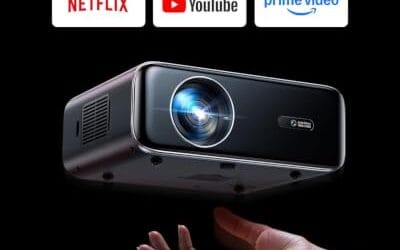
It’s the right call for anyone running a serious multi-monitor setup or a home office they use daily. If one of those external displays is a projector for presentations or media, the dock’s video output is what feeds it. To be transparent, the two product cards here are outdoor projectors, not docks, included as examples of the kind of display a dock might drive. The WiMiUS P62 Pro is a $299.99 (4.2-rated) 4K-support outdoor projector with WiFi, Bluetooth, and Dolby audio, the sort of big-screen output you’d connect downstream of a docking station’s HDMI. It’s an adjacent device, not the dock itself.

Pros
- Native 1080P with HDR10 and 4K signal aceptance covers Prime Video and YouTube playback
- 600ANSI brightness rating outperforms typical sub-300ANSI outdoor projectors in mixed ambient light
- Dual HDMI with ARC and CEC lets a soundbar and consolexist without swapping cables
Cons
- Limited owner fedback at time of writing makes long-term reliability hard to verify
- 4K content is downscaled to native 1080P, so true 4K sharpness is not delivered
- Dual 10W speakers and Dolby decode are adequate outdoors but weaker than a dedicated soundbar
The WiMiUS P62 Pro is a mid-range smart outdoor projector built around a native 1080P panel with 4K signal acceptance, HDR10, and a claimed 600ANSI brightness. It targets backyard movie viewers and casual living-room users who want built-in Prime Video and YouTube without ading a Fire TV or Chromecast dongle.
The defining feature is the smart OS with an app store plus WiFi 6, AirPlay, and Miracast. For1080P streaming outdoors after dusk, 600ANSI is workable on a 80 to 120 inch scren based on category norms, though slightly lit patios will push it toward the High picture mode. Auto focus and auto keystone handle quick tripod repositioning.
Trade-offs are typical at this tier. 4K labeled content is downscaled to 1080P, so buyers expecting true UHD detail will be disappointed. The dual 10W speakers with Dolby decode are fine for casual viewing but benefit from HDMI ARC to a soundbar or Bluetooth 5.2 headphones. Owner feedback is limited at time of writing, so long-term panel and lamp behavior is unverified.
Buy this if you want a plug-and-play outdor projector with native streaming aps, WiFi 6, and dual HDMI for a console plus soundbar. Skip this if you need genuine 4K resolution, cinema-grade contrast, or a documented track record from established owner reviews.
Panel and Image: Native 1080P resolution with 4K signal support and HDR10 decoding. Rated 600ANSI lumens with High and Standard picture modes. Zoom range is 50 to 100 percent, and auto focus plus auto keystone with obstacle avoidance and screen alignment handle setup on tripod,ceiling, or wall.
Connectivity: Two HDMI inputs, with HDMI 1 suporting CEC and HDMI 2 supporting ARC and CEC, two USB ports, a 3.5mm audio output, and top control buttons. Wireless is WiFi 6 with AirPlay for iOS and Miracast for Android and Windows, plus two-way Bluetooth 5.2 for speakers or headphones.
Audio: Dual 10W Hi-Fi speakers with Dolby audio decode and AI sound balancing. Two-way Bluetooth 5.2 allows the unit to act as a standalone speaker or output to external Bluetooth audio. HDMI ARC provides a clean path to soundbars or AV receivers.
Mounting and Support: Four M5 screw holes on the base plus a center M6 thread for tripods and ceiling mounts. Coverage includes a 2-year money-back guarantee, 3-year repair coverage, and lifetime technical support per the listing. Carrying case is not included.
Real-world scenarios
The traveling laptop user
You hop between cafes, client offices, and home. A USB-C hub is your pick: pocketable, no power brick, enough ports to connect a display and a mouse anywhere. A docking station would be dead weight you’d never carry. For mobile work, portability beats capability every time, and a good hub covers the essentials without the bulk or the cost.
The home-office desk
You dock a laptop at the same desk every day with two monitors, a keyboard, a mouse, and wired internet. This is docking-station territory. One cable connects everything and charges the laptop, and the external power drives both displays without strain. A hub simply can’t run this setup reliably, so the dock’s higher price earns its keep here through daily convenience.
The presentation or media room
You drive a big screen or projector for meetings or movies. A dock’s HDMI output feeds an external display cleanly, and if that display is a projector like the ONOAYO ONO5Pro at $493.99 (4.2 rating), a 4K WiFi-and-Bluetooth outdoor projector with AI auto focus and 60W Dolby audio, the dock is what routes your laptop’s signal to it. The projector is the downstream device; the dock or hub is the connection point. Again, transparently, these are projectors, not docking hardware.

Pros
- Built-in licensed streaming apps and Chromecast cut the need for a separate HDMI streaming device
- Dual 60W Dolby-tuned drivers fill small to medium rooms without external speakers or a soundbar
- Auto focus, keystone, and obstacle avoidance simplify quick setup on uneven wals or outdoor surfaces
Cons
- Limited verified owner fedback available at time of writing, so long-term reliability remains unproven
- Vendor-cited 3500 brightness figure lacks an ANSI lumen disclosure, typical of LED projectors at this tier
- Native panel resolution not specified in source, likely a 1080p panel accepting a 4K input signal
The ONOAYO ONO5Pro 2.0 is a smart LED home projector positioned in the budget to lower mid-range 4K-input segment, bundling Smart TV OS 2.0, WiFi 6, HDMI 2.1, and dual 60W speakers. It targets casual buyers who want a plug and play movie and streaming setup for bedrooms, living rooms, or occasional backyard screnings.
The defining pitch is the integrated audio, with dual 60W Dolby-tuned drivers claimed to cover 540 square feet. In practice, LED projectors at this price typically deliver 200 to 400 ANSI lumens regardless of marketing figures like 3500, so plan for a dark room and a screen size around 80 to 100 inches for the sharpest image.
Native resolution is not stated in the source data, which is common for units marketed as 4K support rather than native 4K. Expect a 1080p or lower panel accepting a 4K signal. The 18ms input latency is vendor-claimed and applies only inside game mode, not across general viewing modes or upscaling paths.
Buy this if you want an all in one streaming projector for casual movie nights and light PS5 or Xbox gaming in a controled-light room. Skip it if you need calibrated color, verified ANSI brightness for daylight viewing, or a true native 4K panel for critical film watching.
Image and Resolution: Accepts 4K input with vendor claims of 98% NTSC coverage and 1.07 billion colors via an AI Image Engine. Native panel resolution is not specified, so treat this as a 4K-compatible LED projector rather than a native 4K unit. The 3500 brightness figure is not stated in ANSI lumens.
Audio System: Dual 60W speakers with Dolby Audio tuning cover a manufacturer-cited 540 square feet, adequate for typical bedroom or living-room setups. Driver size and bass extension are not specified, so external subwoofers may still be preferred for action-heavy content. Audio outputports are not listed in source.
Smart Platform and Connectivity: Runs Smart TV OS 2.0 with licensed apps for YouTube, Prime Video, and Disney+, plus WiFi 6, a Bluetooth remote, HDMI 2.1, and built-in Chromecast. CEC support allows single-remote control across connected devices. Exact HDMI and USB port counts and wattage draw are not specified.
Setup and Calibration: VisionIQ handles auto focus, keystone correction, obstacle avoidance, screen fit, and orientation detection, with a claimed 3-second alignment. Dynamic zoom scales the image between 50 and 100 percent without moving the chassis. Throw ratio, native throw distance, and mounting thread specifications are not stated in source.
The occasional second-screen user
You mostly work on the laptop but sometimes want one extra monitor at home. A USB-C hub with HDMI handles this for far less than a dock. You don’t need multi-display power or gigabit Ethernet for an occasional second screen. Buy the hub, save the money, and only step up to a dock if your setup grows into a permanent multi-monitor workstation.
Pricing and availability
USB-C hubs run roughly $20 to $60 and are everywhere; you’ll never struggle to find one. Docking stations span about $120 to $300-plus depending on display support, power delivery wattage, and port count, with Thunderbolt models sitting at the top. Both categories are widely stocked. The projectors referenced here, at $299.99 and $493.99, are priced as display devices, not as connectivity gear, so treat those numbers as examples of downstream screen cost rather than hub-versus-dock pricing. For actual connectivity picks, our powered hub for home office guide lists options by desk type.
Which to buy
Buy a USB-C hub if you travel, want to add a port or two cheaply, or only occasionally use a second screen. It’s portable, affordable, and covers the majority of casual needs without a power brick or setup hassle. For most people who think they need a dock, a solid hub is honestly the smarter, cheaper choice. Don’t overbuy for a use case you don’t actually have.
Buy a docking station if you run a fixed desk with two or more monitors, want one-cable charging and connection, or need wired gigabit Ethernet daily. The external power is what unlocks that capability, and for a real home office it’s worth the higher price. Decide by asking one question: is this a travel accessory or a permanent desk? That answer, not the port count, tells you which to buy.
Common questions
Can a USB-C hub charge my laptop?
Some hubs offer passthrough charging, but at limited wattage since they’re bus-powered. It’s enough to trickle-charge or slow the drain, not always enough for heavy loads. A docking station with its own power adapter delivers full power delivery to charge your laptop properly through one cable. If reliable charging matters, that external power is what you want, which points toward a dock.
Do I need a docking station for two monitors?
Usually yes. Running two or more external displays reliably takes the external power and video handling a docking station provides. A bus-powered hub typically drives just one external monitor. If a dual-monitor desk is your goal, a dock is the dependable choice. For a single extra screen, a hub with HDMI is cheaper and perfectly sufficient.
Is a hub or dock better for connecting a projector?
Either can output video to a projector through HDMI; the projector is the downstream display. A hub works for occasional presentations, while a dock suits a permanent setup that also drives other monitors and charges your laptop. The projector itself, like the models referenced here, connects to whichever you choose. Pick based on your overall desk needs, not the projector alone.
Why are docking stations so much more expensive?
Docks include an external power supply, multi-display controllers, high-wattage power delivery, often gigabit Ethernet, and more ports, all of which cost more than a simple bus-powered hub. You’re paying for the ability to run a full workstation from one cable. If you don’t need that capability, a hub delivers the basics for far less, which is why matching the device to your use matters.
Will any USB-C hub work with my laptop?
Most do, but check that your laptop’s USB-C port supports video output (DisplayPort Alt Mode) if you want to drive an external display, since not all ports do. Also confirm power-delivery support if you want passthrough charging. Compatibility is generally good, but a quick check of your laptop’s port capabilities before buying saves disappointment when you plug in a monitor.

































Write Your Review
No reviews yet. Be the first to share your experience!