

Walk down any home-networking aisle and two names keep surfacing: TP-Link and ASUS. Between them they account for a huge slice of the consumer router market, and shoppers routinely bounce between a $70 TP-Link and a $250 ASUS wondering what that extra $180 actually buys. It’s a fair question. Both brands sell Wi-Fi 6 and Wi-Fi 7 gear, both push mesh systems, and both claim gamer-grade latency. If you’re already deep in router research, you’ve seen the overlap. This breakdown sorts the marketing from the hardware, tier by tier, so you can match the spend to your actual home.
Short version? TP-Link tends to win on raw price-per-feature, while ASUS leans on firmware depth and long-term software support. But the gap narrows at the budget end, which is where most people shop. For a wider field of options across price points, our budget router guide covers the runners-up.
Matchup at a glance
TP-Link’s pitch is volume and value. The Archer and Deco lines blanket every price bracket from $40 travel units to $600 Wi-Fi 7 mesh kits, and the company rarely charges a premium for extra antennas or a faster chipset. You get a lot of hardware for the money. The tradeoff shows up in firmware, which is functional but shallow, and in a support timeline that can taper off a year or two after launch.
ASUS plays the opposite hand. Its routers usually cost more at every tier, but the AsusWRT firmware is genuinely deep, with granular QoS, built-in AiProtection security powered by Trend Micro, and the free AiMesh feature that lets you bolt old ASUS routers together into a mesh. Owner reports show ASUS units getting firmware updates years after release. You pay upfront, and the payoff is longevity. That’s the core split, and everything below fills in the detail.

Spec sheet showdown
| Spec | TP-Link budget (Archer AX55) | TP-Link mesh (Deco XE75) | ASUS budget (RT-AX57) | ASUS premium (RT-AX88U Pro) |
|---|---|---|---|---|
| Wi-Fi standard | Wi-Fi 6 | Wi-Fi 6E tri-band | Wi-Fi 6 | Wi-Fi 6 |
| Typical street price | ~$80 | ~$200 (2-pack) | ~$90 | ~$250 |
| Firmware depth | Basic | Basic mesh app | Full AsusWRT | Full AsusWRT + AiMesh |
| Bundled security | HomeShield (paywall tiers) | HomeShield | AiProtection (free lifetime) | AiProtection (free lifetime) |
| Best for | Apartments, tight budgets | Whole-home coverage | Value plus firmware | Power users, heavy loads |
The numbers make the pattern obvious. Dollar for dollar, TP-Link’s mesh coverage is hard to match, and its budget Archer undercuts the equivalent ASUS by a few bucks. But look at the security column. ASUS bundles AiProtection at no ongoing cost, while TP-Link gates its better HomeShield features behind a subscription. Over three years, that recurring fee erodes TP-Link’s price lead.
Firmware depth deserves a second look too, because it’s the line item shoppers underweight most. On paper, both budget units list Wi-Fi 6, dual-band radios, and gigabit ports, so a spec sheet alone makes them look interchangeable. The difference shows up six months in. AsusWRT lets you set per-device bandwidth caps, schedule downtime, and route specific traffic through a VPN, all from one interface. TP-Link’s basic firmware handles the essentials and little more. If you never touch advanced settings, that gap is invisible and TP-Link’s price wins. If you tinker, it’s the whole reason to pay up.
TP-Link strengths
TP-Link’s biggest asset is reach across the catalog. Want a $45 range extender, a $130 Wi-Fi 6 router, or a $500 Wi-Fi 7 Deco mesh? It’s all one ecosystem, and the Deco app makes stitching nodes together almost foolproof. First-time buyers love that. Setup takes minutes, the app walks you through node placement, and you don’t need to understand subnets to get whole-home coverage. For renters and first PCs, that simplicity carries real weight.
The value math is the other draw. A Deco XE75 two-pack around $200 blankets roughly 5,500 square feet with tri-band Wi-Fi 6E, and matching that footprint with ASUS gear usually costs more. TP-Link also ships hardware fast to new standards, often beating ASUS to affordable Wi-Fi 7. The catch, and it’s worth naming, is depth. Advanced users hit the ceiling of TP-Link’s firmware quickly, and the HomeShield paywall stings once you realize parental controls and threat protection aren’t fully free.
ASUS strengths
ASUS wins on software and staying power. AsusWRT gives you adaptive QoS that actually prioritizes game and video traffic, a proper VPN client and server built in, and AiMesh, which turns spare ASUS routers into mesh nodes without buying a matched kit. That flexibility saves money later. Owner reports repeatedly praise the firmware update cadence, with models getting security patches long after the box left shelves. If you keep hardware for five or six years, that support pays off.
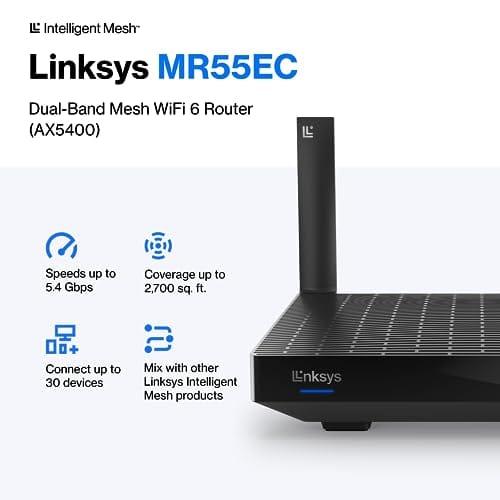
The gaming-focused ROG and TUF lines add features enthusiasts chase, like Mobile Game Mode and dedicated gaming ports. They cost more, no argument, but the AiProtection suite is free for the life of the device, which quietly closes the price gap versus TP-Link’s subscription model. If neither brand’s mesh quite fits and you want a well-supported middle option, the Linksys Hydra Pro 6 is worth a look. It’s a Wi-Fi 6 mesh router near $199.99 with a 4.4 rating that covers about 2,700 square feet and handles 30-plus devices, landing right between the budget and premium tiers.

Pros
- AX5400 class dual-band throughput up to 574 plus 4804 Mbps on 5 GHz
- Six spatial streams with OFDMA reduce congestion for 30+ device homes
- Intelligent Mesh compatibility allows scaling coverage beyond the 2,700 sq ft rating
Cons
- Limited owner feedback at time of writing, so real-world reliability data is thin
- Dual-band only, no dedicated 6 GHz or wireless backhaul band at this tier
- Detailed specifications, WAN port sped, and waranty not specified in source listing
The Linksys Hydra Pro 6 (MR5500-AMZ) is a mid-range dual-band WiFi 6 mesh router aimed at households upgrading from an older AC1900 or extender-based setup. Linksys rates it for 2,700 sq ft and 30 plus devices, targeting medium apartments, condos, and small two-story homes with mixed smart home and streaming traffic.
The defining feature is six-stream AX5400 class WiFi 6 with quoted rates of 574 Mbps on 2.4 GHz and 4804 Mbps on 5 GHz. OFDMA and MU-MIMO help when many low-bandwidth clients share airtime, which is where WiFi 5 routers typically stall. Real-world 5 GHz throughput at range appears to land in the mid-hundreds of Mbps based on category norms.
Trade-offs are typical at this tier. It is dual-band, so there is no dedicated 6 GHz radio and no separate backhaul channel when you add mesh nodes, meaning throughput can halve on satellite hops. Linksys does not specify WAN port speed, USB, or processor details in the listing, so multi-gig ISP users should verify before buying.
Buy this if you want a single WiFi 6 router that can grow into a Linksys Intelligent Mesh system for a 2,000 to 3,000 sq ft home with 30 plus clients. Skip this if you need WiFi 6E, 2.5 GbE WAN, or a dedicated backhaul band for a large multi-story house.
Wireless class: AX5400 class dual-band WiFi 6 with quoted PHY rates of 574 Mbps on the 2.4 GHz band and 4804 Mbps on the 5 GHz band, totaling roughly 5378 Mbps aggregate across six spatial streams. No 6 GHz radio is listed, so WiFi 6E clients fall back to 5 GHz.
Coverage and capacity: Linksys rates the MR5500 for 2,700 sq ft and 30 plus simultaneous devices. OFDMA, MU-MIMO, and 1024-QAM are standard at this WiFi 6 tier and help maintain throughput as client count scales, though actual coverage depends heavily on wall material and node placement.
Mesh behavior: Intelligent Mesh lets you pair the MR5500 with other Linksys nodes to extend coverage. Because it is dual-band, backhaul shares the 5 GHz client band, so expect throughput to roughly halve one hop from the root node. A wired Ethernet backhaul between nodes avoids this penalty.
Not specified: WAN and LAN port speeds, USB ports, processor and RAM, warranty length, and physical dimensions are not disclosed in the source listing. Buyers pairing this with multi-gig fber or DOCSIS 3.1 plans above 1 Gbps should confirm port specs before purchase.
Real-world scenarios
Small apartment, tight budget
In a one-bedroom or studio, coverage isn’t your problem, so the firmware gap barely matters. A budget TP-Link Archer around $80 does the job, and the money you save can go toward a better switch or a Wi-Fi 7 upgrade later. Our apartment router picks lean the same way for exactly this reason.
Large multi-story home
Once walls and floors get involved, mesh is the answer, and this is where the brands feel closest. TP-Link’s Deco kits offer the cheapest square-foot coverage. ASUS counters with AiMesh flexibility if you already own compatible units. Buy the ecosystem you can grow into.
Competitive gaming rig
For low-latency play, ASUS pulls ahead. Its adaptive QoS and gaming ports shave jitter under load, which matters when a household is streaming while you’re in a ranked match. TP-Link’s gaming routers work, but the tuning options are thinner.
Smart home with 40-plus devices
Dense IoT setups reward strong device management and steady updates. ASUS’s free AiProtection scans traffic and quarantines compromised gadgets, a genuine perk when cheap smart plugs are involved. TP-Link handles the load fine, though the best controls sit behind HomeShield’s paid tiers.
Pricing and availability
Both brands are everywhere, from Amazon to big-box shelves, so stock is rarely an issue. TP-Link almost always holds the lower sticker at a given spec, and its sales run frequently. ASUS discounts less often, but its premium units hold resale value and get supported longer, which softens the higher entry price. Factor the HomeShield subscription into any TP-Link math if you want full parental controls or threat protection, because that recurring cost is easy to overlook at checkout.
There’s also a geopolitical wrinkle worth a mention. TP-Link has faced scrutiny in the US over its ownership and security posture, and while nothing has changed for buyers at the shelf, some households prefer to sidestep the question entirely. ASUS, a Taiwanese company, doesn’t carry the same headlines. It’s not a hardware spec, but for buyers who care about vendor risk, it nudges the decision. For most people the choice still comes down to budget versus firmware, not headlines.
Which to buy
Buy TP-Link if you want the most coverage per dollar today and you’re happy with app-level simplicity. Its budget and mesh gear is the value benchmark, and for most apartments and average homes it’s plenty. If you want to compare specific value picks, the large-home budget guide pairs well with a Deco kit.
Buy ASUS if you plan to keep the router for years, run a VPN, or want deep traffic control and free lifetime security. The upfront premium buys firmware you won’t outgrow. One small extra worth grabbing regardless of brand: your router and the PC beside it both pull dust into their vents, and a cheap magnetic filter keeps airflow clean. The MoKo 400x300mm 2-pack runs about $12.99 with a 4.9 rating, and its trimmable PVC panels stick to any grille to cut the dust that quietly bakes networking and PC gear.

Pros
- Large 400x300mm sheets cover full-tower top or side panels after trimming.
- Magnetic strip and adhesive combo works on any ferrous steel case panel.
- 1mm mesh openings pass more air than tight foam filters at similar coverage.
- Two-pack plus eight strips gives enough material for multiple vents in one build.
Cons
- Limited owner feedback at time of writing, real-world durability is unverified.
- Requires ferrous steel panels, will not stick to aluminum or tempered glass cases.
- PVC and 3M adhesive strips can lose grip over time in warm, high-airflow builds.
This is a budget DIY dust filter kit, not a pre-cut case-specific filter. The package includes two 400x300mm PVC mesh sheets with a 1mm hole pattern plus eight 400mm magnetic frame strips. It targets builders with non-standard vents, modded cases, HTPC chassis, or console dust covers who want to fabricate their own filters.
The defining feature is the trim-to-fit format. You measure the vent, cut the PVC sheet with scissors, then frame the edges using the adhesive-backed magnetic strips so the assembly clamps to steel panels. The 1mm aperture is coarser than typical foam filters, which favors airflow over fine-dust capture, a reasonable trade for intake or exhaust with strong static pressure fans.
Trade-offs are typical at this tier. PVC is not as tear-resistant as nylon or stainless mesh, and 3M adhesive can soften near warm PSU or GPU exhaust zones. The magnetic attachment only works on ferrous steel, so tempered glass side panels or aluminum shells need alternative mounting. With no verified owner data yet, longevity and mesh consistency are unproven.
Buy this if you need to filter oddly shaped vents or console intakes and are comfortable cutting and framing your own mesh. Skip this if your case already ships with pre-fit magnetic filters, or if the panels are aluminum or glass where the magnets will not hold.
Sheet dimensions: Each sheet measures 400x300mm (15.75 x 11.81 inches) with a stated thickness of 0.01 inches. Two sheets ship per pack, enough surface area to cover a full-tower top vent plus a PSU shroud intake, or several smaller vents across a mid-tower build.
Mesh and material: PVC construction with a 1mm hole pattern. The 1mm aperture is coarser than fine foam or stainless woven filters, which prioritizes airflow over sub-micron dust capture. Expect it to catch pet hair, lint, and coarse household dust rather than fine particulates.
Mounting hardware: Eight 400mm magnetic strips are included, framed with 3M adhesive backing. Peel-and-stick application to the trimmed PVC edge lets the assembly clamp to any ferrous steel case panel. No screws or drilling needed, and the filter lifts off for shake-out or rinse cleaning.
Compatibility notes: Total kit weight is around 0.5 pounds. Magnetic mounting requires steel panels, it will not attach to aluminum shells, tempered glass, or plastic vents without a separate ferrous shim. Best suited to standard steel PC cases, older server chassis, HTPC builds, and console dust covers.
Common questions
Is ASUS really worth the extra money over TP-Link?
It depends on how long you keep hardware and how much you tinker. If you replace routers every couple of years and just want Wi-Fi that works, TP-Link’s value is tough to argue with. If you keep gear for five-plus years and want free lifetime security plus deep firmware, ASUS earns the premium.
Do TP-Link and ASUS routers work together in one mesh?
Not natively. TP-Link’s OneMesh and ASUS’s AiMesh are separate systems that only bond same-brand units. You can run a TP-Link router with an ASUS access point on the same network, but they won’t share a single mesh backbone. Pick one ecosystem for mesh.
Which brand is better for gaming?
ASUS, generally. Its adaptive QoS and ROG gaming features give you finer control over latency and traffic priority. TP-Link’s gaming routers are capable and cheaper, but enthusiasts who want to tune every setting usually end up happier on AsusWRT.
Does the HomeShield subscription really matter?
If you want robust parental controls, usage reports, and active threat protection, yes. TP-Link’s free HomeShield tier is basic, and the useful features sit behind a monthly or yearly fee. ASUS bundles comparable protection free for the device’s life, so weigh that recurring cost before you call TP-Link the cheaper option.
Are these routers hard to set up?
Neither is difficult. TP-Link’s Deco and Tether apps are famously beginner-friendly, walking you through node placement step by step. ASUS’s app is nearly as smooth now, though its web interface exposes far more settings once you’re ready to dig in. Both get you online in under fifteen minutes.


































Write Your Review
No reviews yet. Be the first to share your experience!