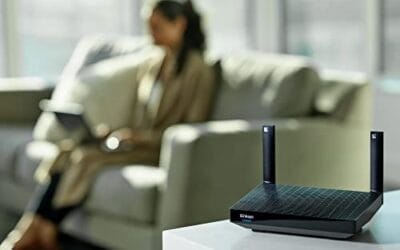
Dead zones in the back bedroom. Buffering wheels on the porch. WiFi that drops the second you step into the garage. Range issues are the most common home network complaint, and the fix isn’t always “buy a bigger router.” Sometimes it’s free. Sometimes it costs $20. And sometimes it’s a $300 mesh kit, but only after you’ve ruled out the simpler stuff. Here’s the order to work through it.
What you’ll need
A phone with a free WiFi analyzer app (NetSpot for iOS and Android, or WiFi Analyzer for Android only). Your router’s admin login (usually printed on a sticker underneath). Maybe an Ethernet cable for steps that need a wired backhaul. Patience for an afternoon of moving hardware around and re-measuring.
Step 1: Reposition the router first
Most routers live wherever the ISP installer dropped the modem, which is usually a corner of the basement or a closet behind the TV. Both are terrible spots. WiFi radiates outward like an invisible balloon, and corners cut that balloon in half. Closets block it further.
Move the router to a central spot in your home, elevated (on a shelf, not on the floor), and away from metal objects, fish tanks, microwave ovens, and brick walls. Run a longer Ethernet cable from your modem if needed; flat cables tuck under rugs and along baseboards without looking ugly. After moving, walk the dead zones with your analyzer app and compare signal strength to before. A 10 to 15 dB improvement isn’t unusual just from relocation.
Step 2: Swap channels and split bands
If you live in an apartment or a dense neighborhood, your router’s likely fighting 20 other routers on the same channel. Open the WiFi analyzer and look at the channel graph. Pick a 2.4GHz channel (1, 6, or 11 are the only non-overlapping ones) that’s least crowded. For 5GHz, the DFS channels (52 through 144) are usually empty because cheap routers avoid them.
While you’re in the router admin, give the 2.4GHz and 5GHz bands different SSID names instead of letting the router “smart steer” between them. Smart steering sounds clever and works badly in practice. Naming them separately (something like “MyWiFi” and “MyWiFi-5G”) lets you manually connect close-range devices to 5GHz (faster, shorter range) and distant devices to 2.4GHz (slower, longer range). Total control beats automatic guessing.
Step 3: Update router firmware
Manufacturers ship range and stability fixes via firmware updates that 80 percent of users never install. Log into your router admin (usually 192.168.0.1 or 192.168.1.1), find the firmware section, and apply any pending update. Reboot. Re-run your dead zone walk. If your router’s older than five years and the manufacturer stopped pushing updates, that’s a hint the hardware itself needs replacing rather than supplementing.
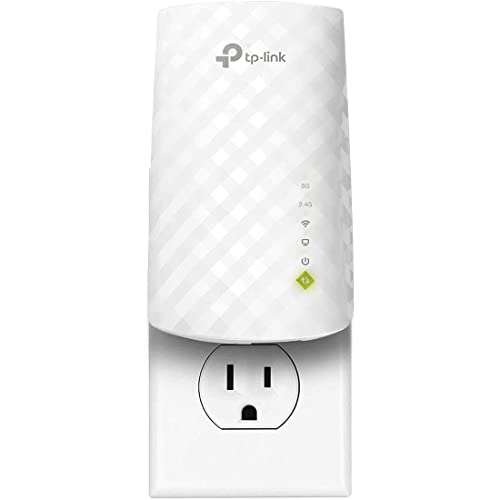
Pros
- Dual band AC750 class avoids the 2.4GHz-only bottleneck common on N300 extenders
- OneMesh compatibility removes SID switching when paired with suported TP-Link routers
- Wall-plug form factor keeps deployment simple with no external power brick
Cons
- Limited owner feedback at time of writing, tier confidence is low
- Combined 733Mbps ceiling caps 4K streaming headroom versus AC1200or WiFi 6 extenders
- Single10/100 Ethernet port only, no gigabit passthrough for wired clients
The TP-Link RE220 is an entry-level dual band WiFi range extender aimed at users patching dead zones in apartments, condos, or small single-story homes. It advertises up to 1200 sq ft of extended coverage and support for 30 client devices, positioning it below AC1200 and WiFi 6 extender tiers.
The defining spec is dual band operation at 300Mbps on 2.4GHz and 433Mbps on 5GHz, which TP-Link markets as up to 44% more bandwidth than single band N300 units. In practice, AC750 class extenders typically sustain 100to 200Mbps of usable throughput one room from the host router, adequate for HD streaming, video cals, and smart-home traffic.
Trade-offs are typical at this tier. The Ethernet port is 10/100 rather than gigabit, so wired clients cap below100Mbps regardless of yourISP plan. The 5GHz radio at 433Mbps is a single spatial stream, which limits simultaneous 4K streams. OneMesh only works with specific TP-Link router models, so mixed-brand networks fall back to a separate extended SSID.
Buy this if you have a small home, a sub-gigabit ISP plan, and need to push basic WiFi into one or two problem rooms. Skip this if you run 4K streaming across multiple clients, need gigabit wired backhaul, or already own a WiFi 6 router where a matching WiFi 6 extender is the better long-term pairing.
Radios and throughput: Dual band 2.4GHz at 300Mbps and 5GHz at 433Mbps, giving a combined AC750 class rating of 733Mbps aggregate PHY rate. Real-world throughput after the repeater half-duplex penalty typically lands in the 100 to 200Mbps range on the 5GHz link.
Coverage and client load: Rated for up to 1200 sq ft of extended coverage and up to 30 concurrent devices. That clientceiling is workable for a typical smart-home mix of phones, laptops, TVs, and IoT sensors, but heavy simultaneous video sessions will saturate the 5GHz stream first.
Wired passthrough: One Ethernet port for bridging a wired client such as a smart TV, game console, or desktop into the extended WiFi. Port speed grade is not specified in the source data, and TP-Link RE220 units in this class typically ship with 10/100 rather than gigabit.
Mesh and management: Supports TP-Link OneMesh for unified SSID roaming when paired with a compatible TP-Link OneMesh router. Standalone mode creates a separate extended SSID. Additional specifications such as antenna count, chipset, and dimensions are not specified in the source data.
Step 4: Add a WiFi extender
If repositioning and tuning haven’t fixed the dead zone, an extender is the cheapest hardware add. Plug it into an outlet roughly halfway between your router and the dead zone (NOT inside the dead zone itself; it has to grab a strong signal first before it can rebroadcast). Pair it with your router using WPS or the manufacturer’s app, and walk the dead zone again.
Extenders have one major drawback: they halve bandwidth because the radio talks to both router and devices on the same channel. For a back bedroom where someone’s just streaming Netflix or browsing, that’s fine. For a home office doing video calls or large file transfers, the bandwidth hit gets noticeable. Pick an AC1200 or higher model with a dedicated 5GHz backhaul if your wallet allows.
Step 5: Try powerline adapters for stubborn dead zones
Some homes have layouts that defeat WiFi entirely. Brick interior walls, plaster with metal lath, multiple floors with concrete decking. Extenders can’t fix those because they need a clear path to the router. Powerline adapters route your network through the house’s electrical wiring instead.
You plug one adapter near the router and connect it via Ethernet. The second adapter goes in the dead zone, also via Ethernet, and either provides a wired port or its own WiFi broadcast. Performance depends heavily on your home’s wiring; older houses sometimes get great results, newer ones with AFCI breakers occasionally get poor results. Buy from a retailer with a generous return policy in case your wiring isn’t friendly to the standard.
Step 6: Upgrade to a mesh system
For homes larger than 2,000 square feet, multi-story layouts, or anyone with three or more dead zones, mesh is the right answer. A mesh kit replaces your single router with two or three nodes that talk to each other on a dedicated backhaul radio, blanketing the whole house with one seamless SSID.
Tri-band mesh (with a dedicated backhaul channel) outperforms dual-band mesh for any household with more than a handful of clients. Eero, Deco, Orbi, and ASUS ZenWiFi all have well-reviewed lines spanning $200 to $700 depending on speed tier. Don’t skimp on a single-node “mesh-ready” router; the magic happens when nodes can coordinate, and you need at least two nodes for that.

Pros
- Two adjustable external antennas allow directional aim toward the host router for cleaner backhaul
- EasyMesh roaming presents one SSID, so clients hand off without manual network switching
- Compact wall-plug chassis at 3.5 x 2.05 x 4.89 inches avoids desk footprint or extra wiring
Cons
- Limited owner feedback at time of writing, so real-world throughput and stability are unverified
- Ethernet port is 10/100 Fast Ethernet, capping wired clients at 100 Mbps regardless of link rate
- Not compatible with TP-Link Deco or other proprietary mesh kits, only EasyMesh routers qualify
Entry-level dual-band AC1200 WiFi range extender aimed at renters, small apartments, or single-floor homes with one or two dead spots. TP-Link rates coverage up to 1600 sq ft and up to 32 concurrent devices from a single wall-plug unit with two adjustable external antennas.
The defining spec is EasyMesh integration. Paired with an EasyMesh-compatible TP-Link router, the RE315 joins the same SSID and hands off clients automatically, avoiding the manual network switch that plagues traditional repeaters. Standalone link rate tops out at 867 Mbps on 5 GHz and 300 Mbps on 2.4 GHz per manufacturer figures.
Trade-offs are typical at this tier. The single Ethernet port is 10/100 Fast Ethernet, so wired devices cannot exceed 100 Mbps regardless of the 5 GHz link rate. Single-radio repeater backhaul roughly halves usable bandwidth in practice, and with zero verified owner reviews, stability and real-world throughput remain unproven.
Buy this if you own an EasyMesh-compatible TP-Link router and need to eliminate one stubborn dead zone under 800 sq ft with modest client counts. Skip this if you run a Deco mesh, need gigabit wired backhaul to a desktop, or plan to stream 4K to multiple TVs at range.
Wireless standards and link rate: Dual-band 802.11ac (WiFi 5) with rated 867 Mbps on 5 GHz and 300 Mbps on 2.4 GHz for AC1200 combined class. Two external adjustable antennas provide directional aim toward the host router for improved backhaul RSSI.
Coverage and client capacity: Manufacturer rates the unit for up to 1600 sq ft of added coverage and up to 32 simultaneous devices. Real-world figures depend on wall material and host placement; single-radio repeaters typically deliver roughly half the advertised link rate to downstream clients.
Wired connectivity: One 10/100 Mbps Fast Ethernet port for a single wired client such as a smart TV, streaming box, or console. Wired throughput caps at 100 Mbps even when 5 GHz backhaul negotiates at the full 867 Mbps.
Setup and compatibility: Configuration via the TP-Link Tether app on iOS and Android or WPS one-touch pairing. EasyMesh unifies SSID with compatible routers; not compatible with Deco or other proprietary mesh kits. Wall-plug chassis measures 3.5 x 2.05 x 4.89 inches at 0.38 lb.
Step 7: Wire what you can
Anything stationary should be on Ethernet, period. Desktop PC, game console, streaming box, smart TV, work laptop docked at a desk. Pulling them off WiFi frees up airtime for the devices that genuinely need wireless. A $15 200-foot spool of Cat6 and a $30 punch-down tool let you wire most homes in a weekend. If running cable through walls feels intimidating, Ethernet over the baseboard with cable raceway looks tidy and takes 15 minutes per room.
Verify it worked
Take a second walk through your former dead zones with the WiFi analyzer. Aim for at least -67 dBm signal strength in places where you want streaming or video calls; -75 dBm or weaker means you’ll see buffering. Run a speed run at speedtest.net from a few rooms; you should see download speeds within 70 percent of what you get standing next to the router.
Stream a 4K video from the previously dead room. If it plays without buffering for five minutes, you’re done. If it stutters, you’re either bandwidth-starved (check whether the extender’s halving your throughput) or signal-starved (check whether the new node is actually positioned within reach of the upstream node). Move things 10 feet at a time until the numbers settle.
Common questions
Is mesh better than an extender?
For multi-room coverage, yes. Mesh nodes share an SSID and hand off devices seamlessly; extenders create a separate network you have to manually switch to. Mesh also doesn’t halve bandwidth if you pick a tri-band model with dedicated backhaul.
Will WiFi 7 fix my range?
Partly. WiFi 7 doesn’t broadcast further than WiFi 6, but its 6GHz band is uncrowded and its Multi-Link Operation pulls higher throughput at moderate distances. If your dead zone is 40 feet from the router, WiFi 7 won’t reach. If it’s 25 feet with interference, WiFi 7 helps.
Can a tinfoil reflector boost range?
Marginally, and only in one direction. Folded foil behind the router’s antennas can push signal forward by a few dB. Cheap, ugly, occasionally useful. A real upgrade beats foil every time.
How far should mesh nodes be from each other?
Close enough that each node sees the next at -55 to -65 dBm. In a typical home that’s 20 to 35 feet apart with one wall between them. Most mesh apps include a signal-strength check during setup so you can find the right spot.