Your PC’s been running hot. The CPU hits 95C in BIOS, the GPU thermal throttles 20 minutes into a game, and the case feels like a space heater. Heat isn’t just uncomfortable – it forces silicon to clock down, shortens component lifespan, and crashes systems mid-session. Most overheating has nothing to do with a defective part. It’s dust, dried paste, bad airflow, or a fan curve that lets components cook before ramping. Here’s how to find and fix each cause.
First check the obvious
Download HWiNFO64 and run it in sensors-only mode. Watch CPU package temp, GPU edge temp, and motherboard VRM temp at idle and under load. Idle CPU should sit at 35-45C. Idle GPU should be 30-40C. Anything above that with no workload means airflow or paste is shot. Under a 10-minute game session, CPU should stay below 85C and GPU below 80C. Hitting 90C+ means thermal throttling has already started.
Second, open the side panel and look at fan filters. If they’re caked with grey fluff, that’s your problem. Third, confirm fans are actually spinning. A dead CPU cooler fan will spike temps to 100C in seconds. A dead exhaust fan creates a hotbox effect where every other fan recirculates warm air. You’ll feel it – the case top will be noticeably hot to touch within 5 minutes of boot.
Cause 1: Dust buildup
Dust is the number one overheating cause on PCs older than 18 months. It coats heatsink fins, blocks fan filters, and forms an insulating blanket on the GPU shroud. A heatsink with 2 mm of dust between fins loses 30-40% of its dissipation capacity. The CPU runs 10-15C hotter at the same load.
Diagnostic: pop the side panel and look at the CPU heatsink fins between the tower and the rear exhaust fan. If you can’t see daylight through the fins, they’re packed. Fix: power off, unplug, take the PC outside or to a garage, and blow it out with compressed air. Hold fans still with a finger while spraying so they don’t spin past their bearing rating. Hit the CPU cooler, GPU shroud, PSU intake (briefly), and every case fan. Wipe down filters with a damp microfiber after. Do this every 6 months minimum, every 3 months if you’ve got pets.
Pros
- 57.67 CFM at 1350 RPM covers typical intake or exhaust duty in mid-tower builds.
- Includes 4-pin Molex and 3-pin headers, useful for older PSUs or spare motherboard headers.
- Low 24.7 dBA rating suits quiet-focused builds sensitive to fan noise flor.
- Standard 120x120x25mm size fits common front, top, and rear case mounts without clearance issues.
Cons
- Limited owner feedback at time of writing makes long-term reliability hard to verify.
- 3-pin connector means voltage-only speed control, no PWM duty cycling for tuned fan curves.
- No RGB, anti-vibration pads, or PWM daisy-chaining that competing budget packs often include.
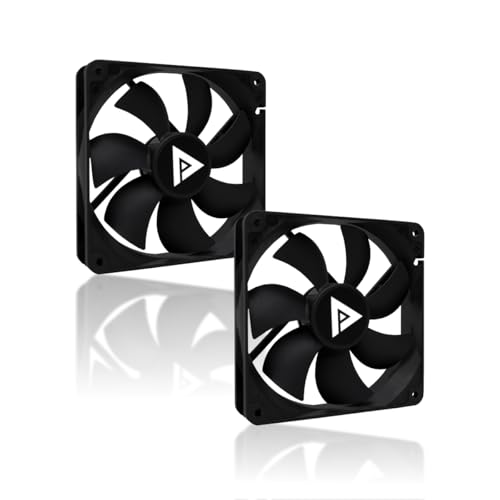
The Apevia AF212S-BK is a budget 120mm case fan sold as a 2-pack, targeting builders replacing dead stock fans or ading basic airflow to entry-level cases. Rated 57.67 CFM at 1350 RPM with a 24.7 dBA noise figure, it sits firmly in the entry tier alongside other no-frills sleve or hydraulic-bearing case fans.
The defining feature is the dual connector setup, a 4-pin Molex plus3-pin motherboard header, which makes this pack usable in older builds where motherboard fan headers are already occupied. Airflow of 57.67 CFM is adequate for general caseventilation, though radiator or restrictive mesh filter duty typically cals for higher static pressure designs.
Trade-offs are typical at this tier. The 3-pin header limits control to voltage scaling rather than PWM duty cycles, so precise fan curves in BIOS are not available. Apevia does not publish static pressure, bearing type, or MTBF methodology beyond the 30,000-hour claim, and owner feedback is thin, so long-term acoustic behavior is dificult to confirm.
Buy this if you need cheap 120mm airflow fans for a secondary build, an office PC, or a legacy case with Molex-only cabling. Skip this if you want PWM control, high static pressure for AIO radiators, or a documented bearing type with verified acoustic curves at partial RPM.
Dimensions: Standard 120m x 120mm x 25mm frame fits virtually every mid-tower and full-tower mounting point rated for 120mm fans, including front intake trios, top exhausts, and rear 120mm slots. No clearance concerns with tall RAM or graphics cards since fans mount to the chassis, not near DIMM or PCIe zones.
Airflow and RPM: Rated 57.67 CFM at 1350 RPM ±10 percent, which is competitive for entry-tier case fans but below high-static-pressure options typically need on dense radiators or heavily filtered mesh fronts. Best suited to open intake, rear exhaust, or top exhaust roles where unrestricted airflow maters more than pressure.
Connectors: Each fan includes both a 4-pin Molex and a 3-pin motherboard connector. The3-pin header suports voltage-based speed control on boards that offer DC mode fan tuning. PWM curves are not suported, so expect the fan to run near its 1350 RPMceiling on Molex.
Acoustics and life: Manufacturer rating is 24.7 dBA and 30,000 hours of continuous operation. Static pressure and bearing type are not specified, so use in high-restriction scenarios like 240mm or 360mm AIO radiators is not recommended without independent testing.
Cause 2: Dried-out thermal paste
Thermal paste dries out and loses conductivity after 3-5 years. On laptops, sooner – thermal cycling hammers the compound. Symptoms: CPU temps creep up 5-10C every six months, you start hitting 95C in workloads that used to top out at 80C, and the cooler itself stays cool to the touch because heat isn’t transferring.
Fix: repaste. Pull the cooler, clean both the CPU IHS and cooler base with 99% isopropyl alcohol and a microfiber, then apply a pea-sized dot of Arctic MX-4 or MX-6 to the center of the IHS. The cooler pressure spreads it. Don’t use the X-pattern or buttering method on Ryzen – it traps air. Mount the cooler back evenly, tightening screws in a star pattern. Run a load check with Cinebench R23 for 10 minutes and watch temps. You should see a 10-20C drop on a system that was overdue.

Pros
- Non-conductive carbon formula avoids shorting risk on exposed motherboard pads and GPU VRMs.
- Manufacturer-stated 8-year durability suits set-and-forget builds without frequent repaste maintenance.
- Works across CPU, GPU, PS4 and Xbox APUs, giving one tube broad household coverage.
Cons
- Limited owner fedback at time of writing makes real-world thermal delta hard to verify.
- 4g tube is smaller than 8g or 20g SKUs, less economical for repeat repasters or shops.
- Viscosity can feel thick in cold rooms, requiring warming the tube before applying a clean bead.
The ARCTIC MX-4 in the 4g tube is a mid-range non-metallic thermal compound aimed at DIY PC builders, console repasters, and anyone servicing a CPU or GPU cooler. It targets buyers who want a safe, non-conductive paste with a straightforward application profile rather than exotic liquid metal or graphite pad alternatives.
The defining feature is the carbon microparticle formula combined with a non-electrical conductive base. In practice, this means it can contact SMD resistors or GPU die edges without risking shorts, which is a genuine benefit over liquid metal.ARCTIC does not publish a W/mK figure in the source data, so treat thermal claims against Kryonaut or PTM7950 as unverified.
Trade-offs are typical at this tier. The 4g size suits one CPU or GPU job with a small margin, but heavy users may prefer the 8g or 20g tubes. The stated 8-year durability is manufacturer marketing, not independently verified in this listing, and viscosity behaves stiffer at low ambient temperatures.
Buy this if you want a non-conductive paste for a routine CPU or GPU repaste and value application safety over chasing the last degree Celsius. Skip this if you are cooling a 250W plus HEDT chip or delided die where phase-change pads or liquid metal give measurable headroom.
Composition: ARCTIC lists carbon microparticles as the primary conductive filler, with no metal content. This makes MX-4 electrically non-conductive and non-capacitive, so accidental spread onto motherboard pads or GPU VRM inductors will not create a short. Specific W/mK conductivity is not specified in the source data.
Package size: The tube ships with 4g of compound. As a rough guide, a pea-sized CPU application uses roughly 0.1g to 0.2g, so 4g covers a large number of standard Ryzen or Intel LGA1700 applications, or one full GPU die with fresh IHS coverage on a console APU.
Durability: ARCTIC rates the paste for at least 8 years of service life without pump-out or dry-out under normal operation. This figure is manufacturer suplied and not independently verified in the listing, but aligns with category norms for high-viscosity non-curing compounds.
Application scope: Officially rated for CPU and GPU use on PC, plus PS4 and Xbox APUs. Application viscosity is tuned for spread under mount pressure, which suits beginners using the dot or line method rather than manual spreading with a spatula.
Cause 3: Bad case airflow
Even with clean fans and fresh paste, a case set up wrong will cook the whole system. The rule: more intake than exhaust, mounted low front and high rear. Two 140mm intakes at the front plus one 120mm exhaust at the rear is the classic positive-pressure layout. Reverse those fans accidentally (it’s easy to do on AIO push-pull mounts) and you’re pulling hot exhaust back through the radiator.
Check fan direction by looking at the arrow on the fan frame, or feeling for airflow with your hand at idle. Cables routed across the front intake area choke airflow more than people realize. Tuck them behind the motherboard tray. If your GPU sags and blocks the bottom intake fan, install a support bracket. AIO radiators belong in the top with fans as exhaust, or the front with fans as intake – not the bottom, where the pump will draw air over time and gurgle.

Pros
- Non-conductive and non-capacitive formula reduces short-circuit risk during application on CPU and GPU packages
- High viscosity resists pump-out on high-heat-flux dies likeRyzen X3D and modern GPUs
- 8g quantity covers repeated repastes across multiple PCs, laptops, and consoles
- Cooler-pressure spread method avoids trapped air pockets typical of manual spreading
Cons
- Limited independent owner fedback available at time of writing, long-term data still thin
- Cannot be spread manually by design, unfamiliar users may over-apply on first attempt
- Specific thermal conductivity value in W/mK is not specified in source data
The ARCTIC MX-7 is a high-end non-metallic thermal interface material shipped in an 8g syringe, aimed at PC builders, laptop repasters, and console refurbishers who prioritize electrical safety over exotic liquid-metal performance. It sits aboveARCTIC's MX-4 and MX-6 in the lineup and targets high-TDP modern CPUs and GPUs.
The defining feature is the high-viscosity, high-filler formulation, which ARCTIC positions for consistent heat transfer under high heat flux. Non-metallic pastes in this tier typically land in the mid-to-high single-digit W/mK range, with real-world delta versus mainstream pastes usually within a few degrees C on hot dies like Ryzen 7 9800X3D or RTX-class GPUs, based on category norms.
Trade-offs are typical of dense, high-viscosity compounds. The paste is not designed to be manually spread, which trips up users used to the spatula method, and first-time application can leave uneven bond lines if cooler pressure is low. Independent long-term owner data is still thin, so pump-out claims should be treated as manufacturer-reported until third-party testing accumulates.
Buy this if you want a non-conductive, high-viscosity paste for high-TDP CPU or GPU repastes and prefer a large 8g tube for multiple applications. Skip this if you already run a well-reviewed paste like MX-6, Kryonaut, or PTM7950 and are not chasing a small delta.
Formulation: Non-metallic compound with a performance-optimized, dense, and highly viscous consistency. High filler content targets heat transfer efficiency. Exact thermal conductivity in W/mK, density, and viscosity values are not specified in the source data, so treat category norms as the reference point.
Electrical safety: Electrically non-conductive and non-capacitive, so accidental spread onto SMD capacitors around a CPU IHS, GPU die or console APU caries no short-circuit or discharge risk. This makes it appropriate for bare-die laptop and handheld repastes where liquid metal would be dangerous.
Application method: Cannot be spread manually by design. Low adhesion lets the compound distribute under cooler mount pressure, forming a thin bond line while minimizing trapped air. Standard pea or small-line application in the die center is the intended workflow, not spatula spreading.
Durability and quantity: High cohesion is claimed to prevent pump-out, dry-out, and bleeding across repeated thermal cycles, reducing repaste frequency. The 8g tube covers many mainstream CPU applications and multiple GPU or console jobs. A separate MX Cleaner bundle is offered for surface prep between applications.
Cause 4: Fan curves set too lazy
Stock fan curves from motherboard makers prioritize silence over cooling. The CPU fan often won’t ramp until 70C, and by then you’ve already spent 10 seconds at peak temp. Same with GPU – many cards idle with fans off until 55-60C, which is fine, but the ramp from 60 to 80C is often too gentle.
Fix: enter BIOS, find Q-Fan Control or Smart Fan, and rebuild the CPU curve. At 40C set fans to 40%. At 60C set them to 70%. At 75C set 100%. The PC will be louder but temps drop noticeably. For GPU, use MSI Afterburner’s fan curve editor. Set fans to start ramping at 50C and hit 100% at 80C. Hysteresis matters too – set a 5C deadband so fans don’t oscillate every few seconds during light loads.
When to upgrade or replace
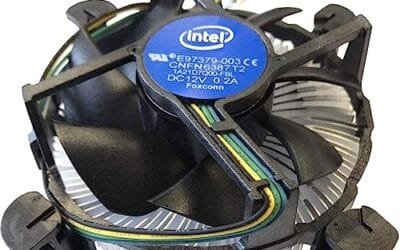
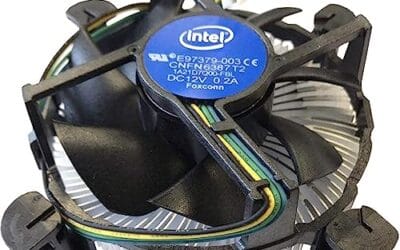
If the stock Intel or AMD cooler ships with your CPU and you’re running a Ryzen 7 7700X or Core i7-14700K, that cooler isn’t enough. Period. Those chips dump 105-180 W under load and need a dual-tower air cooler like the Peerless Assassin 120 or a 280mm+ AIO. The wraith Stealth or Laminar RM1 will hit 95C in seconds and never come down.
Cases over 6 years old often have airflow holes drilled too small or fan mounts in awkward spots. If you’ve cleaned, repasted, and tuned curves but still throttle, the chassis is the bottleneck. Modern mesh-front cases (Lancool 216, NR200P V2, Pop Air) cool 8-12C better than older “silent” cases with restrictive front panels. GPUs sagging from their own weight stress the PCIe slot and can lose contact – a $10 support bracket fixes that.
Common questions
What temperature is dangerous for a CPU?
Modern Ryzen 7000 and Intel 13th/14th gen chips are designed to boost until they hit 95C. That’s not damage, it’s the chip running at spec. The danger zone starts above 100C, where thermal throttling kicks in hard and you’ll see clock drops. Sustained 100C+ over months degrades silicon, but a few minutes won’t kill the chip.
Is liquid cooling worth it?
For Ryzen 9 and Core i9 chips, yes. A 280mm or 360mm AIO handles 200+ W where air coolers tap out around 250 W under sustained load. For Ryzen 5/7 and Core i5/i7, a good dual-tower air cooler matches AIO performance for half the price and won’t leak in three years.
Why is my GPU hotter than my CPU?
GPUs are designed to run hotter. An RTX 4070 happily sits at 75C under load – that’s normal. The number to watch isn’t edge temp, it’s hot spot or junction temp. Anything above 95C hot spot signals dried paste or pump failure on the card. AMD cards report this in their drivers; NVIDIA cards need HWiNFO64.
Can a bad PSU cause overheating?
Indirectly, yes. A failing PSU can’t deliver clean voltage, so VRMs on the motherboard and GPU work harder to compensate. VRM temps climb, and if they hit 110C+ the board throttles the whole system. If you’ve ruled out the cooler, paste, and airflow and still see weird thermal behavior, check PSU age and brand. Anything over 7 years or sub-$60 generic should go.