

You’re mid-game or mid-call and your headset starts hissing, crackling, or buzzing with static that wasn’t there yesterday. It’s one of the most common and most irritating audio problems on a PC, partly because the cause could be anything from a loose plug to a driver conflict to electrical interference from the machine itself. The reassuring part: most static complaints trace to a short list of causes, and you can work through them without buying anything. Here’s the order we’d troubleshoot it, from the 30-second checks to the deeper fixes, and when a failing headset is genuinely the problem.
Static that ruins your audio hits every kind of setup, from a competitive esports rig to a casual living-room PC. If you’re partway through deciding on new gear anyway, our guides to the best gaming headset and the best wireless gaming headset are worth a look, and folks on a budget should skim the best budget gaming headset for 2026 roundup. But before you replace anything, run these checks.
First check the obvious (the 30-second check)
Start with the physical connection, because a bad contact is the number one cause of static. If your headset uses a 3.5mm jack, unplug it and firmly reseat it, making sure it’s pushed all the way in, since a partly seated plug crackles constantly. Try a different port too. Front-panel audio jacks on a lot of cases are noisier than the ones on the motherboard’s rear I/O, so plug directly into the back of the PC and listen for a difference. For USB headsets, move to a different USB port, ideally one directly on the motherboard rather than a hub.
Next, rule out the cable and the source. Wiggle the cable gently near the jack and the earcups while listening. If the static changes as you move it, the cable or a solder joint is failing. Then try the headset on your phone or another device. If it’s clean there, the problem is your PC, not the headset. If it hisses everywhere, the headset itself is suspect. This quick isolation saves you from chasing software fixes for a hardware fault, or vice versa.

Cause #1: A bad connection or damaged cable
The most frequent culprit is a physical one. Analog 3.5mm connections are sensitive to dirty or worn contacts, and over time the constant plugging and unplugging wears the jack. Dust or oxidation on the connector adds resistance that shows up as hiss or crackle. Clean the plug with a bit of isopropyl alcohol on a cloth, and blow out the port. On a wired headset that’s been yanked or rolled over by a chair, the cable’s internal wires can partly break, causing intermittent static that moves when you flex the cord.
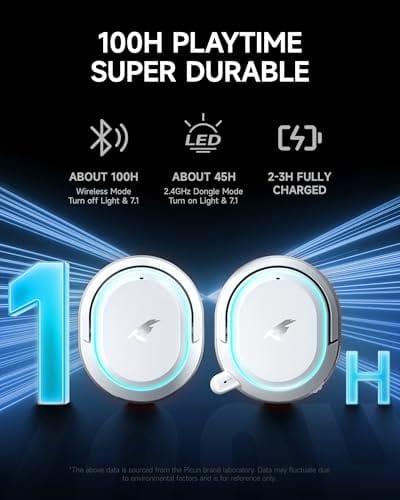
If the static tracks with cable movement and cleaning the contacts doesn’t help, the cable or connector is damaged, and that’s often not economically worth repairing on a cheaper headset. A reliable replacement solves it outright. The Picun G2 wireless headset, a $59.99 unit rated 4.5 with 2.4GHz, Bluetooth 5.4, and wired modes plus a noise-canceling mic, sidesteps a worn analog jack entirely by offering a low-latency wireless link, which removes the cable as a failure point.

Pros
- Three connection modes on a single headset: 2.4GHz dongle, Bluetooth 5.4, and 3.5mm wired fallback.
- Vendor-rated 5ms 2.4GHz latency keps audio synced in competitive shooter scenarios.
- Long rated runtime, up to 100 hours in Bluetooth with RGB disabled for travel use.
- RetractableENC microphone tucks away, useful when switching between gaming and general listening.
Cons
- Limited owner feedback at time of writing, real-world reliability and QC signal is unverified.
- 7.1 surround is virtual DSP, not true multi-driver, so positional accuracy varies by title andear.
- RGB lighting materially cuts battery life, cited100-hour figure requires lighting turned off.
The Picun G2 is a budget-tier wireless gaming headset built around 40mm drivers, virtual 7.1 surround, and tri-mode connectivity across2.4GHz, Bluetooth 5.4, and 3.5m wired. Target buyer is a multi-platform player rotating between PC, PS5, PS4, and Switch who wants low-latency wireless without moving up to established brand pricing.
The defining feature is the tri-mode radio stack. The 2.4GHz USB-A or Type-C dongle is rated at 5ms latency, which is competitive for the tier and adequate for most FPS titles, while Bluetooth 5.4 handles phones and tablets. Headsets in this class typically deliver serviceable rather than reference-grade imaging, and virtual 7.1 leans on DSP rather than discrete drivers.
Trade-offs are typical at this tier. Battery figures are optimistic: 100 hours assumes Bluetooth with RGB off, and 2.4GHz drops the number to 42 to 45 hours. Driver material, impedance, frequency response, clamp force, and weight are not specified, so tonal balance and long-session comfort cannot be verified from source data alone.
Buy this if you want one headset that jumps between a PS5, a Switch dock, and a work laptop over Bluetooth, and you accept spec-sheet-only marketing. Skip this if you rely on measured frequency response, discrete suround, or detachable bom mics with broadcast-grade pickup for streaming.
Drivers and tuning: Picun specifies 40mm dynamic drivers paired with virtual 7.1 surround processing. Impedance, sensitivity, and frequency response are not specified, so bass extension and treble air cannot be quantified from source. Virtual 7.1 is DSP-based positional widening, useful for FPS cues but not equivalent to true multi-driver surround.
Connectivity and latency: Three modes are covered: 2.4GHz via USB-A or USB-C dongle, Bluetooth 5.4, and 3.5mm analog. The 2.4GHz link is rated at 5ms latency. Bluetooth codec support (SBC, AAC, aptX) is not specified, which maters for wireless music quality on phones and tablets.
Battery and power: Rated up to 100 hours on Bluetooth with RGB off, and 42 to 45 hours on 2.4GHz wireless. Play-while-charging is supported, so a USB cable can extend sessions past the rated ceiling. Charge time and battery capacity in mAh are not specified.
Microphone: Retractable omnidirectional bom with ENC noise reduction. Sample rate, bit depth, and pickup pattern beyond omni are not specified.ENC filtering targets background noise on the transmit side, adequate for party chat but below dedicated USB mic quality.
Cause #2: Electrical interference and ground loops
If your static is a steady buzz or hum rather than a random crackle, especially one that changes when your GPU works hard, you’re likely hearing electrical interference. PCs are noisy electrical environments, and analog audio picked up through a front-panel header or a cheaply shielded cable can capture that noise, producing the classic coil-whine-through-headphones buzz. A ground loop, where two devices have slightly different electrical grounds, creates a similar persistent hum.
The fixes are practical. Plug your analog headset into the rear motherboard jacks instead of the front panel, since the rear ports are better shielded. Keep the audio cable away from power cables and the GPU. If a ground loop is the cause, plugging your PC and any connected audio gear into the same power strip often helps, and a ground-loop isolator is a cheap dedicated fix. Switching to a USB or wireless headset dodges the problem entirely, because those don’t carry the analog signal that picks up interference in the first place. That’s a big reason people move away from 3.5mm on noisy rigs.
Here’s a quick way to confirm interference is the culprit. Play some audio, then open a demanding game or run a stress load on your GPU and listen for the buzz to rise and fall with the load. If it tracks the GPU activity, you’ve confirmed electrical noise rather than a cable fault. Another giveaway is that the noise vanishes the moment you switch to a USB headset or an external sound adapter on the same PC, since those move the audio conversion outside the noisy analog path. That single swap both diagnoses and fixes the issue in one step.
Cause #3: Driver conflicts and wrong audio settings
When the hardware checks out, software is the next suspect. Outdated, corrupted, or conflicting audio drivers cause static, dropouts, and distortion, and a Windows update that installed a generic driver over your proper one is a common trigger. Audio “enhancements,” a mismatched sample rate, or an overly high microphone boost also introduce noise that sounds like a hardware fault but lives entirely in settings.
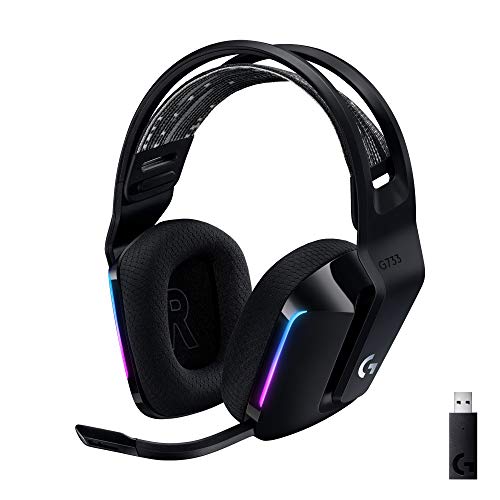
Start by reinstalling your audio driver. In Device Manager, uninstall the audio device, reboot, and let Windows reinstall it fresh, or grab the newest driver from your motherboard or headset maker. Then open Sound settings, go to your playback device’s properties, and turn off audio enhancements. Set the default format to a standard 24-bit, 48000 Hz and see if the static clears. For microphone static, lower or disable the “Microphone Boost” level, which amplifies background hiss along with your voice. A wireless headset with its own software, like the Logitech G733 Lightspeed at $124.92 rated 4.0 with Blue VO!CE mic processing, gives you cleaner mic tuning through its app, which can tame input noise a generic driver leaves in.
Pros
- Lightspeed wireless with 20 meter range handles typical living room and desk distances
- Up to 29 hours battery life covers multi-day use between charges
- Blue VO!CE mic processing in G HUB improves clarity for Discord and streaming
- Suspension headband and low mass design reduce clamp fatigue during long sessions
- Dual-zone Lightsync RGB with 16.8M colors is customizable through G HUB
Cons
- PS4 output limited to stereo, no suround on older PlayStation hardware
- Driver size, frequency response, and mic pattern not specified in source data
The Logitech G733 is a mid-tier wireless gaming headset targeting PC, PS5, PS4, and Nintendo Switch users who want a lightweight all-day fit. It leans on Lightspeed 2.4GHz wireless, PRO-G drivers, Blue VO!CE mic processing, and a reversible suspension headband, aimed at multi-hour gamers and streamers.
The defining feature is the combination of Lightspeed wireless with a quoted 20 meter range and up to 29 hours of battery. In practice this covers full workdays plus evening sessions without a charge cycle. PRO-G drivers, per Logitech, reduce distortion, and headsets in this tier typically deliver a mildly V-shaped tuning suited to positional FPS cues.
Trade-offs are typical at this price point. PS4 users are locked to stereo output with no virtual surround. Driver diameter, impedance, and frequency response are not published in the source data, so absolute output quality is hard to benchmark against wired competitors. There is no Bluetooth fallback listed, so mobile pairing is not supported.
Buy this if you want a light, long-battery 2.4GHz wireless headset for PC or PS5 with a usable broadcast-style mic. Skip this if you need wired low-latency USB, Bluetooth multipoint, or vendor-published driver and frequency response specs before purchase.
Drivers and tuning: Logitech lists PRO-G drivers tuned for reduced distortion, though exact driver diameter and frequency response are not specified in the source. Headsets in this tier typically ship with 40 to 50mm dynamic drivers and a mildly V-shaped response suited to explosions and footstep cues in FPS gameplay.
Connection and latency: Lightspeed 2.4GHz wireless with a stated 20 meter range covers desk and living room use. Compatibility is confirmed for PC, PS5, PS4 (stereo only), and Nintendo Switch. Bluetooth and wired 3.5mm fallback are not listed in the source, so single-dongle 2.4GHz is the only documented path.
Battery life: Rated up to 29 hours per charge, enough for roughly three to four full evening sessions before recharging. Exact charge time and USB-C versus micro-USB charging port are not specified in the source data.
Microphone: Detachable mic with Blue VO!CE filters configured in G HUB, providing EQ, noise reduction, and de-eser presets useful for Discord and Twitch chat. Mic polar pattern, sensitivity, and frequency range are not disclosed in the source specifications.
Preventive maintenance
A few habits keep static from coming back. Route your audio cable away from power and GPU cables when you set up your desk, and use the rear motherboard jacks for analog gear rather than the front panel. Keep the plug and port clean, wiping the connector occasionally, and don’t let a chair roll over the cable, which is the quickest way to break the internal wires. Coil the cable loosely rather than kinking it when you store the headset.
On the software side, keep your audio drivers current but be cautious after Windows updates, which sometimes swap in generic drivers that reintroduce noise. If you find a driver version that runs clean, note it. For wireless headsets, keep the firmware updated through the maker’s app and don’t let the battery drain to nothing repeatedly, since a weak charge can cause connection dropouts that sound like static. Small maintenance, fewer audio headaches.
Wireless setups have their own noise triggers worth knowing. A 2.4GHz headset dongle sitting right next to a USB 3.0 port or a crowded hub can pick up interference that shows up as intermittent static, so move the receiver to a front port or a short extension cable away from other devices. Keep the headset within reasonable range of its dongle too, since a weak signal near the edge of range causes crackling that people often mistake for a hardware fault. These small placement fixes solve a surprising share of wireless static complaints without any settings changes at all.
When to call a pro vs DIY
Almost everything here is DIY. Reseating plugs, swapping ports, cleaning contacts, reinstalling drivers, and adjusting audio settings are all safe to do yourself and cover the large majority of static cases. If you’ve isolated the fault to your PC’s onboard audio and none of the software or port changes help, a cheap USB sound adapter bypasses the motherboard’s analog circuitry and is an easier fix than opening the machine. There’s rarely a reason to pay someone to solve headset static.
The main exception is when the fault is inside a premium headset still under warranty. Don’t crack open an expensive pair yourself and void the coverage. Contact the manufacturer instead, since a headset that hisses on every device it touches has an internal fault they should handle. For a budget headset out of warranty, opening it to inspect a solder joint is fine if you’re handy, but often a replacement costs less than the effort is worth.
When it’s not fixable: what to replace
If the headset hisses on every device, the cable checks out, and drivers and settings are clean, the headset’s internal wiring or a driver component has likely failed, and replacement is the sensible move. On budget models especially, the repair cost and effort rarely justify saving a worn pair. Moving to a wireless model also eliminates the analog connection that causes so many static problems in the first place, which is why many people switch after their second or third crackly wired set.
The Picun G2 at $59.99, rated 4.5, offers a wireless path with 2.4GHz and Bluetooth 5.4, a 100-hour battery, an ENC noise-canceling mic, and 7.1 virtual surround, covering PC, PS5, PS4, and Switch. If you want a name-brand option, the Logitech G733 Lightspeed at $124.92 brings a lightweight wireless design with Lightsync RGB and Blue VO!CE mic processing for cleaner voice output. Either removes the worn-jack and interference issues a failing wired headset keeps throwing at you.
Tools and parts needed
For the DIY checks you need almost nothing: isopropyl alcohol and a cloth to clean contacts, a second device like a phone to isolate whether the fault is the headset or the PC, and a few minutes to reseat plugs and reinstall drivers. If onboard audio turns out to be the problem, a cheap USB sound adapter is the one inexpensive part worth buying, since it bypasses the motherboard’s analog circuitry entirely. Beyond that, the only “part” you might need is a replacement headset if yours has genuinely failed.
Common questions
Why does my headset only crackle when my GPU is under load?
That’s a classic sign of electrical interference. When the graphics card draws heavy power, its electrical noise can bleed into a poorly shielded analog audio connection, producing a buzz or crackle that rises and falls with GPU activity. Move the headset to the rear motherboard jacks, keep the audio cable away from the GPU, or switch to a USB or wireless headset to eliminate it.
Is static usually the headset or the PC?
The quickest way to find out is to plug the headset into your phone or another device. If it sounds clean elsewhere, your PC’s audio port, drivers, or interference is the cause. If it hisses on every device, the headset itself has a fault. That one check saves you from troubleshooting the wrong side of the problem.
Will a USB headset fix static problems?
Often, yes. USB and wireless headsets carry a digital signal and use their own built-in audio processing rather than the motherboard’s analog jacks, so they sidestep the interference and worn-connector issues that cause most static. If you’ve fought analog hiss repeatedly, moving to a USB or wireless model like the Picun G2 or Logitech G733 is a reliable way to leave the problem behind.


































Write Your Review
No reviews yet. Be the first to share your experience!