A PC that keeps restarting on its own is one of the more anxiety-inducing failures you can hit. Sometimes it happens once a day; sometimes it cycles every five minutes. The good news: 90% of random restart cases trace back to a handful of common causes, and most of them are fixable without buying new hardware. The trick is working through possibilities in a logical order instead of guessing. Here’s how to diagnose and fix it.
Check the obvious stuff first
Before you tear into your PC, rule out the easy stuff. These take five minutes each and solve more cases than people expect.
Open Event Viewer (search “event viewer” from Start menu), go to Windows Logs > System, and filter for “Critical” events. A PC that restarts unexpectedly usually logs Event ID 41 (“Kernel-Power”) around the time of each restart. This confirms the restart wasn’t a clean reboot but a forced one – useful context for everything that follows.
Disable automatic restart on system failure. Right-click This PC > Properties > Advanced system settings > Startup and Recovery > Settings. Uncheck “Automatically restart” under System failure. Now if the cause is a blue screen, you’ll actually see the error code instead of the PC immediately rebooting. The error code is gold for diagnosis.
Overheating is the #1 culprit
Random restarts most commonly come from thermal protection kicking in. When a CPU or GPU hits its thermal limit, modern hardware shuts down to prevent damage. The shutdown looks like a random restart from the user’s perspective.
Download HWMonitor or HWiNFO64 (both free). Run your PC and watch the CPU and GPU temperature columns. Idle temps should sit at 30-50 C. Under heavy load (gaming, video encoding), 60-85 C is normal. Above 95 C is a red flag. If you see the PC restart right after temps spike past 100 C, you’ve found your problem.
Common causes of overheating: dusty fans and heatsinks (open your case and look), dried thermal paste (3+ years old usually needs replacing), failed cooler fan (listen for spinning when PC is loaded), or a CPU cooler that’s loose from being knocked. Repaste, blow out dust with compressed air, and verify all fans are actually spinning.
Power supply problems
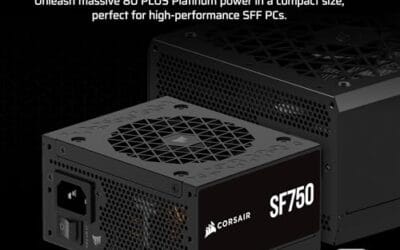
A failing or undersized PSU is the second most common cause of random restarts. When the PSU can’t deliver clean power under load, the system loses voltage stability and the safety circuits cut power – leading to an instant restart.
Two ways this fails: First, an aging PSU’s capacitors degrade over time and can no longer hold steady voltage. Restarts typically happen under gaming load or other demanding work, not at idle. Second, you upgraded your GPU or CPU and your old PSU just can’t push enough watts. A 500W PSU will fold under an RTX 4070+ Ti’s transient power spikes even though the average draw is below the rating.
Try swapping in a known-good PSU if you have one. If you don’t, calculate your total system power draw at outervision.com/psu-calculator and add 25% headroom. If your current PSU is below that number, replace it with an 80+ Gold rated unit from a reputable brand.
RAM issues
Bad RAM or misconfigured RAM causes random restarts and crashes that feel like they hit at totally random times. Sometimes during gameplay, sometimes just opening Chrome, sometimes overnight.
Run Windows Memory Diagnostic (search for it in Start menu). It restarts your PC, runs a check, and reports back. For a more thorough check, use MemTest86 (free). Boot from a MemTest86 USB stick and let it run at least one full pass – several hours, ideally overnight. Any errors at all mean the RAM is bad and needs replacement.
If MemTest passes but you still get restarts, check your XMP/EXPO settings in BIOS. Sometimes a memory profile that pushes RAM beyond stable specs causes intermittent issues. Try disabling XMP and running at default JEDEC speeds. If the restarts stop, your XMP profile was unstable – try a lower memory speed or check that all sticks are in the correct dual-channel slots (usually A2 and B2, not A1 and B1).
Storage drive failure
A failing SSD or HDD can cause Windows to bug-check and restart when it can’t read critical system files. This is especially common with older SATA SSDs as they approach their endurance limit.
Open Command Prompt as Administrator and run “sfc /scannow” to check Windows system files. If it finds corruption it can’t repair, run “dism /online /cleanup-image /restorehealth” first, then “sfc /scannow” again.
For drive health, download CrystalDiskInfo (free). Look at the “Health Status” column for your drives. Anything other than “Good” or “Caution” with high SMART error counts means the drive is dying and you need to back up and replace it ASAP.
Driver and Windows update issues
If restarts started after a Windows update or driver install, you likely have your culprit. Recent driver releases for GPUs in particular have been known to cause random restarts on specific hardware combinations.
Roll back the most recent driver update. For GPU drivers, use Display Driver Uninstaller (DDU) in Safe Mode to fully remove the current driver, then install a previous stable version from NVIDIA or AMD’s archive.
For Windows updates, go to Settings > Windows Update > Update History > Uninstall updates. Remove the most recent Quality Update or feature update. Watch for a few days to confirm whether the restarts stop.
Malware and system corruption
Some malware deliberately causes restarts to disrupt your system or to reload itself after a clean boot. Less common in 2026 than it used to be, but still worth ruling out.
Run a full scan with Windows Defender (built-in), then a second-opinion scan with Malwarebytes Free. If either finds anything significant, quarantine and remove, then run another scan to make sure it’s gone.
Last resort: motherboard issues
If you’ve ruled out heat, power, RAM, storage, drivers, and malware, the next suspect is the motherboard itself. Failed capacitors, dead VRMs, or damaged traces can cause intermittent power problems that look like random restarts.
Open your case and inspect the motherboard. Bulging or leaking capacitors (the little cylindrical components) are obvious failure signs. Some motherboards have post-code LEDs that show error codes during failed boots – check your manual for the meaning of any codes that flash before a restart.
Replacing a motherboard is the most expensive fix on this list and usually means rebuilding most of your system. Confirm everything else is fine before going there.
Common questions
Why does my PC restart when I play games but not when idle?
This is almost certainly thermal or power-related. Gaming pushes both CPU and GPU to high power states, generating heat and drawing more wattage from the PSU. If the cooling can’t keep up or the PSU can’t deliver clean power under load, the system protects itself by shutting down. Check temps with HWiNFO64 during gameplay, and verify your PSU has enough headroom for your hardware.
My PC restarts at random times – hardware or software?
Truly random restarts (no correlation with workload) usually point to hardware: failing PSU, bad RAM, dying storage drive, or motherboard issues. Restarts during specific tasks (gaming, video editing) point to thermal or power problems. Restarts after specific user actions or Windows updates point to driver or software issues. Use Event Viewer to look for patterns in when restarts occur.
Can a bad CMOS battery cause restarts?
Not directly. A dead CMOS battery causes BIOS settings to reset and time to reset on boot, but it shouldn’t cause a running PC to randomly restart. If you’re seeing time loss after shutdown and frequent BIOS resets, replace the CR2032 battery on your motherboard. It’s a $3 fix that takes 60 seconds. But that’s not what’s causing your restarts.
Should I just reinstall Windows?
A clean Windows install fixes software-related restart issues but won’t help if the cause is hardware (heat, power, RAM, drives, motherboard). Try a clean install only after you’ve ruled out hardware causes. If the restarts continue after a fresh Windows install, you’ve confirmed it’s a hardware problem and can focus diagnosis there.