

Choosing a budget prebuilt PC is mostly a filtering job: decide what the machine must do, reject vague listings, and compare the CPU, GPU, RAM, storage, power supply, and warranty as a complete package. A $499.99 tower can be a fair office or entry gaming buy, but only if the listing is honest about what parts are inside. If you’re comparing ready-made options, our guides to budget prebuilts and 1080p gaming prebuilts are useful reference points.
What you’ll need
You’ll need the listing page, your monitor resolution, a short list of games or apps, and about 20 minutes to check component names. The abytespark Prebuilt Gaming PC Desktop at $499.99 with a 4.4 rating is an example of a listing that names Intel Core i7 but doesn’t clearly state the exact generation, GPU, RAM amount, or storage capacity in the title. Treat it as a budget reference, not a fully verified gaming powerhouse.

Pros
- 512GB SSD bot drive avoids the HDD bottleneck common in budget prebuilts
- RX 590 8GB VRAM buffer handles 1080p textures better than 4GB budget cards
- Complete bundle with RGB peripherals means no extra spend to start using
- Genuine Windows 11 Home 64-bit preinstalled, no activation hassle out of box
Cons
- Limited owner feedback at time of writing, verify seller reputation before purchase
- Core i7-4770 is Haswell era LGA150, no upgrade path and weak IPC versus modern CPUs
- Windows 11 on 4th-gen Intel is unsupported by Microsoft and may miss feature updates
- No CD/DVD-ROM support and RAM/GPU generation limits future workload headroom
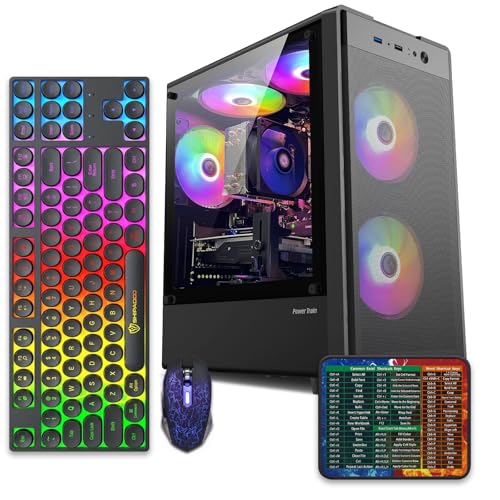
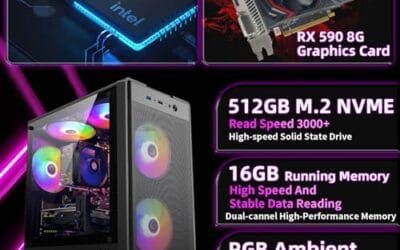
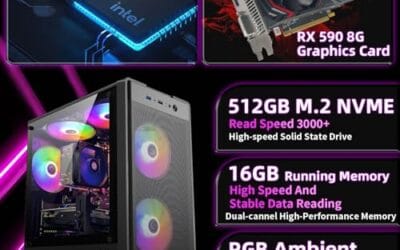
This is an entry-tier prebuilt tower built around an Intel Core i7-4770 Haswell CPU, 16GB RAM, a 512GB SSD, and an AMD Radeon RX 590 8GB GDDR5 GPU. It targets budget buyers who need a working office and light gaming PC with peripherals bundled, not enthusiasts chasing current-gen performance.
The defining feature is the RX 590 8GB paired with a 512GB SSD, an uncommon combo at this price band. Cards in this class typically handle 1080p esports titles at 60+ FPS on medium to high, matching the vendor claim for CS:GO, League of Legends, Apex, and Overwatch. Newer AA titles will need lowered settings.
Trade-offs are significant. The i7-4770 launched in 2013, so IPC, single-thread performance, and platform features like NVMe bot, PCIe Gen4, and modern USB are limited. Windows 11 runs here but sits outside Microsoft's official supported CPU list. There is no realistic CPU or socket upgrade path on LGA1150.
Buy this if you need a plug-and-play 1080p esports and office tower with keyboard, mouse, and RGB included at a low outlay. Skip this if you want current-gen platform support, sustained AA 1440p gaming, or a build with a meaningful upgrade runway.
GPU class: The AMD Radeon RX 590 8GB GDDR5 is a Polaris-refresh card roughly equivalent to a GTX 1060 6GB tier. Expect 1080p 60+ FPS in esports titles like CS:GO, Overwatch, Apex, League, and Fortnite on medium settings, matching the listing's claims.
AAA and modern titles: The vendor lists GTA V, Warzone, Hogwarts Legacy, and The Division 2. Realistically, these run at 1080p low to medium with FSR upscaling where suported.Ray tracing is unsupported on RX 590. No DLSS, no frame gen, no AV1 encode.
CPU bottleneck: The Core i7-4770 quad-core with 8threads at up to 3.9GHz will bottleneck the RX 590 in CPU-heavy titles like Warzone and Escape from Tarkov. Expect frame time inconsistency in large team fights even when average FPS looks aceptable.
Storage and RAM fit: 512GB SSD holds Windows plus 3 to 5 modern game installs before space pressure. 16GB DR3-era RAM is adequate for current esports but leaves no headroom for heavy streaming, browser tabs, and OBS NVENC alongside a game session.
Step 1: Define the job before you shop
Write down the actual job first. For office use, you may need smooth browsing, Microsoft Office, video calls, and dual-monitor support. For 1080p gaming, you need a real dedicated GPU or a modern integrated GPU with realistic expectations. For school and home use, quiet operation and warranty support may matter more than RGB.
Don’t start with the word i7. Intel has sold Core i7 chips for many years, and an old i7 can lose badly to a newer i5. Same with Ryzen 7. Generation, core count, and platform matter. Tiny label. Big difference.
Step 2: Decode the CPU and graphics
A budget prebuilt should name the exact processor model, not just “Intel Core i7.” Look for a number such as i7-12700, i5-14400F, Ryzen 5 7600, or Ryzen 7 8700F. If the listing doesn’t give the model, assume you need more research before buying. For graphics, check whether it has a discrete GPU like RTX, Radeon RX, or Arc, or whether it’s relying on integrated graphics.
If a listing says “gaming PC” but doesn’t list a GPU, don’t assume it can play current games well. Integrated graphics can handle esports and older titles at lower settings, but they won’t behave like an RTX card. You don’t need a monster GPU for 1080p, but you do need the listing to say what you’re getting.
Step 3: Check RAM and storage
For Windows 11, 16GB of RAM is the comfortable target. 8GB can work for basic office use, but it’ll feel tight with browser tabs, Discord, launchers, and background apps. If the PC has 32GB, great, but verify the rest of the machine isn’t using that number to distract from a weak CPU or no dedicated GPU.
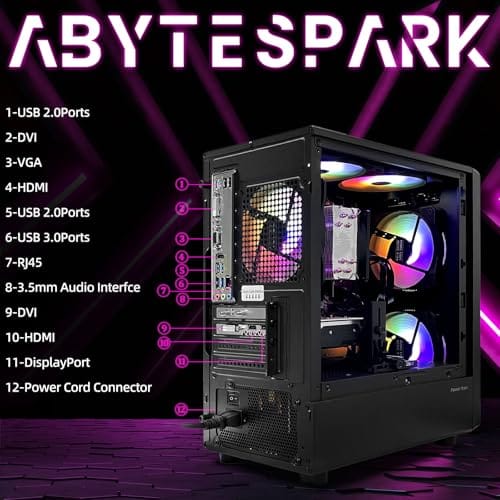
For storage, an NVMe SSD is the best sign. A 500GB SSD is workable for an office PC, while 1TB is a better baseline for gaming. Avoid machines that boot from a hard drive only. Also check upgrade slots. A cheap tower with a spare M.2 slot or 2.5-inch bay can age better than a sealed compact box.
Step 4: Inspect the case, PSU, and cooling clues
Budget prebuilts often hide cost in the power supply, motherboard, and case airflow. Look for front mesh, at least one intake path, and enough rear or top exhaust. If all you see is a glass front panel pressed against tiny side vents, expect warmer parts and more fan noise.
The PSU should have enough wattage and the connectors needed for future upgrades. You may not get a premium unit at $500, but the listing should not be silent about basic power specs if a dedicated GPU is included. Warranty length and seller reputation matter here because PSU swaps can be awkward in proprietary towers.
Step 5: Compare total value, not one shiny spec
Make a simple comparison sheet: price, exact CPU, exact GPU, RAM, storage, PSU info, warranty, and return window. Then reject listings with too many blanks. A $499.99 system that only says Intel Core i7 Business Office Tower Computers PC might be fine for office work, but the missing details mean you shouldn’t assume modern gaming performance.
If two systems cost about the same, choose the one with clearer specs and easier upgrades. Clear beats flashy. You’ll thank yourself later when adding RAM, replacing storage, or diagnosing a fan noise issue doesn’t require guessing every part.
Troubleshooting common issues
The listing only says Core i7
Ask the seller for the full CPU model or skip it. Without the generation, you can’t fairly compare performance, power use, or Windows 11 support. It’s not enough information.
The PC says gaming but lists no GPU
Assume it relies on integrated graphics unless the listing names a dedicated GPU. That’s fine for office work and light esports, but it’s not the same as a gaming tower with an RTX or Radeon card.
The price looks too good
Check whether the machine is renewed, refurbished, or built from older office parts. That’s not automatically bad, but it changes upgrade options and warranty expectations.
The storage is small
A 256GB SSD fills quickly after Windows, updates, and a few large apps. Prefer 500GB minimum for office use and 1TB for gaming if your budget allows.
Wrapping up
A good budget prebuilt is honest, balanced, and easy to understand. Don’t buy a vague i7 label unless the rest of the listing supports the price. For most buyers, a clear newer i5 or Ryzen 5 system with 16GB RAM, an NVMe SSD, and a real warranty beats a mysterious tower with one loud spec.
Extra buying context
The safest way to make the decision is to slow down and map the product to the actual job. Look at the listed price, the exact platform support, the physical fit, and the limits that will matter six months from now. A PC part can look attractive in isolation and still be the wrong match if it blocks an upgrade, adds heat, or forces adapters. That is why the guide separates direct matches from adjacent products instead of pretending every listing solves the same problem.
For a gaming PC, balance beats one oversized spec. Storage needs enough capacity before it needs extreme sequential speed. Power supplies need the right form factor before they need huge wattage. Cases need airflow and clearance before they need glass. Coolers need a careful mount before expensive paste matters. Keyboards need socket compatibility before switch hype matters. Networking gear needs the right role before brand language matters. Simple checks prevent expensive returns.
Also consider the cost of accessories. A small case may require an SFX power supply and custom cable routing. A wireless headset may need a stable USB dongle position. A prebuilt may need more RAM or storage right away. A network upgrade may need better cabling. A cooler swap may need cleaning wipes and fresh paste. These are not huge items one by one, but they change the real price of the project.
If the listing leaves out a critical detail, treat that absence as part of the evaluation. Missing drive model, missing CPU generation, missing case clearance, or missing connector information should lower confidence. You can still buy the product if the return policy is strong and the price is right, but you should not fill the gaps with hopeful assumptions. Better to know the compromise before checkout.
Finally, think about maintenance. Dust filters need cleaning. BIOS settings can drift after updates. Windows can change audio routes. Memory profiles may fail after a hardware change. Compact power cables can loosen during a rebuild. None of that makes the hardware bad, but it means the best purchase is the one you can install, verify, and service without turning every small issue into a weekend project.
One more useful check is the support path after purchase. Keep the product page, receipt, firmware links, and return window in one place until the build is stable for a full week. If a part behaves oddly, you will want exact model names and order details ready instead of digging through email while the PC is apart. It is a small habit, but it makes hardware troubleshooting much calmer.
Do not ignore environment either. A dusty room, weak case airflow, crowded desk, old BIOS, loose USB hub, or overloaded power strip can make good hardware look worse than it is. Before blaming the product, verify the setup around it. Clean power, clean airflow, current firmware, and known-good cables remove a lot of false leads.
One more useful check is the support path after purchase. Keep the product page, receipt, firmware links, and return window in one place until the build is stable for a full week. If a part behaves oddly, you will want exact model names and order details ready instead of digging through email while the PC is apart. It is a small habit, but it makes hardware troubleshooting much calmer.
Do not ignore environment either. A dusty room, weak case airflow, crowded desk, old BIOS, loose USB hub, or overloaded power strip can make good hardware look worse than it is. Before blaming the product, verify the setup around it. Clean power, clean airflow, current firmware, and known-good cables remove a lot of false leads.
If two choices still look equal, choose the one with clearer documentation and fewer hidden assumptions. Clear specs make upgrades, returns, and troubleshooting easier.
That also helps future you. Six months later, you may need to update firmware, replace a cable, add memory, change a driver, or confirm compatibility for a new part. A product with a readable manual and standard connections is easier to keep in service than one that looked cheaper but hid the important details.
For troubleshooting topics, keep changes reversible. Change one setting, reboot, and check the result before changing another. If the symptom improves, write down what changed. If it gets worse, undo that step. This slower method feels less dramatic, but it prevents the classic mistake of fixing one problem while creating two new ones.
Another practical habit is to save screenshots of working settings before a major change. BIOS memory settings, Windows sound device choices, and prebuilt spec pages can disappear or reset after updates. A screenshot gives you a known-good reference instead of forcing you to rebuild the configuration from memory.
If the fix involves replacement hardware, match the old part carefully. Check desktop versus laptop memory, DDR generation, connector type, wireless mode, port support, and physical clearance. The right part should solve the problem cleanly. The wrong part creates a second troubleshooting project.
Keep the final setup boring and repeatable. If the PC restarts cleanly, the device stays detected, and the same settings survive two cold boots, you have a stronger fix than any single lucky startup.
That last verification pass is worth the extra minute because it catches loose cables, reset settings, and mistaken assumptions before they become another support thread.



























Write Your Review
No reviews yet. Be the first to share your experience!