

An SSD rarely dies with a dramatic warning. It slows down, throws the odd file error, or one morning simply won’t mount, taking your data with it. The fix is to get ahead of that failure by reading the drive’s own health data, because every modern SSD tracks its wear, temperature, and error counts internally through a system called SMART. This walkthrough shows you how to pull those numbers, what they actually mean, and when they’re telling you to back up and replace the drive. It works for NVMe and SATA SSDs alike, and none of it requires opening your case.
Knowing your drive’s health matters most before you trust it with something important, like cloning to a new disk or setting up a boot volume. If you’re already shopping for a replacement, our guides to the best 2TB NVMe SSD for a boot drive and the best SSD deals are good next stops. And if a health check reveals a dying disk, the best external SSD for 2026 roundup covers quick backup targets. Let’s get into the checks.
What you’ll need
The good news is the tools are free. On Windows you’ll want CrystalDiskInfo, a lightweight utility that reads SMART data and translates it into a plain health percentage and status. Built-in options exist too: Windows has a command-line health query, and most SSD makers ship their own dashboards (Samsung Magician, Crucial Storage Executive, WD Dashboard, Kingston SSD Manager) that show wear and firmware status. On macOS, the built-in Disk Utility runs a basic check, and smartmontools works across platforms for the technically inclined. Grab CrystalDiskInfo first if you’re on Windows. It’s the quickest way to see everything at a glance.
Step 1: Read the overall SMART health status
Start with the summary before you dig into individual numbers. Open CrystalDiskInfo and it shows every drive with a big color-coded Health Status box. Blue or “Good” means the drive reports no serious concerns. Yellow or “Caution” means one or more attributes have crossed a warning threshold, and you should pay attention. Red or “Bad” means the drive is failing and you need to back up immediately. It’s a traffic light for your storage, and it’s the single most important thing on the screen.
If you’d rather not install anything, Windows gives you a quick version. Open Command Prompt and type wmic diskdrive get status, which returns “OK” for healthy drives. For NVMe drives, PowerShell’s Get-PhysicalDisk command shows a HealthStatus and OperationalStatus field too. These built-in checks are blunter than CrystalDiskInfo, though. They’ll tell you a drive is failing but won’t show you why, so treat them as a fast first pass, not the full picture.
Step 2: Check the wear and remaining life
SSDs wear out as you write to them, so the key metric is how much life the flash has left. In CrystalDiskInfo, NVMe drives report a “Percentage Used” value, where 0% is factory-fresh and 100% means the drive has hit its rated write endurance. A healthy drive that’s a year or two old might read 2% or 5%. If yours shows 80% or 90%, the flash is heavily worn and you should plan a replacement even if the drive still works today.
SATA SSDs express the same idea through attributes like “Wear Leveling Count” or a “Remaining Life” percentage that counts down from 100. Look also at “Total Host Writes” or “Data Units Written,” which tell you how many terabytes have passed through the drive. Compare that against the drive’s rated TBW (terabytes written) endurance from its spec sheet. A 1TB consumer SSD is often rated for 600TBW or more, so if you’ve only written 40TB, you’ve barely dented its life. This is where you learn if your drive is young or genuinely tired.
Step 3: Scan the critical error attributes
A drive can read “Good” overall while a few attributes quietly climb, so scan the individual rows. The ones that matter most are reallocated sectors (the drive swapping bad flash blocks for spare ones), uncorrectable errors, and any “pending” or “media error” counters. On a healthy SSD these should sit at zero or a very low, stable number. A count that’s nonzero and rising over weeks is an early warning that the flash is degrading faster than normal.

NVMe drives report a handful of critical warnings directly, including “Available Spare” and “Available Spare Threshold.” Available Spare is the reserve pool of good flash the drive keeps in hand. When it drops toward the threshold value, the controller is running out of healthy blocks to swap in, and failure gets close. If you see the available spare falling or any media errors logged, don’t wait. Back up that drive now and verify the numbers again in a day to see how fast they’re moving.
Step 4: Watch the temperature
Heat shortens the life of flash memory and can cause a drive to throttle or drop out under load, so temperature is worth a look. CrystalDiskInfo shows a live reading, and most SSDs run comfortably between 30C and 50C at idle to moderate use. Fast NVMe Gen4 drives run hotter and can spike into the 60s or 70s during heavy sustained writes, which is normal for short bursts but a concern if it stays there.
If your drive regularly sits above 70C, address the cooling. A cheap heatsink on an M.2 NVMe drive drops temperatures significantly, and better case airflow helps every disk. High temperatures paired with a rising error count are a bad combination, since heat accelerates the wear you’re already tracking. Keep an eye on the reading during a big file copy or a game load to catch a drive that only overheats under stress rather than at idle.
Step 5: Update firmware and set a recheck schedule
Once you know where your drive stands, close the loop with a firmware check. SSD makers push firmware updates that fix bugs, improve stability, and sometimes correct faulty health reporting, and their dashboard apps flag when an update is available. Apply it on wall power with your data backed up first, since a firmware flash carries a small risk. A drive on current firmware behaves more predictably and reports its health more accurately.
Then set a rhythm. Checking SSD health once a quarter is plenty for a healthy drive, but a drive showing “Caution,” high wear, or any errors deserves a monthly look so you can watch the trend. What matters isn’t a single reading, it’s the direction things move over time. A stable 5% wear that hasn’t budged in six months is fine. A spare pool that dropped 10% in a week is a drive on its way out. Track the trend, and you’ll never be surprised by a dead disk.
Troubleshooting common issues
CrystalDiskInfo shows Caution but the drive works fine
A Caution status often comes from a single attribute crossing a threshold, sometimes a benign one like power-on hours or a harmless counter. Click the attribute to see which one triggered it. If it’s wear or reallocated sectors, take it seriously and back up. If it’s something cosmetic, the drive may run fine for a long time yet, but recheck it monthly to confirm the value isn’t climbing.
The tool can’t read SMART data on my NVMe drive
Some NVMe drives behind certain controllers or in USB enclosures don’t pass SMART data through cleanly. Try running the tool as administrator, update to the newest version, or use the drive maker’s own dashboard, which usually reads its hardware correctly. If the drive is in an external USB case, connect it directly to an M.2 slot for the check, since many enclosures block the health data entirely.
My drive reports high total writes but low wear
That’s actually good news and completely normal. Total host writes just counts data volume, while the wear percentage accounts for the drive’s endurance rating and wear-leveling. A drive can have tens of terabytes written and still show only a few percent used, because modern SSDs are rated for hundreds of terabytes. Judge health by the wear percentage and error counts, not by the raw write total alone.
Before and after expected outcomes
Before a health check, you’re flying blind, trusting a drive with no idea whether it’s fresh or nearly spent. Afterward, you’ll know its wear percentage, its error counts, its spare pool, and its running temperature, which together tell you if the disk is safe for years or living on borrowed time. That knowledge lets you back up on your schedule instead of scrambling after a failure, and it tells you exactly when a replacement is worth buying.
Reading the numbers on different drive types
One thing that trips people up is that NVMe and SATA SSDs report their health a little differently, and reading the wrong attribute leads to false alarms. NVMe drives expose a clean set of standardized fields: Percentage Used, Available Spare, Data Units Written, Media Errors, and Critical Warning flags. Those are consistent across brands, so once you know what to look for, any NVMe drive reads the same way. Focus on Percentage Used for wear and Available Spare for the reserve pool, and you’ve covered the two numbers that matter most.
SATA SSDs use the older SMART attribute system, which is messier. Different makers number and name their attributes differently, so one drive’s “Wear Leveling Count” is another’s “Media Wearout Indicator.” When in doubt, cross-check the raw attribute against your drive maker’s dashboard, which knows how to interpret its own hardware. Don’t panic over a single high raw number until you understand what that attribute actually tracks on your specific model.
Common questions
How often should I check my SSD’s health?
For a healthy drive, once every three months is enough to catch problems early. If a drive shows Caution status, high wear, or any error counts, check it monthly so you can watch the trend. The direction the numbers move matters far more than any single snapshot, so consistent rechecks beat one deep look.
What wear percentage means I should replace my SSD?
There’s no hard cutoff, but once an NVMe drive’s Percentage Used climbs past roughly 80%, or a SATA drive’s remaining life drops below 20%, start planning a replacement. The drive may keep working past that, yet the risk rises. Pair the wear figure with the error counts. High wear plus rising errors is a clear signal to move your data off soon.
Can I fix a failing SSD, or only replace it?
Flash wear and failing cells can’t be repaired, so a genuinely worn or erroring drive needs replacing, not fixing. That said, a firmware update sometimes resolves a drive that reports odd behavior, and freeing up space can help a nearly full SSD run better. But if SMART shows real wear or media errors, back up and replace it rather than hoping for a software fix.
Does checking SSD health wear out the drive?
No. Reading SMART data is a lightweight query that writes nothing to the flash, so you can check as often as you like without any impact on the drive’s life. The tools simply ask the controller for numbers it already tracks. Feel free to monitor a suspect drive daily if you want to watch how fast an attribute is changing.
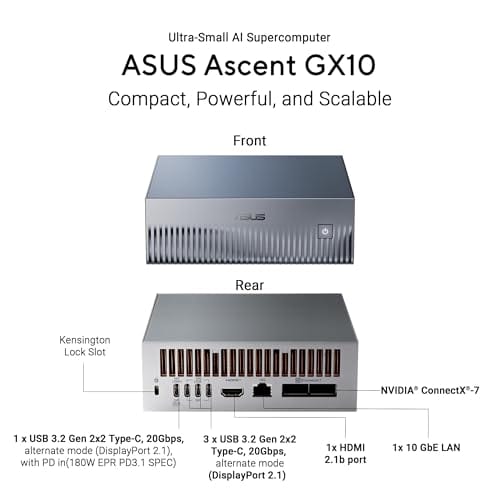
For readers researching high-end systems where NVMe storage health reporting matters at scale, the ASUS Ascent GX10, a $3,970.99 workstation-class machine rated 4.2 with a 1TB PCIe Gen4 NVMe SSD and 128GB of LPDDR5x, sits at the extreme end of NVMe-equipped hardware and is included below purely as further reading, not as a health-check tool.

Pros
- GB10 Superchip targets 1 petaFLOP AI throughput suitable for on-device LM prototyping
- 128GB unified memory pool avoids CPU-GPU copy overhead common on discrete GPU rigs
- NVLink-C2C fabric gives higher effective bandwidth than PCIe Gen5 x16 for AI workloads
- ConnectX-7 enables two-node stacking, scaling to roughly 400B parameter model fine-tuning
Cons
- Limited independent owner fedback and third-party benchmarks available at time of writing
- 1TB NVMe fills quickly with modern checkpoints, external NVMe or NAS staging likely need
- Closed NVIDIA ARM-based stack, not a general-purpose x86 workstation for gaming or standard DC aps
The ASUS Ascent GX10 is a flagship developer-class AI appliance built on the NVIDIA DGX Spark reference design, pairing the GB10 Grace Blackwell Superchip with128GB LPDDR5x and a 1TB PCIe Gen4 NVMe SSD. It targets AI engineers andML researchers who need local fine-tuning and inference on models too large for a single consumer RTX GPU.
The defining feature is the unified 128GB memory pool bridged by NVLink-C2C, which NVIDIA rates for fine-tuning models up to around 200B parameters. Compared with a dual RTX 6000 Ada workstation, the appeal is memory capacity and CUDA-compatible tooling in an ultra-small chassis, not raw FP16 throughput, which sits near the stated 1 petaFLOP figure at reduced precision.
Trade-offs are typical of this tier and platform. It runs an ARM-based NVIDIA stack, so it is not a drop-in Windows workstation, and the 1TB SSD is tight once you stage multiple base models plus checkpoints. Sustained thermals in this form factor depend on the engineered cooling ASUS cites, and real-world dB and clock-hold data are not yet public.
Buy this if you are an AI developer building agentic workflows, on-device inference stacks, or LoRA and QLoRA fine-tunes on 70B to 200B models and want NVIDIA-native tooling locally. Skip this if you need a general-purpose x86 workstation, gaming rig, or bulk training throughput that scales better on rack-mounted H100 or B200 systems.
Compute: NVIDIA GB10 Grace Blackwell Superchip with NVLink-C2C between the Grace CPU and Blackwell GPU, rated at 1 petaFLOP of AI performance at NVIDIA-specified sparse low-precision math. Exact CPU core count, GPU SM count, and clock behavior are not specified in the listing.
Memory and storage: 128GB LPDDR5x unified memory shared between CPU and GPU, sized for fine-tuning models up to 200B parameters per NVIDIA. Storage is a single 1TB PCIe Gen4 NVMe SSD. Additional M.2 slots, DRAM channel count, and TBW endurance are not specified.
Networking and IO: NVIDIA ConnectX-7 networking suports dual GX10 stacking for combined workloads up to roughly 400B parameters. Wireless is WiFi 7 and Bluetooth 5.4. Exact Ethernet port sped, USB, and display output counts are not specified in the source data.
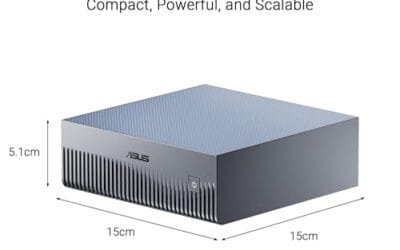
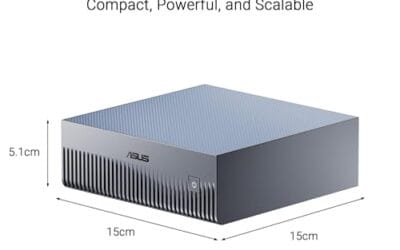
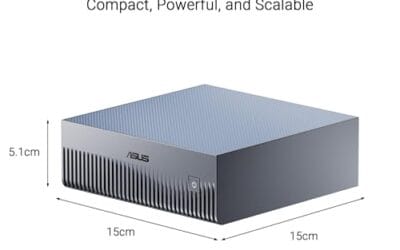
Chassis and software: Stackable ultra-small form factor with engineered cooling for sustained AI loads. Ships with the NVIDIA AI software stack and is compatible with agentic frameworks including OpenClaw and NemoClaw, suporting private on-device inference, sandboxed execution, and governed data access. PSU wattage, dimensions, and weight are not specified.






























Write Your Review
No reviews yet. Be the first to share your experience!