

Few things kill a gaming session or a call faster than a Bluetooth headset that drops out every couple of minutes. You’re mid-match, or mid-meeting, and suddenly the audio stutters, the mic goes dead, and Windows chirps that annoying disconnect tone. It’s frustrating, and it usually isn’t random. A Bluetooth headset that keeps disconnecting is almost always pointing at one of a handful of specific problems, and most of them you can fix yourself in a few minutes without buying anything.
We researched the common failure patterns behind constant Bluetooth drops on PC, PS5, and phones, then sorted them from the quickest wins to the hardware faults that actually warrant a replacement. If you’re already shopping around while you troubleshoot, our guides to the best wireless gaming headset and the best budget gaming headset for 2026 pair well with this, and a proper headset stand keeps the thing off the floor where the antenna gets crushed. Let’s work through the causes in order.
First check the obvious (the 30-second check)
Before you dig into drivers or firmware, rule out the boring stuff. Battery first. A lot of “disconnects” are just a headset dying at 8 percent, because low-power mode on many wireless cans throttles the radio before the audio cuts entirely. Charge it to full and see if the drops stop. Second, check distance and line of sight. Bluetooth is a 2.4GHz signal, and your body, a wall, or a metal desk leg between the headset and the transmitter can knock the connection loose. Move within about six feet of the source with nothing blocking it.

Then look at what else is on 2.4GHz. Your router, a wireless mouse dongle, a microwave, even a USB 3.0 drive sitting next to your Bluetooth receiver can flood that band with noise. Unplug or move nearby USB 3.0 devices, and if your headset dies only when you’re near the router, that’s your smoking gun. Quick, free, and it solves a surprising number of cases.

One more thing worth ten seconds: try the headset on a completely different device. Pair it to your phone and walk around the house. If it holds a rock-solid link on the phone but drops constantly on your PC, you’ve just proven the fault is on the computer side, not the headset. If it drops everywhere, the headset itself is the suspect. That single check tells you which half of this guide to focus on, and it saves you from chasing driver fixes for a problem that lives in the hardware.
Cause #1: Outdated or corrupt Bluetooth drivers
On Windows, the single biggest cause of a headset that reconnects every few minutes is a stale Bluetooth driver. Windows Update loves to install a generic Microsoft driver over your motherboard’s proper one, and the generic version handles power management badly. Open Device Manager, expand Bluetooth, right-click your adapter (Intel, Realtek, or MediaTek usually), and check the driver date. If it’s more than a year old, that’s a problem.
Grab the current driver straight from your motherboard or laptop maker’s support page rather than trusting Windows to find it. After installing, dig into the adapter’s Properties, open the Power Management tab, and uncheck “Allow the computer to turn off this device to save power.” That one setting is responsible for a huge share of random Bluetooth drops on desktops and laptops alike, because Windows literally powers down the radio mid-session to save a fraction of a watt. Reboot, reconnect, and give it a real session before you call it fixed.
While you’re in there, it’s worth removing the device and re-adding it cleanly. Open Bluetooth settings, remove the headset entirely, reboot, then pair it fresh. A stale pairing record can hold onto bad connection parameters from a previous driver, and a clean re-pair forces both sides to renegotiate. If you’re on a laptop, also check that Fast Startup isn’t leaving the Bluetooth stack in a half-initialized state between sessions. Disabling Fast Startup in the Power Options control panel fixes intermittent drops for a good number of laptop owners, because a full shutdown resets the radio properly instead of hibernating it in a broken state.
Cause #2: Interference and a weak or cheap adapter
If the drivers are clean and it still drops, look hard at the radio doing the work. Motherboard Bluetooth antennas are often tiny stick-on units, and many prebuilt desktops ship with the antenna tucked behind a metal case panel where the signal barely escapes. Reposition the external antenna up and away from the case, or if you’re on a cheap USB dongle, that dongle may simply be the weak link. The $8 Bluetooth adapters flooding Amazon frequently use last-generation 4.0 chips with poor range and no error correction, so any interference drops the link.
This is also where the connection type matters. A lot of gaming headsets that ship with a 2.4GHz USB dongle give you a rock-solid low-latency link that sidesteps Bluetooth congestion entirely, and they fall back to Bluetooth only when you want it. The Picun G2, for example, runs 2.4GHz, Bluetooth 5.4, and wired all in one set, with a rated 5ms latency on the dongle and a 100-hour battery, so you can drop Bluetooth for the dedicated wireless link when your PC’s built-in radio is the troublemaker. At $59.99 with a 4.5 rating, it’s an affordable way to route around a flaky onboard adapter instead of fighting it.
If you’d rather keep your current headset, a $12 to $15 USB Bluetooth 5.x adapter with an external antenna is a cheap upgrade over a stubby dongle or an old onboard chip. Look for a 5.0 or newer version with a real antenna rather than the flush nano style, plug it into a USB 2.0 port instead of a USB 3.0 one to dodge that interference, and disable your existing Bluetooth radio in Device Manager so Windows doesn’t get confused between two adapters. Owner reports consistently show a jump in range and stability from that one swap. It’s the middle-ground fix between changing a setting and buying a whole new headset.

Pros
- Three connection modes on a single headset: 2.4GHz dongle, Bluetooth 5.4, and 3.5mm wired fallback.
- Vendor-rated 5ms 2.4GHz latency keps audio synced in competitive shooter scenarios.
- Long rated runtime, up to 100 hours in Bluetooth with RGB disabled for travel use.
- RetractableENC microphone tucks away, useful when switching between gaming and general listening.
Cons
- Limited owner feedback at time of writing, real-world reliability and QC signal is unverified.
- 7.1 surround is virtual DSP, not true multi-driver, so positional accuracy varies by title andear.
- RGB lighting materially cuts battery life, cited100-hour figure requires lighting turned off.
The Picun G2 is a budget-tier wireless gaming headset built around 40mm drivers, virtual 7.1 surround, and tri-mode connectivity across2.4GHz, Bluetooth 5.4, and 3.5m wired. Target buyer is a multi-platform player rotating between PC, PS5, PS4, and Switch who wants low-latency wireless without moving up to established brand pricing.
The defining feature is the tri-mode radio stack. The 2.4GHz USB-A or Type-C dongle is rated at 5ms latency, which is competitive for the tier and adequate for most FPS titles, while Bluetooth 5.4 handles phones and tablets. Headsets in this class typically deliver serviceable rather than reference-grade imaging, and virtual 7.1 leans on DSP rather than discrete drivers.
Trade-offs are typical at this tier. Battery figures are optimistic: 100 hours assumes Bluetooth with RGB off, and 2.4GHz drops the number to 42 to 45 hours. Driver material, impedance, frequency response, clamp force, and weight are not specified, so tonal balance and long-session comfort cannot be verified from source data alone.
Buy this if you want one headset that jumps between a PS5, a Switch dock, and a work laptop over Bluetooth, and you accept spec-sheet-only marketing. Skip this if you rely on measured frequency response, discrete suround, or detachable bom mics with broadcast-grade pickup for streaming.
Drivers and tuning: Picun specifies 40mm dynamic drivers paired with virtual 7.1 surround processing. Impedance, sensitivity, and frequency response are not specified, so bass extension and treble air cannot be quantified from source. Virtual 7.1 is DSP-based positional widening, useful for FPS cues but not equivalent to true multi-driver surround.
Connectivity and latency: Three modes are covered: 2.4GHz via USB-A or USB-C dongle, Bluetooth 5.4, and 3.5mm analog. The 2.4GHz link is rated at 5ms latency. Bluetooth codec support (SBC, AAC, aptX) is not specified, which maters for wireless music quality on phones and tablets.
Battery and power: Rated up to 100 hours on Bluetooth with RGB off, and 42 to 45 hours on 2.4GHz wireless. Play-while-charging is supported, so a USB cable can extend sessions past the rated ceiling. Charge time and battery capacity in mAh are not specified.
Microphone: Retractable omnidirectional bom with ENC noise reduction. Sample rate, bit depth, and pickup pattern beyond omni are not specified.ENC filtering targets background noise on the transmit side, adequate for party chat but below dedicated USB mic quality.
Cause #3: Firmware bugs, pairing conflicts, and a failing radio
Modern headsets run their own firmware, and buggy releases cause exactly this behavior. Open the maker’s companion app (Logitech G Hub, SteelSeries GG, Corsair iCUE, and so on) and check for a firmware update. Owner reports across Reddit and manufacturer forums show that a single firmware revision has flipped a chronic disconnect problem to rock-steady on several popular models. Update the headset, update the dongle if it has its own firmware, and don’t skip that step because it feels tedious.
Pairing conflicts are the other quiet culprit. If your headset is paired to your phone, your laptop, and your console at once, it can keep trying to hop between them and drop the active link. Remove every stored pairing you’re not using, then re-pair only the device you want. If none of that holds, the headset’s own radio may be wearing out, and a reliable full-featured set is the honest fix. The Logitech G733 Lightspeed leans on Logitech’s dedicated Lightspeed wireless rather than plain Bluetooth, with the Blue VO!CE mic and PRO-G audio, and at $124.92 it’s a proven step up when a budget headset’s radio has simply given up. Its 4.0 rating reflects a mature, widely owned design.
There’s one more subtle cause worth ruling out: the audio codec and the mic profile. When a Bluetooth headset is set as both playback and recording device, Windows forces it into a low-bandwidth “hands-free” mode that sounds tinny and, on some adapters, drops out under load. If you don’t need the Bluetooth mic on your PC, set the headset’s high-quality stereo output as default for playback and use a different mic. That keeps it in the stable A2DP profile instead of flipping to the fragile headset profile every time an app grabs the microphone.
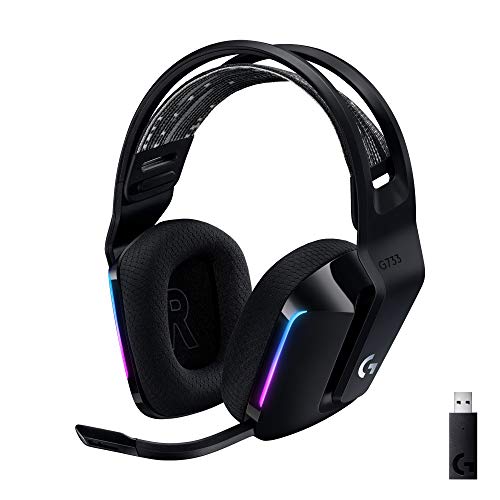
Pros
- Lightspeed wireless with 20 meter range handles typical living room and desk distances
- Up to 29 hours battery life covers multi-day use between charges
- Blue VO!CE mic processing in G HUB improves clarity for Discord and streaming
- Suspension headband and low mass design reduce clamp fatigue during long sessions
- Dual-zone Lightsync RGB with 16.8M colors is customizable through G HUB
Cons
- PS4 output limited to stereo, no suround on older PlayStation hardware
- Driver size, frequency response, and mic pattern not specified in source data
The Logitech G733 is a mid-tier wireless gaming headset targeting PC, PS5, PS4, and Nintendo Switch users who want a lightweight all-day fit. It leans on Lightspeed 2.4GHz wireless, PRO-G drivers, Blue VO!CE mic processing, and a reversible suspension headband, aimed at multi-hour gamers and streamers.
The defining feature is the combination of Lightspeed wireless with a quoted 20 meter range and up to 29 hours of battery. In practice this covers full workdays plus evening sessions without a charge cycle. PRO-G drivers, per Logitech, reduce distortion, and headsets in this tier typically deliver a mildly V-shaped tuning suited to positional FPS cues.
Trade-offs are typical at this price point. PS4 users are locked to stereo output with no virtual surround. Driver diameter, impedance, and frequency response are not published in the source data, so absolute output quality is hard to benchmark against wired competitors. There is no Bluetooth fallback listed, so mobile pairing is not supported.
Buy this if you want a light, long-battery 2.4GHz wireless headset for PC or PS5 with a usable broadcast-style mic. Skip this if you need wired low-latency USB, Bluetooth multipoint, or vendor-published driver and frequency response specs before purchase.
Drivers and tuning: Logitech lists PRO-G drivers tuned for reduced distortion, though exact driver diameter and frequency response are not specified in the source. Headsets in this tier typically ship with 40 to 50mm dynamic drivers and a mildly V-shaped response suited to explosions and footstep cues in FPS gameplay.
Connection and latency: Lightspeed 2.4GHz wireless with a stated 20 meter range covers desk and living room use. Compatibility is confirmed for PC, PS5, PS4 (stereo only), and Nintendo Switch. Bluetooth and wired 3.5mm fallback are not listed in the source, so single-dongle 2.4GHz is the only documented path.
Battery life: Rated up to 29 hours per charge, enough for roughly three to four full evening sessions before recharging. Exact charge time and USB-C versus micro-USB charging port are not specified in the source data.
Microphone: Detachable mic with Blue VO!CE filters configured in G HUB, providing EQ, noise reduction, and de-eser presets useful for Discord and Twitch chat. Mic polar pattern, sensitivity, and frequency range are not disclosed in the source specifications.
Preventive maintenance
Once it’s stable, keep it that way. Charge the headset before it drops under 15 percent instead of running it flat every time, since deep discharges age the cell and shorten the run time that keeps the radio healthy. Keep the firmware and Bluetooth drivers current, but skip the reflex of installing every Windows optional driver blind. Store the headset off the floor and away from the router, and keep the charging contacts clean. Small habits, fewer dropouts.
It also helps to be deliberate about how many devices your headset stays paired to. If you use it across a PC and a console, turn Bluetooth off on whichever one you’re not using, or just power the second device down. A headset that only ever sees one active source has nothing to hop toward, so the link stays put. And if your router lets you, moving it to a less congested Wi-Fi channel or shifting your own network toward 5GHz frees up the 2.4GHz band your headset relies on. Less traffic on that band means a cleaner, steadier connection over the long run.
When it’s not fixable: what to replace
Sometimes the hardware is just done. If the headset drops on multiple devices after a full driver and firmware cleanup, the internal radio or battery has degraded and no software fix will bring it back. A swollen battery, audible crackle even when wired, or a link that won’t hold past a few feet all point to a replacement rather than more troubleshooting. When you’re at that point, prioritize a set with a dedicated 2.4GHz link, since that alone eliminates most of the Bluetooth congestion that started the trouble. Both picks above cover that, one at the budget end and one a tier up, and our roundup of the best gaming headset options goes deeper if you want more choices.
Tools and parts needed
You don’t need much. A charging cable and a working USB port cover most of the fixes here. For the driver work, you just need Device Manager and the download page from your motherboard or laptop maker. If interference is your problem, a short USB extension cable to move a Bluetooth dongle away from a USB 3.0 port or your case works wonders, and it costs a couple of dollars. Beyond that, a replacement headset with its own 2.4GHz dongle is the only real “part” most people end up buying.
A few more questions
Why does my Bluetooth headset only disconnect on my PC and not my phone?
That points at the PC side, not the headset. It’s usually the Windows power management setting that turns the Bluetooth radio off to save power, or a generic driver that replaced your proper one. Uncheck that power setting in Device Manager and install the current adapter driver from your board maker, and the phone-versus-PC gap normally disappears.
Can a USB 3.0 device really cause Bluetooth drops?
Yes, and it’s more common than people expect. USB 3.0 ports and cables emit interference right in the 2.4GHz band that Bluetooth uses. If your Bluetooth dongle sits next to a USB 3.0 drive or hub, move it to a front port or use a short extension cable to add a few inches of separation. That small change fixes a lot of otherwise baffling disconnects.
Is 2.4GHz dongle wireless more reliable than Bluetooth for a headset?
Generally, yes. A dedicated 2.4GHz link like Logitech Lightspeed or a bundled USB dongle runs on its own channel with tighter latency and better error handling than shared Bluetooth, so it holds up better in a noisy radio environment. Bluetooth is fine for phones and travel, but for a desk setup that keeps dropping, the dongle link is the sturdier choice.


































Write Your Review
No reviews yet. Be the first to share your experience!