

The Gigabyte X870E AORUS Elite WiFi7 is the best X870E motherboard for most Ryzen builds. You get two rear USB4 ports, room for four NVMe drives, and 2.5Gb Ethernet. For a Ryzen 7000 or 9000 build with one GPU and two SSDs, there’s a straightforward way to keep the graphics slot at x16 and still use one PCIe 5.0 drive.
The MSI X870E Gaming Plus WiFi costs less and makes more sense if you want 5Gb Ethernet and expect to stop at three M.2 drives. The other picks cover a white build, five standard-length NVMe drives, and a workstation with 10Gb Ethernet. If you’re still deciding whether to buy into X870E at all, start with our gaming motherboard guide for AMD and Intel.

GIGABYTE X870E AORUS Elite WIFI7: AM5 ATX Motherboard with PCIe 5.0 and USB4 for Ryzen Builds
Pros
- PCIe 5.0 x16 slot and 3x PCIe 5.0 M.2 ready for current and future hardware
- WIFI7 and 2.5GbE LAN cover both wireless and wired high-speed networking
- EZ-Latch system on PCIe and M.2 slots simplifies GPU and SSD installation
Cons
- Limited owner feedback at time of writing - reliability data is thin
- X870E commands a premium over B650E boards with similar core feature sets
- No integrated Thunderbolt 5 despite USB4 presence limits some pro peripherals
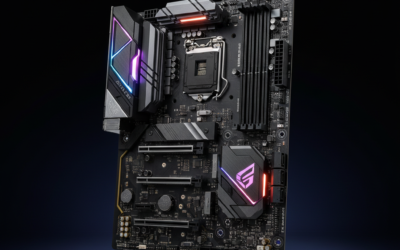
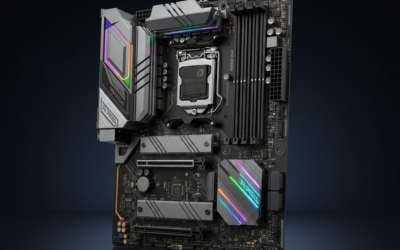
The GIGABYTE X870E AORUS Elite WIFI7 is a full-featured ATX motherboard targeting AMD Ryzen 9000, 8000, and 7000 series builders who want top-tier connectivity without stepping up to flagship pricing. The 16+2+2 Twin Digital VRM on a 6-layer, 2X copper PCB provides solid power delivery for sustained Ryzen 9000 overclocking workloads. Four M.2 slots - three running PCIe 5.0 - give storage enthusiasts room to grow, and dual USB4 ports at 40 Gbps each put this board ahead of most mid-range competition. WIFI7 and 2.5GbE LAN round out a connectivity package that holds up against boards priced significantly higher.
This board currently has a very limited number of owner reviews, so long-term reliability and real-world BIOS stability data are still accumulating - buyers should treat early impressions with appropriate caution. The X870E chipset also carries a cost premium over B650E alternatives that share many of the same PCIe 5.0 and USB4 features, so builders not overclocking aggressively should weigh whether that premium is justified. The EZ-Latch system is a genuine quality-of-life improvement for DIY builds. This board suits enthusiast builders pairing a Ryzen 9000 series CPU with a high-end GPU who need maximum connectivity now and upgrade flexibility later. If WIFI7 and dual USB4 are not priorities, a B650E board at a lower price point may serve equally well.


Pros
- 18+2+2 stages at 110A handle 9950X and 9800X3D PBO loads without VRM throttling.
- Five M.2 slots including three PCIe 5.0 support Gen5 SDs plus a large NVMe array.
- Dual USB4 Type-C, USB 20Gbps front header and nine USB 10Gbps ports cover heavy peripheral loads.
- WiFi 7 plus 5 Gb Realtek Ethernet future-proofs networking beyond typical 2.5 Gb boards.
Cons
- Limited owner fedback at time of writing makes long-term reliability hard to assess.
- X870E pricing sits well above B850 boards offering similar Ryzen 9000 stability for gamers.
- DR5-only AM5 platform means no reuse of existing DDR4 kits from AM4 builds.
The ROG Strix X870E-E Gaming WiFi is a high-end AM5 ATX board built on the X870E chipset, targeting Ryzen 9000, 8000 and 7000 series builds. With 18+2+2 power stages, five M.2 slots and dual USB4, it is aimed at enthusiasts pairing a 9800X3D or 9950X with a PCIe 5.0 GPU and SSD.
The standout is I/O breadth: three PCIe 5.0 M.2 slots, two PCIe 4.0 M.2 slots, dual USB4 Type-C, a 20Gbps front header and WiFi 7. For content creators moving files off Thunderbolt-class SDs or gamers running Gen5 storage plus a5090-class GPU, that lane budget is the real reason to pick X870E over B850.
Trade-offs are typical at this tier. AM5 is DR5-only, so DR4 kits from AM4 do not carry over, and X870E boards command significant premium over B850 options that already handle Ryzen 9 PBO comfortably. ASUS also lists AEMP and AI Overclocking, but tuning results depend heavily on memory QVL and specific CPU silicon.
Buy this if you want a long-lived AM5 platform with Gen5 GPU and SD, USB4, WiFi 7 and headroom for 170W Ryzen chips. Skip this if your build tops out at a single Gen4 NVMe and a mid-range GPU, where a B850 board covers the same use case for less.
Socket and chipset: AMD AM5 with X870 platform, validated for Ryzen 9000, 8000 and 7000 series desktop CPUs. USB4 is a mandatory X870/X870E feature, so this boardships with dual Type-C USB4 ports on the rear rather than relying on an add-in card.
VRM and power: An 18+2+2 stage design rated 110A per stage feeds the SoC and misc rails through dual ProCool II8-pin EPS connectors. That is well above what a 170W 9950X or 9800X3D pulls under PBO, leaving thermal headroom for sustained all-core Blender or Cinebench runs.
Memory and storage: DR5 only with ASUS AEMP profiles; AM5 boards in this tier typically land around DDR5-6000 CL30 as the FCLK 1:1 sweet spot. Storage includes three PCIe 5.0 M.2 and two PCIe 4.0 M.2 slots, all with heatsinks, plus a PCIe 5.0 x16 SafeSlot for a Gen5 GPU.
Networking and DIY features: On-board WiFi 7 (802.11be) pairs with a Realtek 5 Gb Ethernet port, useful for multigig NAS setups. Q-Release Slim PCIe, M.2 Q-Latch and Q-Release, Q-Antenna, Q-Code, BIOS FlashBack and Clear CMOS buttons ease first-time AM5 assembly and troubleshooting.

Best X870E Motherboards at a Glance
| Pick | Motherboard | Key spec | Best for | Main tradeoff |
|---|---|---|---|---|
| Best overall | Gigabyte X870E AORUS Elite WiFi7 | Four M.2 slots, two rear USB4 ports | A gaming and work PC with room to add drives | Two M.2 sockets share GPU lanes |
| Best value | MSI X870E Gaming Plus WiFi | Three M.2 slots, 5GbE | One GPU and up to three NVMe drives | One rear 40Gbps USB-C port |
| Best for a white build | Gigabyte X870E AORUS Pro Ice | White PCB, four M.2 slots | Matching a white case and graphics card | GPU lane sharing is similar to the Elite’s |
| Best for five NVMe drives | ASUS ROG Strix X870E-E Gaming WiFi | Five M.2 positions accept 2280 drives | Keeping several SSDs on the board | Either extra Gen5 socket cuts the GPU link to x8 |
| Best for 10GbE | ASUS ROG Crosshair X870E Dark Hero | Separate 10GbE and 5GbE ports | Workstations with fast network storage | Second Gen5 M.2 socket shares bandwidth with USB4 |
Gigabyte X870E AORUS Elite WiFi7 for Most Builds
The first two drives are easy to place. With a Ryzen 7000 or 9000 desktop CPU, use M2A_CPU for the main drive and the chipset-connected M2D_SB for the second. The first socket supports PCIe 5.0 x4 and the second supports PCIe 4.0 x4. That leaves M2B_CPU and M2C_CPU open, so the top graphics slot can keep its PCIe 5.0 x16 link. If you later add a drive in either of those two spare sockets, the graphics link drops to up to x8.
Two rear USB4 ports are a good reason to choose the Elite over the cheaper MSI. Think of a dock on one port and an external SSD on the other. There’s also 2.5Gb Ethernet and a front USB-C header rated for up to 20Gbps, useful if you have a case with a matching port and cable. You can get all of that at this board’s price without buying a 5Gb or 10Gb network upgrade you may never use.
Gigabyte lists multiple PCB revisions under the Elite WiFi7 name. The storage layout and lane-sharing rule match across revisions 1.0 through 1.3, but the wireless module can differ. Read the revision printed on the board or box before you download drivers or firmware. If you already have three drives and need the GPU at x16 with a Ryzen 7000 or 9000 chip, start with the MSI instead. Gigabyte Elite WiFi7 specifications
MSI X870E Gaming Plus WiFi for Value
One GPU. Three NVMe drives. That’s a configuration where the Gaming Plus WiFi can be a better buy than boards with longer spec sheets. The top M.2 slot runs at up to PCIe 5.0 x4 with a Ryzen 7000 or 9000 CPU, and the two chipset M.2 positions run at up to PCIe 4.0 x4. MSI’s lane map shows no link-width tradeoff between those three sockets and the main graphics slot. Fill all three with that CPU and the GPU slot can still run at PCIe 5.0 x16.
For a home server or NAS that already supports multi-gig Ethernet, the 5GbE port gives this board another reason to be on your list. For USB-C, the rear panel gives you one 40Gbps port and one 20Gbps port. Put a 40Gbps drive or dock on the faster one. A second device that relies on USB4 specifically is a reason to buy a board with two USB4 ports.
Three M.2 sockets can be plenty if you buy drives large enough to keep for a few years. They can also fill up fast if you plan to reuse several smaller drives from an old build. Count what’s moving over before you choose. MSI lists four SATA ports as well, so you can keep SATA bulk storage in the system without spending an M.2 slot on it. MSI Gaming Plus WiFi specifications · MSI’s PCIe lane map
Gigabyte X870E AORUS Pro Ice for a White Build
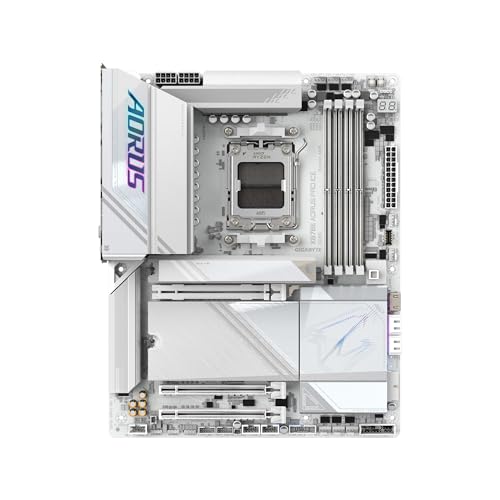
The Pro Ice is the pick if the motherboard itself will be visible in a white build. Its pale PCB and full-size silver and white covers carry the color across the board, including the area below the graphics card. If an opaque side panel or vertically mounted GPU will hide that work, the money is easier to justify on a part you’ll use every day.
On the hardware side, this ATX model gives you four M.2 sockets, a pair of rear USB4 ports, and 2.5Gb Ethernet. Gigabyte’s revision 1.0 and 1.1 specifications also list three rear 10Gbps USB-A ports. That matters if your fast peripherals still use Type-A cables, especially once a keyboard, mouse, and audio interface have taken up some of the other ports.
The storage map has the same decision as the Elite. Use M2A_CPU and M2D_SB first if you want two NVMe drives and the full graphics link with a Ryzen 7000 or 9000 CPU. The two remaining CPU-connected sockets cut the GPU slot to up to x8 if either is occupied. The white finish and rear port mix are the reasons to spend more here. Gigabyte Pro Ice specifications
ASUS ROG Strix X870E-E Gaming WiFi for Five NVMe Drives
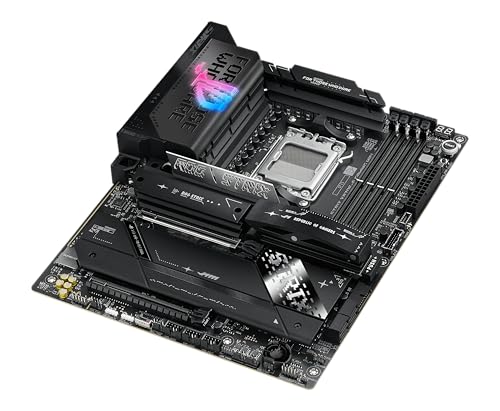
The Strix is the easiest pick here to justify if you already own a stack of 80 mm NVMe drives. All five M.2 positions accept the common 2280 size. With a Ryzen 7000 or 9000 desktop chip, ASUS lists three PCIe 5.0 x4 positions and two PCIe 4.0 x4 positions. You can use the first Gen5 position for your system drive, then put two existing drives in M.2_4 and M.2_5 while keeping the main GPU link at x16.
Plan what happens when you add drive four. Enabling either M.2_2 or M.2_3 switches the main graphics slot to x8 with those CPUs. A Gen4 SSD installed there still takes lanes from that link. With a Ryzen 8000 desktop processor, both of those M.2 sockets are disabled, and the first socket is limited to PCIe 4.0. Buy this Strix for its five-drive layout only if your CPU and expansion plan allow you to use it.
You also get 5Gb Ethernet and two rear USB4 Type-C ports. That combination suits a build with a few external drives as well as a large local library. If you’re only shopping for one big SSD today, compare its capacity and cost before paying for a board with five sockets. Our PCIe 4.0 versus PCIe 5.0 SSD guide covers where the drive interface matters. ASUS Strix X870E-E specifications
ASUS ROG Crosshair X870E Dark Hero for 10Gb Ethernet
A workstation that moves large project folders to a 10Gb NAS is where the Dark Hero makes the most sense. Its separate 10GbE and 5GbE ports let you connect to two wired networks without fitting a network card under the GPU. Check the switch and the storage server first. If either end tops out at 2.5Gbps, plugging in the faster motherboard won’t remove that bottleneck. The same applies when the storage itself can’t keep up.
The Dark Hero’s second PCIe 5.0 M.2 socket shares bandwidth with the USB4 controller. In the shared configuration, ASUS says each runs at up to x2 on its PCIe connection when that socket is populated. Giving M.2_2 the full x4 in BIOS disables the two rear USB4 ports. If your dock or backup drive relies on those ports, put an internal drive in another M.2 position first.
Check drive length too. The fifth socket is a 2230 position at up to PCIe 4.0 x2. It can take a 30 mm drive. The 80 mm drives that fit all five positions on the Strix won’t fit there. If your needs are mainly five standard-length SSDs or your wired network is already served by 5GbE, buy the Strix and put the difference toward storage. ASUS Crosshair X870E Dark Hero specifications
How We Evaluated These X870E Motherboards
We compared AMD’s chipset specifications with the board makers’ storage diagrams, expansion-slot tables, and rear I/O lists. We prioritized configurations you can actually assemble with one graphics card and the intended SSDs, then looked at USB4, wired networking, and the price of each board’s particular advantages. The lane examples use Ryzen 7000 or 9000 desktop chips unless a different series is named. U.S. listings for new boards in this roundup ran from roughly $190 to $610 on November 25, 2026. Prices and stock can change.
How to Choose an X870E Motherboard
How many drives will you use?
Write down the SSDs you own and the ones you expect to add. Include their length and whether you need a slot that supports PCIe 5.0. Give each drive a socket on the board’s diagram. Read the footnotes for occupied sockets, then check the resulting GPU link. On the Elite or Pro Ice, using the chipset M.2 socket for an existing Gen4 drive can save you from splitting the graphics lanes sooner than you need to.
What do you plug into the rear ports?
A keyboard and mouse are comfortable on USB 2.0, which leaves your faster ports for devices that can use them. Reserve a USB4 port for a compatible high-speed enclosure or dock, and check any monitor requirements separately. If you depend on a monitor connected through a dock, check the board’s documentation for video routing and confirm what your CPU and dock support.
What can your network deliver?
Look at the slowest link between your PC and the device you’re transferring files to. A 5GbE port is useful for a compatible wired switch and a capable NAS. For ordinary gaming over a slower internet connection, the extra link capacity is unlikely to change the experience. If you mainly connect wirelessly, check the router and the wireless requirements for the exact board revision.
Will the board and the next add-in card fit?
Each pick here is ATX. Check your case’s supported board sizes, then look at the slot spacing in the manual. A thick GPU can cover a usable slot on the diagram. If you also need a capture card, find an uncovered slot with enough electrical lanes. A full-length opening can be wired for x4 or less, so physical fit alone won’t tell you how the card can run.
Frequently Asked Questions
What’s the difference between X870 and X870E?
AMD’s platform table gives X870E up to 44 usable PCIe lanes and X870 up to 36, with up to 24 Gen5 lanes on each. Both include USB4 as standard and support PCIe 5.0 graphics and NVMe at the platform level. Board makers decide how to route that connectivity, and the processor affects what’s available. If your parts list is short, our B850 versus X870 comparison can help you decide whether to pay for more I/O. AMD’s AM5 chipset comparison
Does X870E make sense for a Ryzen 7 9800X3D gaming PC?
It can, if you want its USB4 ports or have a specific storage or expansion plan. Buy for those connections and check the manufacturer’s CPU support list for the minimum BIOS version. With one GPU, one NVMe drive, and basic peripherals, a less expensive AM5 board with the right CPU support and ports can cover the same needs.
Do I need DDR5 and a PCIe 5.0 SSD?
These AM5 boards require DDR5 memory. You can use a PCIe 4.0 NVMe SSD in a compatible Gen5 M.2 socket, where it will negotiate a Gen4 link. Check the drive length and the slot’s lane-sharing note even if you’re reusing an older SSD. The socket’s wiring determines which other connections are affected when you populate it.
Bottom Line
Start with the Gigabyte X870E AORUS Elite WiFi7 for two rear USB4 ports and a sensible two-drive layout with room to expand. Pick the MSI Gaming Plus WiFi if three M.2 sockets and one USB4 port cover your build, or the AORUS Pro Ice if the white PCB and rear port mix are worth the premium. The Strix earns its place when you have five 2280 drives. Spend on the Dark Hero if you’ve got a 10Gb network to plug it into.



Write Your Review
No reviews yet. Be the first to share your experience!