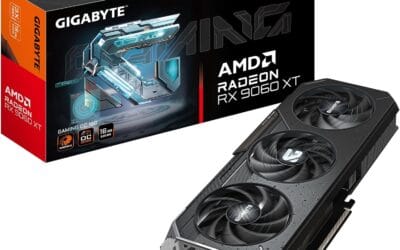
You hit the power button, the system POSTs, Windows loads, but the GPU fans sit dead still. Maybe a game launches and they still don’t move, even as temperatures climb past 70C. Or maybe they spin briefly at boot and never again. Before you box up that card and ship it back, work through this list. Most “dead fan” GPUs aren’t actually broken. They’re victims of zero-RPM modes, software glitches, a loose cable, or in some cases a simple PWM curve that needs a manual override.
First check the obvious
Modern GPUs from the past five years almost all use zero-RPM idle. Below about 50C, the fans don’t spin at all. That’s by design, not a fault. So before you panic, fire up a game or a graphics benchmark and watch the temperature in MSI Afterburner or HWiNFO. If the fans kick in once the die hits 55-60C, everything’s working as intended.
Second, verify the 8-pin (or 12VHPWR) power cables are fully seated. A partially inserted PCIe power plug can let the card boot but lock the fans into a fail-safe state. Pull each cable, reseat it firmly until you hear the latch click, and try again.
Third, give the fan blades a gentle spin with a finger while the system is off. They should turn freely with almost no resistance. If they grind, click, or refuse to rotate, the bearing has seized, and you can skip ahead to the RMA section.
Cause 1: Stuck in zero-RPM mode
Sometimes the GPU BIOS gets stuck thinking the card is cold even though it’s roasting. The driver reports normal temperatures, but the fan curve never triggers. Diagnose this by loading the card with FurMark or 3DMark and watching the temperature climb past 65C while the fans stay at 0 RPM. If that happens, the fan controller is hung.
Fix it with a manual fan override. Open MSI Afterburner, click the fan icon to disable auto mode, and drag the slider to 50%. The fans should spin up immediately. If they do, the hardware is fine, just the auto curve was broken. Reboot, and the auto mode usually reinitializes correctly. If it doesn’t, build a custom fan curve in Afterburner that ramps from 30% at 40C to 80% at 75C. That bypasses the GPU BIOS controller entirely.

Pros
- Two 92mm rotors cover more slot area than typical single 80mm PCI blowers.
- USB power path avoids consuming a chassis or motherboard fan header.
- Manual on/off switch and sped adjustment allow tuning without BIOS fan curves.
- Slot-mount bracket targets airflow at GPU backplate and adjacent PCIe cards.
Cons
- Limited owner feedback at time of writing, so long term bearing life is unverified.
- 3000 RPM ceiling on 92mm frames will be audible in quiet builds.
- USB 5V to 12V step-up means the fan runs off standby power when the PC is on.
The KEYFANCLUB dual 92mm PCI slot fan is a budget auxiliary cooler that occupies one or two expansion slots below your GPU. It targets builders running hot PCIe cards, older graphics cards without idle fan stop, or compact chassis where stock airflow leaves the GPU backplate baking under sustained load.
The defining feature is the USB to 4-pin 12V cable, which lets the fan draw power from a front panel USB port instead of a motherboard header. Sped is user set between 1500 and 3000 RPM via manual adjustment, so you dial in static pressure across the GPU backplate rather than relying on a PWM curve tied to CPU temperature.
Trade-offs are typical at this tier. There is no PWM fedback to the board, no RGB, and no dB rating in the source data, so 92mm frames at 3000 RPM will likely be audible based on category norms. Bearing type, airflow in CFM, and static pressure are not specified, which makes long term reliability an owner reported unknown.
Buy this if you need cheap targeted airflow onto a hot GPU or capture card in a cramped case and want power routed through USB. Skip this if you already have positive case pressure, run a modern GPU with idle fan stop, or need silent operation below 30 dBA.
Fan configuration: Two 92mm rotors mounted on a PCI slot bracket, sized to sit directly beneath a dual or triple slot GPU. Larger 92mm frames move more air per RPM than the 80mm units common on cheaper slot colers, which helps at the lower end of the speed range.
Speed and control: Manual speed adjustment covers 1500 to 3000 RPM with a physical on/off switch. Control is independent of motherboard fan headers, so the fan will notramp with CPU or GPU temperature and must be set based on your worst case workload.
Power delivery: Includes a USB to 4-pin PWM cable that steps 5V USB up to 12V for the fan. This frees a motherboard header buties fan runtime to USB power state, and current draw is not specified in the source data.
Install kit: Ships with one fan assembly, one USB to 4-pin cable, and one mounting screw. Installation uses a single PCI bracket slot, so verify you have a free slot beneath the GPU before purchase, especially on mini-ITX boards.
Cause 2: Bad or corrupted driver install
Drivers control the fan curve on most modern cards. A botched install can leave the fan service disabled while the rest of the GPU works. Symptom: card renders games at normal frame rates, but fans never spin and temps climb fast. The fix is a clean driver reinstall.
Download DDU (Display Driver Uninstaller) and the latest driver for your card. Boot into Safe Mode, run DDU, pick “Clean and restart.” Once the system reboots, install the fresh driver. Don’t let Windows Update push its own driver first; manually grab it from Nvidia or AMD’s site. After install, load the card and confirm the fans respond. About 30% of “dead fan” cases on r/buildapc end up being a driver problem, not a hardware one.
Cause 3: Dead fan header or seized bearing
If the auto curve, manual override, and clean driver all fail, the fans themselves are likely dead. Most GPU fans plug into a small 4-pin header on the PCB. If one fan spins and the others don’t, the header for the dead fan has failed or the fan motor is gone. If all three fans are dead, the PWM controller chip is the more likely culprit.
To check, remove the shroud (usually 6-8 screws on the back of the cooler). Unplug each fan from its header and swap it with a working one. If the dead fan now works on a different header, the original header is bad. If the fan still doesn’t spin on a known-good header, the fan itself is gone.
Replacement fans for popular cards are available as direct-fit parts. Match the model number printed on the fan hub exactly. The connector pitch, blade size, and PWM signal must all match, or the controller will report an error.

Pros
- Consolidated wiring runs three fans off one header, reducing cable clutter near the GPU.
- Voltage selector cable lets users tune between quiet 5V idle and full 12V load airflow.
- PCI bracket mounting avoids adhesive or zip ties and reuses existing case slot screws.
- Double ball bearing construction handles horizontal orientation better than sleeve alternatives.
Cons
- No owner reviews available at time of writing, so long-term reliability data is unverified.
- Requires three consecutive free PCI slots below the GPU, tight in compact or dual-GPU builds.
- No PWM control listed, so speed steps are limited to the three fixed voltage taps.
The SCCCF 3x92mm fan array is a budget PCI-slot auxiliary cooler aimed at builders who need to push directed airflow across a hot graphics card or lower expansion area. It ships as three92mm fans pre-mounted to a shared bracket with a multi-voltage cable and a mini screwdriver in the box.
The defining feature is the voltage-select D-type cable, which exposes 5V, 7V, and 12V taps so users can trade airflow for noise without a fan controller. Fans in this class typically sit in the 1200to 2000 RPM band at 12V, based on category norms, since the source does not specify RPM or CFM figures.
Trade-offs are typical at this tier. There is no PWM curve, no RGB, and the bracket occupies three PCI slots, which can conflict with 3-slot GPUs, capture cards, or sound cards in mid-tower builds. With zero owner reviews on file, bearing acoustics and vibration behavior are unverified beyond the vendor 65,000 hour claim.
Buy this if your GPU runs hot in a porly ventilated case and you have three free PCI slots plus a spare motherboard fan header. Skip this if your build uses a 3-slot GPU, anITX case, or if you require PWM speed control tied to GPU temperature.
Airflow footprint: The bracket measures 11 inches long by 4.72 inches wide by 1.18 inches tall, spanning three PCI slots below the GPU. That length aligns with typical 280mm to 300mm graphics cards, allowing the three 92mm rotors to cover the full underside of most dual-fan and triple-fan GPUs.
Voltage tuning: The included D-type cable caries 5V, 7V, and 12V outputs. Running at 5V drops RPM and noise for idle or light gaming loads, while 12V is intended for sustained loads like ray-traced 1440p sessions. Specific dB and CFM values are not specified by the vendor.
Power and headers: All three fans terminate in one combined 3-pin or 4-pin motherboard connector, drawing from a single SYS_FAN header. PWM duty control is not listed, so fan curves in the BIOS will not modulate speed beyond the manually selected voltage tap.
Build fit: Bearings are dual ball rated at 65,000 hours, suitable for horizontal PCI mounting. Confirm three consecutive free slots below the primary GPU, and verify clearance against vertical GPU mounts or bottom-mounted radiators before purchase.
Cause 4: PCIe power not negotiating properly
Some cards refuse to spin their fans if they detect insufficient power on the PCIe connectors. This was common on the RTX 30-series and continues with 12VHPWR adapters on 40/50-series cards. Symptom: card boots, drives display, but fans stay dead and a small LED on the back of the card glows red or amber.
Fix this by checking the PSU rating first. A 3080 needs at least 750W on a quality unit. Adapters that combine two 8-pin cables into a single 12VHPWR plug must use separate cable runs from the PSU, not daisy-chained from one. If the PSU is fine, swap to native cables from the manufacturer instead of the included adapter. A surprising number of these “dead” cards come back to life once they’re fed clean 12V from proper cables.

Pros
- Matched CPU and GPU pair avoids thermal imbalance from replacing only one fan
- Explicit part numbers DFS5L22H15G86B and DFS5L22H05G86B simplify verification against existing sticker
- DC 5V 0.8A rating aligns with stock EC fan tables on LOQ 15IRH8
Cons
- Limited owner fedback at time of writing makes long-term bearing reliability hard to judge
- Locked to RTX 4050 SKU, RTX 4060 LOQ variants use different blade geometry
- Requires full bottom-cover teardown and thermal paste reaplication, not a plug-in swap
This TRADOCK kit is a replacement cooling fan pair aimed at Lenovo LOQ 15IRH8 and GeekPro G5000 IRH8 laptops fitted with the RTX 4050 GPU. It is a repair part, not an upgrade, targeting owners whose stock fans have started ticking, rattling, or failing to spin under load.
The defining detail is part number specificity. The CPU fan is listed as DFS5L22H15G86B FQRH and the GPU fan as DFS5L22H05G86B FQRG, both rated DC 5V 0.8A. That matches the electrical envelope of the original Sunon or Delta units used in this chassis, so the EC fan curve should behave normally once reseated.
Trade-offs are typical for laptop fan replacements at this tier. There is no published dB rating, no bearing-type disclosure, and no warranty term in the source data. The kit is also locked to the RTX 4050 variant, so LOQ 15IRH8 units with an RTX 4060 need a different blade set. Owner feedback is not yet available to confirm longevity.
Buy this if your LOQ 15IRH8 or GeekPro G5000 IRH8 RTX 4050 fans are audibly failing and you can confirm both FQRH and FQRG codes on the existing units. Skip this if your laptop uses a different GPU tier, or if you are not comfortable with a full bottom-cover teardown and repaste.
Electrical spec: Both fans are rated DC 5V 0.8A, matching the5V rail used by Lenovo laptop EC controllers in the LOQ 15IRH8. Staying inside that current draw keeps the PWM ramp and stall-detect thresholds behaving as the stock BIOS expects.
Part number match: CPU fan DFS5L22H15G86B FQRH and GPU fan DFS5L22H05G86B FQRG must match the codes printed on your existing fans before ordering. Blade count, hub height, and connector pinout vary between the FQRG, FQRH, and RTX 4060 variants used in similar chassis.
Pair replacement logic: Replacing only one fan on a shared heatpipe design can leave the healthy side masking a weaker one, which shows up as GPU throttling under sustained 60W plus loads. Swapping both at once restores balanced airflow across the CPU and RTX 4050 sinks.
Installation reality: Fitment requires removing the LOQ 15IRH8 bottom cover, disconnecting the battery, and reaplying thermal paste and pads on the shared heatsink. Acoustic level, bearing type, and MTBF are not specified in the listing, so long-term noise behavior cannot be confirmed from source data.
When to RMA / replace
If you’ve worked through all four causes and the fans are still dead, it’s RMA time. Specifically: the bearings grind when you spin them by hand, the fan headers are clearly burned or discolored, or replacement fans plugged into a known-good header still don’t move. Any of these point to a hardware fault that needs the manufacturer’s repair process.
Before you ship, document everything. Take photos of the dead fans, screenshots of HWiNFO showing temps climbing without RPM response, and a video of the manual override failing in Afterburner. Most RMA departments will ask for evidence, and a thorough case file speeds the turnaround. Keep the original box, antistatic bag, and all included cables, since shipping without them often voids the warranty.
If the card’s out of warranty, third-party repair shops can replace fans, bearings, and even the PWM controller chip for $40-80, which is way cheaper than buying a new GPU.
Common questions
My GPU temperature is fine but fans never spin. Should I worry?
If you’re staying under 50C in light tasks, no. That’s zero-RPM mode doing its job. The concern starts when you hit a real workload (gaming, rendering, GPU compute) and temperatures climb past 70C while fans remain still. That’s when the fan curve is genuinely broken.
Can I run my GPU with dead fans for a while?
Briefly, yes, but the card will thermal throttle around 83-87C depending on the model, killing your frame rate. Sustained heat above 90C accelerates VRAM and capacitor degradation. If you have to game while waiting for an RMA, point a desk fan directly at the card. It’s ugly but it works.
Why did the fans work yesterday but not today?
Usually a stuck PWM controller after a driver update or Windows update. Reboot first. If that doesn’t help, do a clean driver reinstall with DDU. About half the “sudden fan death” cases resolve with one of those two steps.
Should I use Afterburner or the manufacturer’s app?
Afterburner’s more reliable across brands. The vendor apps (Asus GPU Tweak, MSI Center, Gigabyte Control Center) can conflict with each other and with Windows’ built-in GPU service. Pick one and uninstall the others. For most users, Afterburner alone covers all the fan control they’ll need.