VRR sits on the spec sheet of nearly every gaming monitor sold today, and most buyers still don’t know what it actually does. It’s the umbrella term that includes G-Sync, FreeSync, and HDMI 2.1’s adaptive sync. If you’ve ever played a game where the frame rate dipped and you saw that jarring tear across the screen, VRR is the feature that prevents it. Here’s how it works, why it matters more than higher refresh rates for most players, and where the marketing claims fall apart.
The short answer
VRR stands for Variable Refresh Rate. It’s a display feature that lets the monitor change how often it refreshes the screen on the fly, matching whatever your GPU is producing. Instead of holding a fixed 60Hz or 144Hz rhythm, the panel waits for each frame to be ready and then refreshes.
The result is no screen tearing, no V-Sync stutter, and no input lag penalty. It’s the closest thing PC gaming has to a free upgrade, assuming your monitor and GPU both support it.
The longer explanation
A fixed-refresh monitor is essentially a metronome. It ticks at a strict interval, 16.67ms for 60Hz, 6.94ms for 144Hz, and shows whatever image is in the framebuffer at that exact moment. If your GPU finishes a frame between ticks and pushes it out, the panel shows half the old frame and half the new one. That’s a tear.
VRR cuts the metronome. The panel now waits, sometimes up to 33ms (the minimum sync floor on most displays), for the GPU to say “frame ready.” When the signal arrives, the refresh fires. If the next frame takes 12ms, the next refresh fires at 12ms. The cadence is fluid.
Underneath, VRR is implemented through one of three signaling standards. DisplayPort Adaptive-Sync is the VESA standard that AMD’s FreeSync rides on. HDMI 2.1 baked VRR into the spec, which is what consoles use. Nvidia’s G-Sync originally required a proprietary scaler chip, but G-Sync Compatible mode now works over the same Adaptive-Sync signal. They all do the same job in slightly different ways.
There’s a working range to be aware of. Most VRR panels operate between 48Hz and the panel’s max. Below 48Hz, a feature called Low Framerate Compensation kicks in, duplicating frames to keep the panel inside its sync window. Without LFC, dropping below the floor brings back tearing or visible flicker.

Pros
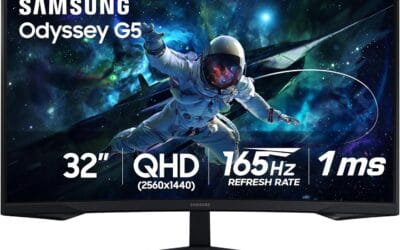
- QHD resolution at 32 inches hits a practical pixel density
- 165Hz refresh rate with 1ms MPRT reduces motion blur
- FreeSync support covers AMD and most NVIDIA GPU pairings
Cons
- VA panel limits viewing angles versus IPS alternatives
- No built-in speakers or USB hub on a mid-range unit
The Samsung Odyssey G55C is a 32-inch QHD curved gaming monitor for PC and console players wanting more screen than a typical 27-inch without jumping to ultrawide. The VA panel delivers 165Hz with 1ms MPRT and HDR10 support, though HDR performance is limited by the panel's brightness ceiling, based on owner reports. AMD FreeSync keeps frame pacing clean on compatible GPUs. VA technology means viewing angles are noticeably narrower than IPS options at this price tier. Skip if color-accurate work or wide-angle desk sharing matters to you.
Why it works this way
Modern LCD and OLED panels don’t have to refresh on a strict timer the way CRT phosphors did. The pixel state can hold for tens of milliseconds without visible decay, so the panel doesn’t lose anything by waiting a bit longer for the next refresh signal. Engineers exploited that flexibility by adding a “frame ready” handshake to the existing video signal.
The GPU drives the show. It renders, signals the monitor, and the monitor refreshes. There’s no separate clock arbitration, no display controller deciding when to fire. That’s why VRR doesn’t add input lag in practice. The frame goes from GPU to panel as fast as the cable allows, no waiting room in between.
The reason VRR works better on higher-refresh panels is range. A 60Hz monitor with a 48-60Hz sync window has only 12Hz of flexibility, which barely matters. A 240Hz panel with a 48-240Hz range can absorb almost any frame rate fluctuation a real game throws at it. That’s why VRR feels transformative on a 144Hz+ display and barely noticeable on a 60Hz one.
When you would want this
Anyone playing games where the frame rate doesn’t stay locked benefits from VRR. That’s almost every modern title. Even competitive games like Apex or Warzone, where you’re targeting 144+ FPS, will dip during heavy fights or smoke effects. VRR smooths those dips so they don’t feel like stutter.
It’s especially valuable on hardware that can’t always hit your monitor’s max refresh. A mid-range GPU paired with a 165Hz panel will spend most of its time at 80-130 FPS. Without VRR, that’s a tearing nightmare. With it, the experience feels locked-in regardless of the actual number.
Console players got VRR with the PS5 and Xbox Series X, which both output it over HDMI 2.1. If you have a recent TV with HDMI 2.1 VRR support, you can finally play console games without the framerate variance feeling like stutter.
Common misconceptions
First myth: VRR is the same as high refresh rate. Not even close. Refresh rate is the max ceiling. VRR is the flexibility within that ceiling. A 60Hz VRR panel and a 144Hz non-VRR panel are completely different experiences, and neither is automatically better.
Second myth: VRR fixes low FPS. It doesn’t. If you’re stuck at 35 FPS, you’ll still see 35 FPS worth of motion clarity, just without tearing. VRR can’t conjure frames that the GPU didn’t render.
Third myth: G-Sync and FreeSync are incompatible. Five years ago, sort of. Today, they’re cross-compatible in almost every case. Nvidia cards work with FreeSync monitors via the G-Sync Compatible setting. AMD cards work with most G-Sync monitors that have a hardware module too. Pick the panel that suits your needs and forget the branding.
Fourth myth: VRR causes flicker. It can on OLEDs, where brightness shifts during refresh-rate changes show up as a subtle pulse during loading screens. It’s a known quirk, not a defect, and most OLEDs released after 2024 have firmware to suppress it.
Frequently asked
Do I need to enable VRR manually?
Usually yes. On Windows, head to Display Settings, Graphics, and enable Variable Refresh Rate at the OS level. Then enable it in your GPU control panel (Nvidia or AMD Adrenalin) and on the monitor’s OSD. All three switches have to be on for it to actually work.
Does VRR work with V-Sync?
You can use them together, and you probably should. Cap your frame rate around 3 FPS below the monitor’s max (so 141 on a 144Hz panel), leave V-Sync on as a safety net, and let VRR handle everything below that cap. This combination prevents tearing in both the VRR range and any rare spikes above it.
Will any HDMI cable carry VRR?
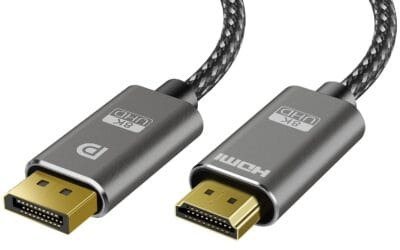
For HDMI 2.1 VRR, you need a certified Ultra High Speed cable. For DisplayPort Adaptive-Sync, any DP 1.2a or newer cable works. The cable that came with your monitor is usually fine.
Is VRR worth it for esports?
Yes, but for different reasons. Competitive players often run at frame rates well above their monitor’s max (say 400 FPS on a 240Hz panel) and disable VRR to minimize any potential latency. For everyone else who’s actually fluctuating within the VRR range, it makes the game feel smoother and the input feel more consistent.