
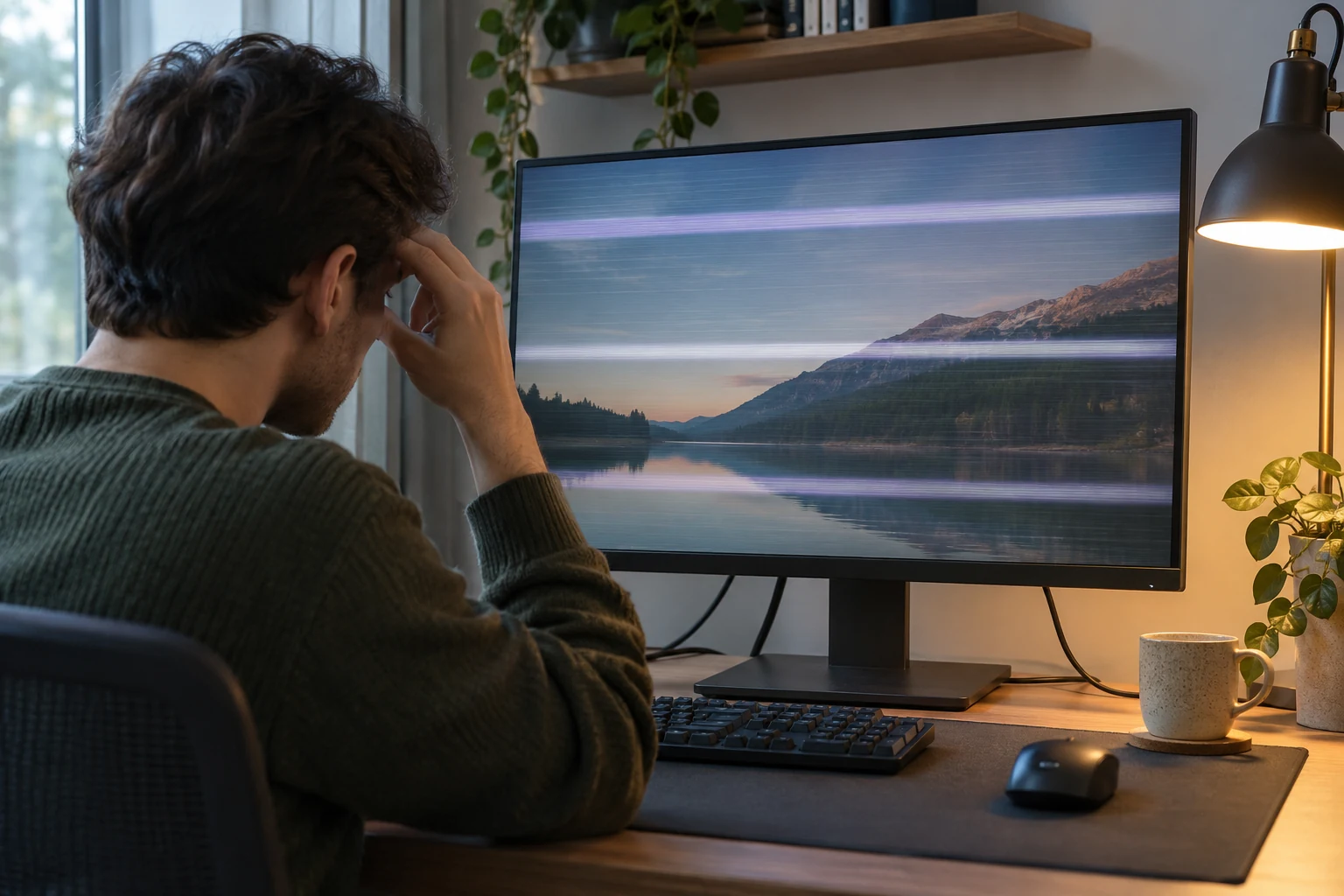
Your monitor flashes black for a second, then comes back. Or the whole picture stays visible but pulses whenever a game loads a dark scene. Both look like flicker, and they point to different things worth checking.
To fix monitor flickering, start with one change at a time. Check the cable and a fixed refresh rate, then move into Windows or Mac settings, graphics drivers, and the monitor itself. If only one app flickers, you can jump straight to Step 6.
Why a monitor flickers
A display refreshes its picture many times per second. A 60 Hz setting tells it to refresh 60 times per second. A cable, dock, or adapter that can’t reliably carry the selected display mode may drop the signal for a moment. That usually looks like a quick black screen before the image returns.
Brightness pulsing can happen while the image stays visible. On a gaming monitor it may coincide with a change in frame rate and variable refresh rate (VRR). If it’s strongest at low brightness, backlight dimming is another possibility. A graphics driver or an individual app can also cause flashes without anything being wrong with the screen itself.
Write down when it happens and what you’re seeing. That gives you something to compare after each change, especially when the issue only shows up once every few minutes.
Step 1. Narrow down what flickers
Before changing any settings, watch the screen in two or three situations. Open the desktop, return to the app or game where you first noticed the flicker, and open the monitor’s own on-screen menu with its physical button or joystick.
- One app only. If the desktop and other apps are steady, try the app-specific steps in Step 6. On Windows, the Task Manager check in Step 7 can help narrow it down further.
- Dark scenes or loading screens in games. Note whether brightness pulses as the frame rate changes. Check VRR in Step 5.
- Only at low brightness. Raise the monitor’s own brightness briefly. If the flicker changes, check dimming and motion blur reduction in Step 5.
- The entire screen goes black and returns. Check the signal path first. If the monitor’s own menu also flickers with the video cable unplugged, skip to Step 8.
- Only when you move a laptop lid. If the built-in screen flickers at certain angles and an external display stays steady, ask the manufacturer about service for the built-in display.
If you’ve got a second computer or monitor, keep it handy. Swapping one part of the setup can narrow down a problem that persists across apps.
If your external display has a power light, watch it during a blackout. A light that goes out or a monitor that shows its startup logo again gives you a reason to check power first. If the light stays on and you see a No Signal message, start with the cable, input, and any dock between the monitor and computer.
Step 2. Check the cable, dock, and power
Start with the connection you’re already using. Save your work before unplugging anything. On a laptop, leave the charger connected separately if the dock normally supplies power and you have a separate charger available.
- Reseat the video cable. Unplug and reconnect it at both ends. If your DisplayPort plug has a release latch, press it before pulling the connector out.
- Swap in a known-good cable. Use one rated for the resolution and refresh rate you’re running. A cable that worked on an older 1080p display may behave differently at 4K and 120 Hz.
- Connect directly. Take the dock, adapter, or KVM switch out of the chain for one check. Make sure the USB-C port supports video if you’re connecting a USB-C monitor.
- Try another compatible port. Keep the resolution and refresh rate as close as possible so you can tell whether the port made a difference. Check that the monitor’s power cord or adapter is seated, then try a known-good wall outlet if you suspect the power strip.
If a direct connection clears it up, reconnect one accessory at a time. The dock may have a lower display mode limit, particularly if it drives two monitors. Check its specifications for the exact resolution and refresh rate you use. Microsoft’s external monitor connection guide
If you’re using a desktop PC with a separate graphics card, check where the cable is plugged in. The video ports on the card and the motherboard can sit close together. Use the port on the graphics card you intend to use, especially if the problem only started after you moved the computer or rearranged your cables.
Step 3. Try a fixed refresh rate
Pick a fixed rate at the monitor’s native resolution. If you’re running a high refresh rate, step down one supported option and repeat the activity that caused the flicker. That gives you a useful comparison without changing the rest of your setup.
Windows 10 and 11
- Open Settings → System → Display.
- Select Advanced display in Windows 11 or Advanced display settings in Windows 10. Select the flickering monitor if you have more than one.
- Under Choose a refresh rate, select a fixed option such as 60 Hz, if listed. Some Windows 10 builds expose the setting under Display adapter properties → Monitor.
- Reopen the app or game and watch for the same flicker. If a lower rate is steady, try the higher rate again with a direct connection and a known-good cable.
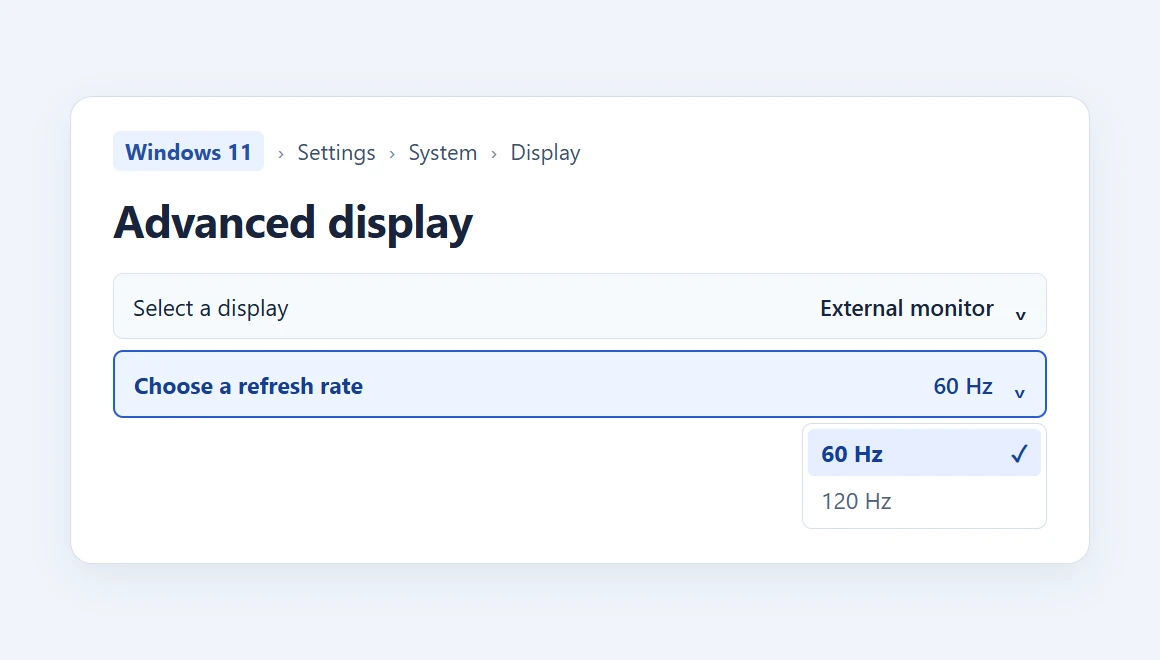
If Windows 11 shows a Dynamic refresh rate switch for that display, you can turn it off temporarily to keep the comparison at a fixed rate. Microsoft’s refresh rate instructions
Keep an eye on the resolution when choosing a different rate. On Windows, some refresh rates are marked with an asterisk because selecting them also changes the resolution. Pick a rate that keeps the native resolution if you want to see what changing refresh rate alone does. If the picture disappears after a change, wait for the confirmation prompt to time out and revert. Microsoft’s refresh rate instructions
macOS
- Open Apple menu → System Settings → Displays.
- Select your external display in the panel.
- Open Refresh Rate and choose a fixed rate, such as 60 Hz, if your setup offers it. If you were using Variable, a fixed value lets you check whether Adaptive Sync contributes to the flicker.
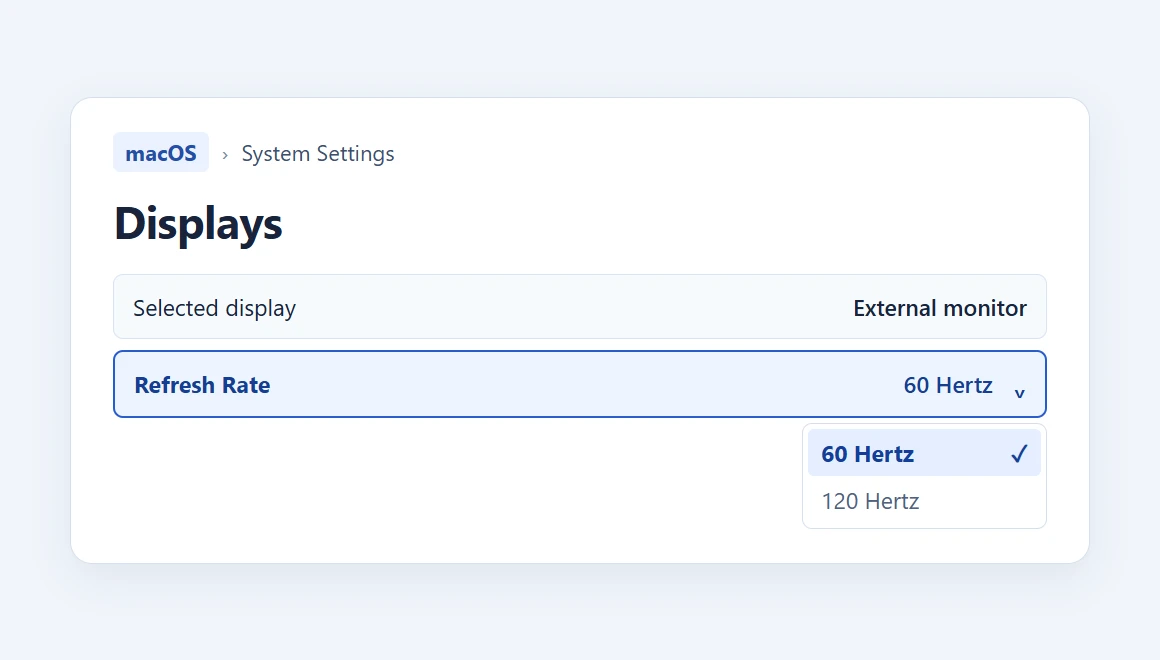
If the setting is missing or your usual rate disappears, check what the monitor and the Mac support over that particular port. A dock, adapter, or cable can limit the modes macOS lists. Try connecting directly before changing your resolution. Apple’s guide to Displays settings
Step 4. Roll back or update your graphics driver
Start with the timing. If the display was fine until a driver or Windows update, try the previous driver. If the issue started without an update and you’re on an older driver, check for a supported newer release.
When it started after an update
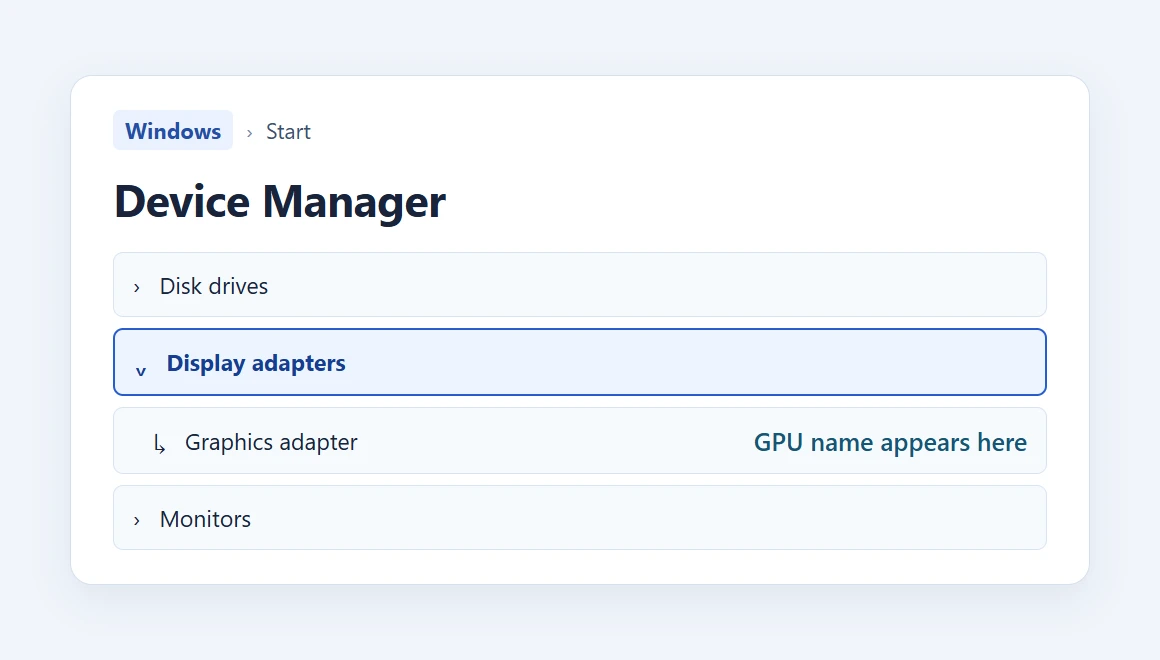
- Right-click Start, open Device Manager, and expand Display adapters.
- Right-click the adapter driving the affected display and open Properties → Driver.
- Select Roll Back Driver if it’s available, then restart. If the button is disabled, Windows has no previous driver to restore through that dialog.
When you need a newer driver
Use the adapter name in Device Manager to find the right driver. On a laptop, start with the PC manufacturer’s support page for the model. On a desktop, check your GPU manufacturer’s download page. Install the driver, restart, and repeat the activity that caused the flicker. On a Mac, graphics updates come through macOS. Check System Settings → General → Software Update. Microsoft’s driver troubleshooting steps
If Windows is still responsive, Windows + Ctrl + Shift + B can reset the graphics driver. The screen may blink and you may hear a beep. That’s a quick way to recover the picture. If the issue returns, continue with the driver or display checks.
Step 5. Try VRR, HDR, and dimming settings one at a time
Keep the same app or game open as you work through this section. Restore each setting if changing it makes no difference. That way, you keep the features you use and know which one affected the flicker.
Variable refresh rate in games
VRR matches the monitor’s refresh timing to the game’s frame output. If dark scenes pulse or brightness jumps during loading screens, temporarily disable Adaptive-Sync, FreeSync, or G-SYNC for the affected display. Depending on your setup, the switch is in the monitor’s on-screen menu, in your GPU control panel, or under Displays on a Mac. Replay the same scene with VRR off. If the picture steadies, check the monitor manufacturer’s firmware instructions and see whether a lower graphics preset makes frame pacing more consistent before trying VRR again. Apple’s Adaptive Sync instructions
HDR, local dimming, and motion settings
If brightness shifts across a dark scene, turn off HDR temporarily in your system’s display settings. If that makes no difference, restore it and check the monitor’s Local Dimming or Dynamic Contrast setting separately. An aggressive Overdrive or Response Time preset can also add bright outlines behind moving objects. Try Normal if that’s what you’re seeing. Microsoft’s HDR settings guide
Flicker at low brightness
Some monitors dim the backlight by pulsing it, a method called pulse-width modulation (PWM). Raise the monitor’s brightness from your usual setting for a short comparison. If the pulsing changes, check your model’s manual for dimming options. Also switch off Motion Blur Reduction or Backlight Strobing if enabled. Those modes can deliberately pulse the backlight, so check them separately from normal brightness.
Step 6. Check graphics acceleration in the app
If the flicker stays inside a browser or video window, start with that app. Close any unsaved work first, then reopen the same tab or clip after changing the setting.
Chrome and Edge
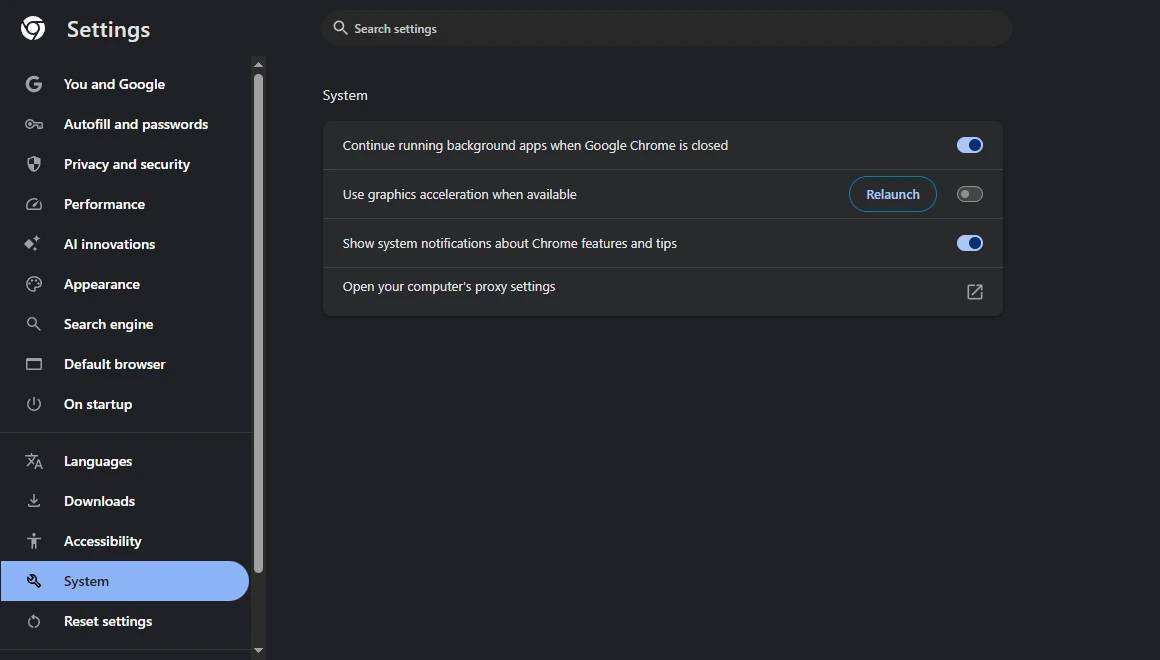
- In Chrome, open
chrome://settings/system. In Edge, openedge://settings/system. - Turn off Use graphics acceleration when available. Some versions label it hardware acceleration.
- Choose Relaunch or Restart, then return to the page or video that flickered.
Firefox
Open Settings → General and scroll to Performance. Clear Use recommended performance settings to reveal the graphics options. Clear Use hardware acceleration when available, restart Firefox, and try the same content again. Mozilla’s Firefox performance settings
If the setting has no effect, switch it back on and check whether an extension or overlay is involved. If it helps, keep an eye on playback and scrolling performance. You can try enabling it again after updating the browser and graphics driver.
Does the flicker happen on one website? Open the same page in a second browser and compare it there. Then try a different video in the original browser. A single page that flickers in both browsers gives you a different lead than every hardware-accelerated video flickering in one browser.
Step 7. Isolate a Windows software conflict
Press Ctrl + Shift + Esc to open Task Manager while the screen is flickering. If Task Manager stays steady while the rest of the desktop flashes, an app is a likely place to start. If Task Manager flickers too, Microsoft recommends investigating the display driver. Close any recent screen-recording, gaming overlay, or display utility one at a time to see whether the symptom changes. Microsoft’s screen flickering guide
If you still can’t isolate it, try Safe Mode through Settings → System → Recovery → Advanced startup on Windows 11. In Windows 10, go through Update & Security → Recovery. After Windows restarts, choose Troubleshoot → Advanced options → Startup Settings → Restart and select Safe Mode. A steady picture there is a clue about the normal startup configuration. A clean boot can help isolate the specific startup item or third-party service. Follow Microsoft’s steps to restore normal startup after you’re done. Windows startup settings · Microsoft’s clean boot guide
Step 8. Check whether the monitor itself is failing
At this point, compare what happens with and without an input signal. If you’ve customized the monitor, note your picture settings first so you can restore them later.
- Reset the monitor. Use the Reset or Factory Reset option in the monitor’s own menu. The exact label varies by model.
- Run built-in diagnostics. If the manual lists a diagnostic or a built-in pattern, follow the instructions for that model. Some displays require you to unplug the video cable first. Flicker in the built-in pattern points toward the monitor or its power supply.
- Cross-check with another device. Use a second computer and a known-good cable. If the flicker follows the display, note what you tried and contact the manufacturer about warranty or repair options. Dell’s built-in monitor diagnostic instructions
If you’ve confirmed a fault and decided to replace the display, start with what you use it for. For a compact work setup, see our 24-inch monitor picks. For PC gaming, compare 1440p gaming monitors. If you use 4K for work and games on a budget, see our 4K gaming monitors under $300. Check the input and refresh rate you plan to use before buying.
If the flicker is intermittent, write down the input, refresh rate, and brightness where it occurs. Include whether it appears in the monitor’s own menu. Those details are usually more helpful to support than a video alone, since a phone camera can show bands even when the display looks steady in person.
What to check in three common situations
- The screen blacks out for a second at 4K. Keep the same cable and lower the refresh rate once. If the signal steadies, try the original mode with a direct connection and a cable rated for that mode. This helps distinguish a connection limit from a fault in the display.
- Only one screen in a two-monitor setup flickers. Swap the cables between the screens if their connections are compatible. If the symptom follows a cable, start there. If it follows a port, try that port with the other screen connected on its own.
- It happens right after waking from sleep. Try a direct connection without the dock. If that helps, check for dock firmware and note which display mode resumes. If the issue remains, check the computer’s graphics updates and compare with a different cable before resetting the monitor.
Bottom line
Start by finding the one situation in which the flicker reliably appears. A known-good cable and a fixed refresh rate are quick checks for a whole-screen problem. One app or one game gives you a narrower place to look. If the monitor flickers during its own diagnostics or on a second computer with a different cable, you have something concrete to take to the manufacturer.