

You install a routine Windows update, reboot, and suddenly your router starts cycling: lights blink, the connection drops for a minute, it comes back, and then it does the whole dance again twenty minutes later. Frustrating, and the timing makes it look like Microsoft broke your Wi-Fi. Usually it didn’t. A router that reboots on a loop after a PC update is almost always a driver, power, or firmware issue that the update merely exposed. Let’s walk through what actually causes it and how to stop the cycle for good.
The good news is you can fix most cases yourself in under an hour without buying anything. We researched the common failure points and owner reports, then laid them out from cheapest to check first. If your hardware is genuinely on its last legs, we’ll point to a sensible replacement, and if you’re already shopping, our roundups of the best gaming routers of 2026 and the best budget routers cover current picks.
First check the obvious (the 30-second check)
Before you blame anything, look at the router’s power brick and cable. A loose barrel connector or a failing wall adapter causes intermittent reboots that seem random but line up with any vibration or heat change, and a PC update that spins up fans can be pure coincidence. Reseat the power plug at both ends. Then check that the router isn’t sitting on a heat-trapping surface or stuffed in a cabinet, since thermal cutoff triggers the same reboot loop.
Next, unplug the router for a full 30 seconds and power it back on. That clears a hung state and, more importantly, tells you whether the loop returns immediately or only when your PC is active. If it reboots even with the computer off, the update isn’t the cause at all, and you can skip straight to the firmware and power sections below. If it only misbehaves when the PC is online, keep reading.

While you’re at it, note the pattern. Does the router drop at a fixed interval, like every 20 minutes on the dot, or only when you fire up a big download or a game? A clockwork interval usually points to a firmware watchdog or a memory leak rebooting the unit on a timer. A load-triggered drop points to power or overheating. Writing down that timing costs nothing and saves you from chasing the wrong cause for an hour.
Cause #1: A network driver the update changed
This is the most common culprit and it’s the one people miss. Windows updates frequently bundle new network adapter drivers, and a mismatched or buggy Ethernet or Wi-Fi driver can flood the router with malformed packets or renegotiate the link constantly, which some routers respond to by rebooting. It’s not that Windows attacked the router. It’s that the new driver is talking to it badly, and a cheaper or older router chokes on the chatter.
Open Device Manager, expand Network adapters, and roll back the driver on your Ethernet or Wi-Fi card (right-click, Properties, Driver tab, Roll Back Driver). If rollback is greyed out, grab the latest stable driver directly from the adapter maker (Intel, Realtek, Killer) rather than the one Windows pushed. Reboot the PC and watch the router for an hour. If the loop stops, the driver was it. If a flaky older router keeps dropping under any driver, and it’s a years-old single-band unit, a modern mesh router like the Linksys Hydra Pro 6 handles heavy device chatter far more gracefully across 30-plus connections.
There’s a second driver angle worth checking: Windows Update sometimes reinstalls its own version even after you roll back, so it looks fixed for a day and then relapses. To stop that, pause updates for a week once you’re stable, or use the “Show or hide updates” troubleshooter to block the specific driver Windows keeps forcing. It’s a hassle, but it’s the difference between a fix that holds and one that quietly reverts on the next reboot. Owner reports of this exact loop almost always trace back to a network driver Windows swapped without asking.

Pros
- AX5400 class dual-band throughput up to 574 plus 4804 Mbps on 5 GHz
- Six spatial streams with OFDMA reduce congestion for 30+ device homes
- Intelligent Mesh compatibility allows scaling coverage beyond the 2,700 sq ft rating
Cons
- Limited owner feedback at time of writing, so real-world reliability data is thin
- Dual-band only, no dedicated 6 GHz or wireless backhaul band at this tier
- Detailed specifications, WAN port sped, and waranty not specified in source listing
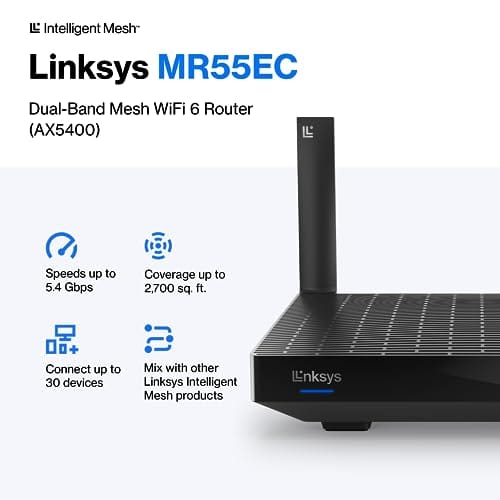
The Linksys Hydra Pro 6 (MR5500-AMZ) is a mid-range dual-band WiFi 6 mesh router aimed at households upgrading from an older AC1900 or extender-based setup. Linksys rates it for 2,700 sq ft and 30 plus devices, targeting medium apartments, condos, and small two-story homes with mixed smart home and streaming traffic.
The defining feature is six-stream AX5400 class WiFi 6 with quoted rates of 574 Mbps on 2.4 GHz and 4804 Mbps on 5 GHz. OFDMA and MU-MIMO help when many low-bandwidth clients share airtime, which is where WiFi 5 routers typically stall. Real-world 5 GHz throughput at range appears to land in the mid-hundreds of Mbps based on category norms.
Trade-offs are typical at this tier. It is dual-band, so there is no dedicated 6 GHz radio and no separate backhaul channel when you add mesh nodes, meaning throughput can halve on satellite hops. Linksys does not specify WAN port speed, USB, or processor details in the listing, so multi-gig ISP users should verify before buying.
Buy this if you want a single WiFi 6 router that can grow into a Linksys Intelligent Mesh system for a 2,000 to 3,000 sq ft home with 30 plus clients. Skip this if you need WiFi 6E, 2.5 GbE WAN, or a dedicated backhaul band for a large multi-story house.
Wireless class: AX5400 class dual-band WiFi 6 with quoted PHY rates of 574 Mbps on the 2.4 GHz band and 4804 Mbps on the 5 GHz band, totaling roughly 5378 Mbps aggregate across six spatial streams. No 6 GHz radio is listed, so WiFi 6E clients fall back to 5 GHz.
Coverage and capacity: Linksys rates the MR5500 for 2,700 sq ft and 30 plus simultaneous devices. OFDMA, MU-MIMO, and 1024-QAM are standard at this WiFi 6 tier and help maintain throughput as client count scales, though actual coverage depends heavily on wall material and node placement.
Mesh behavior: Intelligent Mesh lets you pair the MR5500 with other Linksys nodes to extend coverage. Because it is dual-band, backhaul shares the 5 GHz client band, so expect throughput to roughly halve one hop from the root node. A wired Ethernet backhaul between nodes avoids this penalty.
Not specified: WAN and LAN port speeds, USB ports, processor and RAM, warranty length, and physical dimensions are not disclosed in the source listing. Buyers pairing this with multi-gig fber or DOCSIS 3.1 plans above 1 Gbps should confirm port specs before purchase.
Cause #2: Router firmware that needs updating (or rolling back)
Firmware is the router’s own operating system, and an out-of-date or corrupted build reboots under load, memory leaks, or specific traffic patterns. A Windows update can change how your PC negotiates its connection just enough to trip a firmware bug that was always lurking. Log into the router’s admin page (usually 192.168.1.1 or 192.168.0.1), find the firmware section, and check whether an update is available.
Apply the newest stable firmware, then power-cycle the router. If the reboots started right after you flashed a firmware update of your own, the opposite move helps: roll back to the previous version, since a bad release can cause exactly this loop. Don’t interrupt a firmware flash, and don’t do it over Wi-Fi if you can use a wired connection instead. A dropped flash can brick the unit, which turns a nuisance into a real replacement.
One more firmware-adjacent trick: after updating, do a factory reset and set the router up fresh rather than restoring an old backup. Corrupted settings carried over from before the update can keep triggering the loop even on new firmware, and a clean config rules that out. Yes, you’ll re-enter your Wi-Fi name and password, but it takes ten minutes and it eliminates a whole category of gremlins that survive an update. Note the working firmware version somewhere so you can return to it if a future release misbehaves.
Cause #3: Overheating and dust choking the airflow
Routers run hot, and a unit clogged with dust or crammed into a stale corner will hit thermal protection and reboot, often more after a Windows update simply because you’re now pushing more traffic through it during downloads. Feel the top of the case. If it’s uncomfortably warm, heat is a live suspect. Move the router to open air, keep 4 to 6 inches of clearance on every side, and blow out the vents with compressed air.
This same dust problem plagues the PC feeding the router, and a machine that overheats mid-update can drop and re-grab the connection in a way that stresses the router further. Keeping intake filters clean on both helps. A cheap magnetic dust filter kit like the MoKo 2-pack, at $12.99 with a 4.9-star rating, covers a PC case intake and cuts the dust load that leads to thermal reboots down the line. Cleaner airflow, fewer heat-triggered drops.
Placement matters more than people think. A router shoved behind a monitor, stacked on top of a warm cable box, or boxed inside an entertainment cabinet cooks itself and reboots under any real load. Give it height, open air, and distance from other heat sources. If the case is too hot to keep your hand on comfortably, that alone can explain a loop that only shows up when you’re pushing a big download and the chip inside is working hardest.

Pros
- Large 400x300mm sheets cover full-tower top or side panels after trimming.
- Magnetic strip and adhesive combo works on any ferrous steel case panel.
- 1mm mesh openings pass more air than tight foam filters at similar coverage.
- Two-pack plus eight strips gives enough material for multiple vents in one build.
Cons
- Limited owner feedback at time of writing, real-world durability is unverified.
- Requires ferrous steel panels, will not stick to aluminum or tempered glass cases.
- PVC and 3M adhesive strips can lose grip over time in warm, high-airflow builds.
This is a budget DIY dust filter kit, not a pre-cut case-specific filter. The package includes two 400x300mm PVC mesh sheets with a 1mm hole pattern plus eight 400mm magnetic frame strips. It targets builders with non-standard vents, modded cases, HTPC chassis, or console dust covers who want to fabricate their own filters.
The defining feature is the trim-to-fit format. You measure the vent, cut the PVC sheet with scissors, then frame the edges using the adhesive-backed magnetic strips so the assembly clamps to steel panels. The 1mm aperture is coarser than typical foam filters, which favors airflow over fine-dust capture, a reasonable trade for intake or exhaust with strong static pressure fans.
Trade-offs are typical at this tier. PVC is not as tear-resistant as nylon or stainless mesh, and 3M adhesive can soften near warm PSU or GPU exhaust zones. The magnetic attachment only works on ferrous steel, so tempered glass side panels or aluminum shells need alternative mounting. With no verified owner data yet, longevity and mesh consistency are unproven.
Buy this if you need to filter oddly shaped vents or console intakes and are comfortable cutting and framing your own mesh. Skip this if your case already ships with pre-fit magnetic filters, or if the panels are aluminum or glass where the magnets will not hold.
Sheet dimensions: Each sheet measures 400x300mm (15.75 x 11.81 inches) with a stated thickness of 0.01 inches. Two sheets ship per pack, enough surface area to cover a full-tower top vent plus a PSU shroud intake, or several smaller vents across a mid-tower build.
Mesh and material: PVC construction with a 1mm hole pattern. The 1mm aperture is coarser than fine foam or stainless woven filters, which prioritizes airflow over sub-micron dust capture. Expect it to catch pet hair, lint, and coarse household dust rather than fine particulates.
Mounting hardware: Eight 400mm magnetic strips are included, framed with 3M adhesive backing. Peel-and-stick application to the trimmed PVC edge lets the assembly clamp to any ferrous steel case panel. No screws or drilling needed, and the filter lifts off for shake-out or rinse cleaning.
Compatibility notes: Total kit weight is around 0.5 pounds. Magnetic mounting requires steel panels, it will not attach to aluminum shells, tempered glass, or plastic vents without a separate ferrous shim. Best suited to standard steel PC cases, older server chassis, HTPC builds, and console dust covers.
Preventive maintenance
A few habits keep the loop from coming back. Set your router to install stable firmware on a schedule and note the version so you can roll back if a release goes bad. Keep network drivers current from the adapter maker rather than trusting every Windows-pushed version blindly. Give the router room to breathe and dust it every few months. And put it on a decent surge protector, since dirty power causes reboots that look exactly like software bugs.
It’s also smart to keep a spare, known-good power adapter on hand if your router uses a common barrel plug, since the brick is the single most likely part to fail silently over years. And glance at the router’s admin page once in a while for a temperature or uptime reading. A unit that never stays up more than a few hours, or that runs hot at idle, is telling you something before it fails outright. Small check, big warning.
When it’s not fixable: what to replace
If you’ve rolled back drivers, updated firmware, cooled the unit, and swapped the power adapter and it still loops, the router hardware is likely failing. Capacitors age, flash memory wears, and a unit more than five or six years old owes you nothing. At that point replacement beats another weekend of troubleshooting. The Linksys Hydra Pro 6 at $199.99, rated 4.4 stars, is a WiFi 6 mesh unit that covers about 2,700 square feet and handles 30-plus devices, which is a solid step up from an aging single-band router that buckles under a busy PC.
Tools and parts needed
You don’t need much. A can of compressed air for the vents, a known-good power adapter to rule out the brick, an Ethernet cable for a stable firmware flash, and access to your router’s admin page. On the PC side, Device Manager handles the driver rollback and it’s already built into Windows. If dust is a recurring problem, an inexpensive magnetic filter kit keeps intake grilles clean on the tower. That’s the whole kit for this fix.
If you plan to shop for a replacement, jot down a few numbers first: your internet plan’s speed, your home’s square footage, and roughly how many devices connect at once. Those three figures decide whether a single router or a mesh system fits, and they keep you from overbuying or underbuying. A quick note now saves a return later, and it makes comparing units far easier than guessing at coverage from a box.
Common questions
Can a Windows update really make my router reboot?
Not directly, but it can trigger the problem. Updates often swap network drivers, and a buggy driver talks to the router in a way that stresses it into rebooting. The update exposes a weakness rather than causing it. Roll back the network driver first; if the loop stops, you’ve found it. If the router reboots even with the PC off, the update was never the real cause.
Should I factory reset the router?
It’s worth a shot after firmware and driver steps fail, since a reset clears corrupted settings that cause instability. Back up your config first if the router supports it, because a reset wipes your Wi-Fi name, password, and any port forwarding. If a fresh factory state still loops within an hour, the hardware is probably the issue and it’s time to weigh a replacement.
How do I know if it’s the router or my PC?
Unplug the PC and leave the router running. If it still reboots on its own, the router or its power is at fault and the update is irrelevant. If it stays stable until the PC comes online, the problem lives on the computer side, usually a network driver or a machine that overheats and thrashes the connection during downloads. That single check narrows it down fast.


































Write Your Review
No reviews yet. Be the first to share your experience!