

Your mini PC ran quiet and cool for months, and now the fan screams at idle, the case feels hot to the touch, and the whole thing freezes or reboots the second you open something demanding. That’s the classic mini PC overheating story, and it shows up constantly in owner threads for NUC-style boxes, Beelink and Minisforum units, and the little tower-hybrids people cram behind a monitor. The good news? Most of the causes are cheap or free to fix, and you rarely need to replace the machine. We researched the most common failure points, cross-checked owner reports, and put them in the order you should actually check them.
This guide is aimed at the small-box crowd, so if you’re diagnosing a compact rig you also game or stream on, our notes on the best mini PC for 1080p gaming and the best mini PC for HTPC builds explain how much thermal headroom those workloads really demand. Let’s walk the symptom down to a root cause.
First check the obvious (the 30-second check)
Before you open anything, rule out the easy stuff. Is the mini PC sitting inside a cabinet, on a carpet, or stacked under a router with its vents blocked? These boxes pull cool air from one side and push hot air out the other, and a lot of people unknowingly park them against a wall so the exhaust recirculates its own heat. Move it into open air, give it a few inches of clearance on every side, and see if the fan calms down within a minute or two.
Next, check ambient temperature and orientation. A room at 82F with the unit lying flat on a warm desk behaves very differently than the same box standing upright near an AC vent. Pull up a monitoring tool like HWiNFO and watch the package temperature at idle. If you’re sitting at 70C doing nothing, something’s wrong. A healthy small box idles in the 40C to 55C range depending on the chip. Note that number. You’ll use it to confirm whether each fix below actually did anything.
One more free check before you grab a screwdriver: look at what’s running in the background. A single runaway process pinning a core, a stuck Windows Update, or an aggressive antivirus scan can hold the chip at load for hours while you think the box is idle. Open Task Manager, sort by CPU, and confirm nothing’s quietly hammering the processor. It sounds too simple to matter, yet a surprising share of “my mini PC overheats at idle” threads end right here, with a background task nobody noticed. Rule it out, then move on to the physical causes.
Cause #1: Dust-clogged intake and heatsink fins
This is the number one killer, and it sneaks up on you. Mini PCs use tiny blower or axial fans pulling through a dense fin stack, and that stack acts like a lint trap. After six to twelve months of use, a felt-like mat of dust can bridge the fins so airflow drops to a trickle. The fan spins faster to compensate, gets louder, and the chip still cooks. Owner reports routinely show a 10C to 20C drop after a single cleaning, which is a massive swing for five minutes of work.
Power the unit down, unplug it, and open the bottom panel (usually four screws under the rubber feet). Use a can of compressed air in short bursts, holding the fan blade still with a toothpick so it doesn’t over-spin and generate stray voltage. Blow from the exhaust side back through the fins to push debris out the intake, then flip and clear the intake mesh. Don’t skip the mesh filter. That’s where the thickest mat forms. Reassemble, boot, and recheck your idle temperature against the number you wrote down.
Cause #2: Dried-out or badly applied thermal paste
Thermal paste is the thin layer between the chip and the heatsink, and in cheap or older mini PCs it’s often applied sloppily or has simply pump-out and dried into a crumbly crust. When that happens, heat can’t transfer efficiently no matter how clean the fan is, and you’ll see the CPU spike to 95C or higher under any real load while idle looks almost normal. That load-only spike is the tell. If cleaning the dust didn’t move your under-load temps, paste is the prime suspect.
Repasting a mini PC means removing the heatsink screws in a cross pattern, gently lifting the cooler, wiping both surfaces with 99 percent isopropyl alcohol on a lint-free cloth, and applying a small rice-grain dab of quality paste before reseating. It’s a fifteen-minute job that reliably drops load temperatures 8C to 15C on units with factory paste. If your box is out of warranty and still throttling after a clean, this is the fix that pays off most. Keep in mind that opening some sealed units voids coverage, so weigh that first.
A quick word on paste choice and quantity, since people get this wrong in both directions. You don’t need an exotic liquid metal compound on a low-power mini PC, and liquid metal on aluminum coolers can actually corrode them. A mid-tier ceramic or metal-oxide paste is plenty. And more paste is not better. A blob the size of a grain of rice spreads under mounting pressure to a thin, even film, while a giant glob traps air pockets and can ooze onto nearby components. Reseat the cooler straight down without sliding it around, tighten the screws in a diagonal cross pattern a little at a time, and you’ll get an even contact every time.
Cause #3: A failing or stalling fan and aggressive power settings
Sometimes the cooling hardware itself is on its way out. A fan bearing that whines, stutters, or stops entirely at low RPM will let heat pile up before it ever ramps to full speed. Listen for a rattling or ticking sound, and in your monitoring tool watch whether fan RPM actually tracks temperature. A fan stuck at 1,200 RPM while the chip climbs past 85C is either failing or being held back by a bad fan curve in the BIOS.
The other half of this cause is power configuration. Many mini PCs ship with a Windows power plan or a BIOS PL1/PL2 setting that lets the chip draw far more wattage than the little cooler can dissipate. Dropping the sustained power limit by a few watts, or switching Windows to a Balanced plan with a lower maximum processor state (try 95 percent), can eliminate thermal throttling entirely with a barely noticeable performance hit. If you’ve cleaned, repasted, and the fan is healthy but the box still runs hot under sustained load, tune the power target before you assume the hardware is done.
Preventive maintenance that actually helps
Once you’ve got temperatures back in range, keeping them there is mostly about airflow discipline. Blow out the intake mesh every three to four months if the unit lives near carpet or pets, and every six months in a clean office. Leave real breathing room around the chassis and never seal it inside a closed cabinet without ventilation. A cheap laptop cooling pad or even a couple of small risers under the unit improves convection more than people expect. Set a calendar reminder so cleaning doesn’t slip to the point where you’re back to square one.
Software habits help too. Keep the BIOS and chipset drivers current, since vendors sometimes ship fan-curve and power-limit fixes that directly lower temperatures. Avoid stacking the unit under a hot router or an external drive that dumps its own heat into the intake. If you mount the box behind a monitor with a VESA bracket, double-check the vents aren’t pressed flat against the panel. Small placement choices compound. A mini PC that’s cleaned, updated, and given room to breathe rarely comes back to bite you, and the whole routine takes maybe ten minutes twice a year.
When it’s not fixable: what to replace
Some overheating problems aren’t worth chasing. If the chip is soldered, the cooler is a sealed vapor chamber you can’t reach, and the box still throttles after a clean and a power tune, you’ve hit the wall of what a fanless-ish micro design can do. That’s common with the smallest passively cooled sticks and older Atom-class boxes that were never built for sustained load. At that point a slightly larger machine with a real airflow path is the honest upgrade, not another round of paste.
If your workload is light office and browsing and you just want something that won’t cook itself, the abytespark Prebuilt Gaming PC Desktop pairs an Intel Core i7 in a proper tower at $499.99 with a 4.4 rating. A full tower gives the CPU a genuine intake-to-exhaust airflow channel that a palm-sized box physically can’t, which is why the same chip stays cooler in a bigger case.
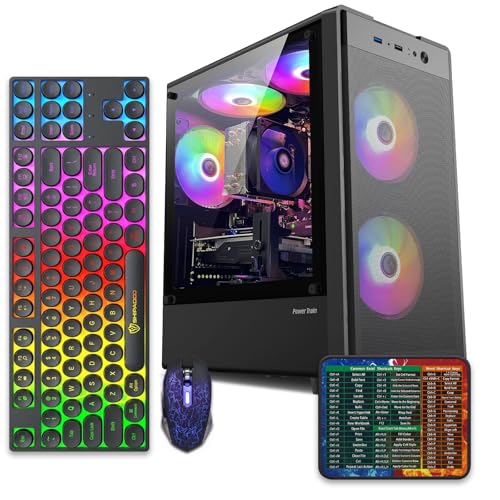
Pros
- 512GB SSD bot drive avoids the HDD bottleneck common in budget prebuilts
- RX 590 8GB VRAM buffer handles 1080p textures better than 4GB budget cards
- Complete bundle with RGB peripherals means no extra spend to start using
- Genuine Windows 11 Home 64-bit preinstalled, no activation hassle out of box
Cons
- Limited owner feedback at time of writing, verify seller reputation before purchase
- Core i7-4770 is Haswell era LGA150, no upgrade path and weak IPC versus modern CPUs
- Windows 11 on 4th-gen Intel is unsupported by Microsoft and may miss feature updates
- No CD/DVD-ROM support and RAM/GPU generation limits future workload headroom
This is an entry-tier prebuilt tower built around an Intel Core i7-4770 Haswell CPU, 16GB RAM, a 512GB SSD, and an AMD Radeon RX 590 8GB GDDR5 GPU. It targets budget buyers who need a working office and light gaming PC with peripherals bundled, not enthusiasts chasing current-gen performance.
The defining feature is the RX 590 8GB paired with a 512GB SSD, an uncommon combo at this price band. Cards in this class typically handle 1080p esports titles at 60+ FPS on medium to high, matching the vendor claim for CS:GO, League of Legends, Apex, and Overwatch. Newer AA titles will need lowered settings.
Trade-offs are significant. The i7-4770 launched in 2013, so IPC, single-thread performance, and platform features like NVMe bot, PCIe Gen4, and modern USB are limited. Windows 11 runs here but sits outside Microsoft's official supported CPU list. There is no realistic CPU or socket upgrade path on LGA1150.
Buy this if you need a plug-and-play 1080p esports and office tower with keyboard, mouse, and RGB included at a low outlay. Skip this if you want current-gen platform support, sustained AA 1440p gaming, or a build with a meaningful upgrade runway.
GPU class: The AMD Radeon RX 590 8GB GDDR5 is a Polaris-refresh card roughly equivalent to a GTX 1060 6GB tier. Expect 1080p 60+ FPS in esports titles like CS:GO, Overwatch, Apex, League, and Fortnite on medium settings, matching the listing's claims.
AAA and modern titles: The vendor lists GTA V, Warzone, Hogwarts Legacy, and The Division 2. Realistically, these run at 1080p low to medium with FSR upscaling where suported.Ray tracing is unsupported on RX 590. No DLSS, no frame gen, no AV1 encode.
CPU bottleneck: The Core i7-4770 quad-core with 8threads at up to 3.9GHz will bottleneck the RX 590 in CPU-heavy titles like Warzone and Escape from Tarkov. Expect frame time inconsistency in large team fights even when average FPS looks aceptable.
Storage and RAM fit: 512GB SSD holds Windows plus 3 to 5 modern game installs before space pressure. 16GB DR3-era RAM is adequate for current esports but leaves no headroom for heavy streaming, browser tabs, and OBS NVENC alongside a game session.
Prefer a machine that can push a little more than spreadsheets? The WIWB Prebuilt Gaming PC Desktop runs a Ryzen 5 up to 4.1GHz with an RX 560 4G graphics card, 16GB DDR4, a 512GB SSD, and Wi-Fi 6 for $569.99, and it holds a strong 4.7 rating. The RX 560 and standard tower cooling mean casual gaming and media duty won’t send it into the thermal spiral a cramped mini box hits. It’s a sensible landing spot if your old small unit gave up on heat.

Pros
- Ryzen 5 3500X 6-core CPU bosts to 4.1GHz for smooth 1080p esports CPU load.
- Discrete RX 560 4GB handles DirectX 12 and Vulkan esports titles better than integrated graphics.
- 512GB SSD as bot drive keps Windows load times and app launches snappy out of box.
Cons
- Limited owner feedback at time of writing, no verified reviews to validate build quality.
- RX 560 is a legacy entry-tier GPU, skip if you want modern AAA at 1080p high.
- Ryzen 5 3500X sits on aging AM4, upgrade path is caped at Zen 3 with a BIOS update.
The WIWB is a budget prebuilt tower built around a Ryzen 5 3500X, RX 560 4GB, 16GB DDR4, and a 512GB SSD. It targets students, home office users, and casual gamers who want a plug-and-play box for esports at 1080p rather than a rig for current AAA titles.
The defining pairing here is the 3500X and RX 560. The 6-core, 6-thread CPU bosting to 4.1GHz is still competent for League, CS2, Valorant, and Overwatch, and typically pushes well above 100FPS at 1080p low-to-medium when paired with this GPU class. The RX 560 4GB is the bottleneck for anything heavier.
Trade-offs are typical at this tier. The RX 560 predates FSR frame generation and struggles with modern UE5 titles even at 1080p low. AM4 with a 3500X caps future CPU upgrades at Zen 3, and the case, PSU wattage, VRM phases, and included cooler are not specified, so headroom for a stronger GPU later is unclear.
Buy this if you need a cheap, pre-assembled Windows tower for schoolwork, browsing, and light esports at 1080p. Skip this if you plan to play current AAA releases, stream at 1080p60, or want a platform with a real multi-year upgrade path.
CPU workload: The Ryzen 5 3500X is a 6-core, 6-thread Zen 2 part with a 3.6GHz base and 4.1GHz boost. It stays viable for 1080p esports and light productivity like image editing and IDE work, but lacks SMT, which hurts streaming and modern CPU-bound AA titles.
GPU class and resolution fit: The RX 560 4GB GDDR5 is an entry esports card. Expect high frame rates in CS2, League, and Overwatch at 1080p low-to-medium, and playable frame rates in older AAA titles at 1080p low. 1440p and modern AA at medium are outside its envelope.
Memory and storage: 16GB DDR4 is the current baseline for gaming and multitasking, and the 512GB SSD covers Windows plus roughly 3 to 5 modern game installs. Exact DDR4 speed, dual-channel status, and SSD interface (SATA vs NVMe) are not specified.
Connectivity and upgrade path: WiFi 6 is included, and the board exposes an M.2 slot plus spare DDR4 slots for later expansion. PSU wattage, connector layout, case clearance, and waranty length beyond the stated 1-year coverage are not specified, so plan GPU upgrades cautiously.
Tools and parts needed
You don’t need much. A small Phillips screwdriver for the bottom panel and heatsink, a can of compressed air, a bottle of 99 percent isopropyl alcohol, a lint-free cloth, and a small tube of quality thermal paste cover every fix above. Total spend is usually under $20 if you don’t already own the basics. A soft toothpick or plastic pick to hold the fan still and a headlamp so you can see the fin stack round out the kit. That’s genuinely the whole list.
A few more questions
What temperature is too hot for a mini PC?
Short bursts into the low 90s C under heavy load are normal for many small chips, since they’re designed to throttle around 95C to 100C. The problem is sustained heat. If you’re idling above 65C or sitting pinned at 95C during ordinary tasks, that’s a real thermal fault worth chasing. Aim for idle in the 40s to low 50s and load temps that stay under 90C after your fixes.
Can I add an external fan to cool my mini PC?
Yes, and it helps more than you’d guess. A small USB fan aimed at the intake, or a laptop cooling pad the unit sits on, can shave several degrees by feeding the internal fan cooler air. It won’t rescue a machine with dried paste or a dead fan, but as a supplement on top of a clean interior it’s a cheap, reversible boost. Just don’t rely on it to mask a real hardware problem.
Is it worth repasting a mini PC that’s still under warranty?
Usually not yet. Opening the chassis can void coverage on many units, so if it’s still under warranty and overheating out of the box, contact the seller for a replacement or repair first. Save the repaste for when the machine is out of warranty, or when the manufacturer explicitly allows user servicing. Cleaning the external intake mesh, though, is almost always fair game and won’t affect your warranty.


































Write Your Review
No reviews yet. Be the first to share your experience!