

A fan curve is the rule that tells your fans how fast to spin at any given temperature, and setting one up yourself is the difference between a PC that roars at idle and one that stays quiet until it actually needs to work. Most systems ship with a generic default that either runs too loud or lets heat creep up before ramping. You don’t need new hardware to fix that. You need ten minutes in your BIOS or a free utility. This walkthrough covers the whole process, from reading your current temps to locking in a profile that keeps a modern CPU cooler or GPU running cool without sounding like a hair dryer.
What you’ll need
The good news is that tuning a fan curve costs nothing if your motherboard supports it, and almost every board from the last decade does. You’ll want your motherboard’s BIOS (reached by tapping Delete or F2 at boot), or a software layer like your board vendor’s fan tool, FanControl (a free open-source app), or MSI Afterburner for the GPU side. A temperature monitor helps too. HWiNFO64 logs every sensor in your system and shows you real numbers instead of guesses.
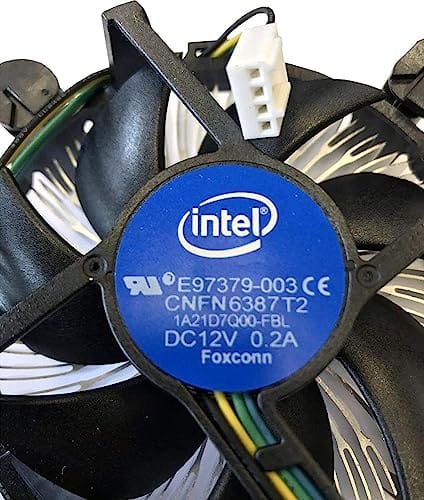
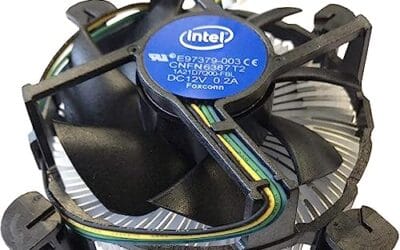
You also need to know what fans you’re actually controlling. Four-pin PWM fans give you smooth percentage-based control across the full range. Three-pin fans only respond to voltage changes, so their floor sits higher. If you’re still running a basic stock cooler, its fan is the first thing a good curve will tame. The bundled Intel E97379 heatsink, a $15.99 aluminum unit with a 3.5-inch 4-pin fan for LGA 1150/1155/1156 sockets, is a classic example of a PWM fan that benefits from a manual profile since its default behavior tends to spike under light load. It carries a 4.1 rating, and owner reports note it does the job on lower-wattage chips once the curve is dialed in.

Pros
- Native LGA 1150, 1155, and 1156 socket support covers three legacy Intel generations
- 4-pin PWM connector enables proper fan curve control via BIOS
- OEM-style aluminum heatsink footprint keps RAM and VRM clearance predictable
- Push-pin mount installs without removing the motherboard from the case
Cons
- Zero owner fedback available at time of writing, real-world thermals unverified
- Aluminum-only heatsink with no heatpipes struggles with overclocked or unlocked K-series CPUs
- Restricted to obsolete Intel sockets, no path forward to LGA 1200, 1700, or AM5
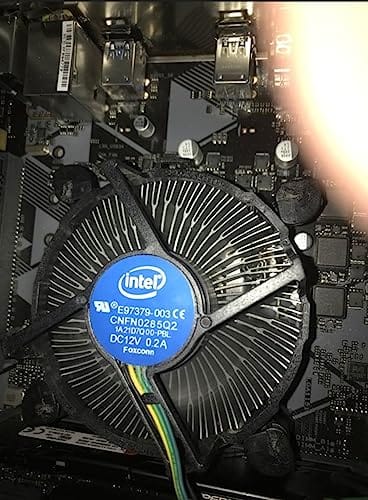
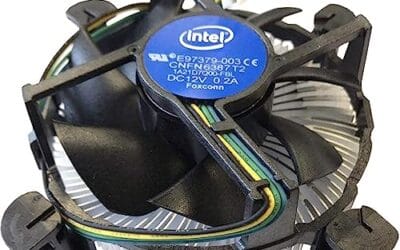
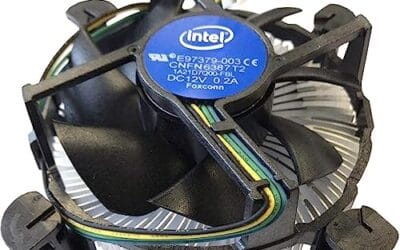
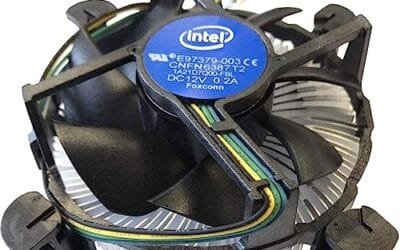
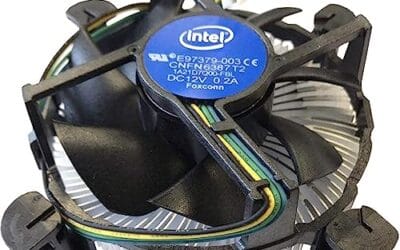
The Intel E97379-003 is an OEM-style stock CPU cooler built for LGA 1150, 1155, and 1156 boards, covering Core i3, i5, and i7 chips from the Sandy Bridge through Haswell era. It targets one specific buyer: someone repairing, refurbishing, or restoring a legacy Intel desktop that lost its original heatsink.
The defining feature is compatibility, not performance. A 3.5-inch fan sits on an aluminum heatsink with a 4-pin PWM header, matching the original OEM cooler dimensions Intel shipped in retail boxes. Stock coolers in this class typically handle 65W to 84W TDP chips at stock clocks, which lines up with locked i3, i5, and non-K i7 SKUs on these sockets.
Trade-offs are typical for a boxed-style cooler. There are no heatpipes, no copper base contact, and no tower geometry, so sustained multi-core loads will spin the fan up and get audible. Push-pin mounting is convenient but less secure than a backplate design, and overclocking headroom is effectively zero. Owner feedback is not available at time of writing.
Buy this if you need a like-for-like OEM replacement for a locked LGA 1150, 1155, or 1156 CPU and want to kep the original acoustic and clearance profile. Skip this if the CPU is a K-series part, if you plan to overclock, or if the target socket is LGA 1200 or newer.
Socket coverage: Native mounting for LGA 150, 1155, and 1156 only. That spans 2nd, 3rd, and 4th generation Core i3, i5, and i7 desktop chips. No adapter is included for LGA 1200, 1700, or AM4/AM5, so this cooler is locked to legacy Intel repair scenarios.
Heatsink and fan: Aluminum radial-fin heatsink with a 3.5-inch axial fan on a 4-pin PWM connector. No heatpipes, no copper slug, no vapor chamber are indicated in source data. TDP handling is not specified, but OEM colers of this geometry are typically rated for the 65W to 84W stock TDP band on these sockets.
Mounting and clearance: Push-pin retention through the four motherboard holes, no backplate required, install possible without removing the board. Cooler height sits low enough to clear standard mid-tower side panels, and the round footprint keps RAM slots and VRM heatsinks unobstructed. Exact height in mm is not specified.
Acoustics and headroom: Noise level in dBA is not specified. Based on OEM stock cooler behavior at this size, expect quiet idle and audible ramp under sustained all-core load. Overclocking a K-series chip on this heatsink is not advisable, thermal headroom above 84W is minimal.
Step 1: Baseline your temperatures
Before you touch a single slider, you need to know where your system sits. Open HWiNFO64 in sensors-only mode and let it run for a couple of minutes at idle. Write down your CPU package temp, your GPU core temp, and your case ambient if your board reports it. Most desktops idle somewhere between 30C and 45C for the CPU depending on room temperature and cooler quality. That’s your floor.
Now load the system. Run a game, a render, or a stress utility like Cinebench for the CPU and a graphics benchmark loop for the GPU. Watch the peak temps climb and note where they settle after five minutes. A well-cooled chip might top out at 75C, a hot one at 90C or higher. These two numbers, idle and sustained load, are the anchors your entire curve gets built around. Skip this and you’re tuning blind.
Step 2: Enter your fan control interface
Reboot and tap Delete to enter BIOS, then find the fan section. On ASUS boards it’s under Q-Fan Control, on MSI it’s Hardware Monitor, on Gigabyte it’s Smart Fan, and ASRock calls it FAN-Tastic Tuning. Every one of them shows a graph with temperature on the horizontal axis and fan speed on the vertical. Your CPU fan header and case fan headers each get their own curve.
If you’d rather stay in Windows, FanControl is the better route because it updates in real time and lets you tie a case fan’s speed to CPU temp, GPU temp, or a blend of both. BIOS control is more reliable since it runs before the OS loads, but it can only read the sensors the board exposes. For most builds, start in BIOS to set a safe baseline, then refine in software if you want finer grain. That’s the approach that gives you the fewest surprises.
Step 3: Set your curve points
A fan curve is just a series of points connecting temperature to fan speed. Four points cover almost every scenario. Set the first point low, around your idle temp: at 40C, hold the fan at roughly 30 percent, which on most quality fans is nearly silent. Set the second point at 60C to about 45 percent. The third at 75C should hit around 70 percent, where the fan starts moving real air. The fourth at 85C should push 100 percent, giving you full cooling headroom before anything gets uncomfortable.
The shape matters. A flat line at the bottom keeps things quiet during browsing and light work, then a steeper climb kicks in once real heat shows up. Avoid a curve that ramps hard at low temps, because that’s what makes a PC noisy for no reason. Also avoid one that stays flat too long, since that lets heat build before the fans react. You want lazy at the bottom, aggressive at the top.
Step 4: Add hysteresis and a spin-up delay
Here’s the setting most people miss. Temperatures bounce around constantly, and a curve with no smoothing will make your fans surge up and down every few seconds. That pulsing is more annoying than a steady hum. The fix is hysteresis, sometimes labeled fan step-up or spin-up time, which tells the fan to wait a moment before reacting to a temperature change.
Set a spin-up delay of two to four seconds and a spin-down delay a little longer, maybe five or six. This averages out the momentary spikes that happen when a background task briefly loads a core. Your fans hold a steady speed through short bursts and only shift when the trend is real. If your BIOS offers a fan-off or zero-RPM option below a threshold like 40C, you can enable it for a truly silent idle, though I’d leave case fans spinning slowly to keep air moving.
Step 5: Save, reboot, and validate under load
Save your BIOS changes with F10 and let the machine boot into Windows. Now repeat your load run from step one with HWiNFO64 open. Watch how the fans respond as temps climb. You’re checking three things: does the CPU stay under your target ceiling, do the fans stay quiet at idle, and does the ramp feel smooth rather than jumpy.
If temps climb higher than you like, shift your curve points up a few percent each. If it’s still too loud at idle, drop that first point lower. This is an iterative job, and it’s normal to tweak two or three times before it feels right. Once your load temps hold steady in a safe range and the noise disappears at idle, you’re done. A good AIO or air tower gives you more room to run quiet here, which is why pairing a strong curve with a capable cooler matters. Builders chasing silence often step up to a beefier air CPU cooler or a 240mm liquid unit for exactly that headroom.
Troubleshooting common issues
My fans won’t drop below a certain speed
This almost always means you’re running three-pin fans on a header set to PWM mode, or the header itself is stuck in DC mode. Three-pin fans can’t be slowed past a voltage floor, usually around 40 percent. Switch the header to DC control in BIOS, or replace those fans with 4-pin PWM models. Some boards also have a minimum-duty setting that clamps the floor higher than you’d want, so check for that.
The curve resets every time I reboot
If you set your curve in a Windows app like FanControl and it isn’t holding, the app probably isn’t launching at startup. Add it to your startup programs and confirm it has permission to run in the background. If you tuned in BIOS and it still resets, your CMOS battery may be failing, or a BIOS update wiped your profile. Re-enter and save again after any firmware change.
Fans surge up and down constantly
That’s a hysteresis problem, plain and simple. Your curve is reacting to every tiny temperature blip. Go back into your fan settings and lengthen the spin-up and spin-down delays. Widening the gap between where the fan speeds up and where it slows down smooths the whole thing out. A four-second delay usually kills the pulsing.
GPU fans ignore my BIOS curve
Your motherboard BIOS can’t control your graphics card’s fans. Those live on the GPU itself. Use MSI Afterburner instead, enable the software fan control toggle, and build a separate curve there. The logic is identical, just aimed at the card’s own sensor.
Before and after expected outcomes
The change is easy to feel. Before tuning, a default profile often idles fans at 50 percent or higher and ramps aggressively at the first sign of load, so your desk hums even during email. After a proper curve, idle noise drops to near silence while load temps stay in the same safe band or better. You’re not sacrificing cooling for quiet. You’re just spending fan speed only where it counts, which also cuts dust buildup since the fans aren’t running flat out all day.
Variations and advanced setups
Once the basics click, you can get clever. FanControl lets you set a case exhaust fan to follow whichever is hotter between your CPU and GPU, so the case reacts to gaming load and rendering load alike. You can also build separate profiles: a silent one for daily use and a performance one you switch to before a long session. Liquid cooling adds another layer, since you’ll want to tie your radiator fans to coolant temp rather than CPU core temp for smoother behavior. Anyone running a 360mm loop or a premium AIO liquid cooler should lean on coolant-temp control because it swings far less than a spiky core sensor and keeps the whole loop quiet.
Common questions
Is setting a custom fan curve safe for my hardware?
It’s completely safe as long as you don’t cripple your cooling. The worst that happens with a bad curve is higher temps, and modern chips throttle themselves before any damage. Keep your top point at 100 percent by 85C and you’ve got a hard safety net. Nothing you do in a fan menu can physically harm a component.
Should I control fans through BIOS or software?
BIOS is more reliable because it runs independently of Windows and never fails to load. Software like FanControl gives you more flexibility, including multi-sensor logic and instant tweaks without a reboot. Many builders use both: a safe baseline in BIOS and finer control in software. If you only pick one, BIOS is the safer default.
What temperatures are actually safe?
Most modern CPUs are rated to run up to around 95C to 100C before throttling, but you’ll want sustained load temps to sit below 85C for comfort and longevity. GPUs tolerate similar numbers, often into the mid-80s under load. If your curve keeps you in those bands, you’re fine. Cooler is always quieter and better for the parts.
Why are my fans loud even at low temps after tuning?
Check that your lowest curve point is genuinely low, both in temperature and in fan percentage. If the first point sits at 50 percent, the fans will hum even at idle. Also confirm the header is reading the right sensor. A case fan tied to a hot VRM sensor instead of CPU temp can stay high for reasons that have nothing to do with your actual workload.




























Write Your Review
No reviews yet. Be the first to share your experience!