

Your PC has a quiet superpower it uses every second it’s on: it decides, moment by moment, how fast the fans should spin. That decision isn’t random. It follows a rule you can actually see and shape, called a fan curve. If you’ve ever wondered why your machine roars during a game but goes near-silent while you read email, the fan curve is the answer.
A fan curve is simply the relationship between temperature and fan speed. Cooler component, slower fan. Hotter component, faster fan. It’s a graph the motherboard or a piece of software walks up and down thousands of times per session. Understanding it explains a lot about noise, thermals, and why two identical builds can sound completely different. It also pairs naturally with hardware choices like a good CPU cooler, since the curve only works with the cooling capacity you’ve actually installed. For airflow-focused builds, pairing the right curve with a proper air cooler matters more than most people expect.
The short answer
A fan curve is a set of points that maps a temperature reading to a target fan speed, usually expressed as a percentage of the fan’s maximum RPM. Picture a line on a graph: temperature runs left to right, fan speed runs bottom to top. At 35C the curve might sit at 30% speed. At 70C it climbs to 80%. At 85C it hits 100%. The fan controller reads the sensor, finds that point on the line, and spins the fan to match. That’s the whole idea.
Because the curve is just a rule, you can change it. Flatten it for silence, steepen it for aggressive cooling, or add a flat “quiet zone” so the fans don’t react to every tiny spike. The curve doesn’t add cooling power on its own. It manages the cooling hardware you already have, which is why a strong cooler and clean paste job set the ceiling for what any curve can achieve.

Pros
- Native LGA 1150, 1155, and 1156 socket support covers three legacy Intel generations
- 4-pin PWM connector enables proper fan curve control via BIOS
- OEM-style aluminum heatsink footprint keps RAM and VRM clearance predictable
- Push-pin mount installs without removing the motherboard from the case
Cons
- Zero owner fedback available at time of writing, real-world thermals unverified
- Aluminum-only heatsink with no heatpipes struggles with overclocked or unlocked K-series CPUs
- Restricted to obsolete Intel sockets, no path forward to LGA 1200, 1700, or AM5
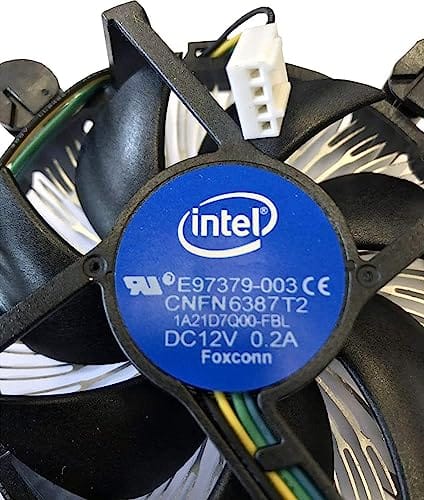
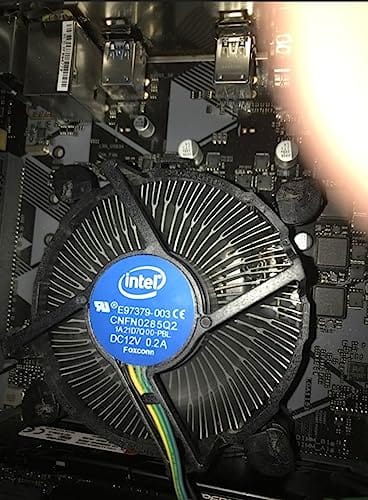
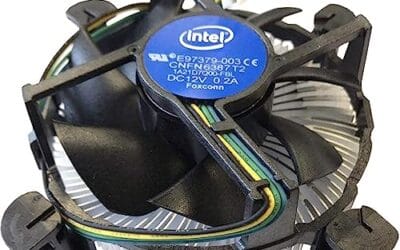
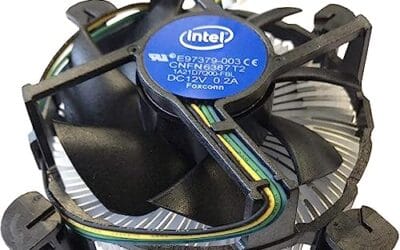
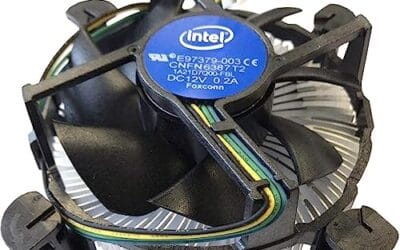
The Intel E97379-003 is an OEM-style stock CPU cooler built for LGA 1150, 1155, and 1156 boards, covering Core i3, i5, and i7 chips from the Sandy Bridge through Haswell era. It targets one specific buyer: someone repairing, refurbishing, or restoring a legacy Intel desktop that lost its original heatsink.
The defining feature is compatibility, not performance. A 3.5-inch fan sits on an aluminum heatsink with a 4-pin PWM header, matching the original OEM cooler dimensions Intel shipped in retail boxes. Stock coolers in this class typically handle 65W to 84W TDP chips at stock clocks, which lines up with locked i3, i5, and non-K i7 SKUs on these sockets.
Trade-offs are typical for a boxed-style cooler. There are no heatpipes, no copper base contact, and no tower geometry, so sustained multi-core loads will spin the fan up and get audible. Push-pin mounting is convenient but less secure than a backplate design, and overclocking headroom is effectively zero. Owner feedback is not available at time of writing.
Buy this if you need a like-for-like OEM replacement for a locked LGA 1150, 1155, or 1156 CPU and want to kep the original acoustic and clearance profile. Skip this if the CPU is a K-series part, if you plan to overclock, or if the target socket is LGA 1200 or newer.
Socket coverage: Native mounting for LGA 150, 1155, and 1156 only. That spans 2nd, 3rd, and 4th generation Core i3, i5, and i7 desktop chips. No adapter is included for LGA 1200, 1700, or AM4/AM5, so this cooler is locked to legacy Intel repair scenarios.
Heatsink and fan: Aluminum radial-fin heatsink with a 3.5-inch axial fan on a 4-pin PWM connector. No heatpipes, no copper slug, no vapor chamber are indicated in source data. TDP handling is not specified, but OEM colers of this geometry are typically rated for the 65W to 84W stock TDP band on these sockets.
Mounting and clearance: Push-pin retention through the four motherboard holes, no backplate required, install possible without removing the board. Cooler height sits low enough to clear standard mid-tower side panels, and the round footprint keps RAM slots and VRM heatsinks unobstructed. Exact height in mm is not specified.
Acoustics and headroom: Noise level in dBA is not specified. Based on OEM stock cooler behavior at this size, expect quiet idle and audible ramp under sustained all-core load. Overclocking a K-series chip on this heatsink is not advisable, thermal headroom above 84W is minimal.
The longer explanation
Every fan curve is built from control points. Each point pairs a temperature with a fan-speed target, and the controller draws straight lines between those points to fill in the gaps. A basic curve might have three or four points. A detailed one can have eight or more. Between points, the fan speed ramps smoothly rather than jumping in big steps, which keeps the noise from surging up and down in a way your ears would catch.
Most curves react to one main sensor, and picking the right one matters. CPU fans usually follow the CPU package temperature. Case fans might follow the CPU, the GPU, or a motherboard sensor depending on what you configure. There’s also a timing element called hysteresis, which is a small delay or buffer that stops fans from oscillating when a temperature hovers right on a threshold. Without it, a CPU sitting at exactly 60C could bounce the fan between two speeds constantly. Annoying. Hysteresis smooths that out by making the fan wait a beat before it changes direction.
How it works under the hood
The mechanics come down to how the fan receives its speed signal. Modern case and CPU fans use a 4-pin PWM connector, where PWM stands for pulse-width modulation. The controller sends rapid on-off pulses down that fourth wire, and the ratio of on-time to off-time sets the speed. A 30% duty cycle means the fan runs slow and quiet. A 100% duty cycle means full tilt. This is precise, and it’s why 4-pin fans can idle at very low RPM without stalling.
Older 3-pin fans work differently. They’re controlled by voltage, so the board raises or lowers the voltage on the power wire to change speed. Voltage control is coarser and can’t slow a fan as far before it stops spinning, but plenty of motherboards support curves for both types. Something like the Intel E97379-003 stock cooler uses a standard 4-pin connector and a 3.5-inch fan on an aluminum heatsink, so it responds to PWM curves out of the box on Socket 1150, 1155, and 1156 boards. It’s a modest cooler, listed around $15.99 with a 4.1 rating, but it shows how even a basic unit still speaks the same PWM language your fan curve depends on.
Why it works this way
The whole design exists to solve a tradeoff between noise and heat. Run every fan at 100% all the time and your PC stays cool, but it sounds like a hair dryer. Run them slow all the time and it’s silent right up until a heavy workload cooks a component. Neither extreme is what most people want. The curve gives you a middle path that changes automatically based on what the machine is actually doing.
It works this way because heat output isn’t constant. Idle at the desktop and your CPU sips power and stays cool. Load it with a game or a render and power draw jumps, temperature climbs, and the fans need to respond. A curve tracks that demand in real time. You don’t have to babysit it. That’s the elegance of tying speed to temperature instead of to a fixed number: the cooling scales with the heat, so you only pay the noise cost when there’s actual heat to remove.
When you’d want to adjust one
Most people leave the default curve alone, and that’s fine. The stock profiles from motherboard makers are conservative and safe. But there are clear moments when tuning pays off. If your fans surge loudly during short CPU spikes, adding a flatter section in the mid-temperature range keeps them calm until the heat is sustained. If you’re chasing silence for a media PC in the living room, a gentler curve with a low idle floor makes a real difference. And if you’re pushing an overclock or running long renders, a steeper curve that ramps fans early gives you thermal headroom before things get hot.
Curve tuning also exposes the limits of your hardware fast. If you steepen the curve and temperatures still climb, the cooler or the thermal interface is the bottleneck, not the fan speed. A fresh application of quality paste can drop several degrees on its own, which then lets a quieter curve hold the same temperature. The Thermal Grizzly Duronaut, a 6-gram tube listed around $24.99 with a 4.4 rating, is aimed at exactly that job, and it ships with cleaning wipes so you can strip old paste before reseating the cooler. Good paste plus a sane curve beats a wild curve on a dried-out heatsink every time.

Pros
- Non-conductive chemistry safer for novices repasting near exposed CPU or GPU capacitors.
- 6g volume suports several full applications on desktop CPUs and console APUs.
- Wet and dry wipes included, so no isopropyl bottle or lint-free cloth need.
Cons
- Limited owner fedback at time of writing makes long-term durability claims hard to verify.
- Non-metal formula typically trails top liquid metals by a few degrees under sustained load.
- Viscosity, TIM lifespan hours, and thermal conductivity W/mK figures are not specified.
Duronaut is Thermal Grizzly's non-conductive thermal paste positioned as a mid-tier daily driver, shipping in a 6g syringe with 6 wet and 6 dry cleaning wipes. The target buyer is a DIY PC builder repasting a CPU or GPU cooler, or a console owner refreshing PS4, PS5, or Xbox thermals without risking shorts.
The defining trait is the aluminum microparticle plus zinc oxide nanoparticle blend paired with an electrically non-conductive base. Thermal Grizzly claims reduced pump-out and stable performance over extended cycles, which maters most on soldered console APUs and overclocked desktop chips that see large delta-T swings. Exact W/mK conductivity is not specified in the source.
Trade-offs are typical for non-conductive pastes at this tier. Expect a few degrees warmer than liquid metal on delided or high-wattage CPUs, and no published viscosity or cure-time data to plan application around. Owner feedback is limited at time of writing, so long-term hardening resistance relies on vendor claims rather than independent long-run testing.
Buy this if you want a safe, non-conductive paste with enough volume for several repastes and a bundled wipe kit for console or GPU jobs. Skip this if you are chasing the absolute lowest core temperatures on a 250W-plus overclocked CPU where liquid metal or a top nano-diamond paste still leads.
Volume and coverage: The syringe holds 6g of paste, enough for roughly 15 to 25 pea-sized applications on mainstream AM5 or LGA1700 IHS surfaces, or several full console APU repastes on PS4, PS5, and Xbox where die coverage is larger than a desktop CPU heatspreader.
Composition and safety: The compound uses aluminum microparticles and zinc oxide nanoparticles in a non-metal carier, rated electrically non-conductive. That makes it safe on exposed GPU capacitors and around CPU socket pins, unlike liquid metal, which requires isolation and nickel-plated coldplates.
Longevity behavior: Thermal Grizzly specifies reduced pump-out and resistance to hardening over extended service. Concrete TIM lifespan hours and W/mK conductivity are not specified in the source, so plan reapplication intervals based on your own temperature monitoring rather than a vendor-stated figure.
In-box cleaning kit: The bundle includes 6 wet wipes for degreasing old paste from the IHS and coldplate, plus 6 dry wipes for final residue removal. Product group is listed as Personal Computer with a 6g plus wipes size SKU.
What to look for in a fan curve setup
A workable curve has a few traits worth checking. It should have a quiet idle floor so the fans don’t spin fast when the PC is doing nothing. It should include a comfortable mid-range where speed rises gradually, not in sudden jumps. And it needs a firm top end that goes to 100% before your components reach their thermal limits, giving you a safety margin. The sensor source matters too, so make sure the CPU fan follows CPU temperature and case fans follow whatever component they’re actually cooling.
Hardware support is the other half. You’ll want 4-pin PWM headers for the finest control, and enough of them for your fan count. Boards vary in how many curve points they allow and which sensors you can assign. If you plan to run a demanding cooler on a hot chip, the curve is only as good as the cooling under it, which is why builders shopping for a liquid cooler often plan the pump and fan curves together rather than as an afterthought.
Common misconceptions
The biggest myth is that a more aggressive fan curve makes a PC faster. It doesn’t. More airflow can prevent thermal throttling, which stops the chip from slowing itself down when it overheats, but a cool CPU that isn’t throttling won’t run faster just because the fans spin harder. Once you’re below the throttle point, extra RPM buys noise, not performance.
Another common mix-up: people think running fans at full speed constantly is safer for the hardware. In practice it mostly wears the fan bearings faster and coats everything in dust quicker, without meaningful benefit at idle. And plenty of folks assume the curve controls temperature directly. It doesn’t. It controls fan speed, which influences temperature. The actual cooling capacity comes from the heatsink, the paste, and the airflow path through the case. The curve just decides how hard to push what you’ve built.
Frequently asked
Is a fan curve the same as fan speed?
No. Fan speed is a single value at one moment, like 1,200 RPM right now. A fan curve is the rule that decides that value based on temperature. The curve produces the speed. Think of the curve as the instructions and the speed as the current result of following them.
Where do I find my fan curve?
Two main places. Your motherboard’s BIOS or UEFI has a fan-control section, often labeled something like Q-Fan, Fan Xpert, or Smart Fan. There’s also desktop software from the board maker, plus third-party tools that let you set curves inside Windows. BIOS settings persist regardless of the OS, while software gives you more points and live graphs.
Does a fan curve reduce noise?
It can, a lot. A well-shaped curve keeps fans slow and quiet during light tasks and only ramps them up when heat actually builds. That’s the core value. A poorly set curve, or a default that reacts to every small spike, is often why a PC sounds busier than it needs to.
Can a fan curve hurt my components?
A sensible one won’t. The risk comes from setting the curve too slow at high temperatures, which lets a component run hot and throttle or, in rare cases, overheat. As long as your curve reaches full speed before your CPU or GPU nears its thermal limit, you’ve got a safety margin. Leaving a firm top end in place is the simple safeguard.
Do all fans support custom curves?
Most modern ones do, especially 4-pin PWM fans, which offer the smoothest control. Older 3-pin fans can still follow voltage-based curves on many boards, though they can’t slow down as far before stalling. What really decides your options is the motherboard: check how many controllable headers it has and which sensors each one can read.




























Write Your Review
No reviews yet. Be the first to share your experience!