

Resetting a CPU cooler mount is the right move when temperatures jump, fan noise rises, or a recent rebuild leaves one core cluster running hotter than expected. The goal is simple: remove uneven pressure, clean the old thermal material, reseat the cooler, and verify that the CPU can boost normally again. If you are planning a broader upgrade, our guides to gaming CPUs and budget gaming CPUs can help with the bigger platform call.
What you will need
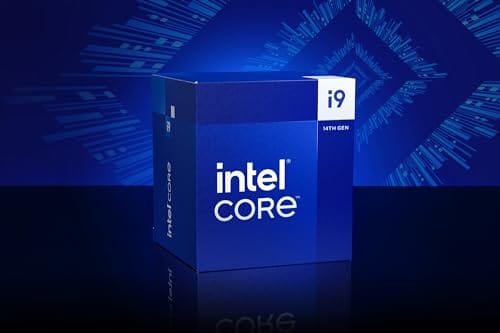
You need isopropyl alcohol, lint-free wipes, the correct screwdriver, fresh thermal paste, the cooler manual, and enough light to see the bracket. The supplied Intel Core i9-14900K at $469 with a 4.7 rating is a processor reference, not a mounting tool, so it should not be treated as a repair accessory.

Step 1: Shut down and expose the cooler
Shut the PC down, switch off the PSU, and hold the power button for a few seconds. Remove the side panel and give the cooler area room. If the radiator or fan blocks the screws, remove only what you need to reach the mount safely.
Take a quick photo before disconnecting pump or fan headers. It helps you put CPU_FAN, AIO_PUMP, and RGB leads back where they were. Simple backup. Worth it.
Step 2: Loosen the mount evenly
Loosen the screws in a cross pattern, a few turns at a time. Do not fully remove one corner while the opposite corner is tight, because that can twist pressure across the heat spreader. If the cooler feels stuck, rotate it gently rather than pulling straight up.
Old paste can act like glue after months of heat cycles. Warm hardware releases more easily, but do not work on a powered system. Patience beats bent pins or a board flexing under your hand.
Step 3: Clean the CPU and cold plate
Use alcohol and lint-free wipes until the heat spreader and cold plate look clean. Avoid flooding the socket area. If paste has squeezed near capacitors, clean slowly with a corner of the wipe rather than scraping.
Check the cold plate for plastic film, deep scratches, or dried paste at the edges. Also inspect standoffs and spacers. A missing washer can tilt the cooler enough to cause bad temperatures.
Step 4: Apply new paste and align the cooler
Apply a pea-sized dot or a short line of paste in the center of the CPU. Large chips can use a small X pattern, but do not bury the socket in compound. The mount pressure spreads it.
Set the cooler straight down and keep it from sliding. Start all screws by hand before tightening. If one screw will not catch, stop and realign the bracket rather than forcing threads.
Step 5: Tighten, reconnect, and verify
Tighten in a cross pattern until the screws reach firm resistance. Do not crank past the stop. Reconnect fans and pump leads to the right headers, then boot into BIOS to confirm fan speed and CPU temperature before loading Windows.
In Windows, watch idle temperature, fan RPM, and a normal workload you already know. We are looking for a return to expected behavior, not a record run. If temperatures drop and noise normalizes, the reset worked.
Before you start, set expectations correctly. A remount can fix poor contact, uneven pressure, dried paste, or a bracket that shifted during a move. It cannot fix a dead AIO pump, a clogged radiator, a cracked mounting post, or a CPU cooler that is undersized for the processor. If the system shuts down within seconds, stop using it until contact is confirmed.
Work slowly around the socket. Modern boards are tough, but they do not like being flexed by uneven force. Support the cooler with one hand while loosening the last screws, and keep loose hardware in a cup or magnetic tray. If your case is cramped, removing the graphics card may be safer than reaching around it with a screwdriver at a bad angle.
Thermal paste cleanup is not a race. Alcohol needs a moment to soften the old layer, and several gentle passes are better than one aggressive scrape. Avoid paper towels that shed fibers. Also keep paste away from the socket pins or pads. Most mainstream paste is not highly conductive, but mess around the socket still creates inspection problems you do not need.
Mounting pressure should feel even. Start each screw, then move diagonally across the bracket in small turns. If one corner bottoms out far earlier than another, something is wrong with the bracket stack or standoff height. Back up and check the manual. Forcing it can bend the board or leave the cold plate tilted.
Cable routing matters after the mount is fixed. A CPU fan connected to a chassis header may spin, but the motherboard could still complain or run the wrong curve. An AIO pump connected to a heavily controlled fan header can run too slowly. Use the headers the cooler manual names, then verify RPM in BIOS before closing the case.
The Intel Core i9-14900K listing at $469 and a 4.7 rating is useful only as a reminder that hotter modern CPUs make mounting quality more visible. It is not a paste kit, bracket kit, screwdriver, or cooler. If you are working with a high-power chip, the same remount steps apply, but the margin for a sloppy mount is smaller.

Pros
- Industry-leading 6.0GHz out-of-the-box boost clock for single-threaded applications.
- Massive 32-thread capacity excels in multi-threaded workloads like 4K video rendering and 3D modeling.
- Compatible with existing LGA 1700 motherboards via BIOS updates, extending the life of 600-series boards.
- Integrated Intel UHD Graphics 770 provides a fallback for troubleshooting and QuickSync hardware acceleration.
- Highly binned silicon offers significant tuning potential for users with high-end cooling solutions.
Cons
- High 253W maximum turbo power requires premium 360mm or 420mm AIO liquid cooling for sustained loads.
- Aggressive stock voltage curves can lead to thermal throttling on standard air coolers or entry-level AIOs.
- Final generation for the LGA 1700 socket, limiting future CPU upgrade paths without a motherboard change.
- Significant power draw necessitates a high-quality PSU with sufficient 12V EPS overhead.
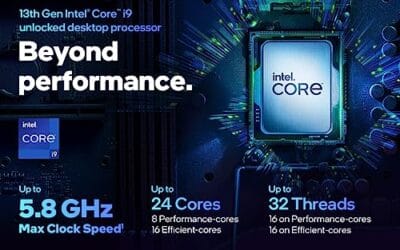
The Intel Core i9-14900K represents the enthusiast-tier peak of the Raptor Lake Refresh lineup, targeting professional creators and gamers who require the highest possible clock speeds. With 24 cores and 32 threads, it is designed to handle simultaneous gaming, streaming, and recording without the performance degradation typically seen on lower-core-count processors.
Technical performance is defined by its 6.0GHz Thermal Velocity Boost, a milestone frequency that pushes the limits of the LGA 1700 platform. In real-world gaming, this translates to high frame ceilings in 1080p and 1440p scenarios, while the 16 Efficient-cores provide the necessary throughput for background tasks and heavy multi-threaded productivity suites like Adobe Premiere Pro and DaVinci Resolve.
Build quality and reliability are consistent with Intel's high-end silicon, though the chip is notoriously demanding regarding thermals. The integrated heat spreader (IHS) must dissipate significant heat during 250W+ bursts, making the choice of thermal interface material and mounting pressure critical for maintaining stability under full load.
The primary trade-off for this level of performance is power consumption and heat. Users should expect the processor to hit its thermal junction maximum (TjMax) quickly during synthetic stress tests if paired with inadequate cooling. It is a processor that requires manual tuning of power limits (PL1 and PL2) to balance efficiency and performance effectively.
Final verdict: Buy this processor if you are an enthusiast with a high-end Z790 motherboard and a 360mm+ liquid cooler who needs the absolute fastest gaming and multitasking performance currently available on the Intel platform. Skip this if you prefer a plug-and-play experience with low power draw or are building in a small form factor case with limited cooling clearance.
| Cores / Threads | 24 (8P + 16E) / 32 |
| Max Turbo Frequency | 6.0 GHz |
| Intel Smart Cache (L3) | 36 MB |
| Total L2 Cache | 32 MB |
| Processor Base Power | 125 W |
| Max Turbo Power | 253 W (Listed as 250W in specs) |
| Socket Support | LGA 1700 |
| Memory Support | DDR5 5600 / DDR4 3200 |
| PCIe Lanes | 20 Total (Up to Gen 5.0) |
| Integrated Graphics | Intel UHD Graphics 770 |
Motherboard and Chipset: The i9-14900K requires an LGA 1700 socket. While it is compatible with older Z600-series motherboards, a BIOS update is mandatory for the system to POST. For optimal power delivery and PCIe 5.0 support, a high-end Z790 motherboard with robust VRMs is strongly recommended to handle the 250W+ power excursions.
Cooling Requirements: Due to the 6.0GHz boost clock and high TDP, air cooling is generally not recommended for this tier unless using a flagship dual-tower cooler with a contact frame. A 360mm or 420mm All-In-One (AIO) liquid cooler is the standard recommendation to prevent thermal throttling during intensive rendering or compilation tasks.
Memory Selection: This CPU supports both DDR4 and DDR5, but the motherboard determines which one you must use. For maximum performance in modern titles and professional apps, pairing this with a DDR5-7200+ kit on a Z790 platform is the ideal configuration, though DDR4 remains a viable cost-saving path for those upgrading from 12th gen.
Power Supply Guidance: Given the potential for 300W+ spikes from the CPU alone, especially when overclocked, a high-quality 850W or 1000W 80 Plus Gold PSU is recommended. Ensure your PSU has at least two 8-pin EPS (CPU) connectors to provide stable voltage to the motherboard's power phases.
Operating System: To properly utilize the Intel Thread Director and the hybrid core architecture, Windows 11 is the recommended operating system. Windows 10 may not efficiently schedule tasks between the P-cores and E-cores, potentially leading to inconsistent performance in multitasking scenarios.
After the first boot, do not judge the result from one idle number. Watch the pattern. A good remount usually shows fewer instant spikes, less frantic fan ramping, and load temperatures that rise smoothly instead of jumping hard within seconds. If the pattern still looks wrong, revisit pump speed, fan direction, radiator dust, and case airflow before blaming the CPU.
Give the paste a few normal heat cycles before making tiny fan-curve decisions. Some compounds settle slightly, and BIOS fan control may need a short observation window. Use a normal game, compile job, or render you already know rather than an artificial stress run. The goal is a PC that behaves better in your real workload.
If you removed the graphics card or radiator to reach the mount, check those parts too. A GPU power cable that is not fully seated or a radiator fan plugged into the wrong splitter can create a new problem right after you fixed the old one. Slow reassembly prevents that annoying second teardown.
If you are nervous about the first boot, leave the side panel off and keep one hand near the PSU switch. Enter BIOS directly, check that the cooler fan or pump reports RPM, and watch the temperature for a minute. A stable reading gives you permission to continue. A climbing number means shut down and inspect the mount again.
For tower air coolers, reinstall the fans in the same orientation they had before unless you are correcting a known airflow mistake. Front fans should usually push air through the heatsink toward the rear exhaust. For AIOs, keep tubes from pressing against fan blades or memory sticks. Mechanical contact can sound like a bad pump even when the cooler is fine.
Go slow here.
Troubleshooting common issues
Temperatures are still high
Check pump power, fan direction, radiator airflow, and bracket orientation. AIO pumps should not be left disconnected from the correct header.
One screw will not tighten
Back off all corners and confirm the standoff height. Mixed hardware from another socket kit can cause uneven pressure.
The PC shuts down quickly
Stop and check cooler contact immediately. Fast shutdowns usually mean the CPU is not being cooled correctly.
Fans run loud after the reset
Fan curves may have reset in BIOS. Confirm CPU_FAN and pump headers report sane RPM before changing curves.
Wrapping up
A proper remount is slow, even, and boring. That is good. Once the cooler is seated with clean paste and correct pressure, you should see steadier boost behavior and less fan panic during normal loads.
Before / after expected outcomes
Expect lower idle spikes, less abrupt fan ramping, and more consistent load temperatures. If nothing changes, the issue may be pump health, radiator airflow, or case ventilation rather than the mount.
Variations / advanced setups
Large dual-tower air coolers may require fan removal before access, while AIOs may need radiator loosening for tube slack. Small-form-factor cases can require partial disassembly, so plan extra time.
A good way to make the final call is to imagine the first hour after delivery. If the part installs cleanly, matches the listed support, and fixes the issue you named before shopping, it belongs on the shortlist. If you have to explain away a missing adapter, blocked mount, weak capacity, or unclear compatibility line, pause and compare again. That small pause prevents most returns.
We also like to leave room in the budget for the unglamorous pieces: cables, brackets, paste, dust filters, heatsinks, or a better fan layout. These do not look exciting on a product page, but they often decide how clean the build feels after a month. The main component gets attention. The supporting details keep it working.
Finally, do not let a rating replace your own fit check. A product can be well liked and still wrong for your case, motherboard, console, desk, or workload. Match the product title to your exact need, confirm the physical requirement, then use price and rating to break the tie. That order is slower by a few minutes and cheaper by a lot of hassle.
If you are buying for someone else or maintaining several PCs, write the chosen spec in plain language before ordering. For example: low-clearance DDR5 32GB kit, PS5-ready M.2 2280 drive with heatsink, compact PC replacement tower, or keyboard that works in BIOS and Windows. That plain phrase keeps the search from drifting toward products that share a keyword but solve a different problem.
The same discipline helps after installation. Keep the receipt, save the driver or manual link, and note which port, slot, or header you used. If something acts up later, you will know what changed. Not fancy. It is the kind of habit that separates a smooth build from a weekend of guessing.
Common questions
How often should I remount a CPU cooler?
Only when temperatures, noise, or a hardware change gives you a reason. Routine remounting is not needed if everything is stable.
Can too much paste hurt temperatures?
Yes. Excess paste can make cleanup messy and may reduce contact quality. Use a modest amount and let pressure spread it.
Should I replace the cooler instead?
Replace it if the pump fails, the fan bearings grind, or the cooler cannot handle the CPU. Bad mounting should be fixed first.
Is the Intel Core i9-14900K a mounting tool?
No. It is a processor listing. Use it only as CPU context, not as a repair part.































Write Your Review
No reviews yet. Be the first to share your experience!