

Updating BIOS for a new CPU is one of those jobs that feels scary because the motherboard controls if the system can even start. The goal is simple: get firmware support in place before the new processor goes in, verify the file, and avoid interrupting power during the flash. If you are also choosing the processor, our gaming CPU and budget CPU guides can help frame the upgrade.
What you’ll need
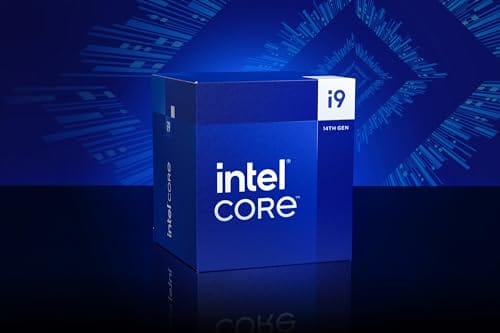
You need the exact motherboard model, a USB flash drive, a stable power source, access to the motherboard support page, and patience. If the new chip is an Intel Core i9-14900K, listed at $469 with a 4.7 rating, confirm that your board and chipset support it before you buy or install anything.


Pros
- Industry-leading 6.0GHz out-of-the-box boost clock for single-threaded applications.
- Massive 32-thread capacity excels in multi-threaded workloads like 4K video rendering and 3D modeling.
- Compatible with existing LGA 1700 motherboards via BIOS updates, extending the life of 600-series boards.
- Integrated Intel UHD Graphics 770 provides a fallback for troubleshooting and QuickSync hardware acceleration.
- Highly binned silicon offers significant tuning potential for users with high-end cooling solutions.
Cons
- High 253W maximum turbo power requires premium 360mm or 420mm AIO liquid cooling for sustained loads.
- Aggressive stock voltage curves can lead to thermal throttling on standard air coolers or entry-level AIOs.
- Final generation for the LGA 1700 socket, limiting future CPU upgrade paths without a motherboard change.
- Significant power draw necessitates a high-quality PSU with sufficient 12V EPS overhead.
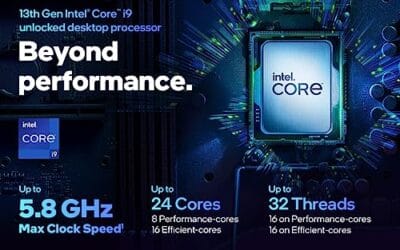
The Intel Core i9-14900K represents the enthusiast-tier peak of the Raptor Lake Refresh lineup, targeting professional creators and gamers who require the highest possible clock speeds. With 24 cores and 32 threads, it is designed to handle simultaneous gaming, streaming, and recording without the performance degradation typically seen on lower-core-count processors.
Technical performance is defined by its 6.0GHz Thermal Velocity Boost, a milestone frequency that pushes the limits of the LGA 1700 platform. In real-world gaming, this translates to high frame ceilings in 1080p and 1440p scenarios, while the 16 Efficient-cores provide the necessary throughput for background tasks and heavy multi-threaded productivity suites like Adobe Premiere Pro and DaVinci Resolve.
Build quality and reliability are consistent with Intel's high-end silicon, though the chip is notoriously demanding regarding thermals. The integrated heat spreader (IHS) must dissipate significant heat during 250W+ bursts, making the choice of thermal interface material and mounting pressure critical for maintaining stability under full load.
The primary trade-off for this level of performance is power consumption and heat. Users should expect the processor to hit its thermal junction maximum (TjMax) quickly during synthetic stress tests if paired with inadequate cooling. It is a processor that requires manual tuning of power limits (PL1 and PL2) to balance efficiency and performance effectively.
Final verdict: Buy this processor if you are an enthusiast with a high-end Z790 motherboard and a 360mm+ liquid cooler who needs the absolute fastest gaming and multitasking performance currently available on the Intel platform. Skip this if you prefer a plug-and-play experience with low power draw or are building in a small form factor case with limited cooling clearance.
| Cores / Threads | 24 (8P + 16E) / 32 |
| Max Turbo Frequency | 6.0 GHz |
| Intel Smart Cache (L3) | 36 MB |
| Total L2 Cache | 32 MB |
| Processor Base Power | 125 W |
| Max Turbo Power | 253 W (Listed as 250W in specs) |
| Socket Support | LGA 1700 |
| Memory Support | DDR5 5600 / DDR4 3200 |
| PCIe Lanes | 20 Total (Up to Gen 5.0) |
| Integrated Graphics | Intel UHD Graphics 770 |
Motherboard and Chipset: The i9-14900K requires an LGA 1700 socket. While it is compatible with older Z600-series motherboards, a BIOS update is mandatory for the system to POST. For optimal power delivery and PCIe 5.0 support, a high-end Z790 motherboard with robust VRMs is strongly recommended to handle the 250W+ power excursions.
Cooling Requirements: Due to the 6.0GHz boost clock and high TDP, air cooling is generally not recommended for this tier unless using a flagship dual-tower cooler with a contact frame. A 360mm or 420mm All-In-One (AIO) liquid cooler is the standard recommendation to prevent thermal throttling during intensive rendering or compilation tasks.
Memory Selection: This CPU supports both DDR4 and DDR5, but the motherboard determines which one you must use. For maximum performance in modern titles and professional apps, pairing this with a DDR5-7200+ kit on a Z790 platform is the ideal configuration, though DDR4 remains a viable cost-saving path for those upgrading from 12th gen.
Power Supply Guidance: Given the potential for 300W+ spikes from the CPU alone, especially when overclocked, a high-quality 850W or 1000W 80 Plus Gold PSU is recommended. Ensure your PSU has at least two 8-pin EPS (CPU) connectors to provide stable voltage to the motherboard's power phases.
Operating System: To properly utilize the Intel Thread Director and the hybrid core architecture, Windows 11 is the recommended operating system. Windows 10 may not efficiently schedule tasks between the P-cores and E-cores, potentially leading to inconsistent performance in multitasking scenarios.
Step 1: Identify the exact motherboard
Work slowly and verify the visible detail before moving on. Use the exact board model, the correct vendor page, and the minimum BIOS version listed for the new CPU. Do not rely on a vague retail PC name or a forum screenshot. Board revision can matter, file names can matter, and the wrong firmware is not worth the risk.
After each step, check the result: file name, version number, boot behavior, or hardware detection. If something looks off, stop and verify instead of piling on more changes. One clean step at a time. You will save yourself hours.
Step 2: Check CPU support on the vendor page
Work slowly and verify the visible detail before moving on. Use the exact board model, the correct vendor page, and the minimum BIOS version listed for the new CPU. Do not rely on a vague retail PC name or a forum screenshot. Board revision can matter, file names can matter, and the wrong firmware is not worth the risk.
After each step, check the result: file name, version number, boot behavior, or hardware detection. If something looks off, stop and verify instead of piling on more changes. One clean step at a time. You will save yourself hours.
Step 3: Prepare the USB drive
Work slowly and verify the visible detail before moving on. Use the exact board model, the correct vendor page, and the minimum BIOS version listed for the new CPU. Do not rely on a vague retail PC name or a forum screenshot. Board revision can matter, file names can matter, and the wrong firmware is not worth the risk.
After each step, check the result: file name, version number, boot behavior, or hardware detection. If something looks off, stop and verify instead of piling on more changes. One clean step at a time. You will save yourself hours.
Step 4: Flash before swapping the CPU
Work slowly and verify the visible detail before moving on. Use the exact board model, the correct vendor page, and the minimum BIOS version listed for the new CPU. Do not rely on a vague retail PC name or a forum screenshot. Board revision can matter, file names can matter, and the wrong firmware is not worth the risk.
After each step, check the result: file name, version number, boot behavior, or hardware detection. If something looks off, stop and verify instead of piling on more changes. One clean step at a time. You will save yourself hours.
Step 5: Install the new CPU and reset settings
Work slowly and verify the visible detail before moving on. Use the exact board model, the correct vendor page, and the minimum BIOS version listed for the new CPU. Do not rely on a vague retail PC name or a forum screenshot. Board revision can matter, file names can matter, and the wrong firmware is not worth the risk.
After each step, check the result: file name, version number, boot behavior, or hardware detection. If something looks off, stop and verify instead of piling on more changes. One clean step at a time. You will save yourself hours.
Troubleshooting common issues
The board will not read the USB drive
Use FAT32, try a smaller drive, and use the rear USB port marked for BIOS flashback if your board has one. File name rules matter here.
The PC starts but shows no display
Clear CMOS, reseat memory, and give the first boot several minutes. New CPU training can take longer than expected.
The update utility rejects the file
You probably downloaded firmware for the wrong board, wrong revision, or wrong region. Stop and download again from the exact support page.
The system boots but acts unstable
Load BIOS defaults first, then enable XMP or EXPO later. Old voltage or memory settings can cause weird behavior after a CPU swap.
Wrapping up
A BIOS update for a new CPU is mostly preparation. Match the board, confirm the required version, use the vendor utility, and do not interrupt power. Once the system boots with the new processor, reinstall settings gradually. That is the safe path.
Before you start, take photos of the current BIOS screens, boot order, storage mode, fan curves, and memory profile. Those pictures give you a way back if the update resets everything. Also download the motherboard manual and keep it open on another device, because many boards hide flashback notes, supported USB ports, and file naming rules in small tables. It is slow preparation, but it prevents guesswork.
Do not rush the first boot after the update. A board may cycle power, retrain memory, or sit on a blank screen longer than usual. Give it several minutes before deciding it failed. If fans spin and diagnostic LEDs move, the system may still be working through initialization. Pulling power too early can turn a normal wait into a real problem.
Before you start, take photos of the current BIOS screens, boot order, storage mode, fan curves, and memory profile. Those pictures give you a way back if the update resets everything. Also download the motherboard manual and keep it open on another device, because many boards hide flashback notes, supported USB ports, and file naming rules in small tables. It is slow preparation, but it prevents guesswork.
Do not rush the first boot after the update. A board may cycle power, retrain memory, or sit on a blank screen longer than usual. Give it several minutes before deciding it failed. If fans spin and diagnostic LEDs move, the system may still be working through initialization. Pulling power too early can turn a normal wait into a real problem.
Before you start, take photos of the current BIOS screens, boot order, storage mode, fan curves, and memory profile. Those pictures give you a way back if the update resets everything. Also download the motherboard manual and keep it open on another device, because many boards hide flashback notes, supported USB ports, and file naming rules in small tables. It is slow preparation, but it prevents guesswork.
Do not rush the first boot after the update. A board may cycle power, retrain memory, or sit on a blank screen longer than usual. Give it several minutes before deciding it failed. If fans spin and diagnostic LEDs move, the system may still be working through initialization. Pulling power too early can turn a normal wait into a real problem.
Before you start, take photos of the current BIOS screens, boot order, storage mode, fan curves, and memory profile. Those pictures give you a way back if the update resets everything. Also download the motherboard manual and keep it open on another device, because many boards hide flashback notes, supported USB ports, and file naming rules in small tables. It is slow preparation, but it prevents guesswork.
Do not rush the first boot after the update. A board may cycle power, retrain memory, or sit on a blank screen longer than usual. Give it several minutes before deciding it failed. If fans spin and diagnostic LEDs move, the system may still be working through initialization. Pulling power too early can turn a normal wait into a real problem.
Before you start, take photos of the current BIOS screens, boot order, storage mode, fan curves, and memory profile. Those pictures give you a way back if the update resets everything. Also download the motherboard manual and keep it open on another device, because many boards hide flashback notes, supported USB ports, and file naming rules in small tables. It is slow preparation, but it prevents guesswork.
Do not rush the first boot after the update. A board may cycle power, retrain memory, or sit on a blank screen longer than usual. Give it several minutes before deciding it failed. If fans spin and diagnostic LEDs move, the system may still be working through initialization. Pulling power too early can turn a normal wait into a real problem.
Before you start, take photos of the current BIOS screens, boot order, storage mode, fan curves, and memory profile. Those pictures give you a way back if the update resets everything. Also download the motherboard manual and keep it open on another device, because many boards hide flashback notes, supported USB ports, and file naming rules in small tables. It is slow preparation, but it prevents guesswork.
Do not rush the first boot after the update. A board may cycle power, retrain memory, or sit on a blank screen longer than usual. Give it several minutes before deciding it failed. If fans spin and diagnostic LEDs move, the system may still be working through initialization. Pulling power too early can turn a normal wait into a real problem.
Before you start, take photos of the current BIOS screens, boot order, storage mode, fan curves, and memory profile. Those pictures give you a way back if the update resets everything. Also download the motherboard manual and keep it open on another device, because many boards hide flashback notes, supported USB ports, and file naming rules in small tables. It is slow preparation, but it prevents guesswork.
Do not rush the first boot after the update. A board may cycle power, retrain memory, or sit on a blank screen longer than usual. Give it several minutes before deciding it failed. If fans spin and diagnostic LEDs move, the system may still be working through initialization. Pulling power too early can turn a normal wait into a real problem.
Before you start, take photos of the current BIOS screens, boot order, storage mode, fan curves, and memory profile. Those pictures give you a way back if the update resets everything. Also download the motherboard manual and keep it open on another device, because many boards hide flashback notes, supported USB ports, and file naming rules in small tables. It is slow preparation, but it prevents guesswork.
Do not rush the first boot after the update. A board may cycle power, retrain memory, or sit on a blank screen longer than usual. Give it several minutes before deciding it failed. If fans spin and diagnostic LEDs move, the system may still be working through initialization. Pulling power too early can turn a normal wait into a real problem.
Common questions
Should I update BIOS before installing the new CPU?
Yes, if the current firmware does not support the new CPU. Updating first lets the old working processor handle the flash.
Can BIOS flashback work without a CPU?
On boards that support it, yes. You still need the correct USB port, file name, and power connection.
Will updating BIOS erase my settings?
Often, yes. Save notes on fan curves, boot order, and memory profiles before flashing.
Is Windows BIOS updating safe?
UEFI-based flashing is usually the cleaner route. Windows utilities can work, but they add more moving parts during a sensitive update.































Write Your Review
No reviews yet. Be the first to share your experience!