

You hit the power button, the fans spin, the desk lights glow, and the monitor just sits there black. No logo, no menu, maybe a faint backlight if you tilt it toward a lamp. It’s one of the most common PC headaches out there, and it’s also one of the most misdiagnosed. People assume the graphics card died when the real culprit is a $6 cable or a power-save setting buried in the OSD. Before you shop for a replacement panel like the ones in our roundup of the best 27-inch 1440p monitors, it’s worth walking through the failure points in order.
A black screen almost always falls into one of three buckets: no signal reaching the panel, a power fault inside the display, or a software or GPU handshake that never completes. This guide sorts the causes roughly by how often they happen and how cheap they are to rule out, so you spend zero dollars until you actually need to. If your panel does turn out to be toast, we’ve linked a couple of sane replacements below and pointed you toward our best 1440p gaming monitor picks for a proper upgrade.
First check the obvious (the 30-second check)
Start here, always. Confirm the monitor’s power LED is actually on. If it’s dark, the display isn’t getting power at all, so check the wall outlet, the power brick, and that the cable is seated in the back of the panel. A surprising number of “dead monitor” posts end when someone notices the surge protector switch got bumped off.
If the LED glows but the screen stays black, tap the OSD joystick or menu button. If the on-screen menu appears, congratulations, your panel and backlight are fine and this is purely a signal problem. That single check splits the whole diagnosis in half. Next, press the physical input-source button and cycle through HDMI 1, HDMI 2, and DisplayPort manually. Auto-detect fails constantly, and the monitor may simply be staring at the wrong port. While you’re there, note whether the monitor briefly flashes a “no signal” or “power saving” message before going dark, because that tells you the panel is alive and waiting on the PC, not broken. Thirty seconds, no tools, and you’ve already eliminated the two most common non-issues.
Cause #1: Loose, wrong, or dead video cable
Cables are the number-one reason a working PC shows a black screen. HDMI and DisplayPort connectors look fully seated when they’re actually a millimeter shy of the pin contacts, especially DisplayPort with its little locking latch that needs a firm push. Unplug both ends, blow out the ports, and reseat firmly until you feel the click. Then confirm the cable spec matches what you’re asking it to do. A cheap HDMI cable rated for 1080p60 will throw a black screen or intermittent dropouts if you push 1440p at 144Hz or 4K through it.
This bites people running high-refresh setups hardest. If you’re chasing the frame rates that panels in our best 360Hz gaming monitor lineup can hit, you need a certified DisplayPort 1.4 or HDMI 2.1 cable, not the one that shipped in a printer box in 2016. Swap in a known-good cable before you blame anything expensive. If a different cable brings the picture back, you’re done, and you just saved yourself a service call. Swap one variable at a time so you know exactly what fixed it.

Pros
- IPS panel offers wider off-angle color stability than VA screens common at this price.
- 116% sRGB coverage handles gaming and general content color reproduction adequately.
- Three-year zero-bright-dot warranty coverage is uncommon on entry-tier IPS panels.
Cons
- Limited owner feedback at time of writing, hard to confirm QC consistency across units.
- HDR ready label lacks a VESA tier, so peak brightness likely sits near 250 to 300 nits.
- 1ms MPRT is a strobed figure; real GtG on entry IPS typically lands between 4 and 8ms.
The AOC 24G51F is an entry-level 24-inch FHD gaming monitor built around a 144Hz IPS panel with Adaptive-Sync. It targets budget esports players and console owners who want higher refresh than 60Hz without steping up to 1440p or OLED tiers. Console output tops out at 120Hz over HDMI 2.0.
The defining feature is IPS at 144Hz in the sub-24-inch budget class. Owner data is thin at time of writing, but panels in this tier typically deliver 250 to 300 nits SDR brightness and near-full sRGB coverage. The 1ms MPRT figure is strobing based; real GtG response on entry IPS usually falls between 4 and 8ms.
HDR ready is marketing shorthand rather than VESA HDR400 certification, so expect flat highlights in HDR content. Pixel density on a 23.8-inch 1080p panel is roughly 92 PPI, visibly softer than 1440p at the same size. No USB hub or built-in speakers are listed, which is typical at this tier.
Buy this if you need a second high-refresh IPS display for 1080p esports or a Series X console at 120Hz, and you value the zero-bright-dot coverage. Skip this if you already run a 1440p-class GPU like an RTX 4070, or if you need calibrated color for photo and video work.
Panel and resolution: IPS panel at 1920x1080 across a 23.8-inch viewable diagonal, yielding roughly 92 PPI. Refresh rate reaches 144Hz over DisplayPort. IPS provides wider off-angle color stability than VA panels at this size class, useful for shared or dual-monitor setups.
Response and sync: AOC lists 1ms MPRT, a strobed measurement rather than GtG. Real gray-to-gray on entry IPS panels typically sits between 4 and 8ms. Adaptive-Sync support covers the FreeSync range and works with G-SYNC Compatible mode on NVIDIA cards, cutting tearing when framerate dips.
Color and HDR: Rated 116% sRGB coverage, adequate for gaming and general content but not calibrated for DCI-P3 workflows. HDR ready is unbadged, so no VESA HDR400 tier is specified. Expect peak brightness in the 250 to 300 nit range typical of this segment.
Connectivity: One HDMI 2.0 and one DisplayPort input, no USB hub, no built-in speakers listed. HDMI 2.0 handles 1080p at 120Hz for PS5 and Xbox Series X. The three-sided frameless design suits stacked 24-inch panels with minimal bezel between screns.
Cause #2: GPU output, drivers, or a bad handshake
If cables check out, the graphics side is next. The classic mistake on a desktop with a dedicated card: the monitor is plugged into the motherboard’s video port instead of the GPU. The motherboard ports usually sit horizontal near the I/O cluster, while the graphics card’s DisplayPort and HDMI outputs run vertical lower down. Plug into the card. If you get a picture from the motherboard port but not the card, the card itself may not be seated in the PCIe slot, or its power connectors slipped loose.
Then there’s the driver angle. A botched GPU driver update, a Windows feature update, or a corrupted profile can leave the display initialized at a resolution or refresh rate the monitor won’t accept, which reads as black. Boot into Safe Mode, uninstall the display driver cleanly with DDU, and reinstall the current stable build. Owner reports show this alone clears a big share of “black screen after update” cases. If Safe Mode itself shows a picture but a normal boot doesn’t, that’s a strong sign the driver or a display profile is the problem rather than hardware. One more thing to rule out: overclocked memory or an aggressive custom resolution can push a signal the panel silently rejects, so reset those to stock before you go further. High-refresh and adaptive-sync panels, including the G-Sync models we cover in our best 4K G-Sync monitor guide, are pickier about the driver-to-display handshake, so keep those drivers current.
Don’t forget the port itself can degrade. HDMI and DisplayPort connectors wear out after hundreds of insertions, and a bent pin or a loose solder joint on the GPU’s output can drop video intermittently. If wiggling the cable at the connector brings the image in and out, that’s a physical port fault, not a driver bug. Try a different output on the same card before you write off the whole GPU, since most cards ship with three or four ports and losing one doesn’t mean the card is dead.
Cause #3: Power delivery inside the display itself
When the panel gets zero response, no LED, no OSD, no backlight glow, the fault is likely internal power. The most common failure is a bad power supply, either an external brick or the internal board. External bricks are easy to rule out: borrow a matching-voltage adapter, or check the label voltage against a multimeter reading if you own one. A brick that reads 0V or wildly off is your answer, and a replacement runs $15 to $30 rather than a whole new monitor.
Internal power boards are a different story. Bulging or leaking capacitors on the main board cause a monitor that clicks once and stays dark, or one that flickers on for a second then dies. That’s a real repair, and unless you’re comfortable with a soldering iron and discharging capacitors safely, it usually costs more in parts and time than the panel is worth at the low end. If the backlight is the failure, you’ll sometimes see a very faint image under a flashlight held at an angle, which points at the backlight driver or LED strips rather than the panel logic. Faint image, wrong bill. Note which symptom you have before deciding.
Preventive maintenance that actually helps
Most black-screen returns are avoidable. Use certified cables that match your resolution and refresh target, and route them so they aren’t yanked every time you move the desk. Don’t run a monitor’s power through a cheap unswitched strip that’s also feeding a space heater; dirty power and brownouts age the internal board fast. Give the vents room, since heat is what kills capacitors over years. And when you update GPU drivers, do a clean install rather than stacking versions on top of each other. It also helps to keep the monitor’s firmware current where the maker offers it, and to power the display down fully now and then instead of leaving it in standby for weeks on end. Small habits, fewer 2 a.m. panics.
When to call a pro versus DIY
Draw the line at the case screws. Everything on the outside, cables, power bricks, input sources, drivers, and settings, is fair game for anyone and costs little to rule out. The moment the fix means opening the panel and working near the internal power board, the calculus changes. Monitor power supplies hold a charge even unplugged, and a discharged capacitor can bite hard. If you don’t already own a soldering iron and know how to bleed a cap safely, a repair shop or a warranty claim is the smarter route. On a display worth under a hundred dollars, though, the pro’s bench fee usually exceeds the price of a new panel, so replacement wins outright.
When it’s not fixable: what to replace
Sometimes the math just doesn’t work. If the panel logic board is dead or the LCD itself has failed, repair on a budget display costs more than a new one that comes with a warranty. At that point, shop smart rather than emotionally. For a lot of people the honest move is a solid 24-inch replacement, and our best 24-inch monitor picks cover the value end well. A strong budget-to-mid option in that size class is the AOC 24G51F, a 24-inch 1920×1080 IPS panel running 144Hz with a 3-sided frameless design and a 3-year zero-bright-dot warranty, currently around $89.99 with a 4.9 rating. The refresh rate and warranty are the standouts at that price.
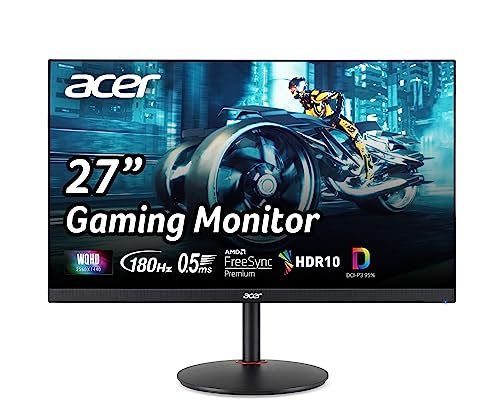
If you’d rather step up in size and sharpness while you’re replacing anyway, a 27-inch 1440p panel is the popular default for gaming and general work. The Acer Nitro XV271U is a 27-inch WQHD 2560×1440 IPS display with AMD FreeSync Premium, up to 180Hz refresh, 0.5ms response, and 95% DCI-P3 coverage, sitting at about $169.99 with a 4.8 rating. That combination of 1440p resolution and 180Hz on an IPS panel is a genuine jump over a dying 1080p 60Hz monitor. Time your purchase against sales too; our roundup of the best gaming monitor deals tracks price drops so you don’t overpay.
Pros
- 1440p 180Hz IPS panel via DisplayPort 1.2 hits the current price/perf sweet spot
- 95% DCI-P3 gamut is uncommon at this tier, useful for content viewing
- Full ergonomic stand: 4.7 inch height, 360 swivel, plus/minus 90 pivot, VESA 100
Cons
- Limited owner feedback at time of writing, long-term panel uniformity unverified
- HDMI 2.0 caps at 144Hz; only DisplayPort 1.2 unlocks the full 180Hz refresh
- No USB hub and 2W stereo speakers are strictly a bep-only backup at this tier
The Acer Nitro XV271U M3bmiiprx is a budget-oriented 27inch 1440p IPS gaming monitor targeting builders stepping up from 1080p high refresh. With 2560x1440 resolution, 180Hz over DisplayPort, and FreeSync Premium, it fits users pairing an RTX 4060,X 4060 Ti, or RX 7600 XT class GPU running competitive and AA titles at medium to high settings.
The defining feature is the 180Hz IPS panel with a claimed 0.5ms GtG response, paired with 95% DCI-P3 coverage. In practice, IPS panels at this tier typically deliver around 300to 350 nits SDR brightness and moderate contrast near 1000:1, so blacks will lift in dark rooms. FreeSync Premium adds low framerate compensation, useful when demanding titles drop below 60 FPS.
Trade-offs are typical for the segment. HDMI 2.0 bandwidth caps refresh at 144Hz, so consoles and older GPUs will not reach the full 180Hz ceiling. HDR tier, panel bit depth, and factory calibration are not specified in the listing, and there is no USB hub. The 2W speakers are functional only as a fallback.
Buy this if you want a 1440p 180Hz IPS panel with a full ergo stand and 95% DCI-P3 for mixed gaming and casual creative work. Skip this if you need verified HDR performance, USB-C daisy chaining, or OLED-level contrast for dark-room cinema use.
Panel and Resolution: 27 inch WQHD IPS at 2560x1440 gives a 0.233m pixel pitch, sharp enough that antialiasing needs drop versus 1080p 27 inch panels. IPS delivers wide viewing angles suited to desk sharing or off-axis reference monitors during editing sessions.
Refresh and Response: 180Hz refresh is available only through DisplayPort 1.2; HDMI 2.0 tops out at 144Hz due to bandwidth limits. Acer lists 1ms GtG typical and up to 0.5ms GtG at aggressive overdrive, though inverse ghosting is common at max overdrive on IPS panels in this bracket.
Color and HDR: 95% DCI-P3 coverage is the standout spec, wider than most sub-tier IPS panels that sit near 90% sRGB. HDR certification level, peak brightness, and local dimming are not specified in the source, so treat HDR as a compatibility mode rather than a true HDR experience.
Ports and Ergonomics: 1 DisplayPort 1.2, 2 HDMI 2.0, and audio out cover a PC plus one console. The stand offers minus 5 to 25 degree tilt, 4.7 inch height range, 360 degree swivel, and plus/minus 90 degree pivot, with 100x100 VESA for monitor arms. FreeSync Premium is confirmed, G-SYNC compatibility is not listed.
Tools and parts you might need
For diagnosis you need almost nothing: a spare certified video cable, a known-good power brick to borrow, and optionally a multimeter to confirm voltages. A flashlight helps you spot a faint backlight-failure image. For actual board repair you’re into soldering-iron territory plus replacement capacitors, and that’s the point where most people should weigh a new panel instead. A second working device to plug the monitor into is the single most useful diagnostic you have, and you probably already own one. Keep one known-good spare cable in a drawer; it pays for itself the first time a screen goes dark.
A few more questions
Why does my monitor say “no signal” but the PC is clearly on?
The panel is powered and working but isn’t receiving video on the port it’s watching. Cycle the input source manually, reseat both ends of the cable, and make sure a desktop is plugged into the graphics card’s outputs rather than the motherboard’s. If those don’t fix it, swap in a different cable, since a marginal or wrong-spec cable will drop the signal at higher resolutions and refresh rates.
How do I tell if it’s the monitor or the graphics card?
Plug the same monitor into a second device, a laptop or another PC. If it displays a picture there, your monitor is fine and the fault is on the original PC’s GPU, drivers, or ports. If it stays black on every source and won’t even show its own OSD menu, the problem is inside the display. That one swap isolates the failure fast.
Is a black-screen monitor worth repairing?
It depends on the cause and the panel’s value. A dead external power brick is a cheap fix, well under $30, and worth doing. A failed internal power board or backlight on an inexpensive display often costs more in parts and labor than a replacement that ships with a fresh warranty. If you’re already spending, put the money toward a better panel instead of patching an old one.


































Write Your Review
No reviews yet. Be the first to share your experience!