

You press a key, and a beat later the letter shows up on screen. On a wireless keyboard, that lag ranges from mildly annoying to unusable, and it wrecks fast typing and gaming alike. The frustrating part is that wireless lag rarely comes from a single obvious fault. It’s usually a mix of interference, weak batteries, a flaky dongle, or software eating your inputs. The fixes are mostly free, and the ones that aren’t tend to be cheap. If you’ve decided the board itself is the problem, our roundups of the best wireless mechanical keyboards of 2026 and the best wireless mechanical keyboard for gaming can point you toward low-latency options. First, let’s chase the lag down.
First check the obvious (the 30-second check)
Battery first. A wireless keyboard low on charge will drop or delay keystrokes long before it dies completely, so plug it in or swap the cells and see if the lag clears. Rechargeable boards sometimes throttle their polling to save power at low charge, which feels exactly like lag. Give it a full charge before you blame anything else.

Next, distance and line of sight. If your 2.4GHz dongle is plugged into the back of a case under a desk, move it to a front port or use a short USB extension to bring it closer to the keyboard. Bluetooth boards care about distance too. Thirty seconds of moving the receiver and topping up the battery solves a surprising share of wireless lag complaints. If it persists, work through the causes below.

While you’re at it, rule out the software side in one quick pass. Reboot the PC once, since a stale USB stack or a hung background service can cause input delay that clears with a fresh start. Then try the keyboard on a second device, a laptop or another PC, for a minute. If the lag follows the keyboard everywhere, the board or its receiver is the suspect. If it only happens on one machine, the problem is that computer’s drivers, ports, or load, not the keyboard itself. That single split saves you from chasing the wrong fix.
Cause #1: 2.4GHz interference and a buried dongle
The 2.4GHz band is crowded. Your router, Wi-Fi, other wireless peripherals, USB 3.0 ports, and even a nearby microwave all crowd the same airspace, and that congestion shows up as input lag or dropped keystrokes. USB 3.0 ports are notorious for spewing interference right in the 2.4GHz range, so a dongle plugged next to a USB 3.0 device can suffer badly. Move the receiver to a USB 2.0 port or a front-panel port away from the noise.
A short USB extension cable is the classic fix, letting you place the dongle on the desk near the keyboard instead of hidden behind the tower. That single change often clears intermittent lag entirely. If you’re on a 2.4GHz gaming board with a proper low-latency receiver, keep it in clear air. Metal cases, monitor stands, and thick desks all attenuate the signal, and a dongle with clear line of sight to the keyboard almost always polls cleaner.
Interference also comes from other wireless gear on your desk. A wireless mouse dongle, a headset receiver, or a phone charging pad crammed into the same USB hub can all add noise. Spread the receivers out, and if you run several 2.4GHz devices, put a couple of them on a powered hub away from the metal chassis. Some boards let you change the wireless channel or re-pair the dongle, which shifts you off a congested slice of the band. If your neighbor’s Wi-Fi or a baby monitor is hammering the same frequencies, that re-pair can be the difference between constant micro-stutters and a clean, instant connection.
Cause #2: Bluetooth pairing, power saving, and stale drivers
Bluetooth keyboards lag for different reasons than 2.4GHz ones. Windows aggressively puts Bluetooth radios to sleep to save power, so the first keystroke after a pause arrives late while the radio wakes up. Open Device Manager, find your Bluetooth adapter, and turn off the setting that lets Windows power it down. That alone fixes the “first key is always slow” complaint that plagues laptop users.
Stale or generic drivers cause trouble too. Update your Bluetooth adapter driver from the chipset vendor, not just the default Windows one, and update the keyboard’s firmware through its companion app if it has one. A board stuck on old firmware can have polling bugs that a newer version quietly fixes. If your keyboard supports both Bluetooth and a 2.4GHz dongle, the dongle is almost always the lower-latency choice for gaming, so switch modes and compare.
Pairing itself can go stale. If a Bluetooth board has been connected to several devices, the profiles can conflict, and one device grabs the radio while another lags. Remove the keyboard from every paired device, then pair it fresh with only the machine you use most. On Windows, also check that no other Bluetooth device is streaming audio at the same time, since a headset hogging the radio can starve keyboard packets. These steps sound fussy, but a clean re-pair plus current drivers fixes a large share of Bluetooth lag that placement changes alone won’t touch.
Cause #3: Software, background load, and a keyboard past its prime
Sometimes the wireless link is fine and the computer is the bottleneck. A pegged CPU, a runaway background process, or heavy disk activity can delay input processing so it feels like keyboard lag even on a wired board. Open Task Manager, watch for a process eating the CPU, and close what you don’t need. Overlays, macro software, and RGB control panels can also inject latency, so disable them one at a time to find a culprit.
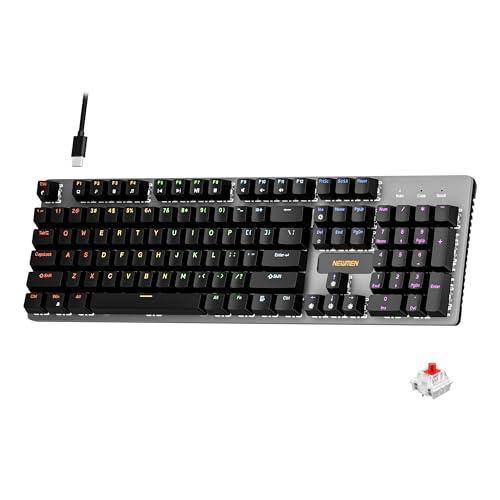
If none of that helps and the board is old or was cheap to begin with, the hardware may simply be the limit. A reliable wired backup, or a switch to a better wireless board, ends the guessing. For a solid, no-drama wired mechanical option, the Newmen GM325Pro runs $20.89 with a 4.8-star rating, offering 104 keys, hot-swap switches, a metal panel, and linear red switches, which makes it a cheap way to confirm the lag was wireless-related. Its low price makes it an easy diagnostic keyboard to keep around.
Polling rate and power-saving modes on the keyboard itself can also masquerade as lag. Some wireless boards drop to a low polling rate on battery to stretch runtime, so a key press that felt instant on the charging cable feels sluggish once you unplug. Check the companion app for a performance or gaming mode that locks a higher polling rate, and accept the shorter battery life if responsiveness matters more. If the board has an eco or sleep timer that’s too aggressive, the first key after a short idle wakes the radio late, which reads as lag even though the connection is otherwise fine.
Pros
- Hot-swap sockets allow switch experimentation without soldering tools or PCB risk
- Metal top plate delivers firmer typing feel than plastic budget boards at this tier
- Full-key rollover and linear red switches handle rapid inputs for casual gaming
Cons
- Limited owner feedback at time of writing, so long-term reliability is unproven
- RGB is restricted to side lighting only, per-key backlight is fixed rainbow patterns
- ABS keycaps typical at this tier tend to shine and wear faster than PBT
The Newmen GM325Pro is a budget full-size 104-key wired mechanical keyboard aimed at first-time mechanical buyers and casual gamers who want a hot-swap PCB without moving up to enthusiast pricing. It ships with linear red switches, a metal top plate, ABS keycaps, and side-edge RGB lighting.
The defining feature here is the hot-swap socket combined with linear red switches. That gives new users a low-friction path to swap inactile or silent switches later without soldering. Typing fel on metal-plate boards at this tier is usually firmer and less hollow than all-plastic budget pers, based on category norms.
Trade-offs are typical for the price class. Per-key RGB is not suported, only side lighting is true RGB while the top backlight runs 13 preset rainbow effects. ABS keycaps tend to develop shine within months of heavy use, and Newmen does not publish switch lifecycle, polling rate, or NKRO wired specs in the source data.
Buy this if you want a cheap full-size hot-swap platform to learn on and plan to upgrade switches or keycaps later. Skip this if you need per-key RGB, PBT caps, a documented polling rate, or a keyboard with a dep owner review history to validate QC.
Switches and layout: Linear red switches on a full 104-key ANSI layout, with full-key rollover claimed by the manufacturer. Actuation force, travel, and switch brand are not specified in the source. Linear reds typically sit near 45g actuation and 4m total travel in this category.
Hot-swap PCB: Sockets accept standard MX-style switches, so tactile, clicky, or silent linear options from third parties drop in without soldering. Pin compatibility (3-pin vs 5-pin) is not specified, buyers should confirm before ordering replacement switches.
Build and lighting: Metal top plate over ABS black keycaps. RGB is limited to the side edge, while the top backlight cycles through 13 preset rainbow patterns rather than per-key addressable RGB. Case material below the plate is not specified.
Connectivity and software: Wired only via a detachable 1.8m USB cable. FN combos cover F1 to F11 media and calculator shortcuts. Customization software suports key remap, macro recording, and lighting tweaks, though poling rate and software platform support are not specified.
Preventive maintenance
Keep the battery healthy by charging before it drops to empty, and if your board uses replaceable cells, use fresh ones rather than draining a set to the last drop. Keep the 2.4GHz dongle in a clear, close spot, and avoid plugging it right next to USB 3.0 devices or external drives. Small placement habits prevent most recurring lag.
Update firmware when the vendor app offers it, and keep your Bluetooth and chipset drivers current. Clean the contacts and switches occasionally, since debris under keycaps can cause missed or repeated inputs that mimic wireless lag. A little upkeep keeps a good board feeling instant.
Battery habits deserve a second mention because they cause so many repeat complaints. Charge before the board hits empty, and if it uses AA or AAA cells, swap them as a set rather than mixing an old cell with a fresh one. Store a spare dongle if your keyboard shipped with one, since a lost or damaged receiver is a common failure point that’s cheap to replace. And when you finish a gaming session, powering the board off rather than leaving it to idle-drain keeps the battery healthier over the long run, which keeps polling steady instead of throttling as charge falls.
When it’s not fixable: what to replace
If you’ve charged the battery, moved the dongle, disabled power saving, updated drivers and firmware, and closed background hogs, but the lag remains, the keyboard or its receiver is likely failing. A worn wireless module or a damaged dongle can’t be repaired cheaply, and at that point a replacement board is the honest fix. Our guides to the best wireless mechanical keyboard for office use and the best wireless mechanical keyboard for typing cover options that hold a steady connection.
If you want a wired renewed option with quality switches, the Cherry KC 200 MX runs $56.31 with a 4.0-star rating and uses new MX2A switches in a metal-plate frame, with a silent red variant that’s easy on the ears in an office. Renewed condition keeps the price down, and a wired board removes the wireless variable entirely. Rule out the free fixes first, then replace only when the hardware is genuinely spent.

Pros
- MX2A Silent Red linears actuate quietly, good fit for open-plan offices
- Metal plate frame keeps chassis stiff and reduces caseping under typing
- Cherry Gold-Crosspoint contacts rated for 50 million keystrokes on this variant
- Full-size layout with dedicated numpad suits data entry and spreadshet work
Cons
- Renewed unit with no owner fedback loged yet, cosmetic and wear condition varies
- Silent Red linears lack tactile bump, typists who prefer fedback should pick Brown
- Source data omits connectivity, cable type, polling rate, and dimensions
The Cherry KC 200 MX is a full-size office-focused mechanical keyboard sold here as a Renewed unit in Bronze with MX2A Silent Red linear switches. It targets office typists, developers, and finance or admin users who want Cherry switch fel and a metal plate frame without the RGB and gamer styling of enthusiast boards.
The defining feature is the MX2A Silent Red switch, Cherry's updated linear with dampened stems aimed at reducing bottom-out and return noise. Cherry rates this variant for 50 million keystrokes. Based on the linear profile, expect smooth actuation with no tactile bump, which suits fast touch typists and users on frequent video calls.
Trade-offs are typical at this tier and Renewed status. Silent Red linears are polarizing, users coming from Browns or Blues will miss the tactile feedback, and the source does not specify polling rate, connection type, cable, keycap material, or dimensions. As a Renewed listing, cosmetic condition and remaining switch life depend on the refurbisher rather than a factory-fresh baseline.
Buy this if you want a quiet full-size Cherry mechanical for office or shared-space use and value the metal plate build over RGB features. Skip this if you prefer tactile or clicky switches, need confirmed wireless or USB-C connectivity, or want a waranty profile equivalent to new stock.
Switches: Cherry MX2A Silent Red, linear with integrated dampeners, made in Germany with Gold-Crosspoint contacts. Rated for 50 million keystrokes on this variant, versus 100 million on MX2A Brown. Linear travel with no tactile bump favors light, fast keypresses over deliberate typing fedback.
Build: Metal plate frame under the switches, which stiffens the deck and cuts flex compared with plastic-only office boards. Cherry positions the KC 200 MX as a slim modern design, though exact case height, weight, and keycap material are not specified in the source data.
Layout and indicators: Full-size layout retains the dedicated numpad and function row, which maters for spreadsheet,ERP, and accounting workflows. White LED status indicators are built into Caps Lock, Scroll Lock, and Num Lock keys, avoiding a separate indicator strip and keeping the top edge clean.
Gaming fit: Silent Red linears work for casual gaming and MMO or productivity crossover use given their light linear fel, but the source does not list polling rate, N-key rollover, or onboard profiles, so competitive esports buyers should confirm specs before committing.
A few more questions
Why is only my first keystroke slow on Bluetooth?
That’s the Bluetooth radio going to sleep to save power. The first key wakes it, which arrives late, then the rest feel fine. Turn off the power-management setting for your Bluetooth adapter in Device Manager, and the delay usually disappears. Laptops show this most because they’re tuned hard for battery life.
Is 2.4GHz or Bluetooth better for low lag?
For gaming and fast typing, a dedicated 2.4GHz dongle is generally lower latency and more consistent than Bluetooth. Bluetooth is convenient for travel and multi-device use, but it’s more prone to wake-up delay and interference. If your board offers both, use the dongle at your desk and save Bluetooth for the couch or a tablet. Many boards let you keep both paired and flip between them with a switch, so you get the low-latency dongle for games and quick Bluetooth for a laptop.
Can a USB 3.0 port really cause keyboard lag?
Yes. USB 3.0 ports and devices emit noise in the 2.4GHz band, which can interfere with a wireless dongle plugged in nearby. Move the receiver to a USB 2.0 port or a front-panel port, or use a short extension cable to distance it from USB 3.0 hardware. It’s one of the most common and most overlooked causes.
Should I just switch to a wired keyboard?
If you’ve worked through the battery, placement, driver, and firmware fixes and still get lag, a wired board removes the wireless variable entirely and is worth keeping as a backup. A cheap wired mechanical like the Newmen GM325Pro at $20.89 makes a fine diagnostic and spare. Many people keep a wired board for competitive play and a wireless one for a tidy desk, switching based on the task rather than forcing one to do everything.





























Write Your Review
No reviews yet. Be the first to share your experience!