

Your mini PC was whisper quiet for months, and now the fan screams the moment you open a browser, the case gets hot to the touch, and games or video calls stutter as the clock speed drops. That’s thermal throttling, and it’s the single most common complaint owners of these palm-sized boxes report. The good news? Most overheating comes from three fixable causes, and none of them require a new machine.
Mini PCs pack desktop-class chips into a chassis smaller than a paperback, so they run hot by design. If you rely on one for daily work, a media box, or a lightweight rig like the ones covered in our best mini PC for office and best mini PC for HTPC guides, a few degrees of extra heat is the difference between silent and shrill. Below we walk through the quick check, the three usual culprits, and the cheap parts that actually help. If you’re shopping for a cooler-running replacement instead, our best mini PC for 1080p gaming roundup is a good next stop.
First check the obvious (the 30-second check)
Before you open anything, rule out the easy stuff. Put your hand near the exhaust vent. Is warm air actually moving? If the airflow feels weak or the fan sounds like it’s grinding, the intake is likely blocked. Check where the unit sits, too. A lot of people tuck a mini PC behind a monitor stand, on a carpet, or inside a closed cabinet, and that traps heat fast.

Open your task manager and watch CPU usage at idle. If it’s pegged at 80 percent while you’re doing nothing, a runaway background process is generating the heat, not the hardware. A quick reboot and a look at startup apps fixes that. Also confirm the ambient room temperature. These boxes struggle in a hot room with no ventilation. If all of that checks out and it’s still cooking, it’s time to dig into the real causes.

Grab a free monitoring tool while you’re at it. HWiNFO or the sensors tab in your BIOS will show real CPU package temps and fan RPM, which turns guesswork into data. Note the idle temperature and the load temperature under something like a browser video or a game. Write both numbers down. After each fix below, recheck those same numbers. That’s how you know whether the repaste or the cleaning actually moved the needle, instead of just hoping it did.
Cause #1: Dried-out or badly applied thermal paste
Thermal paste is the thin grey layer between the CPU die and the heatsink. It fills microscopic gaps so heat can move into the cooler. On a mini PC that’s a year or two old, especially a cheaper model, that paste often dries out, cracks, or was applied too thin at the factory. Once it hardens, the chip can’t shed heat, and temperatures spike 10 to 15 degrees higher than they should. This is the number one reason a previously quiet unit turns loud.
Repasting is the highest-impact fix you can do, and it’s cheap. You’ll open the bottom panel, unscrew the heatsink, wipe off the old crusty paste with isopropyl alcohol, and lay down a fresh pea-sized dot. For the compound itself, owners lean on the ARCTIC MX-4, a 4-gram tube that runs about $4.99 and holds a 4.3 rating. It’s non-conductive and non-capacitive, so a stray smear won’t short anything out, and ARCTIC rates it for very high thermal conductivity with long durability. That last part matters in a mini PC, since you don’t want to reopen the thing every six months.
One tube covers several applications, so it’ll outlast this repair. Apply it thin and even. Too much is as bad as too little.
A word on technique, since this trips people up. Clean both the die and the cooler base until they’re mirror-clean, let the alcohol flash off for a minute, then place a single small dot in the center and let the heatsink pressure spread it. Don’t smear it by hand. Reseat the heatsink evenly, tightening the screws in a cross pattern a little at a time so the pressure stays balanced. Uneven mounting pressure is a quiet cause of hot spots that people blame on the paste itself.

Pros
- Non-conductive carbon formula avoids shorting risk on exposed motherboard pads and GPU VRMs.
- Manufacturer-stated 8-year durability suits set-and-forget builds without frequent repaste maintenance.
- Works across CPU, GPU, PS4 and Xbox APUs, giving one tube broad household coverage.
Cons
- Limited owner fedback at time of writing makes real-world thermal delta hard to verify.
- 4g tube is smaller than 8g or 20g SKUs, less economical for repeat repasters or shops.
- Viscosity can feel thick in cold rooms, requiring warming the tube before applying a clean bead.
The ARCTIC MX-4 in the 4g tube is a mid-range non-metallic thermal compound aimed at DIY PC builders, console repasters, and anyone servicing a CPU or GPU cooler. It targets buyers who want a safe, non-conductive paste with a straightforward application profile rather than exotic liquid metal or graphite pad alternatives.
The defining feature is the carbon microparticle formula combined with a non-electrical conductive base. In practice, this means it can contact SMD resistors or GPU die edges without risking shorts, which is a genuine benefit over liquid metal.ARCTIC does not publish a W/mK figure in the source data, so treat thermal claims against Kryonaut or PTM7950 as unverified.
Trade-offs are typical at this tier. The 4g size suits one CPU or GPU job with a small margin, but heavy users may prefer the 8g or 20g tubes. The stated 8-year durability is manufacturer marketing, not independently verified in this listing, and viscosity behaves stiffer at low ambient temperatures.
Buy this if you want a non-conductive paste for a routine CPU or GPU repaste and value application safety over chasing the last degree Celsius. Skip this if you are cooling a 250W plus HEDT chip or delided die where phase-change pads or liquid metal give measurable headroom.
Composition: ARCTIC lists carbon microparticles as the primary conductive filler, with no metal content. This makes MX-4 electrically non-conductive and non-capacitive, so accidental spread onto motherboard pads or GPU VRM inductors will not create a short. Specific W/mK conductivity is not specified in the source data.
Package size: The tube ships with 4g of compound. As a rough guide, a pea-sized CPU application uses roughly 0.1g to 0.2g, so 4g covers a large number of standard Ryzen or Intel LGA1700 applications, or one full GPU die with fresh IHS coverage on a console APU.
Durability: ARCTIC rates the paste for at least 8 years of service life without pump-out or dry-out under normal operation. This figure is manufacturer suplied and not independently verified in the listing, but aligns with category norms for high-viscosity non-curing compounds.
Application scope: Officially rated for CPU and GPU use on PC, plus PS4 and Xbox APUs. Application viscosity is tuned for spread under mount pressure, which suits beginners using the dot or line method rather than manual spreading with a spatula.
Cause #2: Clogged intake vents and dust buildup
Mini PCs breathe through tiny slot vents, and those slots pull in dust like a magnet. After six months on a desk, the intake mesh and the fins inside the heatsink clog with a felt-like layer of lint. Airflow drops, the fan spins faster to compensate, and you get noise plus heat at the same time. This is why a machine that ran cool out of the box slowly gets worse over a year.
Grab a can of compressed air and blow out the intake and exhaust vents from the outside first. Then open the bottom panel and hit the heatsink fins and fan blades directly. Hold the fan still with a toothpick so it doesn’t spin and generate voltage. Don’t skip this step even if you just repasted, because a clean heatsink with fresh paste is what actually drops your temps. Do this every three to four months if the unit lives on a desk, more often if you have pets. It’s the cheapest maintenance there is, and it takes five minutes.
Short bursts of air work better than one long blast, and keeping the can upright stops it from spitting cold liquid onto the board. If the fins are truly caked, a soft brush loosens the mat first, then the air carries it out. While you’re in there, glance at the fan cable connector and make sure it’s seated. A partially unplugged fan header will let temps climb even though everything looks clean, and it’s an easy thing to knock loose during a previous repair.
Cause #3: No airflow under the chassis and a heat-soaked enclosure
Here’s the one people miss. Many mini PCs vent partly through the bottom, and they sit flush on a desk or shelf, so that airflow has nowhere to go. Stack the unit inside an entertainment cabinet or behind a wall of cables, and the whole enclosure heat-soaks. The internal fan can be spotless and the paste fresh, and the box still runs hot because it’s marinating in its own warm air with zero cross-flow.
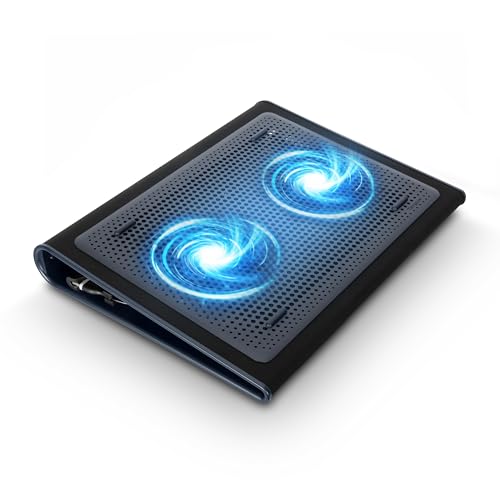
The fix is active airflow underneath and around the unit. A powered cooling pad does exactly that. The Targus 17-inch Dual Fan Lap Chill Mat, around $29.75 with a 4.0 rating, is built for laptops but works well as a base for a mini PC. Its two USB-A powered fans push air across the bottom of the chassis, and the soft neoprene surface lifts the box off the desk so the bottom vents can actually pull air. It fits most 17-inch footprints and smaller, which covers any mini PC easily. For a media box that lives in a warm cabinet, or a compact server like those in our best mini PC for home server guide, that extra draft can shave a meaningful chunk off load temperatures.
It won’t rescue a unit with dried paste and clogged fins. But once those are sorted, active under-cooling keeps the enclosure from re-soaking.
Pros
- Neoprene bottom blocks laptop chassis heat from reaching thighs during long lap sessions.
- Built-in ergonomic tilt raises the rear edge for a more neutral wrist typing angle.
- USB-A power pulls from the laptop itself, no wall brick or extra adapter needed.
Cons
- Limited owner feedback at time of writing, real-world thermal delta is hard to verify.
- Fan CFM, RPM, and dB figures not specified, cannot benchmark against active-airflow cooling pads.
- USB-A only, USB-C-only ultrabook owners will need a USB-C to USB-A adapter.
The Targus AWE55US is a budget lap-oriented laptop cooling pad sized for 17 inch and smaller notebooks. It pairs a soft neoprene lap-side surface with an open mesh top deck and dual USB-A powered fans. Target buyer is a remote worker or student who uses a 17 inch or smaller laptop on the lap and wants heat isolation with light airflow assist.
The defining feature is the neoprene lap-side layer combined with the raised mesh deck, which acts more as a heat and pressure barrier than an aggressive active cooler. The dual USB-A fans provide passive airflow assist rather than the measurable core temperature drops seen on high-RPM cooling pads. Owner reports suggest the biggest win is lap comfort during long typing sessions.
Fan CFM, RPM, and dB are not specified by Targus, which makes head-to-head comparison against Klim or Havit active pads difficult. The USB-A cable also occupies a laptop port, and heavier gaming laptops with bottom-heavy vents will not see a meaningful GPU or CPU delta from a passive-class pad like this one.
Buy this if you work with a 17 inch or smaller ultrabook on your lap and want lap-heat protection plus light airflow. Skip this if you run a 200W gaming laptop, need measurable thermal drops on sustained loads, or want adjustable tilt beyond the fixed ergonomic angle.
Size and fit: Rated for 17 inch laptops and smaller, so 13, 14, 15.6, and 17 inch notebooks all seat within the deck footprint. Four rubber stops on the mesh face prevent the chassis sliding off during lap use or when the ergonomic tilt angle is engaged.
Cooling and power: Dual fans draw power over a single USB-A cable, which can plug into the laptop itself or any external USB-A source. Airflow figures such as CFM, RPM, and dB are not specified by Targus, so treat this as a low-noise airflow assist rather than a high-static-pressure cooling pad.
Materials and ergonomics: The lap-side surface uses soft neoprene for cushioning and thermal insulation from laptop chassis vents. The top deck is open mesh, leting exhaust move through rather than trapping it, and the built-in tilt angle raises the rear edge for more neutral wrist posture during long typing sessions.
Connectivity: Single USB-A power cable, no USB-C input and no pass-through hub. USB-C-only ultrabook owners will need a USB-C to USB-A adapter or dongle. No RGB, no fan speed switch, and no removable fans, which keeps the accessory footprint minimal for travel and lap work.
Preventive maintenance that keeps it quiet
A little routine goes a long way here. Blow out the vents every three to four months, keep the unit on a hard surface with clearance on all sides, and never run it inside a sealed cabinet without airflow. Set a reminder to repaste roughly every two to three years, or sooner if you notice temps creeping up. Update your BIOS and chipset drivers occasionally, since firmware fan curves genuinely improve over a product’s life. Small habits, big difference.
It’s also worth thinking about where the box lives long term. Give it at least a couple of inches of breathing room behind and above, keep it off carpet and out of direct sunlight, and don’t stack a router or an external drive right on top of it. If the room itself runs warm in summer, a small desk fan aimed at the vents costs nothing and buys real headroom. The point is to stop heat from building faster than the unit can dump it.
When it’s not fixable and what to replace
If you’ve repasted, cleaned the fins, added under-cooling, and the fan still roars at idle, the fan bearing itself may be worn. A grinding or clicking noise points there, and a replacement fan is the next step, often a model-specific part you’ll source from the maker. In rare cases the heatsink is simply undersized for the chip, which is a design limit no amount of cleaning fixes. At that point you’re better off upgrading. Our best mini PC for 1440p gaming and best mini PC for Plex picks all favor units with better-vented chassis and roomier coolers, which is exactly what you want if heat has been a recurring headache.
Tools and parts needed
You don’t need much. A small Phillips screwdriver to open the bottom panel, a can of compressed air, a bottle of 90-percent-plus isopropyl alcohol, a lint-free cloth or coffee filter, a fresh tube of thermal paste like the ARCTIC MX-4 at $4.99, and optionally a powered cooling pad such as the $29.75 Targus mat for units that heat-soak. Total spend for the core repair sits under ten bucks. That’s a lot cheaper than a new machine.
A few more questions
How hot is too hot for a mini PC?
Modern CPUs are rated to run up to around 100 degrees Celsius before they throttle, so brief spikes into the 80s under heavy load are normal and safe. The concern is sustained high temps at idle or constant throttling that tanks performance. If your unit sits in the 90s while doing light work, or the fan never calms down, that’s the signal something’s clogged, dried out, or starved of airflow.
Will repasting void my warranty?
It can, depending on the maker. Some mini PC brands seal the bottom panel or use a warranty sticker over a screw. If your unit is still under warranty and running hot, contact support first and let them handle it. If it’s out of warranty, repasting is a routine repair that owners do all the time, and a $4.99 tube of paste is a low-risk way to recover lost performance.
Do cooling pads actually help a mini PC?
They help most when the unit vents through the bottom or lives in a warm, enclosed space. A powered pad like the Targus mat lifts the chassis and pushes fresh air across it, which stops the enclosure from heat-soaking. It’s not a substitute for clean fins and good paste, though. Fix the internal causes first, then add the pad as insurance for a box that runs warm no matter what.


































Write Your Review
No reviews yet. Be the first to share your experience!