

Choosing a prebuilt gaming PC is mostly a filtering job: you strip away RGB photos, vague “i7” labels, and inflated bundle claims until the machine’s CPU, GPU, RAM, storage, power supply, and case airflow make sense for the games you actually play. That’s less exciting than a glass-side-panel hero shot, but it’ll save you hundreds. We’ll walk through a five-step process you can use on any listing, including budget towers and 1440p rigs. If you’re comparing finished systems right now, our guides to prebuilt gaming PCs for 1440p and budget prebuilts for 1080p gaming are good reference points.
What you’ll need
You don’t need special tools to choose well. You need the listing, the full spec sheet, your monitor resolution and refresh rate, and about 20 minutes to compare parts. Keep a notes app open and write down the exact CPU model, GPU model, RAM capacity, storage size, PSU wattage if listed, case size, warranty length, and return window. Small details. Big difference.

Pros
- 512GB SSD bot drive avoids the HDD bottleneck common in budget prebuilts
- RX 590 8GB VRAM buffer handles 1080p textures better than 4GB budget cards
- Complete bundle with RGB peripherals means no extra spend to start using
- Genuine Windows 11 Home 64-bit preinstalled, no activation hassle out of box
Cons
- Limited owner feedback at time of writing, verify seller reputation before purchase
- Core i7-4770 is Haswell era LGA150, no upgrade path and weak IPC versus modern CPUs
- Windows 11 on 4th-gen Intel is unsupported by Microsoft and may miss feature updates
- No CD/DVD-ROM support and RAM/GPU generation limits future workload headroom
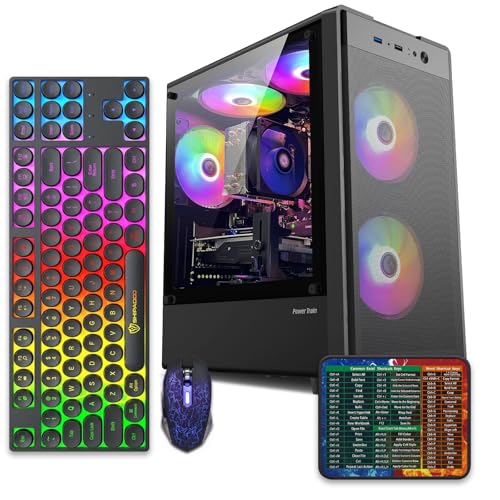
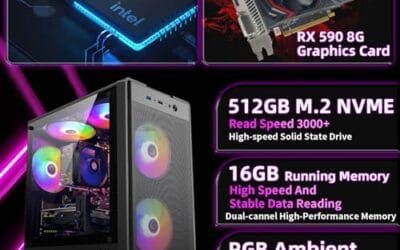
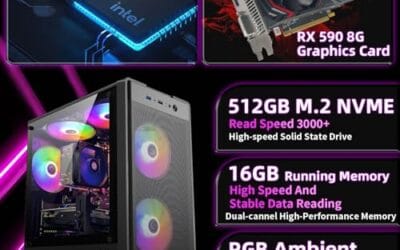
This is an entry-tier prebuilt tower built around an Intel Core i7-4770 Haswell CPU, 16GB RAM, a 512GB SSD, and an AMD Radeon RX 590 8GB GDDR5 GPU. It targets budget buyers who need a working office and light gaming PC with peripherals bundled, not enthusiasts chasing current-gen performance.
The defining feature is the RX 590 8GB paired with a 512GB SSD, an uncommon combo at this price band. Cards in this class typically handle 1080p esports titles at 60+ FPS on medium to high, matching the vendor claim for CS:GO, League of Legends, Apex, and Overwatch. Newer AA titles will need lowered settings.
Trade-offs are significant. The i7-4770 launched in 2013, so IPC, single-thread performance, and platform features like NVMe bot, PCIe Gen4, and modern USB are limited. Windows 11 runs here but sits outside Microsoft's official supported CPU list. There is no realistic CPU or socket upgrade path on LGA1150.
Buy this if you need a plug-and-play 1080p esports and office tower with keyboard, mouse, and RGB included at a low outlay. Skip this if you want current-gen platform support, sustained AA 1440p gaming, or a build with a meaningful upgrade runway.
GPU class: The AMD Radeon RX 590 8GB GDDR5 is a Polaris-refresh card roughly equivalent to a GTX 1060 6GB tier. Expect 1080p 60+ FPS in esports titles like CS:GO, Overwatch, Apex, League, and Fortnite on medium settings, matching the listing's claims.
AAA and modern titles: The vendor lists GTA V, Warzone, Hogwarts Legacy, and The Division 2. Realistically, these run at 1080p low to medium with FSR upscaling where suported.Ray tracing is unsupported on RX 590. No DLSS, no frame gen, no AV1 encode.
CPU bottleneck: The Core i7-4770 quad-core with 8threads at up to 3.9GHz will bottleneck the RX 590 in CPU-heavy titles like Warzone and Escape from Tarkov. Expect frame time inconsistency in large team fights even when average FPS looks aceptable.
Storage and RAM fit: 512GB SSD holds Windows plus 3 to 5 modern game installs before space pressure. 16GB DR3-era RAM is adequate for current esports but leaves no headroom for heavy streaming, browser tabs, and OBS NVENC alongside a game session.
The abytespark Prebuilt Gaming PC Desktop at $499.99 with a 4.4 rating is a useful example of why you need the full spec sheet. The title says Intel Core i7 and business office tower, but it doesn’t clearly name the GPU, RAM capacity, storage size, or power supply. Treat that kind of listing as an entry-level or adjacent option until the seller proves otherwise with exact component details.

Step 1: Decide the target resolution first
Start with the monitor, not the PC. A 1080p 144Hz setup asks for a very different graphics card than a 1440p ultrawide or a 4K display. For 1080p esports, a midrange GPU and a strong CPU matter most because frame rates can run into the hundreds. For 1440p AAA games, the GPU becomes the budget anchor. For 4K, you’re buying as much graphics card as you can reasonably afford.
Write down your target before browsing: 1080p at 120 to 165Hz, 1440p at 144Hz, or 4K at 60 to 120Hz. That one line keeps you from overpaying for a machine built for a monitor you don’t own. It also makes reviews and spec comparisons cleaner. If the product page doesn’t name the GPU clearly, stop there. A “gaming PC” without a specific GPU model is usually hiding a weak configuration.
Step 2: Read the CPU and GPU as a pair
A prebuilt is only as balanced as its CPU and GPU pairing. Sellers love leading with a familiar CPU label, especially “Intel Core i7,” but that label spans many generations and power levels. An older i7 can be slower than a newer i5, so you need the exact model number. Same with the graphics card: “RTX graphics” isn’t enough. You want the full name, such as RTX 4060, RTX 4070 Super, or RX 7800 XT.
For gaming, the GPU usually deserves the biggest chunk of the budget. A tower with a flashy CPU and a weak graphics card will feel underpowered where it matters. For streaming, editing, and heavy multitasking, a stronger CPU makes more sense, and our AMD prebuilt gaming PC guide covers that angle. But for a pure gaming build, don’t let a generic i7 badge distract you from a missing or low-end GPU.
Step 3: Check RAM, storage, and upgrade paths
For a new gaming PC, 16GB of RAM is the bare minimum and 32GB is the comfortable target. DDR5 is common on newer platforms, while DDR4 is still fine in cheaper builds. What matters is that the listing tells you capacity and configuration. Two 8GB sticks in dual-channel are better than one 16GB stick because the memory bus runs wider. One lonely stick. Avoid it if you can.
Storage is just as important. A 1TB NVMe SSD is the baseline for a modern gaming tower; 512GB fills up after a few big installs. Also check whether the motherboard has a spare M.2 slot and whether the case has room for a 2.5-inch or 3.5-inch drive. A cheap prebuilt with only one tiny SSD and no clear upgrade path can cost more later than a slightly pricier tower with room to grow.
Step 4: Inspect the parts sellers try to hide
The power supply, motherboard, cooler, and case airflow don’t get headline treatment, yet they decide how pleasant the PC is to own. Look for a named PSU brand, wattage, and efficiency rating. If the listing only says “high power supply” or omits it entirely, assume it’s a cost-cut part. A gaming PC with a modern GPU should have enough wattage headroom and the right connector, not a mystery box behind the shroud.
Cooling matters too. A small tower with a solid front panel and one rear fan can make decent parts run hot and loud. You want front intake, rear exhaust, and enough clearance around the CPU cooler and GPU. Motherboard details tell you upgrade potential: four RAM slots are better than two, and an extra M.2 slot gives the machine a longer life. Not glamorous. Crucial.
Step 5: Verify warranty, support, and the real price
Once the specs look right, check the boring paperwork. A one-year warranty is common, two or three years is better, and easy returns matter if the system arrives with shipping damage or coil whine. Look for who handles support: the seller, the system integrator, or the marketplace. If the support path is vague, that’s a warning sign.
Then price the parts roughly. You don’t need a full spreadsheet, just a sanity check against the CPU, GPU, RAM, SSD, case, and PSU. A prebuilt should cost more than raw parts because assembly and warranty have value, but the markup shouldn’t be absurd. Also account for Windows, Wi-Fi, keyboard bundles, shipping, and return fees. A $499.99 tower with unclear GPU specs may not beat a cleaner $650 listing once you factor in what it can actually run.
Troubleshooting common issues
The listing says Core i7 but doesn’t show the generation
Ask for the exact model or skip it. “Core i7” alone could mean a recent 14th-gen chip or an old office CPU pulled from surplus stock. The generation changes performance, motherboard support, memory type, and upgrade path. Exact model numbers are non-negotiable.
The GPU is missing from the title
Assume it’s integrated graphics until proven otherwise. Many office towers get labeled as gaming PCs because they have RGB lighting or an i7, but no discrete GPU means weak gaming performance. If the page doesn’t clearly list NVIDIA GeForce or AMD Radeon model details, don’t treat it as a gaming tower.
The PC looks cheap but the specs are vague
Vague specs are how sellers move old parts. Compare the listing against budget prebuilt PC options for 2026 and see whether reputable models name every major component. A vague cheap PC often becomes expensive once you replace RAM, storage, PSU, or the GPU.
The system has only 8GB of RAM
Budget for an upgrade immediately or choose a better configuration. Many current games will run on 8GB, but background apps, launchers, browsers, and anti-cheat software chew through it quickly. 16GB is the minimum we’d buy now, and 32GB is the better long-term choice.
Wrapping up
A good prebuilt starts with your monitor target, then lines up the CPU and GPU to match it. After that, you verify 16GB to 32GB of RAM, at least a 1TB NVMe SSD, a named PSU, decent airflow, and a warranty you can actually use. If any of those details are missing, slow down. The seller has the burden of proof, not you.
Before / after expected outcomes
Before this process, every tower can look like a deal because the photos are polished and the title is stuffed with buzzwords. After it, you can spot the weak link in under a minute: vague GPU, single-stick RAM, tiny SSD, mystery PSU, or cramped case. That’s how you avoid buying twice.
Variations / advanced setups
For streaming and editing, weight the CPU, RAM, and storage higher than a pure gaming buyer would. For a home server or HTPC, power draw and noise matter more than raw GPU speed. Our budget prebuilt home server guide is a better lens for that kind of machine.
One more filter helps: compare noise and thermals, not just frame rates. A prebuilt with a closed front panel, tiny CPU cooler, and one exhaust fan may look fine on paper but run loud under load. Look for mesh intake, at least two front fans, and clear photos of the inside. If the seller will not show the motherboard, power supply label, or cable routing, assume the hidden parts are where money was saved.
Also decide how much tinkering you are willing to do. Some prebuilts use standard ATX parts, so upgrades are easy. Others use proprietary motherboards, short cables, or odd power connectors that make future GPU and PSU swaps painful. Standard parts cost a bit more upfront, but they keep the machine useful longer. That is especially important if you are buying a budget tower and planning to improve it over two or three years.
Finally, compare the included software loadout. A clean Windows install with driver utilities is fine; a desktop stuffed with trial antivirus, shopping apps, RGB launchers, and telemetry tools can feel sluggish before you install a game. You can remove most of it, but your first day with the PC should not be spent cleaning junk. A reputable integrator will list what is preinstalled and keep it light.
Keep your receipt, box, and packing foam until the return window closes. Prebuilts are heavy, and shipping damage is easier to handle when you can repack the tower properly.
Common questions
Is a prebuilt gaming PC worse than building yourself?
Not automatically. A good prebuilt costs a little more but gives you assembly, Windows, cable management, and warranty support. A bad one hides weak parts behind a familiar CPU badge. The difference is whether the listing names every major component clearly.
How much should I spend on a first gaming prebuilt?
For 1080p, expect a sensible starting range around the cost of a real discrete GPU system, not the cheapest office tower online. Below that, listings often rely on old CPUs or integrated graphics. For 1440p, budget more for the GPU and cooling.
Is 32GB RAM necessary for gaming?
It’s not mandatory, but it’s the configuration we’d prefer in a new machine. 16GB still works for many games, yet 32GB gives breathing room for Discord, browsers, capture software, mods, and future titles. If the price jump is reasonable, take it.
Should I buy the cheapest i7 prebuilt I can find?
No. The exact i7 generation and the GPU matter more than the badge. A cheap i7 office tower with no discrete graphics isn’t a real gaming PC. Ask for model numbers, compare the GPU, and only then decide if the price makes sense.



























Write Your Review
No reviews yet. Be the first to share your experience!