

Buying DDR5 for the first time is confusing because the spec sheet throws numbers at you that don’t obviously map to real-world speed. Capacity, data rate, timings, voltage, EXPO or XMP profiles, and rank all matter, and picking wrong means either wasted money or memory your board won’t run at rated speed. This walkthrough breaks the decision into clear steps so you end up with a kit that boots at full speed and fits your CPU and workload. No jargon dumps, just the order to think in.
What you’ll need
You don’t need tools to choose RAM, but you do need three facts before you shop: your CPU model, your motherboard model, and what you actually do with the PC. Those three decide everything downstream. Have your motherboard’s memory support page open, since it lists the data rates the board officially runs and any capacity limits. If you’re pairing memory with a specific chip, our guides to the best DDR5 RAM for the Ryzen 9800X3D and the best DDR5 RAM for 2026 give you real starting kits to benchmark your choice against.
One honest note on parts. The only kit attached to this guide is the G.SKILL Ripjaws V 32GB (2x16GB) at $219.99, rated 4.1 stars. It’s a DDR4-3600 CL18 set, not DDR5, so it won’t fit a DDR5 board. We’re including it purely as a reference point for reading a memory spec, and because plenty of readers are deciding between an older DDR4 platform and jumping to DDR5. Don’t buy it for a DDR5 build. Read its label the way we describe below, then apply the same logic to a real DDR5 kit.

Pros
- DDR4-3600 XMP at 1.35V is the Ryzen AM4 sweet spot, aligning FCLK 1:1 at 1800MHz for best latency.
- Matched 2x16GB kit is factory-tested as a pair, reducing dual-channel instability compared to mixing sticks.
- Compatible with both Intel XMP and AMD DOCP/A-XMP BIOS profiles without manual sub-timing adjustments.
- Ships with JEDEC SPD fallback so the system always boots safe at default clocks before XMP is enabled.
Cons
- CL18 primary latency is mid-range; DDR4-3600 CL16 kits exist for buyers prioritizing tighter timings.
- No ECC support, so workstation or Threadripper ECC builds need a different kit entirely.
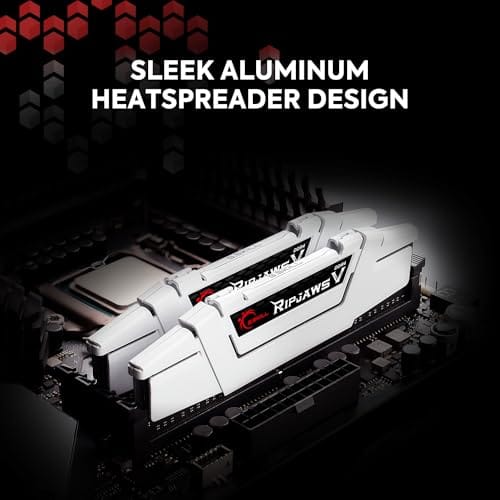
The G.SKILL RipjawsV F4-3600C18D-32GVK is a mid-range DDR4 desktop kit targeting Intel and AMD mainstream platform builders who want 32GB capacity at DDR4-3600 without overpaying for CL14 or CL16 enthusiast kits. It ships as a matched 2x16GB dual-channel pair in the standard 288-pin U-DIMM form factor.
The defining spec here is the XMP profile: DDR4-3600 at CL18-22-22-42, 1.35V. On AMD AM4 Ryzen systems, 3600MHz is the well-documented sweet spot for achieving a 1:1 FCLK ratio at 1800MHz, which keeps infinity fabric latency in check and translates to measurable gains in lightly-threaded workloads and gaming frame times compared to DDR4-3200 or lower.
CL18 is a genuine trade-off at this speed. Competing DDR4-3600 kits with CL16 or CL14 exist and offer lower absolute latency, though they typically carry a price premium. Owners report stable XMP operation across a wide range of B450, X570, and Z490/Z590 boards, but reaching rated speed on some budget AM4 boards may require manual sub-timing adjustments or AGESA microcode updates.
Buy this if you are building or upgrading an AM4 Ryzen or Intel LGA1700 desktop and want reliable 32GB DDR4-3600 dual-channel performance without tuning. Skip this if you need CL16 or tighter for competitive latency, or if your board has a limited QVL and you have not verified compatibility via G.SKILL's configurator tool first.
Platform Support: This kit uses 288-pin DDR4 U-DIMM and is compatible with Intel LGA1700 (Z690/Z790) and AMD AM4 (B450/X470/B550/X570) platforms. AM5 uses DDR5 exclusively, so this kit is not compatible with Ryzen 7000/9000 series builds on AM5 boards.
XMP and DOCP Activation: Rated speed of DDR4-3600 CL18-22-22-42 at 1.35V requires enabling XMP (Intel) or DOCP/A-XMP (AMD) in BIOS. Default JEDEC SPD boots at DDR4-2133 or DDR4-2400. On AM4, DDR4-3600 aligns FCLK at 1800MHz for a 1:1 ratio, which is the recommended operating point for Ryzen 3000 and 5000 series CPUs.
Slot Population and Mixing: Install both sticks in the recommended dual-channel slots per your motherboard manual, typically A2 and B2 in a 4-slot board. G.SKILL explicitly warns against mixing this kit with other modules; doing so voids the matched-pair guarantee and risks instability at XMP speeds.
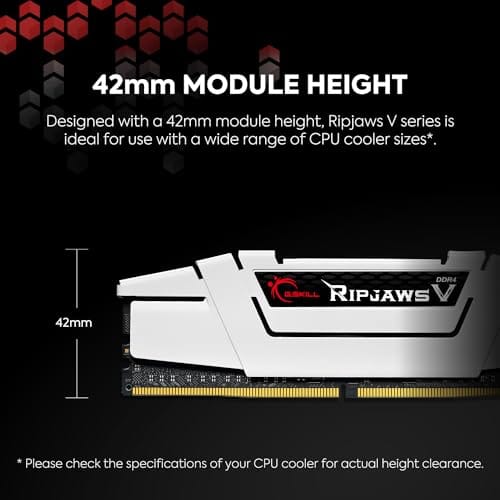
Cooler Clearance: Exact heatspreader height is not specified in the source data, but RipjawsV modules are noted for a lower profile than Trident Z or RGB variants, reducing conflicts with wide tower coolers. Verify clearance if using a low-clearance cooler on a tight ITX board.
Step 1: Confirm your platform actually uses DDR5
This sounds obvious, but it’s where money gets wasted. DDR5 and DDR4 are not interchangeable. The notch is in a different spot, the pin layout differs, and a DDR5 stick won’t seat in a DDR4 slot or the reverse. Your motherboard supports one or the other, never both in the same slot. Check the board’s spec page and confirm it says DDR5 before you buy a single stick.
The G.SKILL kit above is a perfect cautionary example. It’s a fine DDR4-3600 set at 1.35V with CL18-22-22-42 timings, but drop it next to a DDR5 motherboard and it’s useless. If your CPU is a recent Ryzen 9000 or 12th-gen-and-newer Intel on a DDR5 board, you need DDR5. Verify the platform first, and the rest of these steps stay simple.
Step 2: Pick your capacity
Capacity is the easiest call and the one you’ll live with longest. For a gaming PC in 2026, 32GB is the comfortable default, enough for modern titles plus a browser and Discord without swapping. 16GB still works for pure gaming but leaves little room for background apps. Content creators, heavy multitaskers, and anyone running VMs should look at 64GB.
Buy capacity as a matched kit, like a 2x16GB set for 32GB, rather than mixing single sticks. Matched kits are sold and validated to run together at their rated profile. That 32GB (2x16GB) arrangement on the reference kit is exactly the layout you want to mirror in DDR5, two sticks for dual-channel, not four small ones or a single stick. Two sticks also keep upgrade slots free later.
Why two sticks and not four? Populating all four slots on a DDR5 board often forces the memory to run at a lower data rate, because driving four modules stresses the CPU’s memory controller harder than driving two. So a 2x16GB kit frequently runs faster than a 4x8GB kit of the same total capacity. If you want 32GB now with a clean path to 64GB later, buy a single 2x16GB kit and add a matching kit only if you must, knowing the speed may drop. Buying 2x32GB up front is the cleaner route to high capacity.
Step 3: Choose a data rate your board can hit
DDR5 data rates start around 4800 MT/s and climb well past 6000 and 7000 MT/s. Faster isn’t automatically better, because your CPU’s memory controller and motherboard have to actually run that speed. For many current AMD platforms, DDR5-6000 is the practical target that keeps the memory and controller in sync. Intel platforms often push higher. Check your board’s qualified vendor list for rates it’s validated.
Notice how the reference DDR4 kit is rated 3600 MT/s. That’s the analog to picking a DDR5 data rate: a number the kit is guaranteed to hit via its profile, if your board supports it. Don’t pay a premium for DDR5-8000 if your CPU tops out lower, you’ll just run it slower than the label. Match the rate to your platform’s real capability and you’ve spent well.
Step 4: Read the timings and voltage, then trust the profile
Timings like CL30 or CL36 describe latency, and lower numbers are tighter, meaning slightly quicker response at the same data rate. The reference kit’s CL18-22-22-42 string is how DDR4 timings look; DDR5 numbers run higher because the clock is faster, so don’t compare the raw CL across generations. Within DDR5, a lower CL at the same MT/s is the better kit, all else equal, though the real-world gap is small for most gamers.
Voltage matters because DDR5 kits ship with an EXPO (AMD) or XMP (Intel) profile that sets the rated speed, timings, and voltage in one click in the BIOS. Out of the box, memory runs at a slow default, JEDEC spec, until you enable that profile. The DDR4 example uses 1.35V under XMP; DDR5 uses its own voltages. The step you must not skip: enable EXPO or XMP in BIOS after installing, or you’re leaving most of your paid-for speed on the table.
Step 5: Match the kit to your CPU and use case
Now tie it together. A gamer on a Ryzen X3D chip benefits from a fast, low-latency DDR5-6000 kit and rarely needs more than 32GB, which is why our best DDR5 RAM for gaming picks cluster around that profile. A creator rendering video or running many apps wants capacity first, 64GB, then speed. A budget build just needs a reliable 32GB kit at a rate the board supports, without chasing headline numbers.
Confirm the specific kit is on your motherboard’s memory support list if you want a guaranteed one-click experience. If it’s not listed, it’ll usually still work, but you might tune manually. That’s the whole method: platform, capacity, data rate, timings and voltage, then a final check against your CPU and workload. Follow it and you won’t overpay or end up with memory that idles below its rating.
One more matching detail worth a look: memory rank. Kits come as single-rank or dual-rank, and dual-rank modules can give a small performance edge in some workloads but are a bit harder to run at the highest data rates. For most gamers this is a non-issue, a standard 2x16GB kit at your board’s supported rate is the safe pick. Enthusiasts chasing benchmarks pay attention to it. If you’re just building a solid gaming PC, don’t overthink rank, get a well-reviewed kit at DDR5-6000 or your platform’s target and move on.
Troubleshooting common issues
My PC won’t post after installing the RAM
Reseat the sticks firmly until both clips snap. If it still won’t post, try one stick in the slot your manual recommends, usually the second from the CPU. New DDR5 kits sometimes need a memory-training pass on first boot that can take 30 seconds or more with a black screen, so give it time before panicking. Update the BIOS if the board is older than the CPU.
Memory runs slower than the rated speed
You almost certainly haven’t enabled the EXPO or XMP profile. Enter BIOS, find the memory profile setting, and switch it on, then save and reboot. Without it, the kit runs at the slow JEDEC default no matter what the box promised. This one setting is the single most common reason people think they got a slow kit.
System is unstable at the rated data rate
High DDR5 speeds lean on your CPU’s memory controller, and not every chip hits the fastest rates cleanly. If you crash under load with EXPO on, drop to the next lower rate your board supports, like stepping from 6400 to 6000. Stability at a slightly lower speed beats crashes at a big number you can’t actually run.
Only half my RAM shows up
Usually a seating issue. One stick isn’t fully clicked in, or it’s in a slot the board doesn’t like. Power down, reseat both sticks in the manual’s recommended slots, and boot again. If a stick is truly dead, swap it under warranty. Matched kits are covered together, another reason to buy them as a set.
Before and after expected outcomes
Done right, you go from a machine that either won’t boot or quietly runs memory at a sluggish default to one that posts cleanly and shows its full rated speed in a monitoring tool. Games load and stream assets more smoothly, and heavy multitasking stops hitting a wall. The difference between EXPO off and on alone can be meaningful in memory-sensitive titles.
Variations and advanced setups
Enthusiasts can push beyond the rated profile by manually tuning timings and voltage, chasing lower latency at the same data rate. It takes patience and stability checking, and gains are modest for gaming, so it’s optional. Most people should enable EXPO or XMP, confirm stability, and stop there. If you’re weighing a full platform jump, our best DDR5 RAM for overclocking roundup shows which kits have tuning headroom worth chasing.
Common questions
Is 32GB of DDR5 enough for gaming in 2026?
Yes, 32GB is the comfortable default for gaming, leaving room for background apps, a browser, and Discord. 16GB still runs games but gets tight with anything open alongside. Step to 64GB only if you also create content or run virtual machines. For pure play, a 32GB (2x16GB) DDR5 kit at your board’s supported rate is the smart buy.
Does DDR5 speed actually matter for gaming?
It matters, but with diminishing returns. Moving from a slow default to a proper DDR5-6000 profile gives a real, measurable bump in memory-sensitive games, especially with fast CPUs. Going from 6000 to 7200 yields far smaller gains that most players won’t feel. Buy a solid mid-rate kit, enable its profile, and don’t overpay for extreme speeds.
Can I mix DDR5 kits or add sticks later?
You can, but it’s risky for stability. Matched kits are validated to run together at their profile; two separate kits may not hit rated speed even if the specs look identical. If you think you’ll want more later, buy a single 2x16GB or 2x32GB kit now rather than planning to add sticks. Fewer, larger sticks age better.
What’s the difference between EXPO and XMP?
They’re the same idea from different camps. EXPO is AMD’s memory profile standard, XMP is Intel’s. Both store the rated speed, timings, and voltage so you enable full performance with one BIOS toggle. Many DDR5 kits carry both. Just make sure the kit lists the one matching your platform, then switch it on after install.

































Write Your Review
No reviews yet. Be the first to share your experience!