

You bought fast RAM, so why is it running slow? That’s the trap almost every new builder falls into. Out of the box, your memory runs at a plain JEDEC default, often well below the speed printed on the box, until you turn on XMP. Checking whether XMP is active, and switching it on if it isn’t, takes about five minutes in the BIOS and gives you free performance you already paid for. This walkthrough shows you how to verify your current memory speed in Windows, confirm the XMP status, and enable the right profile. If you’re still shopping kits, our gaming RAM picks and the DDR5 roundup list kits with rated profiles worth turning on.
What you’ll need
Not much. You need your PC, a couple of minutes, and access to the BIOS, which you reach by tapping Delete or F2 during boot. On the Windows side, the built-in Task Manager tells you your current memory speed, and a free tool like CPU-Z confirms the rated profile your kit supports. It helps to know exactly which kit you own so you can confirm the numbers match. For example, a G.SKILL Ripjaws V DDR4 32GB kit is rated for 3600 MT/s at CL18-22-22-42 and 1.35V, and those figures are the XMP profile you’re looking to switch on. If your RAM idles below its rated speed, XMP is off.


Pros
- DDR4-3600 XMP at 1.35V is the Ryzen AM4 sweet spot, aligning FCLK 1:1 at 1800MHz for best latency.
- Matched 2x16GB kit is factory-tested as a pair, reducing dual-channel instability compared to mixing sticks.
- Compatible with both Intel XMP and AMD DOCP/A-XMP BIOS profiles without manual sub-timing adjustments.
- Ships with JEDEC SPD fallback so the system always boots safe at default clocks before XMP is enabled.
Cons
- CL18 primary latency is mid-range; DDR4-3600 CL16 kits exist for buyers prioritizing tighter timings.
- No ECC support, so workstation or Threadripper ECC builds need a different kit entirely.
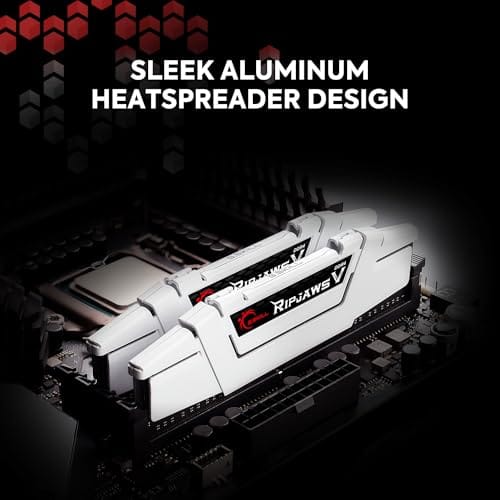
The G.SKILL RipjawsV F4-3600C18D-32GVK is a mid-range DDR4 desktop kit targeting Intel and AMD mainstream platform builders who want 32GB capacity at DDR4-3600 without overpaying for CL14 or CL16 enthusiast kits. It ships as a matched 2x16GB dual-channel pair in the standard 288-pin U-DIMM form factor.
The defining spec here is the XMP profile: DDR4-3600 at CL18-22-22-42, 1.35V. On AMD AM4 Ryzen systems, 3600MHz is the well-documented sweet spot for achieving a 1:1 FCLK ratio at 1800MHz, which keeps infinity fabric latency in check and translates to measurable gains in lightly-threaded workloads and gaming frame times compared to DDR4-3200 or lower.
CL18 is a genuine trade-off at this speed. Competing DDR4-3600 kits with CL16 or CL14 exist and offer lower absolute latency, though they typically carry a price premium. Owners report stable XMP operation across a wide range of B450, X570, and Z490/Z590 boards, but reaching rated speed on some budget AM4 boards may require manual sub-timing adjustments or AGESA microcode updates.
Buy this if you are building or upgrading an AM4 Ryzen or Intel LGA1700 desktop and want reliable 32GB DDR4-3600 dual-channel performance without tuning. Skip this if you need CL16 or tighter for competitive latency, or if your board has a limited QVL and you have not verified compatibility via G.SKILL's configurator tool first.
Platform Support: This kit uses 288-pin DDR4 U-DIMM and is compatible with Intel LGA1700 (Z690/Z790) and AMD AM4 (B450/X470/B550/X570) platforms. AM5 uses DDR5 exclusively, so this kit is not compatible with Ryzen 7000/9000 series builds on AM5 boards.
XMP and DOCP Activation: Rated speed of DDR4-3600 CL18-22-22-42 at 1.35V requires enabling XMP (Intel) or DOCP/A-XMP (AMD) in BIOS. Default JEDEC SPD boots at DDR4-2133 or DDR4-2400. On AM4, DDR4-3600 aligns FCLK at 1800MHz for a 1:1 ratio, which is the recommended operating point for Ryzen 3000 and 5000 series CPUs.
Slot Population and Mixing: Install both sticks in the recommended dual-channel slots per your motherboard manual, typically A2 and B2 in a 4-slot board. G.SKILL explicitly warns against mixing this kit with other modules; doing so voids the matched-pair guarantee and risks instability at XMP speeds.
Cooler Clearance: Exact heatspreader height is not specified in the source data, but RipjawsV modules are noted for a lower profile than Trident Z or RGB variants, reducing conflicts with wide tower coolers. Verify clearance if using a low-clearance cooler on a tight ITX board.
Step 1: Check your current memory speed in Windows
Start in Windows before you touch the BIOS, so you know what you’re starting from. Right-click the taskbar, open Task Manager, click the Performance tab, then select Memory. Look at the “Speed” figure. If your kit is rated for 3600 MT/s but Task Manager shows 2133 or 2400, XMP is off and your RAM is running at the motherboard’s safe default. That gap is the free performance you’re leaving on the table.
For a fuller picture, download CPU-Z. On the Memory tab it shows the live frequency, remember DDR is double data rate, so a 1800 MHz reading equals 3600 MT/s. The SPD tab lists the XMP profile your kit actually stores, so you can confirm the rated speed and timings match what’s on the box. Note both numbers down. If the live speed is below the SPD-listed XMP profile, you’ve confirmed the problem, and Step 2 fixes it.
Why does this gap even exist? Motherboards boot RAM at a conservative JEDEC standard speed for guaranteed compatibility, so any stick from any brand posts on first power-up. That safe default is often 2133 or 2400 MT/s on DDR4 and 4800 on DDR5, well under what enthusiast kits are rated for. XMP is Intel’s Extreme Memory Profile, a set of validated speed and timing values the manufacturer bakes into the module’s SPD chip. Until you tell the board to load that profile, all that speed you paid for just sits there unused. The kit runs, it just runs slow.
Step 2: Reboot into the BIOS
Restart the PC and, as it powers on, tap the BIOS key repeatedly before Windows loads. It’s usually Delete on desktops, sometimes F2, and the boot splash screen names it. Don’t hold the key, tap it, because holding can trigger a keyboard error on some boards. If Windows loads anyway, you missed the window; just restart and try again. Fast boot can make the window tight, which is one more reason the fast-startup habit is worth breaking on a machine you tinker with.
Once you’re in, you’ll land in either an EZ or basic mode on most modern boards. Look for an “Advanced” or “Advanced Mode” toggle, often F7, which exposes the memory settings. Board menus differ by brand, but every one of them has a memory or overclocking section where the XMP control lives. Don’t change anything else yet. You’re here for one setting.
Step 3: Find and enable the XMP profile
Head to the overclocking or “AI Tweaker” or “Extreme Tweaker” section, depending on your board brand. Look for a setting labeled XMP, D.O.C.P (on some AMD boards), or EXPO if you’re on a DDR5 AMD platform. It’ll usually be set to “Disabled” or “Auto.” Change it to “Profile 1,” which loads your kit’s rated speed and timings automatically. For the G.SKILL 3600 MT/s kit, enabling Profile 1 sets the frequency to 3600 and the timings to CL18-22-22-42 at 1.35V, exactly the numbers stamped on the module.
That’s the whole trick. XMP is a one-click preset that applies the manufacturer’s validated overclock, so you don’t hand-enter a dozen sub-timings. Most kits ship one profile; some higher-end kits carry two, a rated profile and a slightly tamer fallback. Pick Profile 1 unless you’ve got a specific reason not to. If your board offers “Auto” alongside the numbered profile, choose the numbered profile, since Auto sometimes leaves the RAM at default.
A word on what those timing numbers mean, since you’ll see them applied here. The CL18-22-22-42 string on that G.SKILL kit is the primary timings, measured in clock cycles, and lower is faster at a given speed. Enabling XMP loads all of them at once along with the 1.35V the kit needs to hit 3600 MT/s stably. You don’t need to memorize them. The point is that XMP handles the voltage bump and the timing set together, which is exactly why doing it by hand is error-prone and the profile is the safe route. Let the validated preset do the work.
Step 4: Save and reboot
Press F10 to save and exit, confirm, and let the system restart. On the first boot after enabling XMP, the board runs a quick memory training pass, so it’s normal for the screen to stay black a few extra seconds or for the machine to power-cycle once or twice on its own. Don’t panic and don’t yank the power. That retraining is the board learning the new timings, and it only happens on the first boot with a new profile.
If it boots straight to Windows, you’re likely good. If instead the board fails to post and drops you back into the BIOS at default settings, the profile didn’t hold, and that’s covered in troubleshooting below. Most of the time, though, the retraining finishes and Windows loads normally. Now go verify the change actually took.
Step 5: Verify XMP is active
Back in Windows, reopen Task Manager, Performance, Memory, and check the Speed figure again. It should now read your kit’s rated speed, 3600 MT/s for that G.SKILL kit, instead of the old default. Cross-check in CPU-Z on the Memory tab, where the frequency should now match half the rated MT/s number. If both agree, XMP is on and your RAM is running at the speed you paid for.
It’s worth a quick stability pass too. Run the machine through your normal load, a game or a memory-checking utility like MemTest86, for a while to confirm the profile is stable. Rarely, a kit that’s advertised at a speed the motherboard or CPU can’t quite hold will show errors under load. If everything’s clean after a solid session, you’re done. Free performance, unlocked.
How much does this actually gain you? On a Ryzen platform in particular, faster RAM feeds the CPU’s Infinity Fabric and can lift average and 1% low framerates noticeably in CPU-bound games, sometimes a double-digit percentage jump going from stock 2133 to a rated 3600. On Intel the gains are smaller but still real, especially in memory-heavy titles and productivity work. Either way, you already paid for the speed when you bought the rated kit. Leaving XMP off is like buying premium fuel and running the engine on regular. There’s no downside to switching it on once you’ve confirmed stability.
Troubleshooting common issues
The PC won’t boot after enabling XMP
This happens when the board can’t stabilize the rated profile. Most boards auto-recover to default after a few failed posts, dropping you back in the BIOS. From there, try a lower profile if your kit has one, or bump the memory voltage slightly toward the rated figure if it’s sitting under it. If your CPU’s memory controller is the limit, you may need to run one notch below the advertised speed. That’s a silicon-lottery reality, not a defective kit.
I don’t see an XMP option in my BIOS
Check for D.O.C.P or EXPO instead, since AMD boards often label it differently. EXPO is the DDR5 AMD equivalent, D.O.C.P is the older AMD term. If none appear, make sure you’re in Advanced mode, not the simplified EZ view, because the setting is usually hidden in the overclocking section. A very old or very locked-down board may not expose it at all, though that’s rare on any modern enthusiast platform.
Windows still shows the old speed after enabling XMP
Confirm you saved the BIOS change with F10 rather than exiting without saving. If you did save, double-check you selected a numbered profile and not “Auto,” which sometimes leaves RAM at default. Re-enter the BIOS, verify the profile is set, save again, and recheck in Task Manager. If it still won’t apply, the profile may be failing training silently and reverting, which points back to the boot-failure fix above.
My RAM speed is close but not exactly the rated number
That’s usually normal rounding. DDR speeds derive from a base clock, so a 3600 MT/s kit might read as 3599 or 3601 depending on how the tool rounds. As long as you’re within a few MT/s of the rated figure and it’s stable, XMP is working correctly. A reading that’s hundreds of MT/s low, though, means the profile isn’t active.
Is enabling XMP safe for my RAM and CPU?
Yes, for everyday use. XMP applies the manufacturer’s own validated settings and voltage, which the kit is built and warrantied to run. It is technically a factory overclock, so purists note it runs the memory above the base JEDEC spec, but it’s a standard, supported feature on virtually every enthusiast board. The only real caveat is the silicon lottery, where a particular CPU’s memory controller can’t hold the rated speed, in which case you simply drop a notch. It won’t damage anything.
Wrapping up
Checking and enabling XMP is the single easiest performance win in PC building, and it’s one you already paid for when you bought rated memory. Verify your current speed in Task Manager, reboot into the BIOS, flip the XMP or EXPO or D.O.C.P profile to the numbered setting, save, and confirm the new speed back in Windows. Five minutes, no cost, real gains in games and memory-heavy work. If your RAM’s been quietly running at default this whole time, now it won’t be. If you’re planning a fresh build around a specific chip, our RAM picks for the 9800X3D match kits to the platform so the profile you enable is one the CPU can actually hold.

































Write Your Review
No reviews yet. Be the first to share your experience!