

Your PC has two sticks of RAM installed, but is it actually running in dual-channel mode? It’s a fair question, because the answer changes your memory bandwidth by nearly double, and a surprising number of builds run in single-channel by accident, two sticks jammed into the wrong pair of slots. Dual-channel splits data across two 64-bit paths at once, and on a modern platform that’s real, free performance in games and creative apps. This walkthrough shows you how to verify your memory channel configuration in a few minutes, no benchmarks required. If you’re also shopping kits, our picks for the best RAM for gaming in 2026 and the best budget RAM of 2026 pair well with this guide.
What you’ll need
Almost nothing, which is the good news. You need your PC powered on and a couple of free tools: Task Manager, which ships with Windows, and CPU-Z, a small free utility that reads your memory controller directly. Optionally your motherboard manual, since it labels which slots form each channel pair. If you discover you’re in single-channel because you’re running one stick, you’ll need a matched second stick or a proper two-stick kit to fix it. A kit like the G.SKILL Ripjaws V DDR4 32GB (2x16GB) 3600 CL18 set, $219.99 at a 4.1-star rating, ships as a matched pair specifically so both sticks populate the two channels correctly.

Pros
- DDR4-3600 XMP at 1.35V is the Ryzen AM4 sweet spot, aligning FCLK 1:1 at 1800MHz for best latency.
- Matched 2x16GB kit is factory-tested as a pair, reducing dual-channel instability compared to mixing sticks.
- Compatible with both Intel XMP and AMD DOCP/A-XMP BIOS profiles without manual sub-timing adjustments.
- Ships with JEDEC SPD fallback so the system always boots safe at default clocks before XMP is enabled.
Cons
- CL18 primary latency is mid-range; DDR4-3600 CL16 kits exist for buyers prioritizing tighter timings.
- No ECC support, so workstation or Threadripper ECC builds need a different kit entirely.
The G.SKILL RipjawsV F4-3600C18D-32GVK is a mid-range DDR4 desktop kit targeting Intel and AMD mainstream platform builders who want 32GB capacity at DDR4-3600 without overpaying for CL14 or CL16 enthusiast kits. It ships as a matched 2x16GB dual-channel pair in the standard 288-pin U-DIMM form factor.
The defining spec here is the XMP profile: DDR4-3600 at CL18-22-22-42, 1.35V. On AMD AM4 Ryzen systems, 3600MHz is the well-documented sweet spot for achieving a 1:1 FCLK ratio at 1800MHz, which keeps infinity fabric latency in check and translates to measurable gains in lightly-threaded workloads and gaming frame times compared to DDR4-3200 or lower.
CL18 is a genuine trade-off at this speed. Competing DDR4-3600 kits with CL16 or CL14 exist and offer lower absolute latency, though they typically carry a price premium. Owners report stable XMP operation across a wide range of B450, X570, and Z490/Z590 boards, but reaching rated speed on some budget AM4 boards may require manual sub-timing adjustments or AGESA microcode updates.
Buy this if you are building or upgrading an AM4 Ryzen or Intel LGA1700 desktop and want reliable 32GB DDR4-3600 dual-channel performance without tuning. Skip this if you need CL16 or tighter for competitive latency, or if your board has a limited QVL and you have not verified compatibility via G.SKILL's configurator tool first.
Platform Support: This kit uses 288-pin DDR4 U-DIMM and is compatible with Intel LGA1700 (Z690/Z790) and AMD AM4 (B450/X470/B550/X570) platforms. AM5 uses DDR5 exclusively, so this kit is not compatible with Ryzen 7000/9000 series builds on AM5 boards.
XMP and DOCP Activation: Rated speed of DDR4-3600 CL18-22-22-42 at 1.35V requires enabling XMP (Intel) or DOCP/A-XMP (AMD) in BIOS. Default JEDEC SPD boots at DDR4-2133 or DDR4-2400. On AM4, DDR4-3600 aligns FCLK at 1800MHz for a 1:1 ratio, which is the recommended operating point for Ryzen 3000 and 5000 series CPUs.
Slot Population and Mixing: Install both sticks in the recommended dual-channel slots per your motherboard manual, typically A2 and B2 in a 4-slot board. G.SKILL explicitly warns against mixing this kit with other modules; doing so voids the matched-pair guarantee and risks instability at XMP speeds.
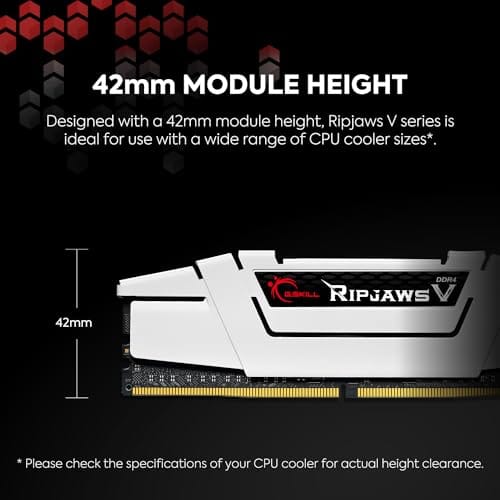
Cooler Clearance: Exact heatspreader height is not specified in the source data, but RipjawsV modules are noted for a lower profile than Trident Z or RGB variants, reducing conflicts with wide tower coolers. Verify clearance if using a low-clearance cooler on a tight ITX board.
Step 1: Open Task Manager and read the Memory tab
Press Ctrl+Shift+Esc to open Task Manager, click More details if you see the compact view, then go to the Performance tab and select Memory. Look at the panel. Windows shows total installed RAM, speed in MT/s, form factor, and the number of slots used. That’s your first quick read, and it takes ten seconds.
Task Manager won’t say the word “dual-channel” outright on every Windows build, so this step is about gathering facts. Note your total capacity and how many slots are populated. Two of four slots used with matched capacity is a good sign, but it isn’t proof yet. If it says the speed is well below your kit’s rating, jot that down too. We’ll confirm the channel mode properly in the next step.
A quick tip on reading capacity: if you installed two 16GB sticks, Task Manager should report 32GB total and two of your slots in use. If it shows the right total but you’re unsure about channels, that’s normal, Task Manager just doesn’t spell channel mode out clearly. Treat this step as fact-gathering. The numbers you jot down here, total capacity, slots used, and reported speed, are what you’ll compare against CPU-Z’s verdict in a moment.
Step 2: Confirm the channel with CPU-Z
Download CPU-Z from its official site, install it, and open the Memory tab. This is the definitive answer. Right at the top you’ll see a field labeled Channel #, and it reads either Single or Dual (occasionally Quad on HEDT boards). If it says Dual, you’re done and your sticks are working as a pair. If it says Single with two sticks installed, they’re in the wrong slots and you’ve been leaving performance on the table.
While you’re here, check the DRAM Frequency field and double it, since DDR memory transfers on both clock edges. A reading of 1800 MHz means 3600 MT/s, which matches the G.SKILL kit’s rating. If that number is lower than your kit’s spec, your XMP profile probably isn’t enabled, a separate issue we cover in troubleshooting. For now, the Channel # line is the one that answers today’s question.
Step 3: Cross-check the physical slot layout
If CPU-Z reported Single channel, power down, unplug, and open the side panel. Most four-slot motherboards want a two-stick kit in slots A2 and B2, commonly the second and fourth slots counting from the CPU, not the two slots sitting side by side. This is the single most common dual-channel mistake, and it’s why the manual matters. The board’s silkscreen or manual spells out the correct pair.

Reseat the sticks into the recommended slots, pressing until both retention clips snap fully closed. A stick that isn’t seated all the way can drop a channel or fail to post entirely. Don’t force anything; if it won’t click, check the notch orientation. Once both sticks are firmly in the A2/B2 pair, close up, boot, and rerun CPU-Z. That Channel # field should now read Dual.
Step 4: Enable XMP so the kit runs at its rated speed
Dual-channel is only half the win. Out of the box, most boards run memory at a conservative JEDEC default like 2133 or 2400 MT/s, not your kit’s rating. To hit the G.SKILL kit’s 3600 MT/s at CL18-22-22-42, you enable its XMP profile. Restart, tap Delete or F2 to enter the BIOS, and find the XMP (or DOCP/EXPO on some AMD boards) toggle, usually on the main or overclocking page.
Select Profile 1, save, and exit. The system reboots and applies the rated 3600 MT/s and 1.35V. If it fails to post, the board usually recovers to defaults after a few tries, and you can re-enter BIOS to try again. Enabling XMP won’t change your channel mode, but it makes sure the dual-channel bandwidth you just confirmed actually runs at full speed rather than a slow fallback.
Step 5: Verify the final result and note your numbers
Boot back into Windows and open CPU-Z one more time. Channel # should read Dual, and DRAM Frequency doubled should match your kit’s rating, 1800 MHz showing for a 3600 MT/s kit. Cross-check Task Manager’s Memory tab too; the speed field there should now report the XMP number, not the JEDEC fallback. When both tools agree, your configuration is correct and complete.
Write the numbers down somewhere, or screenshot the CPU-Z Memory tab. It’s a handy baseline. If you ever add RAM, swap a kit, or a Windows update makes the system feel off, you can reopen CPU-Z and instantly see whether your channel mode or speed changed. Two minutes now saves a confused afternoon later.
If you want a second opinion, HWiNFO and your motherboard vendor’s own utility both report channel mode too, and cross-checking with a second tool rules out any misread. On some AMD systems the BIOS memory page also shows a channel indicator directly. But CPU-Z is the quickest and most trusted answer for most people, so if its Channel # field reads Dual and the frequency matches your kit, you can stop there with confidence.
Troubleshooting common issues
CPU-Z still says Single with two sticks
This is almost always a slot problem. The two sticks are sitting in the wrong pair, often the two adjacent slots instead of the A2/B2 pair your manual specifies. Power down and move one stick so the kit occupies the correct alternating slots. If it still reads Single after reseating, check for a bent DIMM pin on the socket or a stick that isn’t fully clipped in.
Speed is far below my kit’s rating
That’s XMP not being enabled. Without it, the board runs a safe JEDEC default well under your kit’s 3600 MT/s spec. Enter BIOS, turn on the XMP, DOCP, or EXPO profile, save, and reboot. If the system won’t post at the full profile, try loading it manually one step at a time or update your BIOS, since memory compatibility improves with firmware updates.
One stick isn’t detected at all
If total capacity is half what you installed, one stick isn’t registering. Reseat both firmly until the clips snap. Swap which slot each stick uses to isolate whether it’s a bad stick or a bad slot; if the same stick fails in a known-good slot, that stick is the problem. Mixing mismatched sticks can also cause a no-detect, which is why matched kits are worth it.
System won’t post after enabling XMP
Some boards need a nudge to run a full XMP profile. Clear CMOS to recover defaults, then re-enter BIOS and update to the current firmware first, since memory support gets better with each revision. If the rated profile still won’t hold, try loosening the primary timings slightly or dropping to a marginally lower frequency; you keep dual-channel bandwidth either way.
Before and after expected outcomes
Fixing single-channel to dual-channel roughly doubles peak memory bandwidth, and that shows up most in integrated-graphics systems, memory-sensitive games, and creative work like video editing. It’s not a magic frame-rate doubler, but 1% lows and stutter often improve noticeably. Add XMP on top and you’re running the speed you actually paid for. The before state was two sticks fighting over one lane; the after is both lanes open.
A rough gauge: memory-bandwidth benchmarks often show close to double the read and write throughput moving from single to dual-channel, and integrated-graphics frame rates can jump by a third or more since the iGPU shares that memory. Discrete-GPU gamers see a smaller but real gain, mostly in smoother frame pacing. It’s rarely a night-and-day headline number, but it’s free performance you already paid for.
Variations and advanced setups
Four-stick configurations still run dual-channel, just with two sticks per channel, though very high-capacity four-DIMM setups sometimes need a slightly relaxed speed to stay stable. HEDT and workstation platforms can run quad-channel or more, in which case CPU-Z shows Quad. And if you’re building fresh, buying a single matched kit like the G.SKILL 2x16GB pair rather than two separate sticks avoids most compatibility headaches from the start.
DDR5 adds a wrinkle worth noting: each DDR5 module is internally split into two 32-bit sub-channels, so the terminology shifts a little, but the practical rule holds. Populate the two slots your manual specifies with a matched kit, enable the memory profile, and confirm with CPU-Z. The tools and the two-slot logic are the same on DDR4 or DDR5.
Common questions
How do I know if my RAM is dual-channel without opening the case?
Use CPU-Z. Its Memory tab has a Channel # field that reads Single or Dual directly, no screwdriver needed. Task Manager’s Memory tab helps you see capacity and slot count, but CPU-Z gives the definitive channel answer in one line.
Which slots should I use for two sticks?
On most four-slot boards, use slots A2 and B2, typically the second and fourth from the CPU, not the two adjacent slots. Your motherboard manual spells out the exact pair. Using the wrong two slots is the number-one reason a two-stick system runs in single-channel.
Does dual-channel actually matter for gaming?
Yes, especially for 1% lows and stutter, and hugely for systems using integrated graphics. The gain varies by game and CPU, but dual-channel bandwidth is essentially free performance you already paid for when you bought two sticks. Running them in single-channel wastes that.
Can I mix a single stick with a matched kit?
You can, but it’s risky. Mismatched capacities, speeds, or timings can force single-channel operation, lower speeds, or instability. The clean approach is a single matched kit sized for your needs, which is why a 2x16GB set is a common choice over adding odd sticks later.


































Write Your Review
No reviews yet. Be the first to share your experience!