

You updated Windows, rebooted, and now the USB ports on the front of your case are dead. Rear ports still work, mouse and keyboard are fine, but plug a phone or flash drive into that top-panel connector and nothing happens. It’s a common, maddening post-update problem, and it’s almost never the port itself failing. Nine times out of ten it’s a driver, a power setting, or a loose internal header that the update jostled loose in your head, not the metal. Let’s walk the causes we researched, cheapest fix first.
Front-panel USB runs through an internal header cable inside your case, so the fault could be software or a physical connection. If you’re already thinking about a case with cleaner front-IO wiring, our guides to the best mid-tower cases for 2026 and the best budget PC cases for 2026 are worth a look, but hold off on buying. Most of these fixes cost nothing. Start here.
First check the obvious (the 30-second check)
Before you open anything, rule out the simple stuff. Try a different device in the front port, since a dead flash drive can fake a dead port. Then try that same known-good device in a rear port to confirm the rest of the USB system works. If rear ports are fine and front ports are dead across the board, that points at the front-panel header or its driver, not the whole controller.
Also glance at the device you’re plugging in. A phone set to charge-only won’t show up as storage, and a cheap cable that only carries power looks exactly like a dead port. Swap in a known data cable and a device you’re sure works before you blame the PC. It’s a ten-second check that saves a lot of pointless disassembly.

One more quick move: full shutdown, unplug the power cord for 30 seconds, then boot. Windows fast startup can hold a broken USB state across a normal restart, so a real power cycle clears it. If the ports come back after that, you’re done. If not, keep reading, because the update likely changed a driver or a power policy.
While you’re at it, note whether the ports were ever reliable before the update. If that front connector has been flaky for months, the update probably just exposed a pre-existing loose header rather than causing anything, which nudges you toward the physical fix later. And check both USB 2.0 and USB 3.x front ports separately, since a case often wires them to different motherboard headers. It’s common for the USB 3 block to fail while the USB 2 ports keep working, or the reverse. That split tells you which internal header to inspect.
Cause #1: Windows update installed a bad USB or chipset driver
This is the usual culprit. A feature or cumulative update swaps in a generic USB or chipset driver that doesn’t match your motherboard, and the front-panel header goes quiet. Open Device Manager, expand Universal Serial Bus controllers, and look for a yellow warning icon or an entry that vanished. A device with an exclamation mark is your smoking gun.
Right-click the affected USB Root Hub or host controller and choose Uninstall device, then reboot so Windows reinstalls it clean. If that doesn’t take, go to your motherboard maker’s support page and grab the latest chipset driver for your exact model, since the vendor package usually restores proper front-header behavior that the generic Microsoft driver breaks. Roll back the driver from the Driver tab if the problem started the moment the update landed. That rollback button exists for exactly this.
There’s a related trick worth trying inside Device Manager. Click the View menu and choose “Show hidden devices,” then look for greyed-out USB entries left over from the update. Uninstalling those ghost entries and rebooting sometimes clears a conflict that keeps the live controller from initializing the front header. If a specific update is the obvious trigger, you can also open Windows Update history and uninstall the offending cumulative update as a temporary measure, then pause updates while you source the right vendor driver. It’s not elegant, but it buys you working ports today.
Cause #2: USB selective suspend or power management turned the port off
Updates love to reset power settings, and USB selective suspend is the sneaky one. When it’s on, Windows can cut power to a port to save energy and then fail to wake it, which reads exactly like a dead front panel. Open Device Manager, right-click each USB Root Hub, choose Properties, open the Power Management tab, and uncheck “Allow the computer to turn off this device to save power.”
Then hit the power plan itself. In Control Panel under Power Options, edit your plan’s advanced settings, find USB settings, and set USB selective suspend to Disabled. Reboot and re-check the front ports. This fix costs nothing and resolves a surprising share of post-update USB dropouts, especially on laptops and small-form PCs where power policies are aggressive by default.
A companion setting hides in the BIOS. Some boards have an ErP or deep power-saving mode that cuts standby power to headers, and a firmware update bundled with the Windows update can flip it on. Reboot into BIOS, look under power or advanced settings, and disable ErP or any “USB power in S3/S5” restriction so the front header stays fed. Save and reboot. Between the Windows selective-suspend toggle and this BIOS switch, aggressive power saving accounts for a large share of front-panel ports that go dark after an update yet check out fine on the bench.
Cause #3: The internal front-panel header cable worked loose
Software checked out? Time to open the side panel. The front USB ports connect to the motherboard through an internal cable, either a small USB 2.0 header or a taller USB 3.0/3.2 block, and that plug can back out of its socket during shipping, cleaning, or an earlier upgrade. An update didn’t physically unplug it, but a coincidental reboot often gets blamed for a connection that was already marginal.
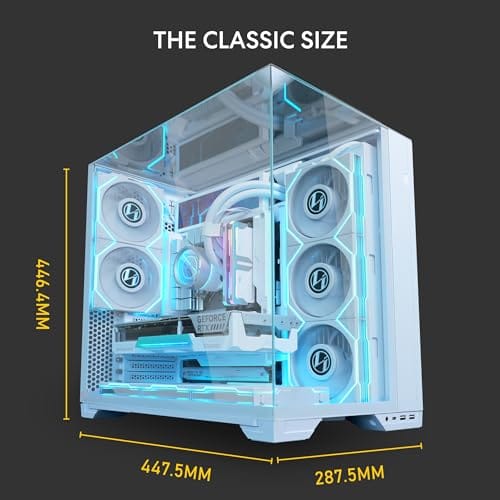
Power down, unplug the system, and find where the front-panel USB cable meets the board. Reseat it firmly and confirm the pins line up, since a USB header offset by one pin kills the port and can risk a short. Check the cable for a bent pin or a cracked connector too. If your case has awkward, fragile front-IO wiring, a cleaner-built enclosure like the Lian Li O11 Vision Compact ($124.99, 4.4 stars) routes those cables more sanely, though that’s an upgrade, not a required repair. Reseating is free and fixes it most of the time.

Pros
- Patented three-panel tempered glass exposes front, top, and left views of the build.
- Native back-connect motherboard support for hiden 24-pin, EPS, and PCIe cabling.
- Second chamber hides side-mounted AIO tubing for a cleaner primary compartment.
- Swappable top mesh panel suports a 360mm AIO when thermals take priority over glass.
Cons
- Limited owner feedback at time of writing makes long-term reliability signal thin.
- Full specs (GPU length, cooler height, fan count) not published in source data.
- Back-connect layout requires a compatible motherboard, narowing part selection.
The Lian Li O11Vision Compact is a mid-range ATX mid-tower positioned as a smaller sibling to the O11 Dynamic line, developed in collaboration with the PCMasterRace community. It targets showcase builders who want a dual-chamber layout, tempered glass on three sides, and native support for back-connect motherboards in a tighter footprint.
The defining feature is the patented three-panel tempered glass design covering the front, top, and left side. Paired with the second-chamber cable routing and back-connect motherboard compatibility, the front compartment stays visually clean. Builders wanting a 360mm AIO can swap in the included top mesh panel, trading a glass top for airflow.
Trade-offs are typical at this tier. Back-connect support only pays off if you buy a compatible board from ASUS, MSI, GIGABYTE, or similar, which narrows part selection and can raise motherboard cost. Concrete specs like GPU clearance, CPU cooler height, radiator sites, and included fan count are not specified in the source data, so verify against the official manual before finalizing parts.
Buy this if you want O11-family aesthetics with hidden cabling via a back-connect board and a side or top 360mm AIO. Skip this if you need a documented GPU length ceiling, bundled fans, or a traditional cable-visible motherboard build.
Motherboard support: The chassis accepts standard ATX boards and ads native routing for back-connect variants such as ASUS BTF, MSI Project Zero, and GIGABYTE Project Stealth. Cable cutouts on the tray align with rear-side connectors, keping the 24-pin, EPS, and PCIe cables out of the main chamber view.
Radiator and AIO: A swappable top mesh panel is included specifically to enable a 360mm AIO in the rof. When the AIO is mounted on the side instead, the dual-chamber layout routes the tubing into the second compartment, keeping the front-facing glass view unobstructed. Exact side radiator thickness limits are not specified.
Glass and panel layout: Three tempered glass panels cover the front, top, and left side. The top glass panel is the one you swap out when a 360mm radiator is installed, so builders choosing air cooling or a bottom-mounted AIO retain the full three-panel glass look.
Not specified in source: GPU length clearance, CPU cooler height, drive bay count, included fan count, front I/O (USB-C, USB-A), PSU length, and case dimensions are not listed in the provided data. Confirm these against the Lian Li O11VPW official spec sheet before finalizing parts.
Preventive maintenance
A little habit saves the next headache. Before a big Windows feature update, note your current chipset and USB driver versions so you can roll back fast if something breaks. Keep the vendor chipset driver package downloaded and handy, because you don’t want to hunt for it using a machine whose ports are half-dead. Pause automatic driver updates through Windows Update if your board relies on specific vendor drivers.
Physically, seat your front-panel headers firmly during any build or cleaning and give the cable a gentle tug to confirm it’s locked. Dust around the header contacts once in a while. These are two-minute checks that keep an update from turning into an afternoon of troubleshooting.
It’s also smart to create a system restore point before you accept a big feature update, so if USB or anything else breaks you can roll the whole system back in minutes rather than chasing individual drivers. Windows can create these automatically, but confirming it’s enabled costs nothing. Pair that with a quick note of your working driver versions, and you’ve got two independent safety nets. The goal isn’t to fear updates, it’s to make recovering from a bad one so fast that a dead front port becomes a shrug instead of a lost evening.
When it’s not fixable, what to replace
If drivers are clean, power settings are off, and the header is seated but the front ports stay dead, the fault may be the case’s front-IO module or a damaged header pin on the board. A bent or broken motherboard USB header pin is sometimes repairable with careful work, but if the front-IO PCB itself failed, replacing the case’s front panel or the case is the realistic move. That’s rare, and it’s the last stop, not the first.
For a full case swap, an enclosure with solid, well-documented front-IO wiring makes the rebuild painless, and the Lian Li O11 Vision Compact at $124.99 fits that bill for an ATX mid-tower. If you’re hauling a system to LAN events and want the ports protected in transit, a rugged rolling hard case like the Regetek ($279.99, 4.6 stars, 32.5 x 20.5 x 13 inches with foam) shields the whole rig, though that’s transport gear, not a repair part. Most readers never get this far.
Pros
- IP67 seal with air-lock valve keeps kit dry during rain, dust, or airline handling
- Pick-and-pluck foam in four layers adapts to cameras, lenses, tools, or medical gear
- Dual padlock holes on the latches allow TSA locks for checked-luggage transport
Cons
- No verified owner fedback at time of writing, so long-term wheel and latch durability is unproven
- Case with foam weighs 32.73 lb empty, which pushes loaded weight near airline checked limits
- Standard-density pluck foam is less protective than custom cut foam for heavy optics or precision instruments
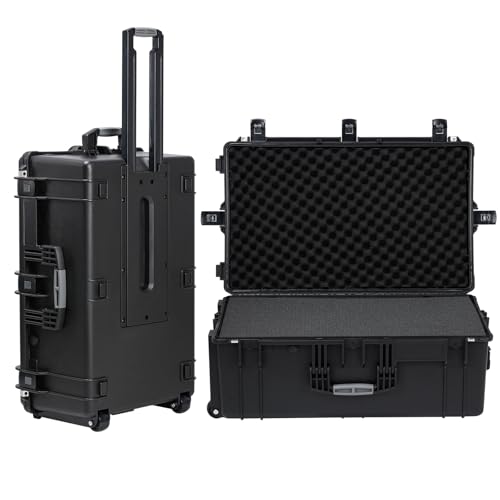
The Regetek Rolling Hard Case is a mid-size wheeled transport case in the Pelican-style category, measuring 32.5 by 20.5 by 13 inch externally with a 28.94 by 17.72 by 9.65 inch usable interior. It targets photographers, drone operators, field service techs, and musicians who need airline-checkable protection for fragile gear.
The defining feature is the IP67 rating paired with a full-length steel hinge and double-latch closure. Cases at this size and seal class typically survive shallow submersion to about 3.3 ft, and the air-lock valve equalizes pressure after altitude changes so the lid does not vacuum shut. Owner feedback is unavailable, so real-world seal longevity cannot be confirmed.
Trade-offs are typical at this tier. The 32.73 lb empty weight with foam eats into airline allowances before gear is loaded, and standard-density pick-and-pluck foam is a compromise between adaptability and impact absorption compared with custom cut foam. Wheels and retractable handles on cases in this class are also the most common long-term failure points.
Buy this if you need a lockable, waterproof rolling case sized for a full mirrorless kit, mid-size drone, or field tolset. Skip this if your payload exceeds the28.94 inch interior length, or if you need documented drop-test certification for professional broadcast use.
Dimensions and weight: Exterior measures 32.5 by 20.5 by 13 inch with an internal usable volume of 28.94 by 17.72 by 9.65 inch. Total weight with foam is 32.73 lb, which is consistent with rotomolded polymer cases in this size class and leaves useful payload room for airline checked baggage.
Sealing and ingress protection: The case is rated IP67 with an O-ring gasket, watertight buckles, and an air-lock pressure equalization valve. Manufacturer states safe submersion to 3.3 ft, and the valve prevents lid suction after temperature or altitude changes during air transit.
Foam configuration: Interior includes four pick-and-pluck layers of standard density foam, one top egg-crate layer, and one bottom pad. The pluck grid lets you shape custom cavities without a knife, though density is not specified in pounds per cubic foot.
Structure and security: Shell uses high-impact polymer with one full-length steel hinge instead of two-point hinges, a double-latch system, dual padlock holes for redundant locking, a heavy-duty top handle, integrated whels, and a retractable pull handle. Waranty is stated at 2 years including replacement parts.
Tools and parts needed
For the free fixes, you need nothing but a few minutes and a Phillips screwdriver to open the side panel and reseat the header. A flashlight helps you read the tiny USB header labels on the board. Have your motherboard model number ready so you can pull the right chipset driver from the vendor site. That’s the whole kit for 90% of these cases.
If you get into the rare hardware-replacement territory, add a magnetic parts tray so you don’t lose the tiny case screws, and keep an anti-static habit by touching bare case metal before handling internal cables. A can of compressed air clears dust from the header contacts while you’re in there. None of this is exotic gear, and most readers never open the case at all, since a driver reinstall or a power-setting toggle handles the problem from Windows without a screwdriver in sight.
A few more questions
Why did my front USB die right after a Windows update?
Updates commonly swap in a generic USB or chipset driver or reset power-management settings like USB selective suspend. Either can silence the front-panel header while rear ports keep working. Reinstalling the vendor chipset driver and disabling selective suspend fixes the majority of these cases without touching hardware.
Could a full shutdown really bring the ports back?
Yes, more often than you’d expect. Windows fast startup can carry a broken USB power state across a normal restart. A true shutdown with the power cord unplugged for 30 seconds clears the controller state, so the ports reinitialize cleanly on the next boot. It’s the first thing to try.
Is it safe to reseat the front-panel USB header myself?
It is, as long as the system is powered off and unplugged. Line the connector up carefully so no pins are offset, since a misaligned USB header can short. Reseating a loose front-panel cable is one of the safest internal repairs, and it resolves a lot of dead-port complaints for free.


































Write Your Review
No reviews yet. Be the first to share your experience!