

You install a routine Windows update, reboot, and suddenly your PC sounds like a hair dryer. The fans that used to idle quietly are now spinning at full tilt for no obvious reason, and the temperatures don’t even look that high. It’s one of the most common post-update complaints out there, and the frustrating part is that nothing physically changed inside the case. Something in software flipped a switch. If your case fans got loud right after a Windows update, we researched the usual culprits and how to walk them back, from a fan curve that got reset to a driver that quietly broke your motherboard’s control.
Most of these fixes take minutes and cost nothing. A few point to hardware that was already on its way out, and the update just exposed it. If you’re building or rebuilding around better airflow anyway, our guides to the best PC cases for airflow and a budget case for a silent build are worth a look once the noise is sorted. For now, let’s find out why the fans woke up.
First check the obvious
Before blaming the update, spend 30 seconds ruling out the boring stuff. Open your PC’s side panel and glance at the fans. Are they actually spinning fast, or is one grinding, wobbling, or catching on a stray cable that shifted? A single fan hitting a zip tie can sound alarming. Feel the exhaust air too. If it’s genuinely hot, the fans are doing their job and the real issue is heat, not noise.
Then reboot once more and check your system tray for any fan-control or monitoring app that may have closed after the update. Tools like your motherboard’s utility often need to relaunch on startup to reapply a custom fan curve. If that app didn’t load, the fans revert to a loud default. That’s the single most common reason an update makes a quiet PC roar, and relaunching the software fixes it on the spot. If not, keep going.

One more quick check: open Task Manager and look at CPU usage right after the update. Windows often runs background jobs after a big update, indexing files, installing driver packages, or optimizing the update itself, and that load spins the fans up legitimately. If a process is pinning your CPU at 40 or 50 percent while you’re doing nothing, the fans are just responding to real heat. Let those jobs finish, which can take 20 minutes or more, then see whether the noise settles. If it does, there was never a fault to fix, just Windows catching up on housekeeping.
Cause #1: Windows reset your fan curve or power plan
Feature updates love to reset preferences, and your power plan is a frequent casualty. If Windows flipped you back to a High Performance or default balanced plan, the CPU may be holding higher clocks and voltage at idle, which produces more heat, which spins the fans up. It’s a chain reaction that starts in software. Open Power Options, confirm you’re on the plan you meant to use, and check that features like processor idle states haven’t been disabled.
The other half of this is your custom fan curve. Many boards store aggressive default curves in BIOS, and a third-party control app tames them once Windows loads. If that app got disabled from startup during the update, or its saved profile got wiped, the BIOS defaults take over and the fans run loud. Reopen the fan-control software, reload or rebuild your curve, and set it to launch at boot. That alone quiets most post-update fan complaints without touching a screwdriver.
If you’d rather not rely on a Windows app at all, set your curve directly in BIOS instead. Reboot into BIOS, find the fan or Q-Fan section, and set a gentle ramp that keeps fans slow until the CPU passes 60 degrees or so. A BIOS-level curve survives Windows updates because it lives on the board, not in an app that an update can disable. It’s the more durable fix, and it means the next feature update can’t quietly undo your quiet PC. Save the profile, reboot, and the fans should follow your rules from the moment you power on.
Cause #2: A broken or reverted chipset or sensor driver
Windows updates sometimes swap your motherboard’s chipset or sensor drivers for a generic Microsoft version, and that generic driver may not read your fan headers or temperature sensors correctly. When the control layer can’t see real temps, it defaults to running fans at a safe, loud, full speed. That’s the system protecting itself with bad information. It’s not broken hardware, it’s a broken bridge between the sensors and the software.
The fix is to reinstall the proper chipset driver from your motherboard maker’s support page, matched to your exact board model, then reinstall your fan-control utility on top. Reboot and let both load fully. Check Device Manager for any warning icons on system devices, since a flagged sensor there points straight at the culprit. Once the correct driver is back, your control software can read true temperatures again and drop the fans to a sane speed. If the noise persists through this, the trigger is more physical, and that’s the next cause.

Pros
- Patented three-panel tempered glass exposes front, top, and left views of the build.
- Native back-connect motherboard support for hiden 24-pin, EPS, and PCIe cabling.
- Second chamber hides side-mounted AIO tubing for a cleaner primary compartment.
- Swappable top mesh panel suports a 360mm AIO when thermals take priority over glass.
Cons
- Limited owner feedback at time of writing makes long-term reliability signal thin.
- Full specs (GPU length, cooler height, fan count) not published in source data.
- Back-connect layout requires a compatible motherboard, narowing part selection.
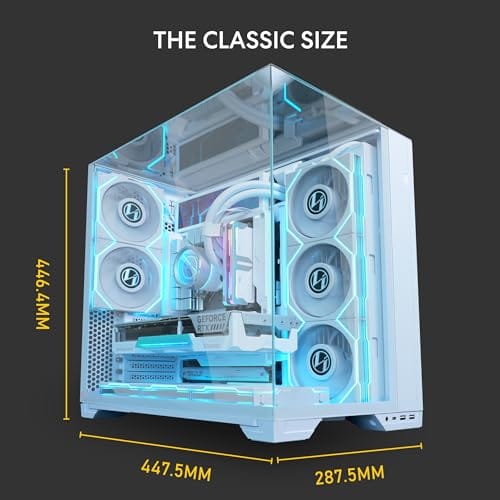
The Lian Li O11Vision Compact is a mid-range ATX mid-tower positioned as a smaller sibling to the O11 Dynamic line, developed in collaboration with the PCMasterRace community. It targets showcase builders who want a dual-chamber layout, tempered glass on three sides, and native support for back-connect motherboards in a tighter footprint.
The defining feature is the patented three-panel tempered glass design covering the front, top, and left side. Paired with the second-chamber cable routing and back-connect motherboard compatibility, the front compartment stays visually clean. Builders wanting a 360mm AIO can swap in the included top mesh panel, trading a glass top for airflow.
Trade-offs are typical at this tier. Back-connect support only pays off if you buy a compatible board from ASUS, MSI, GIGABYTE, or similar, which narrows part selection and can raise motherboard cost. Concrete specs like GPU clearance, CPU cooler height, radiator sites, and included fan count are not specified in the source data, so verify against the official manual before finalizing parts.
Buy this if you want O11-family aesthetics with hidden cabling via a back-connect board and a side or top 360mm AIO. Skip this if you need a documented GPU length ceiling, bundled fans, or a traditional cable-visible motherboard build.
Motherboard support: The chassis accepts standard ATX boards and ads native routing for back-connect variants such as ASUS BTF, MSI Project Zero, and GIGABYTE Project Stealth. Cable cutouts on the tray align with rear-side connectors, keping the 24-pin, EPS, and PCIe cables out of the main chamber view.
Radiator and AIO: A swappable top mesh panel is included specifically to enable a 360mm AIO in the rof. When the AIO is mounted on the side instead, the dual-chamber layout routes the tubing into the second compartment, keeping the front-facing glass view unobstructed. Exact side radiator thickness limits are not specified.
Glass and panel layout: Three tempered glass panels cover the front, top, and left side. The top glass panel is the one you swap out when a 360mm radiator is installed, so builders choosing air cooling or a bottom-mounted AIO retain the full three-panel glass look.
Not specified in source: GPU length clearance, CPU cooler height, drive bay count, included fan count, front I/O (USB-C, USB-A), PSU length, and case dimensions are not listed in the provided data. Confirm these against the Lian Li O11VPW official spec sheet before finalizing parts.
Cause #3: Dust and airflow that the update simply exposed
Sometimes the update is a coincidence. Your PC was slowly clogging with dust for months, temps were creeping up, and the fans were already ramping more often. The reboot just made you notice. If a filter is caked, an intake is blocked, or a cooler is packed with lint, the fans have to work harder to move the same air, and they get loud doing it. Pop the panel, look at the filters and heatsink fins, and check whether airflow is actually reaching the parts that need it.
If the case itself fights airflow, no fan curve will fully fix the noise. A cramped or poorly ventilated case runs hotter, which keeps fans spinning fast no matter what the software wants. This is where a genuine airflow-focused chassis earns its keep. The Lian Li O11 Vision Compact, around $124.99 with a 4.4-star rating, is a steel and tempered-glass ATX mid-tower with back-connect cable support, which keeps cable clutter out of the airflow path so fans can run slower and quieter. It’s not a bandage for a software bug, but if your temps were already marginal, moving into a case built to breathe is a real long-term fix.
Preventive maintenance
Keep a small routine and you’ll dodge most of this. Blow out dust filters and heatsinks every few months, save an export of your fan-curve profile so you can reload it in seconds after any update, and note your working driver versions somewhere. When Windows pushes a big feature update, expect it to fiddle with power and startup settings, and do a quick pass afterward to confirm your fan software still launches and your power plan held. Five minutes of housekeeping beats an afternoon of guessing.
It also helps to move your fan control into BIOS where you can, since anything stored on the board rides through Windows updates untouched. Pair that with a habit of pausing optional driver updates in Windows, so the system stops swapping your chipset and sensor drivers for generic ones behind your back. A monthly glance at Device Manager for warning icons catches a reverted driver before it turns into a noise complaint. None of this takes long, and it turns “why are my fans loud again” into a problem you solved once instead of one that returns with every patch.
When it’s not fixable: what to replace
If you’ve reloaded the fan curve, reinstalled chipset and sensor drivers, cleaned the dust, and a fan is still roaring or making a mechanical racket, the bearing may be failing. A fan that whines, ticks, or wobbles is worn, and no software will quiet a dying bearing. Replace that specific fan with a quality PWM unit and let your control software manage it. It’s a cheap swap and an easy one.
If the deeper problem is a case that never had the airflow to keep temps and noise in check, the fix is the chassis. Upgrading to something like the Lian Li O11 Vision Compact gives your fans a straighter, cleaner path to move air, so they hit target temps at lower RPM and stay quiet. When you’re weighing options, our roundups of the best mid-tower cases line up neatly with a rebuild. Replace the worn part or the airflow-starved case, not the whole PC.
Tools and parts needed
You’ll need very little. A Phillips screwdriver, a can of compressed air or an electric duster, and your motherboard model number so you can grab the right drivers. Optionally, a replacement PWM fan if one turns out to be worn, and your saved fan-curve profile if you have one. That’s the whole kit. Most of this fix lives in software, so the toolbox stays light and the wallet mostly stays shut.
If you plan to reseat or replace a fan, grab a small flashlight and a spare fan splitter or extension cable too, since fan headers on the board can sit in awkward spots. A tube of fresh thermal paste is worth having on the shelf if you end up pulling the CPU cooler to clean packed dust, though most fan-noise fixes never go that deep. Keep the model numbers of your board and any fans written down. It makes ordering the right replacement part quick if a bearing does finally give out.
A few more questions
Why did the update make my fans loud if nothing changed inside?
Because the update changed software, not hardware. Feature updates often reset your power plan, disable a startup fan-control app, or swap your chipset and sensor drivers for generic versions. Any of those makes the system either run hotter or lose the ability to read temps, so the fans default to full speed. Nothing physically changed, but the control layer did, and that’s enough to make a quiet PC loud.
Is it safe to just leave the fans running loud?
It won’t hurt anything short term. Loud fans mean more airflow, so your parts stay cool, just noisy. The concern is long-term wear on the fan bearings from constant full-speed running, plus the obvious annoyance. It’s worth fixing rather than tolerating, since the cause is usually a five-minute software correction. If temps are genuinely high, though, don’t ignore it, since that points to a real cooling problem.
Could a new case actually make my PC quieter?
Yes, if poor airflow is keeping temps high. A chassis built to breathe, like the Lian Li O11 Vision Compact with its clean back-connect cable routing, lets fans hit target temperatures at lower speeds, which is quieter. It won’t fix a software bug that reset your fan curve. But if your fans stay loud because the case traps heat, a better-ventilated case is a genuine, lasting improvement rather than a patch.


































Write Your Review
No reviews yet. Be the first to share your experience!