

You hit the power button, the fans spin, the RGB lights up, and then, nothing. You get into BIOS and the processor line reads “Not Installed” or the board just refuses to POST past a CPU debug LED. It’s one of the more unnerving build faults, because a missing CPU feels catastrophic. Most of the time it isn’t. A processor that genuinely died is rare. A cable that wasn’t clicked in, a BIOS that’s a version behind, or a socket that got nudged during install are all far more likely, and all of them are fixable at the kitchen table.
We researched the most common reasons a CPU shows up as absent in BIOS and sorted them from the two-minute checks to the parts you’d actually replace. If you’re mid-build or picking components, our roundups of the best CPU for gaming and the best budget CPU picks for 2026 pair well with this guide, since compatibility is half the battle. Work through these in order. Don’t jump to “my chip is dead” until you’ve ruled out the boring stuff first, because the boring stuff is what fails nine times out of ten and it costs nothing but a few minutes to check.
First check the obvious (the 30-second check)
Before you pull anything apart, confirm the board is even trying to boot the processor. Look for the CPU debug LED, a small labeled light near the 24-pin or the corner of the board. If it’s lit solid, the board sees a problem at the CPU stage. That’s your confirmation the fault is real and not a display cable issue. Also check the motherboard model against the exact processor you installed. A Ryzen 7000 chip won’t post on a 300-series board, and a 14th-gen Intel part needs the right chipset. It sounds silly. People mix these up constantly.

Next, reseat the two power cables that matter: the 24-pin main and, more importantly, the 8-pin (or 8+4) EPS connector at the top of the board. That EPS plug feeds the CPU directly, and a board with the main power in but the CPU power missing will often power on yet report no processor. Push until it clicks. If none of that clears it, keep reading.
One more quick pass before you escalate: clear the CMOS. A stuck or corrupted BIOS setting can leave the board in a confused state where it won’t finish initializing the processor. Find the two-pin CLR_CMOS header or the pinhole button on the rear I/O, kill the power at the wall, and short it for five seconds (or pull the coin battery for a minute). It resets firmware to defaults without touching your update, and it takes the software variable off the table before you start pulling coolers.
Cause #1: Loose CPU power or a half-seated connector
The single most common reason a healthy CPU reads as absent is the EPS power cable. It’s stiff, it’s in an awkward top-corner spot behind the case, and it’s easy to seat it only halfway so the clip looks engaged but the pins aren’t fully home. On boards with two connectors (8+4 or 8+8), some builders plug in just one and assume it’s optional. For most consumer chips a single 8-pin is fine, but a loose one is not. Unplug it fully, look at the pins, and reseat it with a firm push until you feel the latch bite.
While you’re in there, double-check the 24-pin main connector too. A partially seated 24-pin can cause erratic power behavior that presents as a missing CPU or a boot loop. If your PSU is modular, verify the cable is fully clicked in on the power-supply side as well, not just the motherboard side. Modular ends work loose during cable routing more often than people expect. That’s a five-minute fix that resolves a surprising share of these cases.
Cause #2: The BIOS is too old for your processor
This one traps almost everyone building with a newer chip on an existing or discounted motherboard. A board that shipped before your CPU existed has no microcode for it, so it can’t initialize the processor and reports it as not installed. This is extremely common with late-gen parts dropped onto boards that have been sitting in a warehouse. The board isn’t broken and neither is the CPU. The firmware just doesn’t recognize the silicon yet.
The fix is a BIOS update, and here’s the catch: you often need a working, supported CPU to boot far enough to flash it. That’s a chicken-and-egg problem. Many modern boards solve it with BIOS Flashback (sometimes called Q-Flash Plus), which lets you update firmware with no CPU installed at all, using a USB stick and a dedicated button on the rear I/O. Check whether your board has that feature before you assume the chip is faulty. Download the latest BIOS, rename the file exactly as the manual specifies, drop it on a FAT32 stick, and run the flashback routine. If your board lacks flashback, a cheap known-compatible older CPU borrowed for ten minutes will get you to the update screen.
Cause #3: Bent socket pins or a damaged processor
If power and firmware check out, look at the socket itself. On Intel LGA boards the delicate pins live in the socket, not on the chip; on AMD AM4 they’re on the processor. Either way, a single bent or flattened pin in the contact area can drop the connection the board needs to detect the CPU. Pull the cooler, lift the retention arm, remove the processor, and inspect the socket under a bright light at an angle. Bent pins look like a wave or a gap in an otherwise uniform grid. Minor bends are sometimes recoverable with patience and a fine tool, but it’s fussy work and easy to make worse.
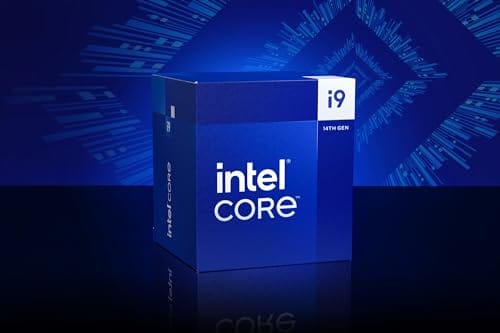
Physical CPU death is genuinely uncommon, but it happens after a bad overclock, a static discharge, or a mangled install. If the socket pins are perfect, the BIOS is current, power is solid, and the chip still won’t register, a replacement processor is the honest next step. For a high-end Intel platform, the Intel Core i9-14900K runs around $469 with a 4.7 rating from owners, and it’s a straightforward like-for-like swap on a compatible LGA1700 board once your firmware is up to date.
Before you inspect, ground yourself and work on a hard surface, not carpet. Static is invisible and it only takes one careless touch to zap a contact. When you lift the chip, hold it by the edges. Look for discoloration or scorch marks on the underside pads, which point to electrical damage rather than a bent pin. Cross-check the debug LED behavior too: a CPU light that stays lit even after a clean reseat and a CMOS clear is a strong signal the fault is in the socket or the silicon, not in your cabling.

Pros
- Industry-leading 6.0GHz out-of-the-box boost clock for single-threaded applications.
- Massive 32-thread capacity excels in multi-threaded workloads like 4K video rendering and 3D modeling.
- Compatible with existing LGA 1700 motherboards via BIOS updates, extending the life of 600-series boards.
- Integrated Intel UHD Graphics 770 provides a fallback for troubleshooting and QuickSync hardware acceleration.
- Highly binned silicon offers significant tuning potential for users with high-end cooling solutions.
Cons
- High 253W maximum turbo power requires premium 360mm or 420mm AIO liquid cooling for sustained loads.
- Aggressive stock voltage curves can lead to thermal throttling on standard air coolers or entry-level AIOs.
- Final generation for the LGA 1700 socket, limiting future CPU upgrade paths without a motherboard change.
- Significant power draw necessitates a high-quality PSU with sufficient 12V EPS overhead.
The Intel Core i9-14900K represents the enthusiast-tier peak of the Raptor Lake Refresh lineup, targeting professional creators and gamers who require the highest possible clock speeds. With 24 cores and 32 threads, it is designed to handle simultaneous gaming, streaming, and recording without the performance degradation typically seen on lower-core-count processors.
Technical performance is defined by its 6.0GHz Thermal Velocity Boost, a milestone frequency that pushes the limits of the LGA 1700 platform. In real-world gaming, this translates to high frame ceilings in 1080p and 1440p scenarios, while the 16 Efficient-cores provide the necessary throughput for background tasks and heavy multi-threaded productivity suites like Adobe Premiere Pro and DaVinci Resolve.
Build quality and reliability are consistent with Intel's high-end silicon, though the chip is notoriously demanding regarding thermals. The integrated heat spreader (IHS) must dissipate significant heat during 250W+ bursts, making the choice of thermal interface material and mounting pressure critical for maintaining stability under full load.
The primary trade-off for this level of performance is power consumption and heat. Users should expect the processor to hit its thermal junction maximum (TjMax) quickly during synthetic stress tests if paired with inadequate cooling. It is a processor that requires manual tuning of power limits (PL1 and PL2) to balance efficiency and performance effectively.
Final verdict: Buy this processor if you are an enthusiast with a high-end Z790 motherboard and a 360mm+ liquid cooler who needs the absolute fastest gaming and multitasking performance currently available on the Intel platform. Skip this if you prefer a plug-and-play experience with low power draw or are building in a small form factor case with limited cooling clearance.
| Cores / Threads | 24 (8P + 16E) / 32 |
| Max Turbo Frequency | 6.0 GHz |
| Intel Smart Cache (L3) | 36 MB |
| Total L2 Cache | 32 MB |
| Processor Base Power | 125 W |
| Max Turbo Power | 253 W (Listed as 250W in specs) |
| Socket Support | LGA 1700 |
| Memory Support | DDR5 5600 / DDR4 3200 |
| PCIe Lanes | 20 Total (Up to Gen 5.0) |
| Integrated Graphics | Intel UHD Graphics 770 |
Motherboard and Chipset: The i9-14900K requires an LGA 1700 socket. While it is compatible with older Z600-series motherboards, a BIOS update is mandatory for the system to POST. For optimal power delivery and PCIe 5.0 support, a high-end Z790 motherboard with robust VRMs is strongly recommended to handle the 250W+ power excursions.
Cooling Requirements: Due to the 6.0GHz boost clock and high TDP, air cooling is generally not recommended for this tier unless using a flagship dual-tower cooler with a contact frame. A 360mm or 420mm All-In-One (AIO) liquid cooler is the standard recommendation to prevent thermal throttling during intensive rendering or compilation tasks.
Memory Selection: This CPU supports both DDR4 and DDR5, but the motherboard determines which one you must use. For maximum performance in modern titles and professional apps, pairing this with a DDR5-7200+ kit on a Z790 platform is the ideal configuration, though DDR4 remains a viable cost-saving path for those upgrading from 12th gen.
Power Supply Guidance: Given the potential for 300W+ spikes from the CPU alone, especially when overclocked, a high-quality 850W or 1000W 80 Plus Gold PSU is recommended. Ensure your PSU has at least two 8-pin EPS (CPU) connectors to provide stable voltage to the motherboard's power phases.
Operating System: To properly utilize the Intel Thread Director and the hybrid core architecture, Windows 11 is the recommended operating system. Windows 10 may not efficiently schedule tasks between the P-cores and E-cores, potentially leading to inconsistent performance in multitasking scenarios.
Preventive maintenance
Most detection failures trace back to install habits, so a little care up front saves the teardown later. When you seat a processor, let it drop in by gravity and never force it. Line up the arrow or the notch, close the retention arm smoothly, and resist the urge to wiggle. Keep fingers off the socket contacts and the underside of the chip. Route your EPS cable before you install the cooler so you’re not fighting the heatsink for access, and give both power connectors a firm final push once everything’s mounted.
If you buy a board and CPU as a pair, update the BIOS the day you build, even if it posts fine. Firmware maturity fixes memory training, stability, and compatibility quirks that show up weeks later. Store spare chips in anti-static packaging, and don’t leave a bare socket exposed on the bench where a dropped screwdriver can flatten a row of pins. Small habits, big payoff.
When it’s not fixable: what to replace
Sometimes the diagnosis really does land on dead hardware. If you’ve reseated power, confirmed compatibility, flashed the latest BIOS through flashback, and inspected the socket without finding a fault, you’re down to two suspects: the board or the processor. Swapping in a known-good CPU is the cleanest check. If a spare chip posts in the same board, your original processor is the problem and it’s replacement time. If nothing posts regardless of the CPU, the board is the more likely culprit.
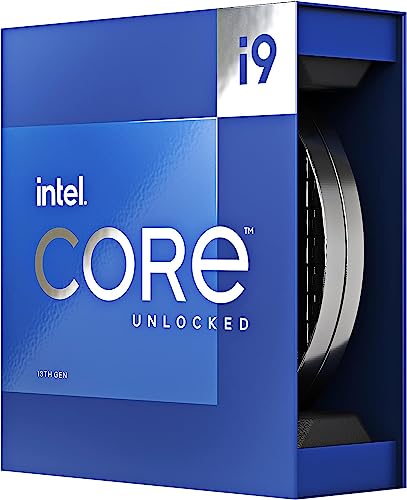
For a replacement on the high end, the Intel Core i9-13900K is a proven 24-core part with 8 P-cores plus 16 E-cores, 36M of cache, and boost up to 5.8 GHz. It sits near $587.77 with a strong 4.8 owner rating, and it’s a sensible drop-in for anyone who wants flagship multi-core headroom without changing platforms. Match your replacement to the workload. Our guides to the best gaming CPUs can steer you toward the right tier if you’d rather rebalance than buy flagship.
Pros
- Massive multi-threaded performance for 4K video editing, 3D rendering, and complex data science workloads.
- High 5.8 GHz peak frequency provides excellent single-core performance for gaming and CAD applications.
- Integrated UHD Graphics 770 serves as a reliable backup for troubleshooting or non-gaming productivity setups.
- Broad platform compatibility across two motherboard generations and two different memory standards.
Cons
- High 125W base power and significant peak wattage require a high-end 360mm AIO or custom loop cooling.
- Requires a BIOS update on many Intel 600 series motherboards before the system will POST.
- Platform longevity is limited as LGA1700 is an established socket nearing the end of its release cycle.
The Intel Core i9-13900K represents the pinnacle of the 13th Gen Raptor Lake lineup, positioned as a flagship solution for users who refuse to compromise. With a total of 24 cores and 32 threads, it is specifically engineered for enthusiast gamers, streamers, and heavy content creators who frequently run demanding applications like Adobe Premiere Pro, DaVinci Resolve, or Blender.
The standout technical achievement here is the refined hybrid architecture. By pairing 8 high-frequency Performance-cores with 16 Efficiency-cores, the 13900K manages heavy compute loads without sacrificing the responsiveness of background applications. In real-world gaming, this typically translates to higher 1% low frame rates and smoother overall performance, especially when multitasking with OBS or Discord in the background.
Thermal management is a critical consideration for this chip. While the 125W base power seems manageable, the processor is designed to scale its power consumption significantly to maintain the 5.8 GHz boost clock. Users should expect high operating temperatures under sustained all-core loads, necessitating a robust cooling solution and a high-airflow case to prevent thermal throttling.
An honest trade-off for this level of performance is the power draw and the resulting heat output. This is not a 'set and forget' chip for budget cooling or small form factor builds without careful undervolting or power limiting. Additionally, while the support for DDR4 is a welcome cost-saving measure, the highest performance tiers are only unlocked when paired with high-frequency DDR5 memory.
Buy this if you are building a top-tier workstation or gaming rig and already have a 360mm liquid cooler and a high-wattage power supply. Skip this if you are primarily gaming at 4K where the GPU is the bottleneck, or if you prefer a more power-efficient system with lower cooling requirements.
| Feature | Specification |
|---|---|
| Core Count | 24 (8 P-cores + 16 E-cores) |
| Thread Count | 32 |
| Max Turbo Frequency | 5.8 GHz |
| P-core Base Frequency | 3.0 GHz |
| E-core Base Frequency | 2.2 GHz |
| Intel Smart Cache (L3) | 36 MB |
| Total L2 Cache | 32 MB |
| Processor Base Power | 125 W |
| Memory Support | DDR5 5600 / DDR4 3200 |
| PCIe Revision | 5.0 and 4.0 |
| Total CPU PCIe Lanes | 20 |
| Socket Support | LGA1700 |
| Integrated Graphics | Intel UHD Graphics 770 |
Socket and Chipset: This processor uses the LGA1700 socket. It is natively compatible with Intel 700 series motherboards (Z790, H770, B760). While it works with 600 series boards (Z690, H670, B660, H610), a BIOS update is almost certainly required for the system to boot if the board was manufactured before the 13th Gen launch.
Cooling Requirements: Given the 5.8 GHz boost clock and high core count, a premium 360mm or 420mm All-In-One (AIO) liquid cooler is strongly recommended. High-end dual-tower air coolers may suffice for gaming but will likely lead to thermal throttling during intensive multi-threaded rendering or stress testing.
Memory Selection: The i9-13900K supports both DDR4 and DDR5, but this is determined by your motherboard choice. For a flagship build, pairing this CPU with DDR5 5600MT/s or higher is recommended to avoid bandwidth bottlenecks in memory-sensitive applications and modern games.
Power Supply Guidance: Due to the high transient power spikes typical of i9 processors, ensure your PSU has sufficient headroom. For a build featuring this CPU and a high-end GPU like an RTX 4080 or 4090, a minimum of an 850W or 1000W 80 Plus Gold power supply is advised.
Operating System: To properly utilize the Intel Thread Director for efficient task scheduling between P-cores and E-cores, Windows 11 is highly recommended. While Windows 10 is supported, it may not always assign tasks to the optimal core type, potentially impacting performance.
Tools and parts needed
You won’t need much. A single Phillips #2 screwdriver handles the cooler and case screws. A bright flashlight or phone light is essential for socket inspection, and a FAT32-formatted USB stick is required for any BIOS Flashback update. Keep isopropyl alcohol and a lint-free cloth handy if you have to remove and reinstall the cooler, since you’ll want fresh thermal paste on the reseat. An anti-static wrist strap is cheap insurance whenever the chip is out of its socket. That’s the whole kit for a detection fix. No specialty gear.
A few more questions
Why does my CPU show as not installed when the fans still spin?
Fans spinning only means the PSU and 24-pin are delivering power to the board. It says nothing about the processor. A missing EPS cable, an old BIOS with no microcode for your chip, or a socket fault can all let the system power on while the CPU stays undetected. Start with the 8-pin EPS reseat, then check for a BIOS update, then inspect the socket.
Can a BIOS update really fix a CPU that isn’t detected?
Yes, and it’s one of the most common fixes for newer processors. If the board’s firmware predates your CPU, it has no way to recognize it and reports it as absent. Updating via BIOS Flashback adds the microcode the board needs. If your board supports flashback, you can do this with no CPU installed at all, which is exactly why the feature exists.
How do I know if it’s the CPU or the motherboard that’s dead?
Swap checking is the fastest answer. Drop a known-good, compatible CPU into the board. If it posts, your original chip is the fault. If the board still shows nothing with a healthy processor, the motherboard is the likely failure. Before you conclude either, confirm the socket pins are straight and the BIOS is current, since both can mimic dead hardware.


































Write Your Review
No reviews yet. Be the first to share your experience!