

You buy a prebuilt gaming PC, boot it for the first time, and there they are: a dozen icons you didn’t ask for, a trial antivirus nagging you, and a few “utility” apps humming in the background. That’s bloatware, and almost every prebuilt ships with some. It isn’t always evil, but it isn’t free either, since it eats disk space, steals a little performance, and clutters your desktop from day one. Understanding what it actually does helps you decide what to keep and what to wipe. If you’re still shopping, our guides to the best budget prebuilt PC of 2026 and the best AMD prebuilt gaming PC can steer you toward machines that keep the junk light.
The short answer
Bloatware is pre-installed software you didn’t choose, bundled onto a prebuilt PC by the manufacturer. It ranges from harmless trial apps and manufacturer utilities to genuinely annoying background programs that push ads or nag you to upgrade. Some of it is useful, like a driver-update tool. Much of it isn’t. The common thread is that you didn’t ask for it, and it’s using resources you paid for.
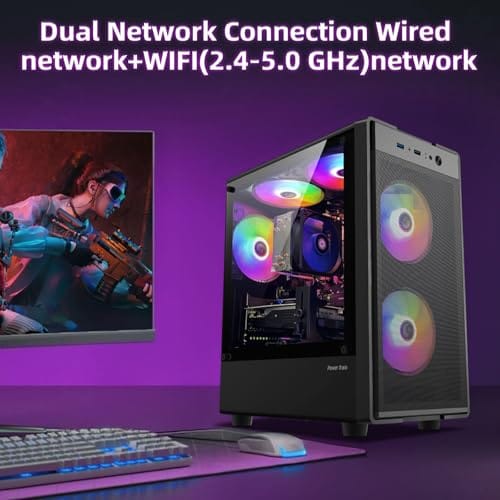
Prebuilt makers include it for a few reasons, mostly money and margins. Software companies pay to have trials bundled, and that subsidy lets builders shave the sticker price. A machine like the $499.99 abytespark Intel Core i7 office tower or the $569.99 WIWB Ryzen 5 desktop with RX 560 graphics can hit an aggressive price partly because bundled software helps the math. You just have to clean up afterward.
Pros
- 512GB SSD bot drive avoids the HDD bottleneck common in budget prebuilts
- RX 590 8GB VRAM buffer handles 1080p textures better than 4GB budget cards
- Complete bundle with RGB peripherals means no extra spend to start using
- Genuine Windows 11 Home 64-bit preinstalled, no activation hassle out of box
Cons
- Limited owner feedback at time of writing, verify seller reputation before purchase
- Core i7-4770 is Haswell era LGA150, no upgrade path and weak IPC versus modern CPUs
- Windows 11 on 4th-gen Intel is unsupported by Microsoft and may miss feature updates
- No CD/DVD-ROM support and RAM/GPU generation limits future workload headroom
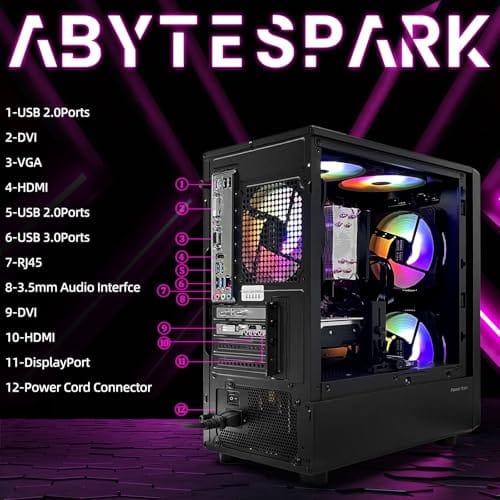
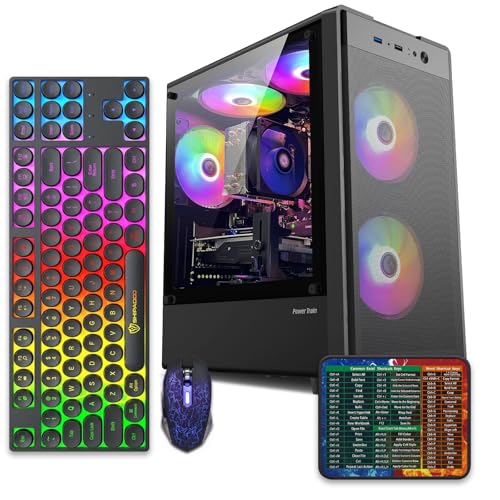
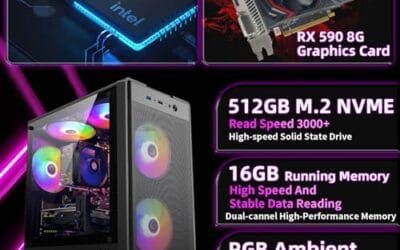
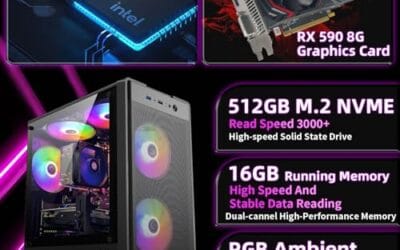
This is an entry-tier prebuilt tower built around an Intel Core i7-4770 Haswell CPU, 16GB RAM, a 512GB SSD, and an AMD Radeon RX 590 8GB GDDR5 GPU. It targets budget buyers who need a working office and light gaming PC with peripherals bundled, not enthusiasts chasing current-gen performance.
The defining feature is the RX 590 8GB paired with a 512GB SSD, an uncommon combo at this price band. Cards in this class typically handle 1080p esports titles at 60+ FPS on medium to high, matching the vendor claim for CS:GO, League of Legends, Apex, and Overwatch. Newer AA titles will need lowered settings.
Trade-offs are significant. The i7-4770 launched in 2013, so IPC, single-thread performance, and platform features like NVMe bot, PCIe Gen4, and modern USB are limited. Windows 11 runs here but sits outside Microsoft's official supported CPU list. There is no realistic CPU or socket upgrade path on LGA1150.
Buy this if you need a plug-and-play 1080p esports and office tower with keyboard, mouse, and RGB included at a low outlay. Skip this if you want current-gen platform support, sustained AA 1440p gaming, or a build with a meaningful upgrade runway.
GPU class: The AMD Radeon RX 590 8GB GDDR5 is a Polaris-refresh card roughly equivalent to a GTX 1060 6GB tier. Expect 1080p 60+ FPS in esports titles like CS:GO, Overwatch, Apex, League, and Fortnite on medium settings, matching the listing's claims.
AAA and modern titles: The vendor lists GTA V, Warzone, Hogwarts Legacy, and The Division 2. Realistically, these run at 1080p low to medium with FSR upscaling where suported.Ray tracing is unsupported on RX 590. No DLSS, no frame gen, no AV1 encode.
CPU bottleneck: The Core i7-4770 quad-core with 8threads at up to 3.9GHz will bottleneck the RX 590 in CPU-heavy titles like Warzone and Escape from Tarkov. Expect frame time inconsistency in large team fights even when average FPS looks aceptable.
Storage and RAM fit: 512GB SSD holds Windows plus 3 to 5 modern game installs before space pressure. 16GB DR3-era RAM is adequate for current esports but leaves no headroom for heavy streaming, browser tabs, and OBS NVENC alongside a game session.
The longer explanation
Bloatware falls into a few buckets. There are manufacturer utilities, the maker’s own control panels for updates, warranty, and system info, which can be handy or redundant. There are third-party trials, like a 30-day antivirus or an office suite that expires and then nags. And there’s outright junk, toolbars, shopping helpers, and background services that offer little value while consuming RAM, CPU cycles, and startup time.
The impact varies by machine. On a well-specced tower, a few background apps barely register. On a budget build with modest hardware, like the $569.99 WIWB desktop pairing a Ryzen 5 with 16GB of DDR4, a 512GB SSD, and an RX 560, every bit of RAM and storage matters more, so bloatware’s footprint is felt sooner. That’s why cleaning a budget prebuilt often gives a noticeable snappiness boost. Less clutter, more headroom. A trial antivirus alone can add a background service, a scheduled scan, and a startup entry, and three or four such apps stack up fast on a machine with limited memory.
It helps to know which programs actually run at boot. Open Task Manager, click the Startup tab, and you’ll see the list of apps that launch with Windows along with their startup impact rating. Anything marked high impact that you don’t recognize is a prime cleanup candidate. Disabling a startup entry doesn’t uninstall the app, so it’s a safe first move if you’re unsure, and you can always remove the program fully later once you know you don’t need it.
How we got here
Bloatware is as old as the consumer PC business. In the race to hit the lowest possible price, manufacturers found that software companies would pay to preload trials, effectively subsidizing the hardware. That arrangement became standard across laptops and desktops, and it never really went away. The economics still reward it, which is why even modern gaming prebuilts arrive with a layer of extras.
Windows itself added to the picture over the years, shipping with its own suggested apps, Store promotions, and pre-pinned tiles that many users also consider bloat. So a new prebuilt today carries two layers: the maker’s bundle and the operating system’s defaults. The upside is that removal has gotten easier, with cleaner uninstall tools and Windows options to strip suggested content. Knowing both layers exist is half the battle.
Why it works this way
It comes down to margins. Prebuilt gaming PCs, especially budget ones, run on thin profit, and bundling deals help builders stay competitive on price. When a software vendor pays to have a trial preloaded, that revenue lets the builder either lower the sticker or add a component. From the maker’s view, a little bloat is a business tool, not an insult to the buyer.
There’s also a support angle. Manufacturer utilities for drivers, updates, and diagnostics genuinely reduce support calls, so builders include them on purpose. The problem is that the useful utilities get lumped in with the junk trials, and users can’t always tell which is which. That’s why the smart move isn’t to nuke everything blindly, but to identify what’s helpful and remove the rest. A driver-update tool from the GPU maker is worth keeping, while a shopping toolbar or a third-party registry cleaner almost never is. Our best budget prebuilt PC for 1080p gaming picks note which machines keep the bundle sensible.
When you’d want to deal with this
You’ll want to tackle bloatware right after unboxing any new prebuilt, before you install your own games and apps. Doing it early means a cleaner starting point and fewer background programs fighting for resources while you set up. It’s especially worth doing on budget machines, where reclaiming a few gigabytes of storage and a chunk of RAM has a real effect on responsiveness. A quick cleanup on day one saves headaches later.
It’s also worth revisiting when a prebuilt starts feeling sluggish months in, since some bundled apps quietly re-enable themselves or add scheduled tasks. On a value-focused office-and-gaming tower like the $499.99 abytespark Intel Core i7 build, keeping the startup list lean helps the modest hardware feel quicker. If you’re picking between machines, our best budget prebuilt PC for 1440p gaming guide flags which builders ship lighter.

Pros
- Ryzen 5 3500X 6-core CPU bosts to 4.1GHz for smooth 1080p esports CPU load.
- Discrete RX 560 4GB handles DirectX 12 and Vulkan esports titles better than integrated graphics.
- 512GB SSD as bot drive keps Windows load times and app launches snappy out of box.
Cons
- Limited owner feedback at time of writing, no verified reviews to validate build quality.
- RX 560 is a legacy entry-tier GPU, skip if you want modern AAA at 1080p high.
- Ryzen 5 3500X sits on aging AM4, upgrade path is caped at Zen 3 with a BIOS update.
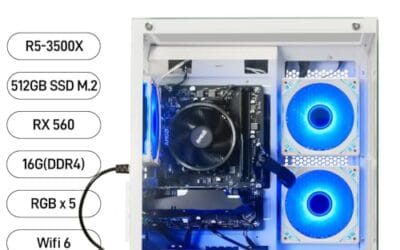
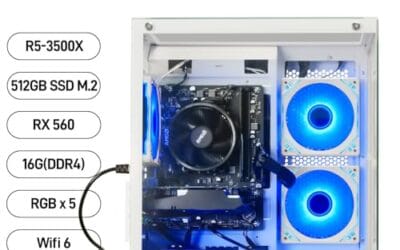
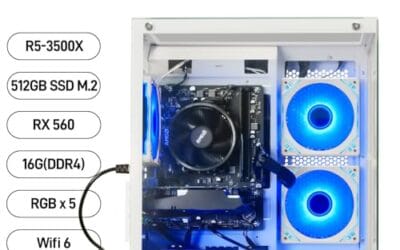
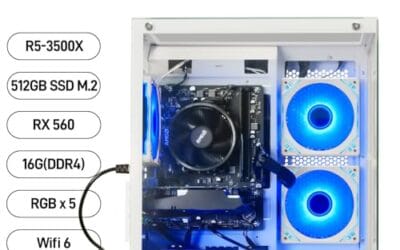
The WIWB is a budget prebuilt tower built around a Ryzen 5 3500X, RX 560 4GB, 16GB DDR4, and a 512GB SSD. It targets students, home office users, and casual gamers who want a plug-and-play box for esports at 1080p rather than a rig for current AAA titles.
The defining pairing here is the 3500X and RX 560. The 6-core, 6-thread CPU bosting to 4.1GHz is still competent for League, CS2, Valorant, and Overwatch, and typically pushes well above 100FPS at 1080p low-to-medium when paired with this GPU class. The RX 560 4GB is the bottleneck for anything heavier.
Trade-offs are typical at this tier. The RX 560 predates FSR frame generation and struggles with modern UE5 titles even at 1080p low. AM4 with a 3500X caps future CPU upgrades at Zen 3, and the case, PSU wattage, VRM phases, and included cooler are not specified, so headroom for a stronger GPU later is unclear.
Buy this if you need a cheap, pre-assembled Windows tower for schoolwork, browsing, and light esports at 1080p. Skip this if you plan to play current AAA releases, stream at 1080p60, or want a platform with a real multi-year upgrade path.
CPU workload: The Ryzen 5 3500X is a 6-core, 6-thread Zen 2 part with a 3.6GHz base and 4.1GHz boost. It stays viable for 1080p esports and light productivity like image editing and IDE work, but lacks SMT, which hurts streaming and modern CPU-bound AA titles.
GPU class and resolution fit: The RX 560 4GB GDDR5 is an entry esports card. Expect high frame rates in CS2, League, and Overwatch at 1080p low-to-medium, and playable frame rates in older AAA titles at 1080p low. 1440p and modern AA at medium are outside its envelope.
Memory and storage: 16GB DDR4 is the current baseline for gaming and multitasking, and the 512GB SSD covers Windows plus roughly 3 to 5 modern game installs. Exact DDR4 speed, dual-channel status, and SSD interface (SATA vs NVMe) are not specified.
Connectivity and upgrade path: WiFi 6 is included, and the board exposes an M.2 slot plus spare DDR4 slots for later expansion. PSU wattage, connector layout, case clearance, and waranty length beyond the stated 1-year coverage are not specified, so plan GPU upgrades cautiously.
What to look for in a clean prebuilt
When comparing prebuilts, look for makers known to ship with a light software load, and read owner reviews that mention the out-of-box experience. A machine that arrives with just Windows, drivers, and a single manufacturer utility is far nicer to live with than one buried under trials. The spec sheet won’t tell you this, so buyer feedback is your best signal.
Also weigh how easy the bundle is to remove. Reputable builders use standard uninstallers, so a cleanup takes minutes. Sketchier bundles bury services that fight removal. Either way, plan to spend a few minutes uninstalling extras, disabling startup items, and turning off Windows suggested content. A capable machine like the WIWB Ryzen 5 build with Wi-Fi 6 and a 512GB SSD runs better once it’s trimmed, so budget the cleanup time as part of setup.
Common misconceptions
One myth is that all pre-installed software is bad. It isn’t. Driver-update tools, GPU control panels, and system diagnostics are often genuinely useful, and removing them can cost you convenience or leave drivers stale. The trick is separating real utilities from junk trials, not carpet-bombing everything with an uninstaller.
Another myth is that bloatware means a machine is low quality. Plenty of solid prebuilts ship with some bundled software because the economics reward it, not because the hardware is bad. A $569.99 WIWB desktop with a Ryzen 5 and RX 560 is a legitimate budget gaming machine even if it arrives with a few extras. Judge the hardware and the maker’s reputation, then clean the software yourself. It takes minutes, not hours.
Frequently asked
Is it safe to remove bloatware myself?
Usually yes. Most bundled trials and junk apps uninstall cleanly through Windows Settings without harming the system. Be careful only with manufacturer driver tools and GPU control panels, which can be worth keeping. If you’re unsure about a specific item, look it up before removing it. The obvious trials, toolbars, and shopping apps are safe to delete.
Does bloatware actually slow down my PC?
It can, especially background programs that launch at startup and run constantly. On budget machines with limited RAM, the effect is more noticeable than on high-end builds. Removing startup bloat frees memory and shortens boot time. On a well-specced tower the impact is smaller, but a cleaner startup list still helps responsiveness.
Will removing bloatware void my warranty?
No. Uninstalling software doesn’t affect a hardware warranty. You’re free to remove bundled apps and trials without any impact on coverage. Just avoid deleting the manufacturer’s warranty or support utility if you might need it later, since that’s the tool some makers use to process claims. The rest is fair game.
Why don’t manufacturers just ship clean PCs?
Some do, but bundling deals help keep prices low, which matters most on budget machines. Software vendors pay to preload trials, and that revenue subsidizes the hardware. Builders also include their own utilities to cut support costs. It’s a business trade-off, and the buyer inherits a quick cleanup job in exchange for a lower sticker.
Is a factory Windows reinstall a good way to remove it?
A clean Windows install strips the maker’s bundle entirely, and many enthusiasts do exactly that. The catch is you’ll need to reinstall drivers yourself, so grab the network and chipset drivers first. For most buyers, uninstalling the junk through Settings is faster and easier than a full reinstall, and it keeps the useful utilities intact.



























Write Your Review
No reviews yet. Be the first to share your experience!