

Your router runs software, same as your PC, and that software goes stale. Firmware updates patch security holes, fix dropped connections, and sometimes unlock faster speeds on hardware you already own. Skipping them is how a perfectly good router turns into a laggy, exploitable liability. The good news? Updating firmware takes about ten minutes, and most of that is waiting for the router to reboot.
This walkthrough covers the manual method that works on almost any brand, plus the automatic option newer models offer. We researched the update flow across TP-Link, Asus, Netgear, and Linksys interfaces so the steps below stay accurate no matter what’s blinking on your desk. If you’re already shopping for a replacement instead of patching an old unit, our roundups of the best budget router 2026 picks and the best gaming router 2026 options are a good next stop. For now, let’s get your current router current.
What you’ll need
Not much, honestly. You’ll need the router itself, a device to log into its admin page (a laptop is easiest), and ideally an Ethernet cable. A wired connection during a firmware flash is strongly recommended because a dropped Wi-Fi signal mid-update can brick the unit. You’ll also want your router’s login credentials, the default admin password is usually printed on a sticker underneath, and five minutes where nobody in the house is streaming or on a video call.
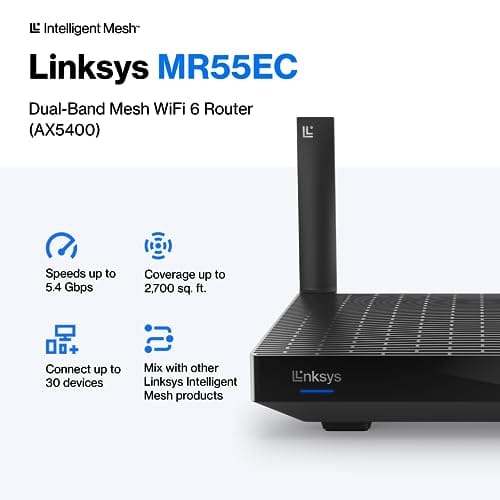
That’s the whole kit. No special tools, no soldering, no command line. If your router is old enough that the manufacturer has stopped shipping firmware for it, a hardware upgrade is the real fix, and something like the Linksys Hydra Pro 6 covers a lot of ground. More on that later. First, the steps.

Step 1: Identify your model and current firmware version
You can’t grab the right file without knowing exactly what you own. Flip the router over and read the label. You’re looking for two things: the model number (something like AX3000, RT-AX88U, or MR5500) and often a hardware revision like “v2” or “ver 3.0.” That revision matters. Loading v1 firmware onto a v2 board is one of the few ways to genuinely damage the device, so write it down.
Next, log into the admin panel. Open a browser and type the router’s IP address, commonly 192.168.1.1 or 192.168.0.1, into the address bar. Sign in, then find the firmware or software section. It’s usually under Administration, System, or Advanced settings. The current firmware version will be listed there. Jot it down so you know whether the download you find later is actually newer.
Step 2: Download the correct firmware
Head to the manufacturer’s official support site, not a random forum mirror. Search for your exact model and hardware revision, then open the downloads or firmware tab. You’ll usually see a version number and a release date. Compare that against what your router currently reports. If the site shows version 1.2.4 and you’re running 1.2.4, you’re already patched, and there’s nothing to do.
If a newer build exists, read the release notes before downloading. They tell you what changed, security fixes, bug patches, sometimes new features, and occasionally warn about settings that get wiped. Download the file, which usually arrives as a .bin, .trx, or .img inside a .zip. Extract it. Keep that folder open. Never rename the file, since some routers validate the exact filename during upload.
Step 3: Back up settings and go wired
Before you touch anything, export your current configuration. In the admin panel, look for “Backup Settings” or “Save Configuration,” usually near the firmware section, and download the config file to your PC. Some updates preserve your settings, some reset the router to factory defaults. A backup means you don’t have to rebuild every port-forward rule and Wi-Fi password by hand if things reset.
Now plug in. Connect your laptop to one of the router’s LAN ports with an Ethernet cable and disable Wi-Fi on that laptop so the connection can’t silently hop to wireless. A firmware flash writes directly to the router’s storage chip, and if power or the data stream drops halfway through, the unit can end up unbootable. Wired is your insurance. It’s a two-minute step that prevents a very bad afternoon.
Step 4: Upload and apply the firmware
Back in the firmware section, click the button to choose a file, sometimes labeled “Browse,” “Upload,” or “Choose File.” Point it at the extracted firmware file from Step 2. Double-check the version number one more time. Then start the update.
Here’s the hard rule: do not touch anything now. Don’t unplug the router, don’t close the browser tab, don’t reboot your laptop, don’t hit the button twice. The interface will show a progress bar or a countdown, often two to five minutes, while it writes the new firmware and reboots. The lights on the front will flash and cycle. That’s normal. Interrupting power during this window is the single most common way people kill a router, so just wait it out. Grab a coffee.
When the router finishes, it reboots on its own and the admin page usually reloads or asks you to log back in. If it stalls past ten minutes with no lights settling, that’s a sign something went wrong, and we cover recovery below.
Step 5: Verify and reconnect everything
Log back into the admin panel and check the firmware version. It should now match the build you downloaded. If it does, the update worked. If the router reset to factory defaults, restore the config file you saved in Step 3, or re-enter your Wi-Fi name, password, and any custom settings manually.
Reconnect your phones, consoles, and smart-home gear. Run a quick speed check and load a couple of websites to confirm everything’s stable. It’s worth power-cycling the router once more after a big firmware jump, since a clean reboot clears any lingering weirdness in memory. That’s it. You’re patched, and you just closed whatever security gaps the update addressed.
The automatic update option
Most routers sold in the last few years can update themselves. Look in the admin panel or the companion mobile app for “Auto Update” or “Automatic Firmware Update,” and turn it on. Many let you set a schedule, say 3 a.m., so the brief reboot never interrupts anyone. It’s the set-and-forget approach, and for a lot of households it’s the right call.
Mesh systems lean on this heavily. A router like the Linksys Hydra Pro 6, a WiFi 6 mesh unit rated 4.4 stars that covers roughly 2,700 square feet and handles 30-plus devices, manages firmware through its app and pushes updates to every node at once. If your current router predates auto-updating, or the manufacturer has quietly stopped releasing firmware for it, that’s your cue to upgrade rather than keep patching by hand.

Pros
- AX5400 class dual-band throughput up to 574 plus 4804 Mbps on 5 GHz
- Six spatial streams with OFDMA reduce congestion for 30+ device homes
- Intelligent Mesh compatibility allows scaling coverage beyond the 2,700 sq ft rating
Cons
- Limited owner feedback at time of writing, so real-world reliability data is thin
- Dual-band only, no dedicated 6 GHz or wireless backhaul band at this tier
- Detailed specifications, WAN port sped, and waranty not specified in source listing
The Linksys Hydra Pro 6 (MR5500-AMZ) is a mid-range dual-band WiFi 6 mesh router aimed at households upgrading from an older AC1900 or extender-based setup. Linksys rates it for 2,700 sq ft and 30 plus devices, targeting medium apartments, condos, and small two-story homes with mixed smart home and streaming traffic.
The defining feature is six-stream AX5400 class WiFi 6 with quoted rates of 574 Mbps on 2.4 GHz and 4804 Mbps on 5 GHz. OFDMA and MU-MIMO help when many low-bandwidth clients share airtime, which is where WiFi 5 routers typically stall. Real-world 5 GHz throughput at range appears to land in the mid-hundreds of Mbps based on category norms.
Trade-offs are typical at this tier. It is dual-band, so there is no dedicated 6 GHz radio and no separate backhaul channel when you add mesh nodes, meaning throughput can halve on satellite hops. Linksys does not specify WAN port speed, USB, or processor details in the listing, so multi-gig ISP users should verify before buying.
Buy this if you want a single WiFi 6 router that can grow into a Linksys Intelligent Mesh system for a 2,000 to 3,000 sq ft home with 30 plus clients. Skip this if you need WiFi 6E, 2.5 GbE WAN, or a dedicated backhaul band for a large multi-story house.
Wireless class: AX5400 class dual-band WiFi 6 with quoted PHY rates of 574 Mbps on the 2.4 GHz band and 4804 Mbps on the 5 GHz band, totaling roughly 5378 Mbps aggregate across six spatial streams. No 6 GHz radio is listed, so WiFi 6E clients fall back to 5 GHz.
Coverage and capacity: Linksys rates the MR5500 for 2,700 sq ft and 30 plus simultaneous devices. OFDMA, MU-MIMO, and 1024-QAM are standard at this WiFi 6 tier and help maintain throughput as client count scales, though actual coverage depends heavily on wall material and node placement.
Mesh behavior: Intelligent Mesh lets you pair the MR5500 with other Linksys nodes to extend coverage. Because it is dual-band, backhaul shares the 5 GHz client band, so expect throughput to roughly halve one hop from the root node. A wired Ethernet backhaul between nodes avoids this penalty.
Not specified: WAN and LAN port speeds, USB ports, processor and RAM, warranty length, and physical dimensions are not disclosed in the source listing. Buyers pairing this with multi-gig fber or DOCSIS 3.1 plans above 1 Gbps should confirm port specs before purchase.
Troubleshooting common issues
Updates go smoothly the vast majority of the time. When they don’t, the problem is usually one of a few familiar culprits.
The update fails or won’t upload
Nine times out of ten this is the wrong file. Re-confirm your hardware revision and download the firmware that matches it exactly. If the file’s correct, try a different browser or clear the cache, since some admin panels choke on cached scripts. Make sure you’re wired in and that no other device is hammering the router mid-upload.
The router won’t boot after the flash
Don’t panic yet. Most routers have a recovery mode. Unplug it, hold the reset button with a paperclip for 10 to 30 seconds, then power back on while still holding. Many brands also offer a firmware recovery tool you run from a PC connected by Ethernet, which force-loads a clean image. Check the support site for your model’s specific recovery steps before assuming it’s dead.
Wi-Fi is slower or devices won’t reconnect
A firmware update occasionally resets wireless settings or changes a default. Log in and confirm your band settings, channel width, and security mode are where you want them. Forget the network on stubborn devices and rejoin fresh. If speeds are genuinely worse than before, the release notes sometimes explain a deliberate change, and a factory reset followed by manual reconfiguration usually clears it.
How often should you update?
You don’t need to obsess over this. Check for firmware every few months, and always update promptly when the manufacturer flags a security patch. Those security releases are the ones that matter most, because an unpatched router is a favorite target for botnets and traffic hijacking. If auto-update is available, enabling it means you’ll basically never think about this again.
One caveat: if your router is rock-solid and the release notes only mention minor cosmetic tweaks, there’s no harm in waiting a week or two for early adopters to surface any bugs. Security patches, apply now. Feature updates, no rush.
When patching isn’t enough
Firmware can only do so much. If your router is five or six years old, the manufacturer has likely stopped supporting it, which means no more security patches no matter how often you check. Older hardware also caps out on Wi-Fi standards, so a WiFi 5 unit will never hit WiFi 6 speeds through a software update. At that point you’re patching a sinking ship.
If coverage or speed is the real complaint, a newer router is the honest fix. Our guide to the best budget router for large home setups walks through mesh and single-unit options that update themselves and cover far more ground than a five-year-old box ever could.
Common questions
Will updating firmware delete my Wi-Fi settings?
Sometimes. Many updates preserve everything, but major version jumps can reset the router to factory defaults. That’s exactly why Step 3 has you back up the config first. If settings do wipe, you just restore the file or re-enter your network name and password manually.
Can I update firmware over Wi-Fi instead of a cable?
You can, and plenty of people do it without issue. It’s still riskier, because a wireless dropout during the flash can corrupt the install and brick the router. A wired connection removes that risk entirely, so it’s worth the two minutes to plug in.
How do I know if new firmware is even available?
Log into the admin panel and look for a “Check for Updates” button, which queries the manufacturer directly. If your model doesn’t have one, search the official support site for your exact model and hardware revision, then compare the listed version against what your router currently reports.
Is third-party firmware like DD-WRT worth it?
For advanced users, yes, since builds like DD-WRT or OpenWrt add features stock firmware lacks. They also void warranties and carry a real brick risk if flashed wrong. If you’re not comfortable with recovery mode and command-line quirks, stick with official firmware. It’s plenty for most homes.































Write Your Review
No reviews yet. Be the first to share your experience!