

Your gaming PC sits in the back bedroom. Your router lives by the front door. The Wi-Fi signal crawls through two walls and dies somewhere in the hallway, and you’re stuck with lag you can feel. Running a 50-foot Ethernet cable through the house isn’t happening. This is the exact problem a powerline adapter was built to solve, and a lot of people don’t know it exists.
A powerline adapter turns your home’s electrical wiring into a network cable. It’s not magic, and it’s not perfect, but for a wired-quality connection in a room with no Ethernet drop, it’s one of the simplest fixes going. If you’ve been comparing wireless options, our picks for the best gaming router and the best budget router for large home cover the Wi-Fi side. This guide covers the alternative that runs through your walls instead of over the air.
The short answer
A powerline adapter is a small device that sends network data over your existing electrical wiring. You buy them in pairs. One plugs into a wall outlet near your router and connects to it with a short Ethernet cable. The other plugs into an outlet in a distant room and connects to your PC, console, or a switch. The data rides the copper already in your walls, so you get a near-wired link without drilling holes or running long cables.
It’s the middle ground between Wi-Fi and running real Ethernet. More stable than wireless in most homes, cheaper and less invasive than rewiring. The performance depends heavily on your wiring, though, so it’s not a guaranteed win in every house. For a dedicated PC that needs a steady connection, it’s often the easiest upgrade you’ll make all year.


Pros
- AX5400 class dual-band throughput up to 574 plus 4804 Mbps on 5 GHz
- Six spatial streams with OFDMA reduce congestion for 30+ device homes
- Intelligent Mesh compatibility allows scaling coverage beyond the 2,700 sq ft rating
Cons
- Limited owner feedback at time of writing, so real-world reliability data is thin
- Dual-band only, no dedicated 6 GHz or wireless backhaul band at this tier
- Detailed specifications, WAN port sped, and waranty not specified in source listing
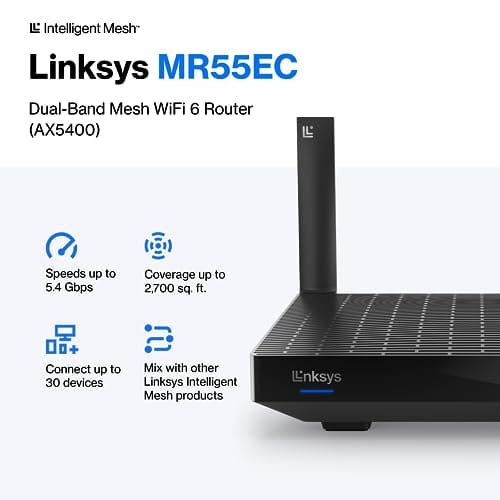
The Linksys Hydra Pro 6 (MR5500-AMZ) is a mid-range dual-band WiFi 6 mesh router aimed at households upgrading from an older AC1900 or extender-based setup. Linksys rates it for 2,700 sq ft and 30 plus devices, targeting medium apartments, condos, and small two-story homes with mixed smart home and streaming traffic.
The defining feature is six-stream AX5400 class WiFi 6 with quoted rates of 574 Mbps on 2.4 GHz and 4804 Mbps on 5 GHz. OFDMA and MU-MIMO help when many low-bandwidth clients share airtime, which is where WiFi 5 routers typically stall. Real-world 5 GHz throughput at range appears to land in the mid-hundreds of Mbps based on category norms.
Trade-offs are typical at this tier. It is dual-band, so there is no dedicated 6 GHz radio and no separate backhaul channel when you add mesh nodes, meaning throughput can halve on satellite hops. Linksys does not specify WAN port speed, USB, or processor details in the listing, so multi-gig ISP users should verify before buying.
Buy this if you want a single WiFi 6 router that can grow into a Linksys Intelligent Mesh system for a 2,000 to 3,000 sq ft home with 30 plus clients. Skip this if you need WiFi 6E, 2.5 GbE WAN, or a dedicated backhaul band for a large multi-story house.
Wireless class: AX5400 class dual-band WiFi 6 with quoted PHY rates of 574 Mbps on the 2.4 GHz band and 4804 Mbps on the 5 GHz band, totaling roughly 5378 Mbps aggregate across six spatial streams. No 6 GHz radio is listed, so WiFi 6E clients fall back to 5 GHz.
Coverage and capacity: Linksys rates the MR5500 for 2,700 sq ft and 30 plus simultaneous devices. OFDMA, MU-MIMO, and 1024-QAM are standard at this WiFi 6 tier and help maintain throughput as client count scales, though actual coverage depends heavily on wall material and node placement.
Mesh behavior: Intelligent Mesh lets you pair the MR5500 with other Linksys nodes to extend coverage. Because it is dual-band, backhaul shares the 5 GHz client band, so expect throughput to roughly halve one hop from the root node. A wired Ethernet backhaul between nodes avoids this penalty.
Not specified: WAN and LAN port speeds, USB ports, processor and RAM, warranty length, and physical dimensions are not disclosed in the source listing. Buyers pairing this with multi-gig fber or DOCSIS 3.1 plans above 1 Gbps should confirm port specs before purchase.
The longer explanation
Here’s what happens under the hood. Your electrical wiring carries 60Hz power. A powerline adapter piggybacks a high-frequency data signal on top of that, well above the frequency the power itself uses. The receiving adapter filters out the power and pulls the data back off. Because the two signals live on different frequency bands, they don’t interfere with each other, and your lights keep working exactly as before.
The Ethernet ports on each adapter behave like any wall jack. Plug your PC in and it sees a normal wired network connection. Some adapters add pass-through outlets so you don’t lose the wall socket, and some include multiple Ethernet ports for connecting more than one device. The important thing to understand is that a powerline kit extends your existing network. It doesn’t replace your router. You still want a capable router at the core, which is why pairing one with a solid mesh unit like the Linksys Hydra Pro 6 covering up to 2,700 square feet gives you both wired reach and strong wireless everywhere else.
Setup is refreshingly simple, which is a big part of the appeal. Most kits pair themselves the moment you plug both adapters in. You press a sync button on each within a couple of minutes, they exchange an encryption key, and the link comes up. There’s no software to install and no network settings to configure on your PC. For someone who dreads router menus, that plug-and-go experience is a relief. Once it’s running, you can mostly forget it exists, which is exactly what you want from infrastructure.
History and how we got here
Powerline networking has been around longer than most people realize. Early versions from the early 2000s were slow and unreliable, capping out at speeds that couldn’t handle much beyond basic web browsing. The technology matured with the HomePlug standards, which set common specs so adapters from different eras could talk to each other. Speeds climbed from a few megabits into the hundreds and then past a gigabit on paper.
The push came from a real gap. Wi-Fi got faster but still struggled with thick walls, old plaster, and multi-floor homes. Rewiring for Ethernet was expensive and messy. Powerline slotted right into that gap as a no-construction fix. It never became the default the way Wi-Fi did, but it earned a loyal following among gamers, remote workers, and anyone with a router stranded on the wrong side of the house.
Why it works this way
The reason powerline can beat Wi-Fi in some homes is physics. Radio waves lose strength fast through dense material, and every wall between you and the router costs you signal. Copper wiring doesn’t care about walls. The data travels the same conductor whether the outlet is 10 feet or 60 feet away, so distance and obstacles hurt it far less than they hurt a wireless signal.
That same dependence on your wiring is also the catch. Old wiring, circuits on different breaker legs, and noisy appliances like microwaves or vacuum cleaners can drag speeds down. Adapters on separate electrical circuits sometimes barely connect at all. So the “it just works” experience depends on your house. Newer homes with modern wiring usually see strong, consistent results. Older homes are more of a gamble, though many still work fine.
There’s a security angle worth knowing too. Because your data rides the electrical wiring, in theory it could travel past your meter to a neighbor’s outlets on the same transformer. That’s why modern adapters encrypt the link with AES by default. As long as you pair your kit and don’t leave it on factory settings in a shared building, the traffic stays private. For a house, this is rarely a concern. For an apartment sharing walls and wiring with other units, it’s a good reason to press that pairing button and confirm encryption is active.
When you’d want a powerline adapter
The classic case is a stationary device in a room with weak Wi-Fi and no Ethernet jack. A desktop gaming PC, a console, a smart TV, a home office setup. Anything that stays put and benefits from a stable, low-latency connection is a great fit. If your PC lives far from the router and you’ve been fighting dropouts, a powerline kit is usually cheaper and faster to deploy than upgrading your whole wireless setup.
It’s also a smart companion to a good router rather than a replacement. Keep the router strong for phones and laptops that roam, and use powerline for the one or two devices that need a hard line. While you’re back there sorting cables behind the desk, it’s worth keeping the build area clean too, since dust buildup near intake fans hurts your PC over time. A simple magnetic mesh filter set like the MoKo 400x300mm two-pack, around $12.99 with a 4.9 rating, is a cheap way to keep the case where your wired PC sits breathing clean. If you’d rather solve coverage wirelessly instead, compare the best budget router for gaming before deciding.

Pros
- Large 400x300mm sheets cover full-tower top or side panels after trimming.
- Magnetic strip and adhesive combo works on any ferrous steel case panel.
- 1mm mesh openings pass more air than tight foam filters at similar coverage.
- Two-pack plus eight strips gives enough material for multiple vents in one build.
Cons
- Limited owner feedback at time of writing, real-world durability is unverified.
- Requires ferrous steel panels, will not stick to aluminum or tempered glass cases.
- PVC and 3M adhesive strips can lose grip over time in warm, high-airflow builds.
This is a budget DIY dust filter kit, not a pre-cut case-specific filter. The package includes two 400x300mm PVC mesh sheets with a 1mm hole pattern plus eight 400mm magnetic frame strips. It targets builders with non-standard vents, modded cases, HTPC chassis, or console dust covers who want to fabricate their own filters.
The defining feature is the trim-to-fit format. You measure the vent, cut the PVC sheet with scissors, then frame the edges using the adhesive-backed magnetic strips so the assembly clamps to steel panels. The 1mm aperture is coarser than typical foam filters, which favors airflow over fine-dust capture, a reasonable trade for intake or exhaust with strong static pressure fans.
Trade-offs are typical at this tier. PVC is not as tear-resistant as nylon or stainless mesh, and 3M adhesive can soften near warm PSU or GPU exhaust zones. The magnetic attachment only works on ferrous steel, so tempered glass side panels or aluminum shells need alternative mounting. With no verified owner data yet, longevity and mesh consistency are unproven.
Buy this if you need to filter oddly shaped vents or console intakes and are comfortable cutting and framing your own mesh. Skip this if your case already ships with pre-fit magnetic filters, or if the panels are aluminum or glass where the magnets will not hold.
Sheet dimensions: Each sheet measures 400x300mm (15.75 x 11.81 inches) with a stated thickness of 0.01 inches. Two sheets ship per pack, enough surface area to cover a full-tower top vent plus a PSU shroud intake, or several smaller vents across a mid-tower build.
Mesh and material: PVC construction with a 1mm hole pattern. The 1mm aperture is coarser than fine foam or stainless woven filters, which prioritizes airflow over sub-micron dust capture. Expect it to catch pet hair, lint, and coarse household dust rather than fine particulates.
Mounting hardware: Eight 400mm magnetic strips are included, framed with 3M adhesive backing. Peel-and-stick application to the trimmed PVC edge lets the assembly clamp to any ferrous steel case panel. No screws or drilling needed, and the filter lifts off for shake-out or rinse cleaning.
Compatibility notes: Total kit weight is around 0.5 pounds. Magnetic mounting requires steel panels, it will not attach to aluminum shells, tempered glass, or plastic vents without a separate ferrous shim. Best suited to standard steel PC cases, older server chassis, HTPC builds, and console dust covers.
What to look for in a powerline adapter
Match the rated speed to your actual internet plan; a gigabit-rated kit is overkill on a 100Mbps connection but future-proofs you. Look for a pass-through outlet if you can’t spare a wall socket. Check the number of Ethernet ports if you plan to connect more than one device at the far end. Prioritize kits that support the current HomePlug AV2 standard for the best compatibility and speed. And set expectations. Advertised speeds are lab numbers, and real throughput will land well below them, especially across older wiring.
Pay attention to the difference between a two-piece kit and a single add-on adapter, too. Kits come with both ends you need to get started, while single units are meant to expand an existing setup with a third or fourth room. Buying a lone adapter first is a common mistake, since one alone does nothing. It’s also worth checking whether the adapter has a gigabit Ethernet port rather than an older 100Mbps port, because a slow port can bottleneck the whole link no matter how fast the powerline connection is. Little spec, easy to overlook.
Common misconceptions
People assume powerline gives you the full advertised speed. It won’t. Real-world throughput is often half the rating or less, shaped by your wiring quality. Another myth is that it replaces your router. It doesn’t; it extends an existing network. Some folks think it interferes with power or appliances, but the data runs on a separate frequency and won’t affect your lights or devices. And plugging an adapter into a surge-protected power strip usually kills the signal, so go straight into the wall. Small detail, big difference.
Frequently asked
Is a powerline adapter better than Wi-Fi?
For a stationary device in a dead zone, often yes. Powerline tends to be more stable and lower-latency than weak Wi-Fi because it doesn’t fight through walls. For roaming devices like phones and laptops, Wi-Fi is still the better choice. Many people use both, each for what it does best.
Do both adapters need to be on the same circuit?
No, but it helps. Adapters work best on the same electrical circuit, and performance can drop when they’re on different breaker legs. They’ll usually still connect across circuits, just at reduced speed. If results are poor, try outlets closer together on the electrical panel.
Will a powerline adapter slow down my other devices?
Not in any way you’ll notice. The adapters share your internet bandwidth like any wired device, so heavy downloads on one can affect others, but the powerline hardware itself doesn’t throttle your network. Your router still manages traffic the same as always.
Can I use a powerline adapter in an old house?
You can, but results vary. Older or aluminum wiring, and circuits split across breaker legs, can cut speeds significantly. Many older homes still get a usable, stable connection, just not peak rated speed. If possible, buy from a retailer with an easy return policy so you can confirm it works in your walls.
Do I need a special router for powerline to work?
No. Any router with a spare Ethernet port works, since the adapter just plugs into it. A stronger router improves your overall network, but the powerline kit itself is router-agnostic. Plug the first adapter into any open LAN port and you’re set.

































Write Your Review
No reviews yet. Be the first to share your experience!