

Dead spots in the back bedroom, buffering on the smart TV, a Wi-Fi signal that drops the second you walk upstairs. If a single router can’t blanket your home, a mesh network is the fix. Instead of one box fighting to reach every corner, mesh uses a main unit plus one or more satellite nodes that hand your devices off seamlessly as you move. This walkthrough sets up a mesh system from the box to a fully working, wall-to-wall network in about 30 minutes. If you’re still choosing hardware, our roundup of the best mesh wifi system and picks for a large home are worth a look before you start.
What you’ll need
The list is short. You’ll need your mesh system (a main node and at least one satellite), an existing modem or gateway from your internet provider, two Ethernet cables, and the manufacturer’s app installed on your phone. Grab your Wi-Fi network name and any account login your provider gave you. That’s it. Most modern kits are designed so a first-time user can finish the whole thing from a phone.
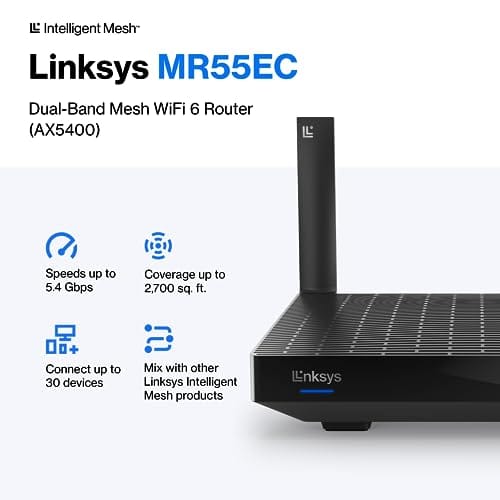
If you’re buying in, a capable single-router mesh kit like the Linksys Hydra Pro 6 covers around 2,700 square feet, connects 30-plus devices, and runs Wi-Fi 6, which gives you room to add nodes later. At $199.99 with a 4.4 rating, it’s a reasonable starting point for a mid-size home, and its app-driven setup follows the exact steps below.


Pros
- AX5400 class dual-band throughput up to 574 plus 4804 Mbps on 5 GHz
- Six spatial streams with OFDMA reduce congestion for 30+ device homes
- Intelligent Mesh compatibility allows scaling coverage beyond the 2,700 sq ft rating
Cons
- Limited owner feedback at time of writing, so real-world reliability data is thin
- Dual-band only, no dedicated 6 GHz or wireless backhaul band at this tier
- Detailed specifications, WAN port sped, and waranty not specified in source listing
The Linksys Hydra Pro 6 (MR5500-AMZ) is a mid-range dual-band WiFi 6 mesh router aimed at households upgrading from an older AC1900 or extender-based setup. Linksys rates it for 2,700 sq ft and 30 plus devices, targeting medium apartments, condos, and small two-story homes with mixed smart home and streaming traffic.
The defining feature is six-stream AX5400 class WiFi 6 with quoted rates of 574 Mbps on 2.4 GHz and 4804 Mbps on 5 GHz. OFDMA and MU-MIMO help when many low-bandwidth clients share airtime, which is where WiFi 5 routers typically stall. Real-world 5 GHz throughput at range appears to land in the mid-hundreds of Mbps based on category norms.
Trade-offs are typical at this tier. It is dual-band, so there is no dedicated 6 GHz radio and no separate backhaul channel when you add mesh nodes, meaning throughput can halve on satellite hops. Linksys does not specify WAN port speed, USB, or processor details in the listing, so multi-gig ISP users should verify before buying.
Buy this if you want a single WiFi 6 router that can grow into a Linksys Intelligent Mesh system for a 2,000 to 3,000 sq ft home with 30 plus clients. Skip this if you need WiFi 6E, 2.5 GbE WAN, or a dedicated backhaul band for a large multi-story house.
Wireless class: AX5400 class dual-band WiFi 6 with quoted PHY rates of 574 Mbps on the 2.4 GHz band and 4804 Mbps on the 5 GHz band, totaling roughly 5378 Mbps aggregate across six spatial streams. No 6 GHz radio is listed, so WiFi 6E clients fall back to 5 GHz.
Coverage and capacity: Linksys rates the MR5500 for 2,700 sq ft and 30 plus simultaneous devices. OFDMA, MU-MIMO, and 1024-QAM are standard at this WiFi 6 tier and help maintain throughput as client count scales, though actual coverage depends heavily on wall material and node placement.
Mesh behavior: Intelligent Mesh lets you pair the MR5500 with other Linksys nodes to extend coverage. Because it is dual-band, backhaul shares the 5 GHz client band, so expect throughput to roughly halve one hop from the root node. A wired Ethernet backhaul between nodes avoids this penalty.
Not specified: WAN and LAN port speeds, USB ports, processor and RAM, warranty length, and physical dimensions are not disclosed in the source listing. Buyers pairing this with multi-gig fber or DOCSIS 3.1 plans above 1 Gbps should confirm port specs before purchase.
Step 1: Plan your node placement
Good placement decides everything. Before you plug in a single cable, walk your home and pick spots for each node. The main unit sits next to your modem. Satellites go roughly halfway between the main node and your dead zones, not in the dead zone itself. A node needs a strong signal from its parent to rebroadcast a strong signal outward.
Keep nodes out in the open, off the floor, and away from metal, mirrors, aquariums, and microwaves, all of which chew up Wi-Fi. Aim for one node per floor as a baseline, and don’t space them more than two rooms apart. If your home runs long and narrow, our guide to the best mesh wifi system for apartment layouts covers tighter spaces.
Height matters more than people realize. A node on a shelf four or five feet up radiates better than one tucked behind the couch, because Wi-Fi spreads outward and slightly downward. Think of each node as a lightbulb. You want it where its glow reaches the most rooms, not buried in a media cabinet with a glass door and a stack of consoles blocking the signal. Sketch a rough floor plan and mark your dead zones first, then place satellites on the path between those spots and the main unit. Five minutes of planning here prevents most of the coverage headaches people run into later.
Step 2: Connect the main node to your modem
Power everything down first. Unplug your modem and leave it off for about 60 seconds so it clears its old connection table. Then run an Ethernet cable from the modem’s LAN port to the WAN or internet port on your main mesh node, usually marked in a different color or with a globe icon.
Power the modem back on and give it a full two minutes to reconnect before you power on the main node. Order matters here. If the node boots before the modem is ready, it won’t grab an internet address and you’ll be stuck troubleshooting a problem that fixes itself with patience. Watch for the node’s status light to settle, often a solid or slow-pulsing color that the app will explain.
If your provider handed you a combo modem-router box, this is the moment to deal with it. Two devices both trying to run the network creates a double-NAT situation that breaks port forwarding and adds latency. Log into the provider box and switch it to bridge mode, sometimes called pass-through, so it acts as a plain modem and hands all routing duties to your mesh. If bridge mode isn’t available, connect your main node to a LAN port on the provider box and disable its Wi-Fi radios instead. Either way, you want exactly one device running the network.
Step 3: Run the app setup
Open the manufacturer’s app and create or sign into your account. The app scans for the main node over Bluetooth or a temporary Wi-Fi network, then walks you through naming your network, setting a password, and confirming the internet connection. Pick a single network name and use the same name and password for the whole mesh. That’s what lets devices roam between nodes without dropping.
Use a strong WPA3 or WPA2 password and change the default admin login while you’re in there. The app will also check for a firmware update, and you should let it run. Fresh firmware fixes bugs and often improves range and stability out of the gate. This first update can take five to ten minutes, so don’t unplug anything.
A quick word on the network name question. Older setups pushed you to create separate names for the 2.4GHz and 5GHz bands, but on a modern mesh you want the opposite. Let the system run a single unified name and it handles band selection and node handoff for you, steering each device to the best link automatically. Only split the bands if you own an old smart plug or camera that refuses to connect any other way. For most homes, one name, one password, done. That’s what makes the roaming feel invisible when you walk from room to room.
Step 4: Add your satellite nodes
With the main node live, the app prompts you to add satellites. Place the first satellite in the spot you planned in step one, plug it into power, and wait for it to boot. The app detects it and pairs it automatically, then reports the connection quality back to the main node as good, fair, or weak.
If it reads weak or fair, move the node closer to the main unit and re-check. You want a strong or good rating on every satellite before you finish. Repeat for each additional node. For the best backhaul, wire a satellite to the main node with Ethernet if you can run a cable, which frees up wireless bandwidth. A small network switch helps if you’re wiring several rooms and running low on ports.
Step 5: Verify coverage and connect devices
Now confirm it works. Walk the whole house with your phone connected to the new network and watch the signal in the dead zones that started this project. A quick speed check in each room tells you whether a node needs to shift. If one room still lags, nudge the nearest satellite a few feet and check again the coverage.
Once coverage looks solid, reconnect your devices to the single network name. Most will hop over automatically once the old network is gone. Gaming consoles and PCs benefit from a wired connection into the nearest node, and if low latency is your priority, our best gaming router guide explains when a dedicated setup beats mesh for competitive play.
Give the network a day or two before you judge it. Most mesh systems learn your home as devices connect and move, gradually optimizing which node handles what and which band each device rides. A spot that reads slightly weak on day one often firms up once the system settles. If you want hard numbers, run the same speed check in each room at the same time of day, before and after, so you’re comparing like with like instead of trusting your gut on whether a video loaded faster. For 4K streaming rooms specifically, our picks for the best mesh wifi system for streaming 4K explain what bandwidth headroom you actually need.
Troubleshooting common issues
A node keeps showing offline
This is almost always placement. The satellite is too far from its parent to hold a stable link. Move it closer, ideally within two rooms and one floor, and re-run the app’s connection check. If it still drops, power-cycle both the node and the main unit in order, main first.
Speeds are slower than my old router
Wireless backhaul splits bandwidth between talking to your devices and talking to the main node. If a satellite sits too far out, it drags speeds down. Wire the backhaul with Ethernet where possible, confirm firmware is current, and make sure your nodes aren’t buried behind a TV or inside a cabinet.
Devices won’t roam between nodes
This happens when a device clings to a distant node instead of switching. First confirm every node broadcasts the same network name and password. Toggling Wi-Fi off and on the stubborn device usually forces a fresh handoff. Some apps also offer a band-steering or roaming-aggressiveness setting worth enabling.
Before and after expected outcomes
Done right, the difference is obvious. Where you had one strong room and several weak ones, you now get consistent signal from the front door to the back yard, with no manual network switching as you move. Streaming that used to buffer plays clean, video calls hold steady upstairs, and the far bedroom finally gets usable speeds. You won’t notice the handoffs, and that’s the point.
Expect a modest tradeoff and plan for it. A satellite on wireless backhaul typically delivers somewhat less than the raw speed at the main node, since it splits airtime between your devices and the link home. For most browsing, streaming, and calls that gap is invisible, but heavy 4K households and large homes feel it, which is why wired backhaul earns its keep. If you outgrow a single kit, adding a matching node beats replacing everything, and our roundup of the best mesh wifi system for gaming covers systems built to hold latency low under load.
Common questions
Do I need to keep my old router?
No. Your mesh main node replaces the router entirely. You only keep the modem or gateway from your provider. If your provider’s box is a combo modem-router, put it into bridge or pass-through mode so it doesn’t fight your mesh for network duties.
How many nodes do I actually need?
Start with one node per floor, or roughly one per 1,500 to 2,000 square feet, then add more only if a dead spot remains. A single-router kit like the Linksys Hydra Pro 6 covers about 2,700 square feet on its own, which suits many mid-size homes before you add satellites at all.
Is wired backhaul really worth it?
If you can run the cable, yes. Wired backhaul gives each satellite a dedicated link to the main node, so all of its wireless bandwidth goes to your devices instead of relaying traffic. It’s the single biggest speed upgrade for a multi-node mesh, especially in larger homes.
Will mesh fix slow internet from my provider?
Only the coverage side. Mesh spreads your existing internet across the whole home, but it can’t deliver more speed than your plan provides. If every device is slow everywhere, the bottleneck is your service tier or modem, not your Wi-Fi coverage.


































Write Your Review
No reviews yet. Be the first to share your experience!