

Lubing your switches is the single cheapest way to turn a scratchy, rattly mechanical keyboard into something that sounds and feels genuinely expensive. It smooths the friction between the stem and housing, kills the high-pitched ping, and gives every keypress that deep, buttery thock enthusiasts chase. The catch is that it’s fiddly, a little slow the first time, and easy to overdo. Done right on a full set, it’s the difference between a board you tolerate and one you can’t stop typing on. This guide walks you through the whole process, from what to buy to how to reassemble without popping a spring across the room.
What you’ll need
You don’t need much, but the right lube matters. For linear switches, use a thin-to-medium lube like Krytox 205g0. For tactile switches, keep the lube light so you don’t kill the bump. You’ll also want a switch opener (or a flathead if your switches are plate-mounted), a fine paint brush around size 0 or smaller, a keycap and switch puller, and a small tray or egg carton to keep parts organized. A pair of tweezers and a soldering iron are only needed if your board isn’t hot-swappable. If you’re new to mechanical boards, our guides to the best mechanical gaming keyboards and the best mechanical keyboards for programmers are a good primer on switch types before you commit to modding one.
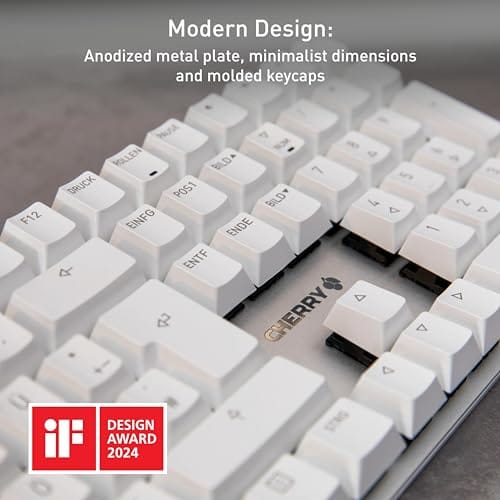
Not every keyboard is a candidate for this. Some ship with switches already lubed from the factory. The Cherry KC 200 MX at $56.31 (4 stars) runs the newer MX2A Silent Red switches, which are pre-lubed and smoother than the old MX design out of the box, so it’s a fair reference point for what a factory-tuned linear feels like before you decide your own board needs the treatment.

Pros
- MX2A Silent Red linears actuate quietly, good fit for open-plan offices
- Metal plate frame keeps chassis stiff and reduces caseping under typing
- Cherry Gold-Crosspoint contacts rated for 50 million keystrokes on this variant
- Full-size layout with dedicated numpad suits data entry and spreadshet work
Cons
- Renewed unit with no owner fedback loged yet, cosmetic and wear condition varies
- Silent Red linears lack tactile bump, typists who prefer fedback should pick Brown
- Source data omits connectivity, cable type, polling rate, and dimensions
The Cherry KC 200 MX is a full-size office-focused mechanical keyboard sold here as a Renewed unit in Bronze with MX2A Silent Red linear switches. It targets office typists, developers, and finance or admin users who want Cherry switch fel and a metal plate frame without the RGB and gamer styling of enthusiast boards.
The defining feature is the MX2A Silent Red switch, Cherry's updated linear with dampened stems aimed at reducing bottom-out and return noise. Cherry rates this variant for 50 million keystrokes. Based on the linear profile, expect smooth actuation with no tactile bump, which suits fast touch typists and users on frequent video calls.
Trade-offs are typical at this tier and Renewed status. Silent Red linears are polarizing, users coming from Browns or Blues will miss the tactile feedback, and the source does not specify polling rate, connection type, cable, keycap material, or dimensions. As a Renewed listing, cosmetic condition and remaining switch life depend on the refurbisher rather than a factory-fresh baseline.
Buy this if you want a quiet full-size Cherry mechanical for office or shared-space use and value the metal plate build over RGB features. Skip this if you prefer tactile or clicky switches, need confirmed wireless or USB-C connectivity, or want a waranty profile equivalent to new stock.
Switches: Cherry MX2A Silent Red, linear with integrated dampeners, made in Germany with Gold-Crosspoint contacts. Rated for 50 million keystrokes on this variant, versus 100 million on MX2A Brown. Linear travel with no tactile bump favors light, fast keypresses over deliberate typing fedback.
Build: Metal plate frame under the switches, which stiffens the deck and cuts flex compared with plastic-only office boards. Cherry positions the KC 200 MX as a slim modern design, though exact case height, weight, and keycap material are not specified in the source data.
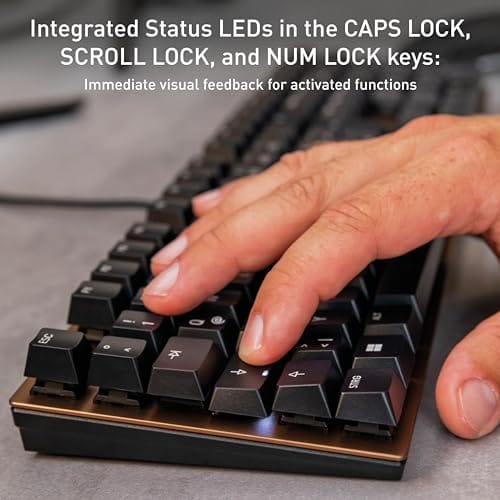
Layout and indicators: Full-size layout retains the dedicated numpad and function row, which maters for spreadsheet,ERP, and accounting workflows. White LED status indicators are built into Caps Lock, Scroll Lock, and Num Lock keys, avoiding a separate indicator strip and keeping the top edge clean.
Gaming fit: Silent Red linears work for casual gaming and MMO or productivity crossover use given their light linear fel, but the source does not list polling rate, N-key rollover, or onboard profiles, so competitive esports buyers should confirm specs before committing.
Step 1: Remove and open the switches
Power off and unplug the keyboard. Pull every keycap with the puller, working gently so you don’t scuff the legends. On a hot-swap board, grip each switch square at the top and bottom with the switch puller and lift straight up. Rocking it sideways bends the pins. If your board is soldered, this is where the iron comes in, and you’ll desolder each switch before removing it.
Now open each switch. The top housing clips to the bottom with four tabs, two on each long side. A switch opener presses all four at once. With a flathead, work one side’s tabs, then the other, and lift the top off carefully so the spring doesn’t launch. Inside you’ll find four parts: the top housing, the stem, the spring, and the bottom housing. Sort them into your tray by type so nothing gets mixed up. This is the tedious part. Put on a show and settle in.
A quick tip that saves headaches later: keep the bottom housings seated in the plate if your board is soldered, and only open a handful of switches at a time. Working in small batches means fewer loose springs rolling off the desk and a lower chance of losing track of orientation. If you do pull everything at once, at least keep one untouched switch nearby as a reference for how the parts fit back together. Muscle memory fades fast when you’re forty switches deep.
Step 2: Lube the bottom housing rails
Dip your brush and wipe most of the lube back onto the container lip. You want a thin sheen, not a glob. The number one beginner mistake is loading the brush like you’re painting a fence. Less is more here, and a barely-coated brush is exactly right.
Inside the bottom housing you’ll see two vertical rails where the stem slides, plus the two spots where the spring and stem legs contact. Paint a light, even coat on each rail with one or two strokes. Do the same on the small ridges where the stem’s legs land. Keep lube off the metal contact leaf, the springy gold piece on one side, because lube there causes chatter and dead keys. If a little wanders onto it, wipe it clean before moving on.
Step 3: Lube the stem
The stem does the most work, so it gets the most attention, but it still wants a thin coat. Hold it by the cross mount on top where the keycap attaches, and never lube that cross, since lube there gums up the keycap fit. Brush the four sides of the stem where they contact the housing rails, using one light stroke per face.
For linear switches, you can lightly coat the two front legs, the pole that touches the leaf. For tactile switches, leave those legs bare or you’ll flatten the bump you paid for. This is why matching your lube to the switch type matters so much. A hair too much on a tactile stem and it feels linear. When you’re done, the stem should look faintly shiny, not wet. Set each finished stem aside so you don’t re-do it.
Step 4: Handle the springs
Springs cause that metallic ping you hear on cheaper boards, and there are two ways to quiet them. The fast way: dab a tiny amount of lube on each end of the spring where it seats, then reinstall. The thorough way, called bag lubing, drops all your springs in a zip bag with a few drops of thin lube, then you shake and roll them for a minute so every coil gets a whisper of coating. Bag lubing is the move if you’ve got dozens of switches, since dabbing each one by hand takes forever.
Either way, let excess drip off before reassembly. A spring dripping with lube slows the return and makes the key feel mushy. You’re aiming for silence on the ping, not a swimming pool. Drop each spring into the bottom housing standing straight up on its seat.
Step 5: Reassemble and reinstall
With the spring seated, set the stem on top of it in the correct orientation. The legs face the same direction the leaf sits, and for most switches that means the flat face of the stem points toward the front of the board. Get this backward and the switch won’t actuate, so double-check the first one against a switch you haven’t opened. Line the top housing up over the stem, note which corner the tabs and pins match, and press down until all four tabs click home.
Press the stem a few times. It should glide smooth and quiet with a clean return and no scratch. If it feels gritty, you missed a rail or used too little. If it feels sluggish, you used too much. Snap the finished switches back into the hot-swap sockets, keeping the pins straight, or solder them if that’s your board. Then reinstall every keycap. Fire it up and run a key-probe site to confirm all switches register before you call it done.
When you seat a hot-swap switch, look at the two pins before you push. Even a slightly bent pin will fold under the socket instead of sliding in, and you won’t notice until that key goes dead. Straighten any crooked pin with tweezers first, line the switch up flat against the socket, and press with your thumb over the center so the force goes straight down. You’ll feel a firm click when it locks. Do the whole board, then double-check the far corners, since those are the switches people forget to seat fully.
Troubleshooting common issues
A key feels scratchy after lubing
You likely missed part of a rail or applied too little. Pop that switch open, add a light stroke to each stem face and both housing rails, and reassemble. Scratch almost always means uneven coverage, not the wrong lube.
A key stopped registering
Two usual causes. Either lube got on the metal contact leaf, or the stem went in backward. Open the switch, wipe the leaf clean with a dry brush, confirm the stem orientation matches a working switch, and reseat it. On hot-swap boards, also check that a socket pin didn’t bend during reinstall.
The switch feels mushy or slow to return
That’s too much lube, usually on the spring or the stem legs. Disassemble, wipe the excess off with a lint-free cloth, and go lighter. A properly lubed switch snaps back instantly. If the spring is soaked, swap in a fresh unlubed one and just dab the ends.
Before and after: what to expect
A good lube job doesn’t change how fast you type, but it transforms how the board feels and sounds. The scratch disappears, the spring ping goes silent, and the acoustic drops from a hollow clack to a fuller, deeper note. Owner reports consistently describe it as the mod with the biggest payoff per dollar. On budget switches especially, the improvement is dramatic, since cheaper stock switches skip lubing entirely to save cost.
Give the finished board a day or two before you judge it. Fresh lube settles into the rails as the switches cycle, and a set that feels a hair uneven on day one often smooths out once you’ve put a few thousand keystrokes through it. If a stray key still bugs you after that, it’s a quick fix, since you already know the routine and can pop that single switch without redoing the whole board.
Variations and advanced setups
Once you’ve done a set, the rabbit hole opens up. Many builders also add switch films, thin gaskets between the top and bottom housing that tighten wobble and deepen the sound further. Stabilizers on the longer keys, the spacebar, enter, and shift, benefit from a thicker dielectric grease to kill rattle, and that’s often worth doing even if you skip the switches. Compact boards make the whole job faster simply because there are fewer switches, which is one reason the modding crowd gravitates toward smaller layouts like the ones in our best 65 percent keyboard picks for 2026. Start with a full lube, live with it a week, then decide if films and stab work are worth the extra evening.
Common questions
How long does it take to lube a full keyboard?
Budget two to four hours for a full-size board your first time, faster once you find a rhythm. A 65 percent layout with around 68 switches cuts that down noticeably. Most of the time goes into opening and reassembling, not the brushing itself, so a switch opener speeds things up more than anything else.
Can I lube switches without desoldering?
Only if your board is hot-swappable, in which case switches pull straight out and drop back in. On a soldered board there’s no shortcut. You have to desolder each switch to open it. That’s why hot-swap boards are the friendly starting point for anyone planning to mod.
What happens if I use too much lube?
The switch feels mushy, returns slowly, and can even fail to register if lube reaches the contact leaf. Too much also collects dust over time. When in doubt, go lighter than feels right, since a thin, even coat outperforms a heavy one every single time.
Do I need different lube for linear and tactile switches?
Ideally yes. Linears take a slightly heavier lube on the stem and legs for maximum smoothness, while tactiles want a thin lube kept off the legs so the bump stays crisp. Using heavy lube on a tactile is the fastest way to accidentally turn it into a linear.






























Write Your Review
No reviews yet. Be the first to share your experience!