

If your WiFi keeps disconnecting, don’t start by buying the biggest router on the shelf. The common pattern is narrower: one laptop drops every 20 minutes, a gaming PC loses connection under load, or the whole house falls offline when several people stream at once. We’ve researched the failure points that show up most often on home networks, and the fix is usually a sequence, not a guess. If your setup already feels underbuilt, compare it with our mesh WiFi system guide or the more focused WiFi 6 router picks. Start simple. Then replace hardware only when the evidence points there.
First check the obvious (the 30-second check)
Before changing settings, confirm whether the internet is dropping or only the wireless link is dropping. When the problem happens, look at the WiFi icon, then check another device in the same room. If every device loses internet at the same time, the modem, ISP line, or router WAN connection is suspect. If one PC disconnects while phones stay online, focus on that PC’s adapter, driver, power settings, antenna position, or USB port. That’s the fork in the road.
Also check the boring physical details. Make sure the router’s power brick is firmly seated, the Ethernet cable from modem to router clicks into place, and the router isn’t buried behind a TV, inside a cabinet, or pressed against a warm cable box. Restart the modem and router in order: modem first, wait until it syncs, then router. Give it three minutes, not 15 seconds. If the disconnects stop for a day and return, you’re looking at heat, firmware, channel congestion, or aging hardware rather than a one-time glitch.
A quick isolation pass saves hours. Stand next to the router with the problem device and watch whether the disconnect still happens. If it stays stable beside the router but fails in the bedroom, the radio path is weak. If it fails beside the router too, the issue is likely the client device, router firmware, or the internet handoff. Then plug one PC directly into the router with Ethernet for a while. If Ethernet stays up while WiFi drops, don’t blame the ISP yet. Simple split. Clearer answer.
Cause #1: weak signal, bad placement, or overloaded coverage
Weak signal is still the most common reason WiFi drops, especially on 5 GHz networks. A phone may show two bars and still stream fine, while a desktop WiFi card in the same room keeps renegotiating because the antenna is behind a metal case under a desk. Walls, mirrors, aquariums, brick fireplaces, and appliances all eat signal. Distance matters too. A router rated for a small apartment can struggle in a 2,000 sq ft house once you add upstairs bedrooms, a garage PC, and a smart TV in the far corner.
Move the router into open air, chest-high if possible, and put antennas where they aren’t blocked by the PC case or monitor. If your router lets you separate 2.4 GHz and 5 GHz names, try the farther device on 2.4 GHz for range and the nearby gaming or streaming device on 5 GHz for speed. In larger homes, a single router may not be enough. The Linksys Hydra Pro 6 is listed at $199.99 with a 4.4 rating, WiFi 6 support, mesh-router positioning, a 30-plus device claim, and up to 2,700 sq ft coverage, which makes it a real replacement candidate when coverage is the confirmed problem.
Coverage problems often show up at the edge of usable signal, not when the device is completely out of range. You’ll see calls freeze, cloud saves fail, or a smart TV drop to a loading spinner even though the WiFi icon still shows connected. Mesh can help, but only if the node itself has a strong backhaul to the main router. Put a mesh node halfway between the router and the dead room, not inside the dead room. If the node is starving, every device behind it will starve too.

Pros
- AX5400 class dual-band throughput up to 574 plus 4804 Mbps on 5 GHz
- Six spatial streams with OFDMA reduce congestion for 30+ device homes
- Intelligent Mesh compatibility allows scaling coverage beyond the 2,700 sq ft rating
Cons
- Limited owner feedback at time of writing, so real-world reliability data is thin
- Dual-band only, no dedicated 6 GHz or wireless backhaul band at this tier
- Detailed specifications, WAN port sped, and waranty not specified in source listing
The Linksys Hydra Pro 6 (MR5500-AMZ) is a mid-range dual-band WiFi 6 mesh router aimed at households upgrading from an older AC1900 or extender-based setup. Linksys rates it for 2,700 sq ft and 30 plus devices, targeting medium apartments, condos, and small two-story homes with mixed smart home and streaming traffic.
The defining feature is six-stream AX5400 class WiFi 6 with quoted rates of 574 Mbps on 2.4 GHz and 4804 Mbps on 5 GHz. OFDMA and MU-MIMO help when many low-bandwidth clients share airtime, which is where WiFi 5 routers typically stall. Real-world 5 GHz throughput at range appears to land in the mid-hundreds of Mbps based on category norms.
Trade-offs are typical at this tier. It is dual-band, so there is no dedicated 6 GHz radio and no separate backhaul channel when you add mesh nodes, meaning throughput can halve on satellite hops. Linksys does not specify WAN port speed, USB, or processor details in the listing, so multi-gig ISP users should verify before buying.
Buy this if you want a single WiFi 6 router that can grow into a Linksys Intelligent Mesh system for a 2,000 to 3,000 sq ft home with 30 plus clients. Skip this if you need WiFi 6E, 2.5 GbE WAN, or a dedicated backhaul band for a large multi-story house.
Wireless class: AX5400 class dual-band WiFi 6 with quoted PHY rates of 574 Mbps on the 2.4 GHz band and 4804 Mbps on the 5 GHz band, totaling roughly 5378 Mbps aggregate across six spatial streams. No 6 GHz radio is listed, so WiFi 6E clients fall back to 5 GHz.
Coverage and capacity: Linksys rates the MR5500 for 2,700 sq ft and 30 plus simultaneous devices. OFDMA, MU-MIMO, and 1024-QAM are standard at this WiFi 6 tier and help maintain throughput as client count scales, though actual coverage depends heavily on wall material and node placement.
Mesh behavior: Intelligent Mesh lets you pair the MR5500 with other Linksys nodes to extend coverage. Because it is dual-band, backhaul shares the 5 GHz client band, so expect throughput to roughly halve one hop from the root node. A wired Ethernet backhaul between nodes avoids this penalty.
Not specified: WAN and LAN port speeds, USB ports, processor and RAM, warranty length, and physical dimensions are not disclosed in the source listing. Buyers pairing this with multi-gig fber or DOCSIS 3.1 plans above 1 Gbps should confirm port specs before purchase.
Cause #2: driver, firmware, or Windows power settings
If one Windows PC drops while every other device stays connected, look at software before hardware. Open Device Manager, find the WiFi adapter, and check whether Windows is allowed to turn it off to save power. On desktops, that setting can still apply to PCIe and USB adapters, and it can create a maddening pattern where the connection disappears during idle time or after waking from sleep. Update the adapter driver from the PC, motherboard, or adapter maker, not only through Windows Update, because wireless chipsets often receive stability fixes outside the default Windows catalog.
Router firmware matters too. A router can have good radio hardware and still drop clients because of a buggy firmware build, bad band steering, or DHCP lease weirdness. Log into the router, check for firmware updates, then note your current WiFi names, passwords, and custom settings before changing anything. If drops began after enabling WPA3, smart connect, or a combined SSID, roll back one setting at a time. Don’t change five things in one night. You won’t know which one worked.
On laptops, battery profiles can make this worse. A high-performance profile may keep the adapter awake, while a battery-saver profile can become aggressive after the lid closes, after sleep, or when the charge drops below a certain level. On desktops, USB WiFi dongles can suffer from the port they’re plugged into. Try a rear motherboard port instead of a front-panel extension, and avoid cramming a tiny adapter beside a warm USB hub. If the adapter has external antennas, angle them into open air rather than hiding them behind the tower.
Cause #3: interference, heat, or a failing adapter under load
Interference can look exactly like hardware failure. Bluetooth headsets, USB 3.0 devices, microwave ovens, busy apartment channels, and neighboring routers can all cause short disconnects or huge latency spikes. Use your router’s app or admin page to change channels, or leave channel selection on auto and reboot during a quiet time so it can scan fresh. If you’re in an apartment, 5 GHz and 6 GHz capable gear can help because 2.4 GHz is often packed with legacy devices.
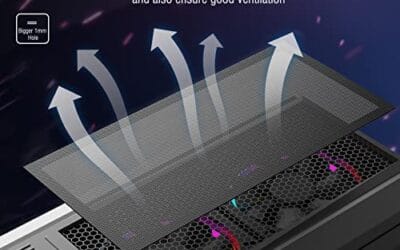
Heat is the other silent culprit. Routers, mesh nodes, and PC WiFi adapters can drop connection when they’re trapped in dust or running hot under sustained downloads. Clean around vents with the power off, move the router away from stacked electronics, and make sure a desktop’s rear antennas aren’t cooking behind an exhaust fan. The MoKo 400x300mm DIY PC Case Dust Mesh Filter is a $12.99, 4.9-rated two-pack with PVC magnetic dust covers and magnetic frame strip. It’s not a router fix, but it can be a relevant PC-case maintenance part when a desktop’s internal adapter or airflow path is getting dusty.
Load-related drops are especially common with cheap USB adapters and old router power supplies. The network looks fine during email, then falls apart during a large game download, 4K stream, or cloud backup. Watch for a pattern: disconnects after 10 minutes of sustained transfer, reconnects after cooling down, then fails again. That rhythm points toward heat or power delivery more than channel choice. Not glamorous. Very real.

Pros
- Large 400x300mm sheets cover full-tower top or side panels after trimming.
- Magnetic strip and adhesive combo works on any ferrous steel case panel.
- 1mm mesh openings pass more air than tight foam filters at similar coverage.
- Two-pack plus eight strips gives enough material for multiple vents in one build.
Cons
- Limited owner feedback at time of writing, real-world durability is unverified.
- Requires ferrous steel panels, will not stick to aluminum or tempered glass cases.
- PVC and 3M adhesive strips can lose grip over time in warm, high-airflow builds.
This is a budget DIY dust filter kit, not a pre-cut case-specific filter. The package includes two 400x300mm PVC mesh sheets with a 1mm hole pattern plus eight 400mm magnetic frame strips. It targets builders with non-standard vents, modded cases, HTPC chassis, or console dust covers who want to fabricate their own filters.
The defining feature is the trim-to-fit format. You measure the vent, cut the PVC sheet with scissors, then frame the edges using the adhesive-backed magnetic strips so the assembly clamps to steel panels. The 1mm aperture is coarser than typical foam filters, which favors airflow over fine-dust capture, a reasonable trade for intake or exhaust with strong static pressure fans.
Trade-offs are typical at this tier. PVC is not as tear-resistant as nylon or stainless mesh, and 3M adhesive can soften near warm PSU or GPU exhaust zones. The magnetic attachment only works on ferrous steel, so tempered glass side panels or aluminum shells need alternative mounting. With no verified owner data yet, longevity and mesh consistency are unproven.
Buy this if you need to filter oddly shaped vents or console intakes and are comfortable cutting and framing your own mesh. Skip this if your case already ships with pre-fit magnetic filters, or if the panels are aluminum or glass where the magnets will not hold.
Sheet dimensions: Each sheet measures 400x300mm (15.75 x 11.81 inches) with a stated thickness of 0.01 inches. Two sheets ship per pack, enough surface area to cover a full-tower top vent plus a PSU shroud intake, or several smaller vents across a mid-tower build.
Mesh and material: PVC construction with a 1mm hole pattern. The 1mm aperture is coarser than fine foam or stainless woven filters, which prioritizes airflow over sub-micron dust capture. Expect it to catch pet hair, lint, and coarse household dust rather than fine particulates.
Mounting hardware: Eight 400mm magnetic strips are included, framed with 3M adhesive backing. Peel-and-stick application to the trimmed PVC edge lets the assembly clamp to any ferrous steel case panel. No screws or drilling needed, and the filter lifts off for shake-out or rinse cleaning.
Compatibility notes: Total kit weight is around 0.5 pounds. Magnetic mounting requires steel panels, it will not attach to aluminum shells, tempered glass, or plastic vents without a separate ferrous shim. Best suited to standard steel PC cases, older server chassis, HTPC builds, and console dust covers.
Preventive maintenance
Once the connection is stable, write down what changed: router location, firmware version, channel settings, adapter driver version, and whether power saving is disabled. Keep the router in open air, restart it after firmware updates, and clean dust from desktop intakes every few months. For mesh networks, don’t place nodes too far apart; a weak mesh backhaul can create the same drops you were trying to solve. One room closer often beats one room farther.
It’s also worth naming your network in a way that reduces confusion. If you split bands, use clear labels such as Home-2G and Home-5G so family members don’t put every device on the same band by accident. Keep IoT gear, printers, and far-away devices on the longer-range band if needed, then reserve the faster band for nearby PCs, consoles, and streamers. You don’t have to micromanage forever, but a little structure can prevent the same disconnect pattern from coming back after the next router reboot.
When it’s not fixable: what to replace
Replace the router when several devices disconnect at once, firmware is current, cables are solid, and placement changes don’t help. Replace the PC WiFi adapter when one machine drops on multiple networks or loses connection only under download load. If your router is older than WiFi 5, lacks security updates, or can’t handle your device count, replacement is often cleaner than chasing one more setting. For large homes or busy streaming setups, our large-home mesh WiFi guide is the better path than stretching one aging box beyond its range.
A replacement should match the real failure. The Linksys Hydra Pro 6 makes sense if coverage, device count, or router age is the issue: it lists WiFi 6, mesh use, 30-plus devices, and 2,700 sq ft coverage at $199.99. A dust filter makes sense only for PC airflow and maintenance, not for an ISP outage. Be strict here. Buying the wrong part can hide the problem for a week and waste the weekend.
If the modem is separate from the router, don’t ignore it. Old coax splitters, damaged Ethernet cables, and ISP gateway combo units can all make WiFi look guilty. Check the router’s status page for WAN drops or modem errors if available. If wired devices lose internet at the same moment as wireless devices, replacing a WiFi adapter won’t help. Call the ISP with times and symptoms, not just “it drops.” Specific notes get better support.
Tools and parts needed
You don’t need a lab bench to diagnose home WiFi. Keep a known-good Ethernet cable, your router admin password, a phone for checking signal in different rooms, and a small notebook or text file for changes. For desktop PCs, a screwdriver helps if you need to reseat a PCIe WiFi card or adjust antenna leads, and a dust filter can help maintain cleaner intake paths after you’ve cleared existing buildup. If you’re replacing coverage hardware, choose a router or mesh node based on square footage, device count, Ethernet needs, and WiFi generation, not only the biggest number printed on the box.
For apartments, your most useful tool may be the router’s own channel view or a WiFi analyzer app on a phone. For desktop PCs, Ethernet is the best sanity check because it removes radio signal from the equation. If Ethernet solves the problem instantly, you’re chasing WiFi signal, adapter, or router radio behavior. If Ethernet also fails, step back and look at modem, ISP, power, or the router’s WAN side.
A few more questions
Why does my WiFi disconnect only on one laptop?
That usually points to the laptop, not the router. Check the WiFi adapter driver, power-saving setting, and whether it drops on another network such as a phone hotspot. If it disconnects everywhere, the adapter or operating system is the likely target.
Why does WiFi drop during gaming but not browsing?
Gaming exposes packet loss and latency spikes that web browsing can hide. Weak signal, interference, overloaded routers, and bad USB WiFi adapters can all seem fine until a game needs steady low-latency packets. Try Ethernet for one session as a comparison point.
Should I split 2.4 GHz and 5 GHz into separate names?
It’s worth trying if devices keep bouncing between bands. Use 2.4 GHz for range and smart-home gear, then use 5 GHz for nearby PCs, consoles, and streaming devices. If separate names fix the drops, the router’s band steering was probably too aggressive.

































Write Your Review
No reviews yet. Be the first to share your experience!