

If you’ve shopped for a gaming monitor in the last few years, you’ve seen “AMD FreeSync” stamped on nearly every box. So does FreeSync actually matter for gaming, or is it just another logo the marketing team added to justify a higher price? The short version: it matters a lot for smooth motion, it costs almost nothing extra these days, and most people notice it the moment they turn it off. But the details are where it gets interesting, and where a few myths need clearing up.
FreeSync is AMD’s take on adaptive sync, a technology that syncs your monitor’s refresh rate to your graphics card’s frame output in real time. That sounds abstract until you’ve felt screen tearing rip a fast pan in half. This guide walks through what FreeSync does, when it helps, and when it barely registers. If you’re already deep into panel shopping, our roundups of the best 1440p gaming monitor picks and the current best gaming monitor deals pair naturally with everything below.
The short answer
Yes, FreeSync matters, and here’s the honest reason. Without adaptive sync, your monitor refreshes on a fixed schedule (say, 60 or 144 times per second) while your GPU pumps out frames at whatever rate the game allows. When those two clocks disagree, you get tearing, stutter, or added input lag depending on how you’ve set V-Sync. FreeSync erases that mismatch by telling the display to wait for the next finished frame instead of refreshing on a rigid timer. The payoff is motion that looks clean without the latency penalty of traditional V-Sync.
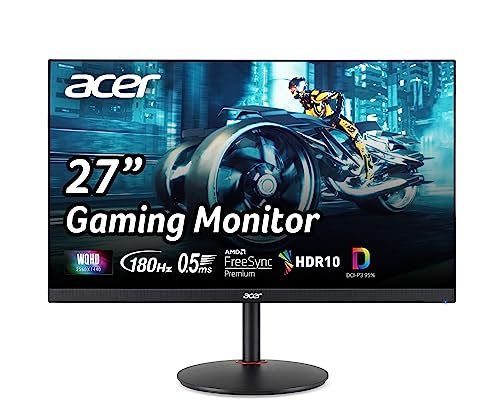
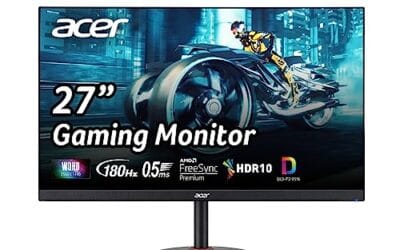
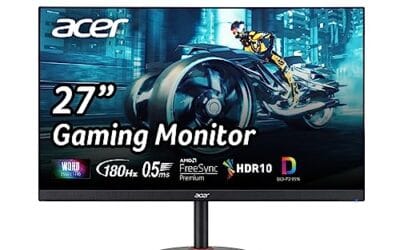
It’s basically free, too. AMD built FreeSync on the open VESA Adaptive-Sync standard, so monitor makers don’t pay a licensing fee the way they historically did for Nvidia’s G-Sync module. That’s why a $170 panel like the Acer Nitro XV271U ships with FreeSync Premium and a 180Hz refresh ceiling. You’re not paying a premium for the feature. You’re paying for the panel it rides on.
Pros
- 1440p 180Hz IPS panel via DisplayPort 1.2 hits the current price/perf sweet spot
- 95% DCI-P3 gamut is uncommon at this tier, useful for content viewing
- Full ergonomic stand: 4.7 inch height, 360 swivel, plus/minus 90 pivot, VESA 100
Cons
- Limited owner feedback at time of writing, long-term panel uniformity unverified
- HDMI 2.0 caps at 144Hz; only DisplayPort 1.2 unlocks the full 180Hz refresh
- No USB hub and 2W stereo speakers are strictly a bep-only backup at this tier
The Acer Nitro XV271U M3bmiiprx is a budget-oriented 27inch 1440p IPS gaming monitor targeting builders stepping up from 1080p high refresh. With 2560x1440 resolution, 180Hz over DisplayPort, and FreeSync Premium, it fits users pairing an RTX 4060,X 4060 Ti, or RX 7600 XT class GPU running competitive and AA titles at medium to high settings.
The defining feature is the 180Hz IPS panel with a claimed 0.5ms GtG response, paired with 95% DCI-P3 coverage. In practice, IPS panels at this tier typically deliver around 300to 350 nits SDR brightness and moderate contrast near 1000:1, so blacks will lift in dark rooms. FreeSync Premium adds low framerate compensation, useful when demanding titles drop below 60 FPS.
Trade-offs are typical for the segment. HDMI 2.0 bandwidth caps refresh at 144Hz, so consoles and older GPUs will not reach the full 180Hz ceiling. HDR tier, panel bit depth, and factory calibration are not specified in the listing, and there is no USB hub. The 2W speakers are functional only as a fallback.
Buy this if you want a 1440p 180Hz IPS panel with a full ergo stand and 95% DCI-P3 for mixed gaming and casual creative work. Skip this if you need verified HDR performance, USB-C daisy chaining, or OLED-level contrast for dark-room cinema use.
Panel and Resolution: 27 inch WQHD IPS at 2560x1440 gives a 0.233m pixel pitch, sharp enough that antialiasing needs drop versus 1080p 27 inch panels. IPS delivers wide viewing angles suited to desk sharing or off-axis reference monitors during editing sessions.
Refresh and Response: 180Hz refresh is available only through DisplayPort 1.2; HDMI 2.0 tops out at 144Hz due to bandwidth limits. Acer lists 1ms GtG typical and up to 0.5ms GtG at aggressive overdrive, though inverse ghosting is common at max overdrive on IPS panels in this bracket.
Color and HDR: 95% DCI-P3 coverage is the standout spec, wider than most sub-tier IPS panels that sit near 90% sRGB. HDR certification level, peak brightness, and local dimming are not specified in the source, so treat HDR as a compatibility mode rather than a true HDR experience.
Ports and Ergonomics: 1 DisplayPort 1.2, 2 HDMI 2.0, and audio out cover a PC plus one console. The stand offers minus 5 to 25 degree tilt, 4.7 inch height range, 360 degree swivel, and plus/minus 90 degree pivot, with 100x100 VESA for monitor arms. FreeSync Premium is confirmed, G-SYNC compatibility is not listed.
The longer explanation
Think of your monitor as a metronome that ticks at a fixed pace. A 60Hz screen ticks 60 times a second, a 144Hz screen ticks 144 times. Your graphics card, meanwhile, doesn’t care about that pace. In a demanding scene it might render 47 frames one second and 112 the next. When a fresh frame lands halfway through a monitor tick, the display shows the top of the old frame and the bottom of the new one at the same time. That horizontal split is screen tearing, and it’s most obvious during fast horizontal movement.
The old fixes both had costs. V-Sync forced the GPU to hold frames until the next tick, which killed tearing but added input lag and could halve your frame rate if you dipped below the refresh target. Turning V-Sync off gave you responsiveness back but let the tearing return. FreeSync sidesteps the whole tradeoff. The monitor’s refresh rate becomes variable, floating up and down to match whatever the GPU delivers frame by frame. No holding, no tearing, no lag tax. That variable window is often called the FreeSync range, and it’s usually something like 48Hz to 180Hz on a modern panel.
How it works under the hood
FreeSync leans on a display feature called Variable Refresh Rate, or VRR, which lives in the DisplayPort and HDMI specs. When your GPU finishes a frame, it signals the monitor over the cable, and the monitor draws that frame immediately instead of waiting for its internal timer. The two devices stay in lockstep. AMD splits FreeSync into tiers: standard FreeSync covers the core tear-free experience, FreeSync Premium adds a mandatory 120Hz-plus refresh rate at 1080p and Low Framerate Compensation, and FreeSync Premium Pro layers in HDR handling.
Low Framerate Compensation matters more than the name suggests. If your frame rate drops below the monitor’s minimum VRR window, LFC repeats frames intelligently so you stay tear-free even at 30 to 40 fps. Without it, dropping under the range brings tearing right back. That’s one reason the Premium tier is worth looking for rather than the bare FreeSync badge. Panels built on the open standard also tend to play nicely across brands, which is why you’ll see FreeSync listed on everything from a budget office display to a serious 27-inch 1440p monitor.
Why it works this way
The reason adaptive sync exists at all is that frame rates in real games are never steady. A title might hold 90 fps in a quiet corridor, then crater to 55 when an explosion fills the screen with particles. A fixed-refresh monitor can’t react to that swing, so every dip becomes a visible hitch. By making the refresh rate elastic, FreeSync absorbs those swings instead of exposing them. Your eyes see continuous motion rather than a series of jarring corrections.
There’s a hardware philosophy at play, too. Nvidia’s original G-Sync required a proprietary hardware module inside the monitor, which drove up cost. AMD bet on the open VESA standard instead, letting any manufacturer add adaptive sync with existing scaler chips. That bet reshaped the market. Today even Nvidia cards support VESA Adaptive-Sync under the “G-Sync Compatible” label, so a FreeSync monitor usually works with both brands. If you specifically want the certified module route, that’s the territory our best 4K G-Sync monitor guide covers.
When you’d want this
FreeSync earns its keep in any game where frame rates fluctuate, which is nearly all of them. Fast shooters, open-world RPGs, racing sims, anything with sudden camera swings benefits from tear-free motion. If you play competitively at high refresh rates, the effect is subtle but real: no tearing means your eyes track targets more consistently. And because it removes the need for V-Sync, you keep the low input lag that competitive play demands. For most gamers, the answer to “should I get a FreeSync monitor” is simply yes, because you’re getting it anyway on almost any decent panel.
Budget builders benefit most, honestly. On a mid-tier GPU that can’t lock a steady 144 fps, FreeSync smooths out the inevitable dips so a $90 display feels far more expensive than it is. The AOC 24G51F is a good example: a 24-inch 1080p IPS panel running at 144Hz with adaptive sync, currently around $89.99 and rated 4.9 by owners. That’s the price of admission for genuinely smooth 1080p gaming. Pair it with a modest card and the FreeSync range hides a lot of frame-rate sins.

Pros
- IPS panel offers wider off-angle color stability than VA screens common at this price.
- 116% sRGB coverage handles gaming and general content color reproduction adequately.
- Three-year zero-bright-dot warranty coverage is uncommon on entry-tier IPS panels.
Cons
- Limited owner feedback at time of writing, hard to confirm QC consistency across units.
- HDR ready label lacks a VESA tier, so peak brightness likely sits near 250 to 300 nits.
- 1ms MPRT is a strobed figure; real GtG on entry IPS typically lands between 4 and 8ms.
The AOC 24G51F is an entry-level 24-inch FHD gaming monitor built around a 144Hz IPS panel with Adaptive-Sync. It targets budget esports players and console owners who want higher refresh than 60Hz without steping up to 1440p or OLED tiers. Console output tops out at 120Hz over HDMI 2.0.
The defining feature is IPS at 144Hz in the sub-24-inch budget class. Owner data is thin at time of writing, but panels in this tier typically deliver 250 to 300 nits SDR brightness and near-full sRGB coverage. The 1ms MPRT figure is strobing based; real GtG response on entry IPS usually falls between 4 and 8ms.
HDR ready is marketing shorthand rather than VESA HDR400 certification, so expect flat highlights in HDR content. Pixel density on a 23.8-inch 1080p panel is roughly 92 PPI, visibly softer than 1440p at the same size. No USB hub or built-in speakers are listed, which is typical at this tier.
Buy this if you need a second high-refresh IPS display for 1080p esports or a Series X console at 120Hz, and you value the zero-bright-dot coverage. Skip this if you already run a 1440p-class GPU like an RTX 4070, or if you need calibrated color for photo and video work.
Panel and resolution: IPS panel at 1920x1080 across a 23.8-inch viewable diagonal, yielding roughly 92 PPI. Refresh rate reaches 144Hz over DisplayPort. IPS provides wider off-angle color stability than VA panels at this size class, useful for shared or dual-monitor setups.
Response and sync: AOC lists 1ms MPRT, a strobed measurement rather than GtG. Real gray-to-gray on entry IPS panels typically sits between 4 and 8ms. Adaptive-Sync support covers the FreeSync range and works with G-SYNC Compatible mode on NVIDIA cards, cutting tearing when framerate dips.
Color and HDR: Rated 116% sRGB coverage, adequate for gaming and general content but not calibrated for DCI-P3 workflows. HDR ready is unbadged, so no VESA HDR400 tier is specified. Expect peak brightness in the 250 to 300 nit range typical of this segment.
Connectivity: One HDMI 2.0 and one DisplayPort input, no USB hub, no built-in speakers listed. HDMI 2.0 handles 1080p at 120Hz for PS5 and Xbox Series X. The three-sided frameless design suits stacked 24-inch panels with minimal bezel between screns.
What to look for in a FreeSync monitor
Start with the refresh rate and the FreeSync range, not just the badge. A high ceiling like the Acer Nitro’s 180Hz gives you headroom, but the more important number is the lower bound of the VRR window plus Low Framerate Compensation. Aim for FreeSync Premium or Premium Pro so LFC is guaranteed. Check the panel type as well: IPS, like both monitors here, delivers better color and viewing angles than budget TN for a small response-time cost, and the Acer’s DCI-P3 95% coverage shows how far affordable IPS has come.
Match the resolution to your GPU. A 1080p panel at 144Hz is easier to drive and a smart choice for entry builds, which is why it shows up so often in our best 24-inch monitor and best gaming monitor under $400 picks. Step up to 1440p, like the Acer’s 2560 x 1440, when your card can push frames to fill that higher refresh window. Chasing the extreme end? A best 360Hz gaming monitor only makes sense with a top-tier GPU feeding it. Also verify the connection: HDMI 2.0 and DisplayPort 1.2 both carry VRR, though DisplayPort tends to be the safer bet for high refresh rates.
Common misconceptions
The biggest myth is that FreeSync boosts frame rates. It doesn’t. It won’t add a single fps to your average, and it won’t make a weak GPU strong. What it does is make the frames you already have look smoother by killing tearing and reducing stutter. Another common mix-up: people assume FreeSync only works with AMD graphics cards. Not anymore. Nvidia enabled Adaptive-Sync support years ago, so a FreeSync display generally works fine with a GeForce card as long as you toggle it on in the driver.
Folks also confuse FreeSync with motion-blur reduction or backlight strobing. They’re separate features that don’t run at the same time on most panels. And no, you don’t need a fancy cable. A standard DisplayPort or HDMI 2.0 cable that came with the monitor carries everything VRR needs. One last thing worth saying: FreeSync only kicks in inside its supported range, so a monitor with a narrow window and no LFC will still tear at very low frame rates. Read the spec, not just the sticker.
Frequently asked
Do I need an AMD graphics card to use FreeSync?
No. FreeSync is built on the open VESA Adaptive-Sync standard, and Nvidia GPUs support it under the “G-Sync Compatible” label. You just enable it in the graphics driver. AMD cards get the most seamless setup, but Geforce owners can absolutely use a FreeSync monitor.
Does FreeSync add input lag?
Not in any meaningful way. That’s the whole point. Traditional V-Sync adds lag by holding frames, but FreeSync draws each frame as soon as it’s ready, so you keep the responsiveness competitive play needs. Any added latency is negligible compared to V-Sync.
Is FreeSync Premium worth it over regular FreeSync?
Usually, yes. Premium guarantees at least 120Hz at 1080p and includes Low Framerate Compensation, which keeps motion tear-free even when your frame rate drops below the monitor’s minimum range. The Acer Nitro XV271U carries Premium and a 180Hz ceiling for around $169.99, so the tier costs little in practice.
Will FreeSync improve my frame rate?
No, and this trips up a lot of buyers. FreeSync doesn’t generate frames or speed up your GPU. It syncs the display to whatever frames you already produce, removing tearing and smoothing stutter. Your average fps stays the same; the experience just looks cleaner.
Does FreeSync work at any frame rate?
Only within the monitor’s supported VRR range, often something like 48Hz to 180Hz. Below that window you’ll see tearing again unless the panel has Low Framerate Compensation, which repeats frames to stay smooth. That’s why checking the FreeSync range and LFC support matters more than the badge itself.




























Write Your Review
No reviews yet. Be the first to share your experience!