

Every monitor spec sheet throws a number at you labeled “nits,” and most shoppers scroll right past it. That’s a mistake. A nits rating tells you how much light a panel can physically pump out, and it quietly decides whether your desktop looks washed out in a sunny room or whether an HDR game actually hits with any punch. If you’ve been comparing panels while shopping for a 27-inch 1440p monitor or hunting through gaming monitor deals, that little number deserves a second look.
Here’s the plain-English version. One nit equals roughly the brightness of one candle spread over a square meter. So a monitor rated at 250 nits isn’t dim, and a 400-nit panel isn’t blinding. The scale sounds abstract, but once you know what real numbers mean for real use, picking a screen gets a lot easier. We researched dozens of current panels and owner reports to break down what the rating actually buys you.
The short answer
A nit is a unit of luminance, and the nits rating on a monitor is its peak brightness. Higher means the screen can get brighter. Most standard PC monitors land somewhere between 250 and 350 nits for typical SDR content, which is plenty for a normal room. Anything above 400 nits starts to matter for HDR, and panels claiming 600 nits or more are chasing genuine high-dynamic-range impact. That’s the whole concept in two sentences. The details are where it gets interesting.
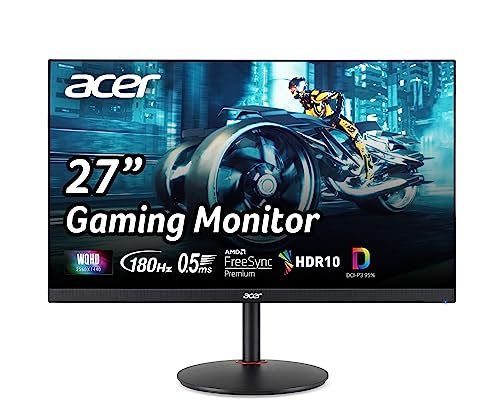
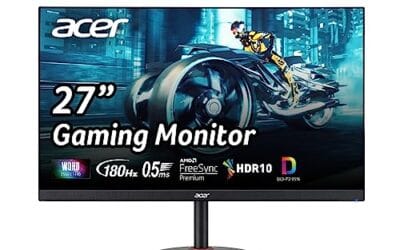
For everyday desktop work, gaming with the lights on, and general use, a rating in the 250-to-350 range covers you. You don’t need a small sun on your desk. What you want is enough headroom that glare from a window doesn’t drown out the image. The Acer Nitro below, for example, is a 27-inch 1440p IPS panel that leans on refresh rate and color coverage rather than extreme brightness, which is the norm at its price.
Pros
- 1440p 180Hz IPS panel via DisplayPort 1.2 hits the current price/perf sweet spot
- 95% DCI-P3 gamut is uncommon at this tier, useful for content viewing
- Full ergonomic stand: 4.7 inch height, 360 swivel, plus/minus 90 pivot, VESA 100
Cons
- Limited owner feedback at time of writing, long-term panel uniformity unverified
- HDMI 2.0 caps at 144Hz; only DisplayPort 1.2 unlocks the full 180Hz refresh
- No USB hub and 2W stereo speakers are strictly a bep-only backup at this tier
The Acer Nitro XV271U M3bmiiprx is a budget-oriented 27inch 1440p IPS gaming monitor targeting builders stepping up from 1080p high refresh. With 2560x1440 resolution, 180Hz over DisplayPort, and FreeSync Premium, it fits users pairing an RTX 4060,X 4060 Ti, or RX 7600 XT class GPU running competitive and AA titles at medium to high settings.
The defining feature is the 180Hz IPS panel with a claimed 0.5ms GtG response, paired with 95% DCI-P3 coverage. In practice, IPS panels at this tier typically deliver around 300to 350 nits SDR brightness and moderate contrast near 1000:1, so blacks will lift in dark rooms. FreeSync Premium adds low framerate compensation, useful when demanding titles drop below 60 FPS.
Trade-offs are typical for the segment. HDMI 2.0 bandwidth caps refresh at 144Hz, so consoles and older GPUs will not reach the full 180Hz ceiling. HDR tier, panel bit depth, and factory calibration are not specified in the listing, and there is no USB hub. The 2W speakers are functional only as a fallback.
Buy this if you want a 1440p 180Hz IPS panel with a full ergo stand and 95% DCI-P3 for mixed gaming and casual creative work. Skip this if you need verified HDR performance, USB-C daisy chaining, or OLED-level contrast for dark-room cinema use.
Panel and Resolution: 27 inch WQHD IPS at 2560x1440 gives a 0.233m pixel pitch, sharp enough that antialiasing needs drop versus 1080p 27 inch panels. IPS delivers wide viewing angles suited to desk sharing or off-axis reference monitors during editing sessions.
Refresh and Response: 180Hz refresh is available only through DisplayPort 1.2; HDMI 2.0 tops out at 144Hz due to bandwidth limits. Acer lists 1ms GtG typical and up to 0.5ms GtG at aggressive overdrive, though inverse ghosting is common at max overdrive on IPS panels in this bracket.
Color and HDR: 95% DCI-P3 coverage is the standout spec, wider than most sub-tier IPS panels that sit near 90% sRGB. HDR certification level, peak brightness, and local dimming are not specified in the source, so treat HDR as a compatibility mode rather than a true HDR experience.
Ports and Ergonomics: 1 DisplayPort 1.2, 2 HDMI 2.0, and audio out cover a PC plus one console. The stand offers minus 5 to 25 degree tilt, 4.7 inch height range, 360 degree swivel, and plus/minus 90 degree pivot, with 100x100 VESA for monitor arms. FreeSync Premium is confirmed, G-SYNC compatibility is not listed.
The longer explanation
Luminance measures light emitted toward your eyes, and nits are the shorthand engineers use for it. The technical name is candela per square meter, so 300 nits means 300 candela spread across each square meter of screen. When a manufacturer prints “350 nits” on the box, they’re usually quoting the peak the panel can sustain across a full white field, though marketing sometimes cites a brief peak that only a tiny window of pixels can reach.
This matters because two monitors with the same resolution and refresh rate can look completely different depending on brightness. A dim panel in a bright office looks flat and gray. The same content on a brighter screen keeps its contrast and its color depth. Brightness also interacts with contrast ratio, so a 300-nit screen with deep blacks can look richer than a 400-nit screen that can’t produce a true dark tone. The number alone doesn’t tell the full story, but it’s the first piece of the puzzle.
How we got here
Early LCD monitors from the 2000s often shipped around 200 to 250 nits, and that was fine for the fluorescent-lit cubicles they lived in. As panels moved into living rooms and sunlit home offices, and as HDR content arrived, the ceiling had to rise. The VESA DisplayHDR certification tiers pushed the conversation forward by tying names like DisplayHDR 400, 600, and 1000 directly to minimum peak luminance in nits.
That standardization helped shoppers, but it also created confusion. A “DisplayHDR 400” badge sounds impressive, yet 400 nits is only a modest step above a good SDR panel. Real HDR that makes a highlight gleam usually needs 600 nits and up, plus local dimming. So the history here is really a story of the number climbing to keep pace with what screens are asked to do.
Why it works this way
Your eyes adapt to ambient light, so brightness is relative to your surroundings. In a dark room, 250 nits can feel almost harsh. In direct afternoon sun near a window, even 400 nits starts to struggle. That’s why there’s no single “right” number. The rating is a ceiling, and the useful question is whether that ceiling clears your room’s lighting with room to spare.
There’s also a physics tradeoff at play. Pushing more light usually means more power draw and more heat, and on some panel types it can shorten lifespan or wash out contrast. Manufacturers balance brightness against color accuracy, response time, and cost. A gaming panel might prioritize a fast 0.5ms response and 180Hz refresh over a sky-high nit figure, because competitive players value motion clarity more than peak luminance. It’s a deliberate set of choices, not a corner being cut.
When you’d want this
If your desk sits by a bright window or you work with the blinds open, prioritize a higher rating so glare doesn’t wash you out. Content creators editing photos or video want consistent, accurate brightness more than raw peak. And if HDR movies or games are the goal, that’s when 600-plus nits and local dimming earn their keep. For most gamers and office users, though, a solid SDR panel in the 250-to-350 band with good contrast is the practical answer.
Budget shoppers shouldn’t feel boxed out here. Plenty of affordable panels hit respectable brightness while spending their budget on refresh rate and panel quality instead. The AOC 24G51F is a good example: a 24-inch 1080p IPS screen running at 144Hz for $89.99, aimed at fast gaming rather than HDR spectacle. If you’re building a compact setup, it pairs well with the picks in our best 24-inch monitor guide.

Pros
- IPS panel offers wider off-angle color stability than VA screens common at this price.
- 116% sRGB coverage handles gaming and general content color reproduction adequately.
- Three-year zero-bright-dot warranty coverage is uncommon on entry-tier IPS panels.
Cons
- Limited owner feedback at time of writing, hard to confirm QC consistency across units.
- HDR ready label lacks a VESA tier, so peak brightness likely sits near 250 to 300 nits.
- 1ms MPRT is a strobed figure; real GtG on entry IPS typically lands between 4 and 8ms.
The AOC 24G51F is an entry-level 24-inch FHD gaming monitor built around a 144Hz IPS panel with Adaptive-Sync. It targets budget esports players and console owners who want higher refresh than 60Hz without steping up to 1440p or OLED tiers. Console output tops out at 120Hz over HDMI 2.0.
The defining feature is IPS at 144Hz in the sub-24-inch budget class. Owner data is thin at time of writing, but panels in this tier typically deliver 250 to 300 nits SDR brightness and near-full sRGB coverage. The 1ms MPRT figure is strobing based; real GtG response on entry IPS usually falls between 4 and 8ms.
HDR ready is marketing shorthand rather than VESA HDR400 certification, so expect flat highlights in HDR content. Pixel density on a 23.8-inch 1080p panel is roughly 92 PPI, visibly softer than 1440p at the same size. No USB hub or built-in speakers are listed, which is typical at this tier.
Buy this if you need a second high-refresh IPS display for 1080p esports or a Series X console at 120Hz, and you value the zero-bright-dot coverage. Skip this if you already run a 1440p-class GPU like an RTX 4070, or if you need calibrated color for photo and video work.
Panel and resolution: IPS panel at 1920x1080 across a 23.8-inch viewable diagonal, yielding roughly 92 PPI. Refresh rate reaches 144Hz over DisplayPort. IPS provides wider off-angle color stability than VA panels at this size class, useful for shared or dual-monitor setups.
Response and sync: AOC lists 1ms MPRT, a strobed measurement rather than GtG. Real gray-to-gray on entry IPS panels typically sits between 4 and 8ms. Adaptive-Sync support covers the FreeSync range and works with G-SYNC Compatible mode on NVIDIA cards, cutting tearing when framerate dips.
Color and HDR: Rated 116% sRGB coverage, adequate for gaming and general content but not calibrated for DCI-P3 workflows. HDR ready is unbadged, so no VESA HDR400 tier is specified. Expect peak brightness in the 250 to 300 nit range typical of this segment.
Connectivity: One HDMI 2.0 and one DisplayPort input, no USB hub, no built-in speakers listed. HDMI 2.0 handles 1080p at 120Hz for PS5 and Xbox Series X. The three-sided frameless design suits stacked 24-inch panels with minimal bezel between screns.
What to look for in a monitor’s brightness spec
Read past the headline number. Check whether the rating is typical SDR brightness or a brief HDR peak, because those can differ by hundreds of nits on the same box. Look for the contrast ratio alongside it, since brightness without deep blacks looks flat. And if HDR genuinely matters to you, verify there’s a real VESA DisplayHDR tier and some form of local dimming, not just a checkbox in the settings menu.
Panel type factors in too. IPS panels like the Acer Nitro and the AOC above deliver strong color and wide viewing angles, which is why they dominate mainstream gaming lineups. Just remember that a spec sheet is a starting point. Owner reports and calibrated reviews tell you how a panel behaves in a real room, so cross-check before you buy.
Common misconceptions
The biggest myth is that more nits always means a better screen. It doesn’t. A 500-nit panel with weak contrast and poor color can look worse than a well-tuned 300-nit display. Another common mix-up is treating the HDR peak as the everyday brightness. That 600-nit figure often applies to a small highlight for a split second, not your whole desktop all day.
People also assume they need HDR-grade brightness for gaming. Most competitive titles don’t use HDR well, and cranking peak brightness won’t help you spot an enemy any faster than good contrast and a fast refresh rate will. Don’t overpay for a number you won’t use. Match the rating to your room and your content, and you’ll spend smarter.
Frequently asked
How many nits do I need for a gaming monitor?
For SDR gaming in a normal room, 250 to 350 nits is plenty. If your space gets a lot of daylight, aim for the higher end. You only need 600 nits or more if you specifically want proper HDR impact, and even then contrast and local dimming matter just as much as the peak figure.
Is 250 nits too dim for a PC monitor?
Not for most setups. 250 nits works fine in a room with controlled lighting or in the evening. It can feel underpowered next to a bright window, so if glare is a problem you’ll want more headroom. For general desktop work and gaming, though, 250 is workable.
What’s the difference between nits and brightness percentage?
Nits are an absolute measurement of light output, while the brightness slider in your settings is a relative percentage of that panel’s maximum. Setting a 300-nit monitor to 50 percent gets you roughly 150 nits. The nits rating is the ceiling; the percentage is where you’ve set it within that ceiling.
Do more nits drain more power?
Yes, generally. Producing more light takes more energy, so running a panel at full brightness draws more power and generates more heat than a lower setting. It’s usually a small difference on a desktop monitor, but on laptops that extra draw noticeably shortens battery life.
Does a higher nit rating help outdoors or by a window?
It helps a lot. Ambient light competes with your screen, so a brighter panel keeps its image visible where a dim one washes out. If your desk faces strong daylight, a higher rating plus a matte anti-glare coating makes a real difference. If you game in a dark room, you won’t need it, and you can put that budget toward refresh rate or resolution instead, like the fast panels in our best 1440p gaming monitor roundup.




























Write Your Review
No reviews yet. Be the first to share your experience!