Your monitor’s flickering. Maybe it’s a quick strobe every few seconds, maybe it’s a steady pulse that gives you a headache by 4pm. Either way, it’s not random and it’s not “just how monitors get.” There’s a finite list of causes, and you can usually pin it down in under 20 minutes if you work through them methodically. Here’s the diagnostic order I use, refined across hundreds of bench repairs.
First check the obvious
Before you tear into drivers and BIOS settings, rule out the boring stuff. Reseat both ends of the video cable. HDMI and DisplayPort connectors loosen over time, especially if you’ve nudged the monitor around or swapped cables. Push them in firmly until you feel the click.
Next, swap the cable entirely if you’ve got a spare. A bent pin or a fraying internal wire produces intermittent signal dropouts that look exactly like flicker. I’ve seen $400 monitors written off when the real culprit was a $6 cable. Try a different port on the GPU while you’re at it. DisplayPort 1.4 ports occasionally fail individually even when the GPU itself is fine.
Finally, check the power. A wobbly wall outlet or a daisy-chained power strip with too many devices can drop voltage enough to make the monitor’s internal power supply hiccup. Plug the monitor directly into a wall outlet for 10 minutes and see if anything changes.
Cause #1: Refresh rate mismatch or unstable VRR
This is the most common one and it’s almost always the answer for newer 144Hz+ monitors. Variable refresh rate (G-Sync, FreeSync, VESA Adaptive-Sync) ties the monitor’s refresh to your GPU’s frame output. When the frame rate dips below the VRR window’s lower bound (often around 48Hz), the monitor can’t sync cleanly and you get visible flicker, especially in dark scenes or loading screens.
Diagnostic: Open your GPU control panel (NVIDIA Control Panel or AMD Adrenalin) and disable G-Sync or FreeSync. If the flicker stops, you’ve found it.
Fix: Either lock your in-game frame rate to stay above the VRR window’s floor (use the GPU control panel’s frame limiter, set it 3-5 fps below your monitor’s max refresh) or enable LFC (Low Framerate Compensation) if your monitor supports it. For dark scene flicker specifically (a known issue on many OLED and high-refresh IPS panels) check the manufacturer’s firmware page. Several Samsung, LG, and Gigabyte monitors shipped with VRR flicker bugs that got patched later.
If you don’t want to mess with VRR settings, switching to a flicker-free panel solves it permanently.

Pros
- 27-inch IPS panel with 99% sRGB coverage handles wide viewing angles for shared desks
- 120Hz refresh over DisplayPort supports smother desktop feel and casual gaming
- Adaptive-Sync reduces tearing when paired with compatible NVIDIA or AMD GPUs
- HDMI, DisplayPort, and VGA inputs cover modern laptops and legacy office hardware
Cons
- Limited owner feedback at time of writing makes long-term reliability hard to gauge
- 1080p across 27 inches yields lower pixel density than 1440p panels at similar size
- 1ms MPRT typically relies on backlight strobing, not true GtG response at this tier
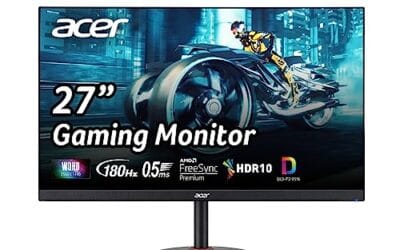
The ASUS VA279QG is an entry-level 27-inch 1080p IPS monitor pitched at home office, student, and casual gaming buyers. Core specs include a Full HD resolution, 120Hz refresh, 1ms MPRT response, Adaptive-Sync, and 99% sRGB coverage. It targets shoppers who want IPS color and viewing angles over TN sped or higher-resolution panels.
The defining feature is the 120Hz IPS panel with Adaptive-Sync, which makes desktop scrolling and casual esports titles noticeably smoother than a stock 60Hz office monitor. Based on category norms, IPS panels at this tier typically deliver 250to 300 nits SDR brightness with no HDR certification, so expect standard indoor viewing rather than sunlit rooms.
Trade-offs are typical at this tier. 1080p stretched across 27 inches gives roughly 81 PI, which looks softer than 1440p at the same size for text work. The 1ms figure is MPRT, not GtG, and usually depends on backlight strobing with brightness penalties. Owner feedback is limited so panel uniformity and backlight bleed cannot be confirmed yet.
Buy this if you want a large IPS second scren for office work, study, and casual gaming, and value HDMI, DisplayPort, and VGA one panel. Skip this if you plan to game above 120FPS on an RTX 4070 class GPU, need HDR, or want sharp1440p text at 27 inches.
Panel and resolution: ASUS specifies a 27-inch IPS panel at 1920x1080 Full HD, giving roughly 81 PPI. IPS wide viewing angles suit shared desks and reference work, though at this pixel density text will look softer than a 1440p panel of the same size, especially at typical 60to 70 cm viewing distance.
Refresh and response: The panel runs at 120Hz with 1ms MPRT response and Adaptive-Sync. That combination targets tearing-free casual gaming when paired with an NVIDIA or AMD GPU capable of driving 1080p above 100 FPS. True GtG figures are not specified, so pixel overshoot behavior at120Hz cannot be confirmed from source data.
Color and eye care: ASUS quotes 99% sRGB coverage with TÜV-certified Low Blue Light and Flicker-Free operation. That coverage is adequate for web content, Office work, and casual photo viewing, but no DCI-P3 figure, factory calibration report, or HDR tier is listed, so this is not a color-critical panel for print or video grading.
Connectivity and mounting: Inputs include HDMI, DisplayPort, and VGA, with built-in speakers and VESA mount support for wall or arm setups. Note that only DisplayPort is guaranteed to hit 120Hz at 1080p on most sources; VGA is analog and typically caps at 60Hz. Exact VESA pattern and stand ergonomics are not specified.
Cause #2: Graphics driver or GPU instability
Driver corruption causes weird flicker patterns that don’t follow a clean rhythm. You’ll see brief black frames, color shifts, or full-screen blanking that lasts a fraction of a second. It usually shows up after a driver update or a Windows feature update that didn’t quite play nice with your existing driver.
Diagnostic: Boot into Safe Mode (hold Shift while clicking Restart). If the flicker disappears in Safe Mode, the driver’s the problem. You can also check Event Viewer under Windows Logs > System for repeated entries from “Display” or “nvlddmkm” (NVIDIA) or “amdkmdag” (AMD). Those are timeout-detection-recovery events and they correlate directly with flicker spells.
Fix: Download DDU (Display Driver Uninstaller) from Wagnardsoft. Boot into Safe Mode. Run DDU and select the option to remove your current GPU driver completely. Reboot. Install the latest stable driver from NVIDIA or AMD’s site (not Windows Update, which often pushes older versions). This clean-slate approach fixes about 80% of driver-related flicker cases.
If you’ve got an aging GPU and the flicker happens under load, the GPU itself might be on its way out. Memory errors on a degrading VRAM module produce flicker that scales with load. A quick stress run with FurMark or 3DMark for 15 minutes will usually surface it.
Cause #3: Backlight, panel, or PSU failure inside the monitor
If you’ve ruled out cables, VRR, and drivers, the issue’s likely inside the monitor. The two failure modes here are the backlight inverter (on LCDs with CCFL or older LED backlights) and the internal power supply (on basically every monitor).
Diagnostic: Watch the flicker pattern carefully. A backlight on its way out tends to flicker more when cold (right after power-on) and stabilizes after 5-10 minutes as the components warm into their operating range. A failing PSU does the opposite (works fine cold, then starts flickering as heat builds). Hold a phone camera up to the panel and record at 60fps. Backlight flicker shows up as horizontal banding on the recording even when your eye can’t quite catch it.
Pros
- IPS panel gives wider viewing angles than TN or budget VA alternatives
- 120Hz refresh is a meaningful upgrade over standard 60Hz office monitors
- 99% sRGB coverage handles web design and everyday content creation adequately
- Three-side borderless design suits dual-monitor setups without thick seam gaps
Cons
- Limited owner feedback at time of writing makes long-term reliability unverified
- 1080p on a 24-inch panel yields lower pixel density than 1440p tier options
- Tilt-only stand with no height, swivel, or pivot adjustment specified
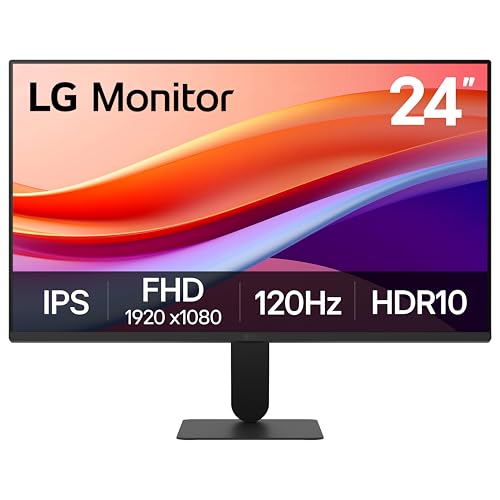
The LG 24U411A-B is a budget24-inch 1080p IPS monitor aimed at students, home office users, and casual gamers who want a step above the standard 60Hz office display. Its 120Hz refresh, HDR10 input, and three-side borderless frame position it as a general-purpose panel rather than a dedicated esports or content-creation tool.
The defining feature here is the 120Hz IPS combination at FHD, which makes Windows scrolling, video playback, and lighter competitive games such as Valorant or Rocket League noticeably smoother than 60Hz. LG also cites 99% sRGB coverage, which is adequate for photo editing on the web, though monitors in this tier typically hit250to 300 nits SDR brightness with basic HDR10 tone mapping rather than real HDR.
Trade-offs are typical at this price bracket. Pixel density on a 24-inch 1080p panel is coarser than a 1440p27-inch option, the stand offers tilt only (negative five to twenty degrees) with no height or pivot mentioned, and no DisplayPort, USB-C, or built-in speakers are listed in the source data. VESA mount support is also not specified.
Buy this if you want a simple 120Hz IPS panel for scholwork, office tasks, and light gaming on a modest GPU like a GTX 1650 or RX 6500. Skip this if you need 1440p sharpness, factory-calibrated color, or a fully ergonomic stand for long editing sessions.
Panel and resolution: LG specifies a 24-inch IPS panel at 1920 by 1080. That works out to roughly 92 pixels per inch, lower density than a 27-inch 1440p option, but sharper than a 27-inch 1080p at the same viewing distance. IPS gives wider off-axis viewing than budget VA panels.
Refresh and motion: Native refresh is 120Hz over HDMI, with 1ms Motion Blur Reduction (MBR) as a separate backlight strobing mode. GtG response time is not specified in the source. Dynamic Action Sync targets reduced input lag, though no measured input latency figure is provided.
Color and HDR: Coverage is stated at up to 99% sRGB, adequate for web content and general productivity. HDR10 is suported as an input signal, but peak brightness, local dimming zones, and DCI-P3 coverage are not listed. Treat HDR here as compatibility rather than a true HDR viewing experience.
Connectivity and ergonomics: HDMI is confirmed in the title, with additional ports not specified in the source. The stand offers tilt from negative five to twenty degrees, with height, swivel, pivot, and VESA compatibility not stated. Reader Mode and Flicker Safe address blue light and PWM concerns for long sessions.
Fix: This is where you decide between repair and replace. Backlight strip replacement is doable if you’re handy with electronics (around $25 in parts plus 90 minutes of work). PSU board replacement on a monitor is rarely worth it (the boards are panel-specific and aftermarket boards run $50-80 for a monitor that’s already 5+ years old). If you’re past the warranty window and the monitor’s under $200 to replace, just replace it.
Pros
- Native FHD on 21.5 inch viewable gives dense pixel pitch for text clarity at desk viewing distance.
- 120Hz overclock plus Adaptive-Sync lifts it above standard 60Hz/75Hz office panels in this size class.
- IPS panel with 178/178 viewing angles avoids the color shift common on cheap TN alternatives.
Cons
- Limited owner feedback at time of writing, so long-term panel uniformity and backlight bleed remain unverified.
- 1ms figure is MPRT not GtG, so real pixel response at this tier typically lags marketed spec.
- VGA plus a single HDMI limits daisy-chain and USB-C single-cable workflows for modern laptops.
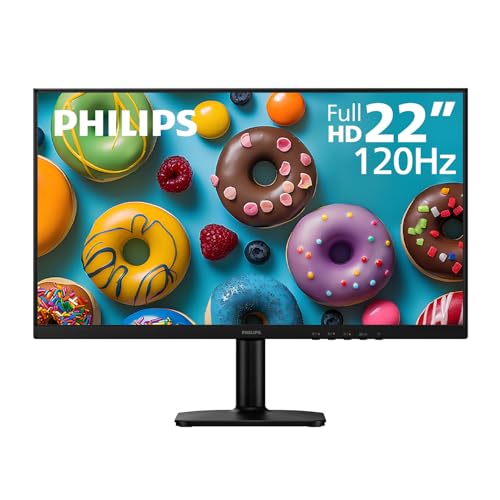
The PHILIPS 22E2N1100 is a budget 21.5 inch viewable FHD IPS monitor pitched at home office users, students, and secondary-display buyers who want IPS color over a cheaper TN panel. The 1920x1080 resolution on this size yields roughly 100 PI, which is a sensible sweet spot for Windows scaling at 100 percent.
The defining feature is the overclockable 120Hz refresh rate paired with Adaptive-Sync, uncommon at this size and tier. In practice this benefits scrolling clarity, cursor tracking, and light esports titles like CS2 or Valorant on an iGPU or entry GPU. The 1ms MPRT figure relies on backlight strobing, so expect real GtG response typical of budget IPS.
Trade-offs are typical at this tier: no USB-C, no DisplayPort, built-in USB hub, and brightness plus HDR are not specified, so assume standard SDR levels only. Stand ergonomics are not detailed in the source, though VESA 100x100mm allows an aftermarket arm. Owner feedback is not yet available to confirm panel lottery outcomes.
Buy this if you want a 120Hz IPS secondary panel or a compact primary display for documents, browsing, and casual gaming on modest hardware. Skip this if you need color-critical work, HDR, USB-C docking, or a single-monitor gaming setup above 1080p.
Panel and resolution: A 21.5 inch viewable IPS panel at 1920x1080 gives around 100 PPI, close to the desktop scaling baseline. IPS delivers 178/178 viewing angles, so shared viewing across a desk avoids the vertical color shift seen on TN monitors in this price class.
Refresh and response: 120Hz is achieved via overclock, with1ms MPRT via backlight strobing rather than a true GtG figure. Adaptive-Sync covers frame pacing on entry GPUs, though the suported VRR window is not specified. Casual gaming at 1080p on an RTX 3050 class GPU or iGPU is the realistic target.
Eye comfort and modes: Flicker-Free backlight, LowBlue Mode, and EasyRead mode are included for long text sessions. HDR support, peak brightness in nits, sRGB coverage, and contrast ratio are not specified in the source, so treat this as a standard SDR panel typical of the sub-100 dollar tier.
Connectivity and mounting: Inputs are one HDMI and one VGA, with no DisplayPort or USB-C listed. VESA 100x100mm allows arm or wall mounting. Speakers, USB hub, and stand tilt/height range are not specified, so plan for HDMI-only hosts and a basic tilt-only base.
When to RMA / replace
RMA the monitor immediately if it’s under 2 years old, the flicker persists after a cable swap and a driver clean install, and you can reproduce it on a second machine. That last part is important. Manufacturers will push back if they think it’s a system-side issue. Recording a video of the flicker on a known-good PC kills that argument before it starts.
Replace rather than repair if the monitor’s outside warranty, the panel itself shows visible defects (dead pixels, uniformity issues, color shifts) alongside the flicker, or you’ve already spent more than $40 troubleshooting. For most users, a fresh flicker-free panel under $100 makes more economic sense than a service call.
Common questions
Does running at 60Hz instead of 144Hz fix flicker?
Sometimes, but it’s a workaround rather than a fix. If reducing the refresh rate stops flicker, your cable can’t handle the higher bandwidth (try a certified DisplayPort 1.4 or HDMI 2.1 cable) or your GPU is struggling to maintain a stable signal at the higher rate. The flicker hasn’t gone away, you’ve just lowered the demand.
Why does my monitor flicker only in games?
That’s almost always VRR-related. Games trigger variable frame rates, which trigger VRR adjustments, which trigger flicker on panels with poor VRR implementation. Try disabling VRR for the game in question or capping the frame rate just below your monitor’s max refresh.
Can a power strip or UPS cause flicker?
Yes. Low-quality power strips with worn surge components, or undersized UPS units running close to capacity, will produce voltage sag under load that monitors interpret as power instability. Plug directly into a wall outlet for 30 minutes and see if anything changes.
Is it bad to keep using a flickering monitor?
For the hardware, no, you’re not making the issue worse by using it. For your eyes, yes. Sustained flicker causes measurable eye strain and headaches within 2-3 hours, even when the flicker is too quick to consciously register. If you can’t fix it quickly, swap to a backup display until you can.