

Choose Windows 11 Home for a gaming PC or a general-purpose personal computer. Choose Windows 11 Pro when you’ll use a specific Pro feature, such as hosting a Remote Desktop session, managing drive encryption with BitLocker, joining a company domain, or running virtual machines in Hyper-V. If your PC already comes with Home, you can upgrade later when a need comes up.
Microsoft’s U.S. store lists Home at $139.00 and Pro at $199.99 as of November 26, 2026. That’s a $60.99 difference for a new retail license. If you’re buying a PC with Windows included, compare the price of the complete configurations. If you already own Home, check the separate upgrade price in the Microsoft Store. Microsoft Store listing for Home · Microsoft Store listing for Pro
- Home vs. Pro at a glance
- Setup and local accounts
- Device Encryption and BitLocker
- Hardware limits and gaming
- Group Policy, virtualization, and Remote Desktop
- Price and upgrade steps
- Which edition should you choose?
Windows 11 Home vs. Pro at a glance
| Feature | Windows 11 Home | Windows 11 Pro |
|---|---|---|
| U.S. retail download | $139.00 | $199.99 |
| Maximum RAM | 128 GB | 2 TB |
| Drive encryption | Device Encryption on eligible PCs | Device Encryption on eligible PCs and BitLocker Drive Encryption controls |
| Microsoft Remote Desktop | Client | Client and host |
| Built-in virtualization tools | WSL 2 | WSL 2, Hyper-V, and Windows Sandbox on supported hardware |
| Organization management | Personal device settings | Local Group Policy, Active Directory domain join, and Microsoft Entra join |
Windows 11 Home
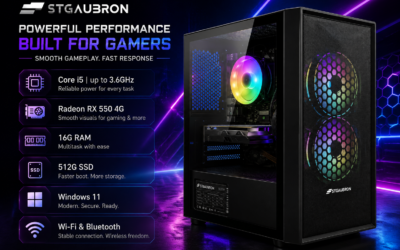
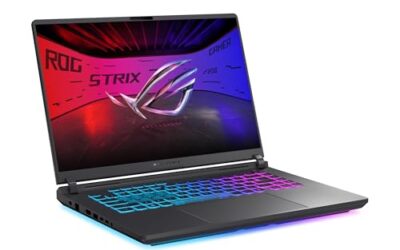
Home covers the everyday work of a personal PC, from games and browser tabs to school projects and photo editing. If you’re comparing Windows versions on two prebuilts, check whether the manufacturer also changed the CPU, graphics card, memory, or storage. Those differences matter more for a gaming purchase than the edition label. What to look for in a prebuilt gaming PC
Windows 11 Pro
Pro gives you more ways to administer a PC, alongside a higher memory ceiling for specialized workstations. Its value is easiest to see when a task has a named requirement. A firm that joins employee PCs to Microsoft Entra ID has a reason to specify Pro even if every laptop has just 16 GB of RAM. Microsoft’s Windows 11 Pro feature overview
- Personal apps and games → Home
- A required feature such as Remote Desktop hosting, Hyper-V, or domain join → Pro
Setup and local accounts
Microsoft lists an internet connection and a Microsoft account as requirements during initial setup for Home and for Pro when used personally. If you’re choosing an edition for a family PC, that setup requirement applies either way. Microsoft’s account settings let you add a local user after setup, so a family member can have a separate Windows profile with their own files and settings. Microsoft’s Windows 11 setup requirements · Microsoft’s guide to managing user accounts
Device Encryption and BitLocker
Home can encrypt the system drive and fixed drives with Device Encryption on eligible hardware. On a supported laptop, Windows can turn it on when you set up the machine with a Microsoft account and associate the recovery key with that account. Check Settings > Privacy & security > Device encryption to see whether the feature is available and enabled on your PC. If you use a local account, Device Encryption won’t turn on automatically. Microsoft’s Device Encryption guide
Pro adds BitLocker Drive Encryption controls for managing encryption on individual drives. It also supports BitLocker To Go for removable drives. That distinction matters if you carry client files on an external drive or your employer has specific rules for encryption and recovery. In either edition, make sure you can retrieve the recovery key before a hardware change. Windows can ask for the key after it detects a change at startup. Microsoft’s BitLocker documentation · How to find your recovery key
Hardware limits and gaming
Windows 11 Home supports up to 128 GB of RAM. Standard Windows 11 Pro supports up to 2 TB. Those are operating system limits, so the CPU and motherboard still have to support the amount of memory you install. A workstation build that calls for 192 GB has a reason to start with Pro. A gaming build with 32 GB has plenty of room below either edition’s limit. Microsoft’s Windows memory limits
Same PC, same games. Auto HDR and DirectStorage are available on both editions with the right equipment and software. Auto HDR needs an HDR display and a compatible game. DirectStorage needs a game that uses it, an NVMe SSD, and a compatible DirectX 12 GPU. If you’re deciding where to spend a limited build budget, put the edition difference toward a component that addresses a specific need, such as a bigger SSD when your game library no longer fits. Microsoft’s Windows feature comparison · How to enable HDR in Windows 11
Both editions also have the same basic Windows 11 requirements, including a compatible 64-bit processor, 4 GB of RAM, 64 GB of storage, UEFI with Secure Boot capability, and TPM 2.0. If you’re planning to reuse an older motherboard and processor, check compatibility before buying either license. The RAM and storage numbers here are installation minimums. Size the build for the applications you expect to run. Microsoft’s system requirements · How to plan and build a gaming PC
Group Policy, virtualization, and Remote Desktop
Group Policy and device management
Pro includes the Local Group Policy Editor for applying supported settings to a PC. On an organization-managed device, Pro also supports joining an on-premises Active Directory domain or Microsoft Entra ID in the cloud. A small business might use domain-based Group Policy to administer settings across several PCs. If your employer asks you to bring your own machine, ask whether it needs to join the organization’s directory or simply run its apps. The answer can settle the edition choice. Microsoft’s Group Policy overview · Microsoft’s Entra join requirements
Hyper-V and Windows Sandbox
Hyper-V on Pro lets you create virtual machines you can keep and reopen, handy when you’re maintaining a separate software environment. It requires a processor with second-level address translation and hardware virtualization enabled in firmware. Plan for enough RAM to run Windows and the guests at the same time. If your goal is to run a Linux shell and Linux command-line tools, WSL 2 is available on Home as well. Microsoft’s Hyper-V requirements · Microsoft’s WSL FAQ
A clean desktop for one task. Windows Sandbox gives Pro users on supported PCs a temporary Windows environment. For example, you can open a demo app in Sandbox, then close the window to discard the app and any changes made there. Save any work you want to keep before closing it. Sandbox has networking enabled by default, and you can turn it off in the Sandbox configuration if the app can run offline. Use Hyper-V if you want to return to the same configured environment next week. Microsoft’s Windows Sandbox documentation
Remote Desktop hosting
Think about which computer you want to control. A Windows 11 Home laptop can use a Remote Desktop client to connect to a supported office PC. If you want the built-in Microsoft Remote Desktop feature to accept incoming connections on your own desktop, that desktop needs Pro. Price the edition for the machine that will host the session. For access from outside a trusted network, Microsoft documents a VPN as an option. An employer may already have a VPN and rules about which devices can connect. Microsoft’s Remote Desktop host requirements
Price and how to upgrade from Home to Pro
Before paying for a license, open Settings > System > Activation and check which edition is already activated. If the machine has an activated copy of Home and you decide you need Pro, you can switch editions on the existing installation. Save your work and set aside time for the restart.
- Expand Upgrade your edition of Windows and choose the option that applies to you.
- Buying an upgrade? Choose Open Store to see the price and purchase the upgrade for that PC.
- Already have a valid Pro key? Choose Change product key and enter it.
- Follow the prompts through the restart, then return to Activation to confirm that the edition says Windows 11 Pro and the copy is activated.
The $60.99 figure above compares two full retail licenses. For an existing Home machine, use the price displayed on its upgrade screen when you decide. Microsoft’s Home-to-Pro upgrade steps
Which edition should you choose?
- Gaming desktop or everyday laptop. Pick Home. It covers gaming and personal apps, and you can keep the edition that already came activated on the PC.
- Company laptop or a PC you’ll control over Remote Desktop. Pick Pro if IT requires domain or Entra join, or if this PC will host incoming Microsoft Remote Desktop connections.
- Development rig or high-memory workstation. Pick Pro if your setup relies on Hyper-V, Windows Sandbox, or more than 128 GB of RAM. If you mainly need WSL 2, Home covers that use.
For a personal build, start with Home unless you can name a Pro feature you’d use. If that need comes up after you buy the PC, the upgrade is available from Activation.
Frequently asked questions
Where does Windows 11 Pro for Workstations fit?
It’s a separate edition. Microsoft lists a 6 TB physical memory ceiling for Pro for Workstations, compared with 2 TB for standard Pro. If you’re pricing a workstation that calls for more than 2 TB, verify the ceiling of its exact Windows edition alongside the processor and system manufacturer’s memory specifications. For a PC with 64 GB or less, all three editions cover that memory configuration. Microsoft’s edition-by-edition memory limits





Write Your Review
No reviews yet. Be the first to share your experience!