

A fast download speed doesn’t guarantee a responsive game. If your character moves a moment after you press a key, or your connection feels fine until another device starts downloading, the useful numbers are latency, variation in latency, and packet loss. The quickest fixes are often close to home: use Ethernet, stop competing downloads, and choose a nearby game server.
This guide shows you how to find where the delay begins before you change router settings or buy anything. Work down the steps in order. A lower number in a generic speed app is less useful than a stable connection to the actual game server.
Quick answer: Connect your PC directly to the router by Ethernet, select the nearest appropriate game region, pause large transfers on every device, then compare your game’s ping across several matches. If the problem remains, measure latency to your router and to a public endpoint separately. That tells you whether to focus on your home network or the route beyond it.
What Ping Measures, and What It Doesn’t
Ping is the time a small packet takes to reach a destination and return, usually reported in milliseconds. A 25 ms connection normally reacts sooner than an 80 ms one, but the displayed number isn’t the whole story. A connection that jumps between 20 and 150 ms can feel worse than a steady 55 ms link. Those jumps are often called jitter. Lost packets can cause rubber-banding, delayed actions, or a brief freeze even if the average ping looks acceptable.
The destination matters too. A command sent to your router measures the local link. A command sent to a public service includes your ISP and part of the internet. The ping shown by a game can include the route to its own server and the game’s measurement method. Don’t compare the three numbers as though they are the same benchmark.
Download speed has a different job: it tells you how much data can move over time. Online play usually needs a modest amount of bandwidth, while a large download on another PC can still fill the connection and make small game packets wait. That’s why a 500 Mbps plan can have poor game latency under load.
1. Check the Game Server and Your Baseline
Before changing Windows, look at the game’s region setting. Choose a geographically close region that offers a healthy player pool. Automatic selection usually works, but a party leader in another country or a VPN can pull you onto a distant server. Record the game’s ping in several matches at roughly the same time of day. A single match can land on an unusual route.
If only one game is affected, check that game’s service status and try another region. If several games and calls are affected, the local connection or ISP deserves more attention. If latency rises only in the evening, local congestion or your ISP’s route may be involved. Keep the measurements; they make later troubleshooting more useful.
2. Try Ethernet Before Replacing Anything
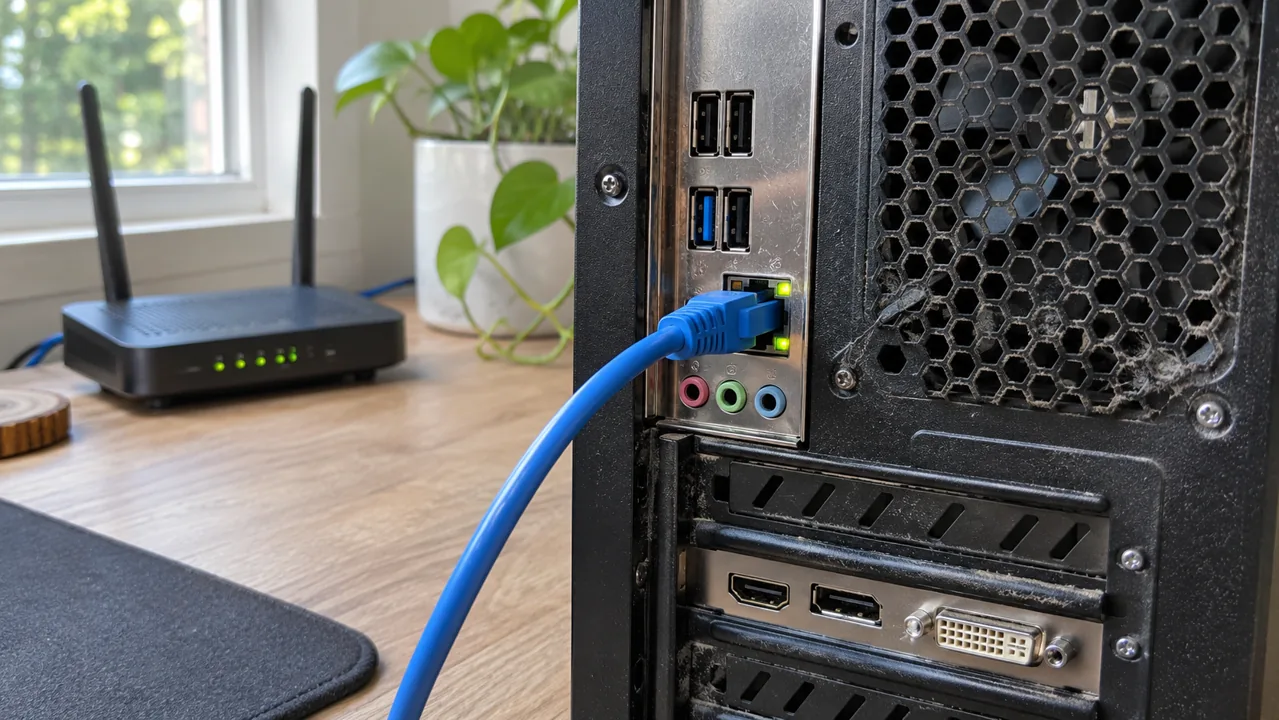
Plug your PC into a LAN port on the router with an Ethernet cable and repeat the same game session. A wired link removes radio interference, weak signal and competition for wireless airtime from the equation. It won’t shorten the physical distance to the game server, so don’t expect a guaranteed 20 ms reduction. The real gain is often steadier latency and fewer spikes.
If the router is too far away, try a temporary cable across the floor just long enough to compare. A USB Ethernet adapter is also useful for a laptop without a LAN port. Make sure the adapter and cable establish a stable link before drawing conclusions. If wired play is smooth and Wi-Fi isn’t, work on wireless placement and channel conditions next.
For a new network setup, our gaming router guide is useful only after you’ve confirmed that the router or its Wi-Fi coverage is the bottleneck. An expensive router cannot fix a distant game server or an ISP routing issue.
3. Pause Downloads and Watch for Upload Saturation
Close game launchers while they update, pause cloud backups, and check whether someone else is streaming or uploading video. Upload traffic deserves special attention: many home plans have far less upload capacity than download capacity. When the upload link fills, game packets and acknowledgements can queue behind a transfer.
On Windows 11, open Task Manager and sort the Processes view by network activity as a quick first look. Also inspect the download settings in Steam, Epic Games Launcher, OneDrive, and other apps you use. Windows Update’s Delivery Optimization has bandwidth controls for update downloads; Microsoft’s current instructions show where to find them. The labels may vary by Windows release.
Play one match with background traffic paused, then one with a normal download running. If the second match produces large latency spikes, your connection is sensitive to load. A router’s traffic-management or smart queue feature may help when it is configured for your actual line speed. Start with the router manual; a poorly configured limit can reduce throughput without improving responsiveness.
4. If You Must Use Wi-Fi, Improve the Local Link
Move the PC and router into a clearer line of sight if possible. Thick walls, metal furniture, crowded apartment networks and a USB wireless adapter hidden behind a desktop case can all hurt signal quality. Try the adapter’s antenna on an extension base, away from the metal chassis. A short change in position can matter more than a new router.
Use the 5 GHz or 6 GHz band when the signal is strong and the PC is reasonably close. The 2.4 GHz band reaches farther but is often more crowded. The best band depends on distance and obstacles, so compare real game sessions on each. Microsoft recommends comparing Wi-Fi with Ethernet to isolate a wireless problem in its Wi-Fi troubleshooting guide.
Reboot the router once if the problem appeared recently, and check the manufacturer’s firmware notes before changing its software. If every wireless device suffers in the same room, investigate router placement or access-point coverage. If only your PC suffers, check its Wi-Fi adapter driver from the PC or adapter maker. Avoid random driver-download sites.
5. Measure the Local Network Separately
On Windows, open Command Prompt. Run ipconfig and find the Default Gateway of the active connection. This is normally your router’s local address. Then run ping -n 20 YOUR_GATEWAY, replacing the placeholder with that address. Keep the command window open long enough to see the summary.
Look for packet loss and unusually large swings, not a single perfect value. A local wired connection should generally be steady and short. A Wi-Fi connection can vary more because airtime is shared. If pings to the gateway jump or drop, solve that local issue first: cable, adapter, wireless signal, or router.
Next run ping -n 20 1.1.1.1 or another reachable public endpoint. This adds the path outside your router. Some services treat diagnostic packets differently, so this is a clue rather than a verdict on game performance. If the gateway result is steady but the public result is erratic, compare another destination and ask your ISP about congestion or routing if the pattern repeats. Microsoft’s networking guide also describes using ping to separate local and wider connection issues.
6. Choose the Correct Region and Remove Unnecessary Hops
Switch off a VPN or proxy temporarily and measure again. Such services can add another hop, although a particular route can occasionally improve with one. The only useful answer is the measured result for your game and location. Likewise, changing DNS may speed up the first lookup of a server name, but it usually won’t reduce the round-trip time of a live match once you’re connected.
Do not install a “ping booster” just because its marketing shows a lower number. Some services change the route; some merely change the displayed measurement; others can make the connection worse. Record your region, average ping, spikes and packet loss before and after any change. Keep only an improvement that survives several sessions.
7. Check the Router and ISP When the Pattern Points There
If all devices show latency spikes during heavy use, look for a traffic-management setting in your router. If even a direct Ethernet connection has persistent loss while idle, try a different cable and router port, then reboot the modem and router according to your ISP’s guidance. If the problem began after a service outage or happens at predictable peak hours, collect timestamps and contact the ISP.
Tell support what you measured: wired or wireless, game region, whether the router ping was clean, and the time of day. That is more actionable than saying “my internet is slow.” If the local network is clean and only one game is affected, contact the game’s support channel with the same details.
Hardware upgrades should follow the evidence. For example, a router replacement makes sense if the current unit cannot maintain a stable local link under your normal household load. If you are also shopping for a PC, our gaming PC picks under $1,000 cover the computer side of the setup, but a faster GPU won’t fix network latency.
Which Fix Should You Try First?
- High ping in one game only: check its server status and region.
- Spikes when someone downloads: pause transfers and look at router traffic management.
- Wi-Fi is bad but Ethernet is steady: improve signal, band choice and adapter placement.
- Gateway ping is unstable: focus on your home network.
- Gateway is clean but outside routes are poor: document the pattern and contact the ISP or game provider.
Start with the free checks. A few measurements will tell you whether the problem is your PC, Wi-Fi, household traffic, ISP or game server. Once you’ve found that boundary, the right fix becomes much less of a guess.














Write Your Review
No reviews yet. Be the first to share your experience!