

Your phone clings to the 2.4GHz band three rooms away, crawling along, while a perfectly good 5GHz signal sits unused right next to you. Band steering is the router feature meant to stop that. It nudges your devices onto the better band automatically so you don’t have to think about it. Sounds simple, and mostly it is, but there’s some real nuance in how it works and when it helps versus when it gets in the way.
For a gaming PC or a busy home, understanding band steering helps you pick and configure a router that actually keeps your connection fast. If you’re shopping, our guides to the best gaming router and the best budget router for 2026 pair naturally with this explainer. Here’s the plain-English version.
The short answer
Band steering is a feature on dual-band and tri-band routers that automatically guides your devices to the most appropriate WiFi band, usually pushing capable devices onto the faster, less congested 5GHz band and leaving 2.4GHz for range and older gear. It works by presenting one network name for both bands and steering connections behind the scenes, so you don’t manually pick “Home_5G” versus “Home_2G” anymore.
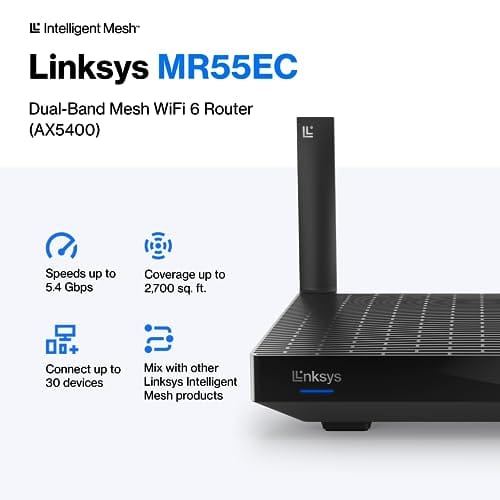
The payoff is you get the right band without babysitting it. A modern mesh router like the Linksys Hydra Pro 6 at $199.99, rated 4.4 stars, is a good example of the hardware that does this well. It’s a WiFi 6 mesh router that connects 30-plus devices across about 2,700 square feet, and steering keeps all those clients on sensible bands instead of clogging one. For a house full of phones, laptops, and consoles, that management is the point.


Pros
- AX5400 class dual-band throughput up to 574 plus 4804 Mbps on 5 GHz
- Six spatial streams with OFDMA reduce congestion for 30+ device homes
- Intelligent Mesh compatibility allows scaling coverage beyond the 2,700 sq ft rating
Cons
- Limited owner feedback at time of writing, so real-world reliability data is thin
- Dual-band only, no dedicated 6 GHz or wireless backhaul band at this tier
- Detailed specifications, WAN port sped, and waranty not specified in source listing
The Linksys Hydra Pro 6 (MR5500-AMZ) is a mid-range dual-band WiFi 6 mesh router aimed at households upgrading from an older AC1900 or extender-based setup. Linksys rates it for 2,700 sq ft and 30 plus devices, targeting medium apartments, condos, and small two-story homes with mixed smart home and streaming traffic.
The defining feature is six-stream AX5400 class WiFi 6 with quoted rates of 574 Mbps on 2.4 GHz and 4804 Mbps on 5 GHz. OFDMA and MU-MIMO help when many low-bandwidth clients share airtime, which is where WiFi 5 routers typically stall. Real-world 5 GHz throughput at range appears to land in the mid-hundreds of Mbps based on category norms.
Trade-offs are typical at this tier. It is dual-band, so there is no dedicated 6 GHz radio and no separate backhaul channel when you add mesh nodes, meaning throughput can halve on satellite hops. Linksys does not specify WAN port speed, USB, or processor details in the listing, so multi-gig ISP users should verify before buying.
Buy this if you want a single WiFi 6 router that can grow into a Linksys Intelligent Mesh system for a 2,000 to 3,000 sq ft home with 30 plus clients. Skip this if you need WiFi 6E, 2.5 GbE WAN, or a dedicated backhaul band for a large multi-story house.
Wireless class: AX5400 class dual-band WiFi 6 with quoted PHY rates of 574 Mbps on the 2.4 GHz band and 4804 Mbps on the 5 GHz band, totaling roughly 5378 Mbps aggregate across six spatial streams. No 6 GHz radio is listed, so WiFi 6E clients fall back to 5 GHz.
Coverage and capacity: Linksys rates the MR5500 for 2,700 sq ft and 30 plus simultaneous devices. OFDMA, MU-MIMO, and 1024-QAM are standard at this WiFi 6 tier and help maintain throughput as client count scales, though actual coverage depends heavily on wall material and node placement.
Mesh behavior: Intelligent Mesh lets you pair the MR5500 with other Linksys nodes to extend coverage. Because it is dual-band, backhaul shares the 5 GHz client band, so expect throughput to roughly halve one hop from the root node. A wired Ethernet backhaul between nodes avoids this penalty.
Not specified: WAN and LAN port speeds, USB ports, processor and RAM, warranty length, and physical dimensions are not disclosed in the source listing. Buyers pairing this with multi-gig fber or DOCSIS 3.1 plans above 1 Gbps should confirm port specs before purchase.
The longer explanation
Without band steering, dual-band routers often broadcast two separate network names, one per band. Devices then pick a band and stubbornly stick to it, even when it’s the wrong choice. A laptop that grabbed 5GHz up close might hold that weakening signal as you walk away, and a phone that latched onto 2.4GHz might never hop to the faster 5GHz even when it’s sitting right by the router. You end up manually switching networks, which nobody wants to do.
Band steering unifies both bands under one name and makes the steering decision for the client. When a device connects, the router evaluates its capability and signal, then encourages it onto the band that makes sense. It can also re-steer over time. The exact logic varies by brand, but the goal is constant: keep fast devices on 5GHz, keep range-limited or legacy devices on 2.4GHz, and balance the load so no single band drowns.
History and how we got here
Early home WiFi was single-band 2.4GHz, and it worked until every microwave, baby monitor, and neighbor’s router crowded that same narrow space. The 5GHz band arrived to relieve the congestion with more channels and higher speeds, at the cost of shorter range. That gave us dual-band routers, but it also created the manual-selection headache, two SSIDs and users guessing which to join.
Band steering emerged as the fix once routers got smart enough to manage clients themselves. As device counts exploded, phones, tablets, TVs, doorbells, plugs, automatic band management stopped being a luxury and became necessary. Tri-band routers and mesh systems pushed it further, steering across three radios and multiple nodes. Today it’s a standard expectation on any decent WiFi 6 or newer router, working quietly so most owners never even know it’s there.
Why it works this way
The single-SSID approach exists because it’s the only way to make steering invisible. If the bands had different names, the router couldn’t move a device without it visibly disconnecting and rejoining a different network. By sharing one name, the router can hand a client between bands with minimal disruption, so from your side the WiFi just stays “connected” while the plumbing shifts underneath.
It’s a preference system, not a hard rule, and that’s deliberate. Clients themselves decide which band to accept, so a router can only encourage, delay, or briefly withhold a band to nudge behavior. That’s why band steering isn’t perfect, a stubborn device can resist. But a soft-influence design avoids kicking devices off constantly, which would be worse than an occasional imperfect band choice. It’s a balance between control and stability.
When you’d want this
You want band steering in any home with lots of devices and mixed capabilities, which is most homes now. If you’ve got phones, laptops, a gaming PC, consoles, smart plugs, and a couple of TVs, manually assigning each to a band is a chore you’ll never keep up with. Steering handles it, keeping your fast gear on 5GHz for low latency and shoving chatty IoT junk onto 2.4GHz where it belongs. For gaming and streaming, that separation keeps your important traffic on the clearer lane.
It’s especially valuable in larger spaces and mesh setups, where devices roam between rooms and nodes. A router built for coverage and device density, like the Hydra Pro 6’s 2,700 square feet and 30-plus device rating, leans on steering to stay orderly. That said, a quick honesty note on the second product tied to this article: the MoKo magnetic dust filter at $12.99, rated 4.9 stars, is a PC case dust mesh, not networking gear. It has nothing to do with band steering, it’s a cooling and dust accessory, and we’re flagging that plainly rather than pretending it belongs to the topic. If you want dust protection for your rig, it’s a fine cheap part, just unrelated to WiFi.

Pros
- Large 400x300mm sheets cover full-tower top or side panels after trimming.
- Magnetic strip and adhesive combo works on any ferrous steel case panel.
- 1mm mesh openings pass more air than tight foam filters at similar coverage.
- Two-pack plus eight strips gives enough material for multiple vents in one build.
Cons
- Limited owner feedback at time of writing, real-world durability is unverified.
- Requires ferrous steel panels, will not stick to aluminum or tempered glass cases.
- PVC and 3M adhesive strips can lose grip over time in warm, high-airflow builds.
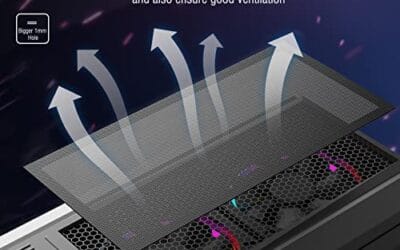
This is a budget DIY dust filter kit, not a pre-cut case-specific filter. The package includes two 400x300mm PVC mesh sheets with a 1mm hole pattern plus eight 400mm magnetic frame strips. It targets builders with non-standard vents, modded cases, HTPC chassis, or console dust covers who want to fabricate their own filters.
The defining feature is the trim-to-fit format. You measure the vent, cut the PVC sheet with scissors, then frame the edges using the adhesive-backed magnetic strips so the assembly clamps to steel panels. The 1mm aperture is coarser than typical foam filters, which favors airflow over fine-dust capture, a reasonable trade for intake or exhaust with strong static pressure fans.
Trade-offs are typical at this tier. PVC is not as tear-resistant as nylon or stainless mesh, and 3M adhesive can soften near warm PSU or GPU exhaust zones. The magnetic attachment only works on ferrous steel, so tempered glass side panels or aluminum shells need alternative mounting. With no verified owner data yet, longevity and mesh consistency are unproven.
Buy this if you need to filter oddly shaped vents or console intakes and are comfortable cutting and framing your own mesh. Skip this if your case already ships with pre-fit magnetic filters, or if the panels are aluminum or glass where the magnets will not hold.
Sheet dimensions: Each sheet measures 400x300mm (15.75 x 11.81 inches) with a stated thickness of 0.01 inches. Two sheets ship per pack, enough surface area to cover a full-tower top vent plus a PSU shroud intake, or several smaller vents across a mid-tower build.
Mesh and material: PVC construction with a 1mm hole pattern. The 1mm aperture is coarser than fine foam or stainless woven filters, which prioritizes airflow over sub-micron dust capture. Expect it to catch pet hair, lint, and coarse household dust rather than fine particulates.
Mounting hardware: Eight 400mm magnetic strips are included, framed with 3M adhesive backing. Peel-and-stick application to the trimmed PVC edge lets the assembly clamp to any ferrous steel case panel. No screws or drilling needed, and the filter lifts off for shake-out or rinse cleaning.
Compatibility notes: Total kit weight is around 0.5 pounds. Magnetic mounting requires steel panels, it will not attach to aluminum shells, tempered glass, or plastic vents without a separate ferrous shim. Best suited to standard steel PC cases, older server chassis, HTPC builds, and console dust covers.
What to look for in a router with band steering
Look for a dual-band or tri-band router that supports band steering under a single SSID, ideally on WiFi 6 or newer for the throughput and device handling. Tri-band helps in dense homes because the extra 5GHz radio gives steering more room to spread clients. Mesh capability matters if your home is large or oddly shaped, since steering plus band roaming keeps you connected as you move.
Also check that the router lets you toggle or tune steering, because a few older or picky devices behave better with it off. Good firmware exposes that control. Device capacity ratings, like the Hydra Pro 6’s 30-plus, tell you how much the router expects to juggle. For gaming specifically, our best budget router for gaming picks all handle steering while keeping latency low.
Common misconceptions
People assume band steering guarantees every device lands on the best band instantly. It doesn’t. The router can only encourage a client, and stubborn devices sometimes cling to a band anyway, so you’ll occasionally see a phone stuck on 2.4GHz despite steering. That’s the client’s fault, not a broken router. Toggling WiFi off and on usually re-triggers a fresh, better connection.
Another myth is that band steering slows things down or should always be left on. For most homes on it’s the right default, but a handful of smart-home gadgets and older devices connect more reliably when you give them a dedicated 2.4GHz network. If a specific device keeps dropping, splitting it onto its own band is a valid fix, not a failure. Steering is a helpful default, not a mandate.
Frequently asked
Should I turn band steering on or off?
Leave it on for most homes, it saves you from manually juggling bands across many devices. Turn it off, or split out a 2.4GHz network, only if a specific gadget keeps disconnecting or won’t pair. Some smart-home devices are picky. For phones, laptops, and gaming gear, steering on is the smoother experience nearly every time.
Does band steering improve gaming latency?
Indirectly, yes. By keeping your gaming device on the faster, less congested 5GHz band and pushing chatty IoT devices to 2.4GHz, steering reduces contention on the band your game uses. It won’t beat a wired connection, but for WiFi gaming it helps keep your traffic on the clearer lane, which means steadier ping and fewer spikes.
Why does my phone still connect to 2.4GHz?
Because steering only encourages, it can’t force a client. Your phone may be holding a 2.4GHz connection it grabbed earlier, or its WiFi radio is prioritizing range over speed. Toggle the phone’s WiFi off and back on to force a fresh connection, and it usually lands on 5GHz if you’re in range. Persistent cases point to a stubborn device, not a router flaw.
Is band steering the same as mesh roaming?
No, though they work together. Band steering moves a device between frequency bands on the same router. Mesh roaming moves a device between separate nodes as you walk through the house. A good mesh system does both, steering you to the right band and handing you to the closest node, so you stay fast whether you change rooms or the airwaves get busy.
Do I need a tri-band router for band steering?
No, dual-band routers support band steering fine and it’s plenty for most homes. Tri-band adds a second 5GHz radio, which gives steering more room to spread devices in very busy households or large mesh setups. If you have dozens of devices or a big home, tri-band helps, but a solid dual-band WiFi 6 router covers the majority of users well.

































Write Your Review
No reviews yet. Be the first to share your experience!