

A 4K panel pushes 8.3 million pixels per frame. A 1440p panel pushes 3.7 million. That gap, roughly 2.25x the work per frame, is the whole argument in a nutshell, and it’s why the price tiers split so hard. You can grab a sharp 27-inch 1440p gaming display for around $170, while a comparable high-refresh 4K screen plus the GPU to feed it can cost three times that. So which tier actually buys you more real-world benefit? We researched panel specs, refresh behavior, and owner reports to sort the hype from the pixels, and our roundups of the best 1440p monitor for 2026 and the best 4K G-Sync monitor feed directly into the picks below.
Matchup at a glance
This isn’t a case of one resolution winning outright. It’s about where your money and your graphics card land. 1440p, or WQHD at 2560×1440, hits a balance most gamers love: noticeably crisper than 1080p, but light enough that a mid-range GPU can hold 144Hz or higher in demanding titles. That’s why it’s still the default recommendation for competitive and single-player rigs alike.
4K, at 3840×2160, is the sharpness king. Text is razor clean, textures pop, and desktop real estate is enormous. The catch is the horsepower bill. Driving 4K at high frame rates demands a top-tier GPU, and even then you’ll lean on upscaling in the heaviest games. For a mixed work-and-play setup where detail matters more than raw frames, though, 4K earns its keep. The two tiers serve different priorities, and knowing yours settles most of the debate.
One more thing to keep in mind before the specs. Resolution isn’t the only variable that shapes how a monitor feels. Refresh rate, panel type, response time, and HDR quality all matter, and a great 1440p panel can easily out-feel a mediocre 4K one in daily use. So think of this as a tier comparison, not a straight winner-versus-loser. The right pick depends on your GPU, your games, and how close you sit.
Spec sheet showdown
| Spec | 1440p (WQHD) | 4K (UHD) | Why it matters |
|---|---|---|---|
| Resolution | 2560 x 1440 | 3840 x 2160 | 4K packs 2.25x the pixels |
| Pixels per frame | ~3.7 million | ~8.3 million | Bigger number, bigger GPU load |
| Common refresh | 144Hz to 180Hz+ | 60Hz to 144Hz | 1440p hits high Hz cheaper |
| GPU needed for high FPS | Mid-range and up | High-end only | Cost of the whole system, not just the screen |
| Typical entry price | ~$170 | ~$400+ | 1440p undercuts 4K hard |
The table makes the tradeoff plain. 1440p buys you speed and value. 4K buys you clarity. Neither column is wrong, they just answer different questions.
1440p strengths
The biggest win for 1440p is that a reasonable GPU can actually run it well. You’ll hit 144Hz and beyond in most titles without dropping to low settings or leaning hard on upscaling. That combination of clarity and frame rate is exactly why it dominates our best 1440p gaming monitor guide, and why the 27-inch 1440p size has become the go-to for enthusiast desks. At 27 inches the pixel density lands near 109 PPI, sharp enough that most people sit close and never notice individual pixels.
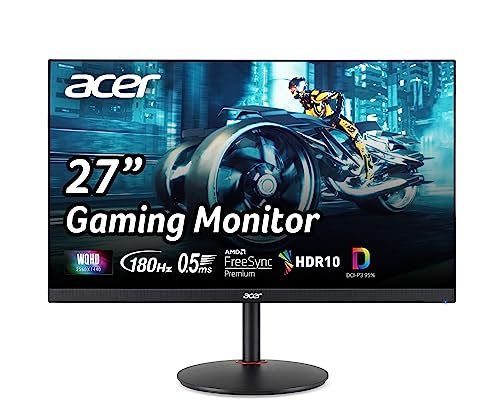
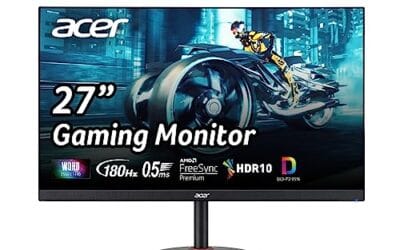
Take the Acer Nitro 27″ WQHD as a working example. It’s a 2560×1440 IPS panel running up to 180Hz with a 0.5ms response spec, AMD FreeSync Premium, and 95% DCI-P3 color coverage, all for around $169.99 with a 4.8 owner rating. That’s the 1440p pitch in one box: high refresh, real color, and a price that leaves budget for the GPU. Connectivity covers one DisplayPort 1.2 and two HDMI 2.0 inputs, so a PC and a console can share the screen. It’s not flawless. IPS contrast can’t match a good VA panel in a dark room, and 180Hz is generous but not the 240Hz-plus competitive players chase.
Pros
- 1440p 180Hz IPS panel via DisplayPort 1.2 hits the current price/perf sweet spot
- 95% DCI-P3 gamut is uncommon at this tier, useful for content viewing
- Full ergonomic stand: 4.7 inch height, 360 swivel, plus/minus 90 pivot, VESA 100
Cons
- Limited owner feedback at time of writing, long-term panel uniformity unverified
- HDMI 2.0 caps at 144Hz; only DisplayPort 1.2 unlocks the full 180Hz refresh
- No USB hub and 2W stereo speakers are strictly a bep-only backup at this tier
The Acer Nitro XV271U M3bmiiprx is a budget-oriented 27inch 1440p IPS gaming monitor targeting builders stepping up from 1080p high refresh. With 2560x1440 resolution, 180Hz over DisplayPort, and FreeSync Premium, it fits users pairing an RTX 4060,X 4060 Ti, or RX 7600 XT class GPU running competitive and AA titles at medium to high settings.
The defining feature is the 180Hz IPS panel with a claimed 0.5ms GtG response, paired with 95% DCI-P3 coverage. In practice, IPS panels at this tier typically deliver around 300to 350 nits SDR brightness and moderate contrast near 1000:1, so blacks will lift in dark rooms. FreeSync Premium adds low framerate compensation, useful when demanding titles drop below 60 FPS.
Trade-offs are typical for the segment. HDMI 2.0 bandwidth caps refresh at 144Hz, so consoles and older GPUs will not reach the full 180Hz ceiling. HDR tier, panel bit depth, and factory calibration are not specified in the listing, and there is no USB hub. The 2W speakers are functional only as a fallback.
Buy this if you want a 1440p 180Hz IPS panel with a full ergo stand and 95% DCI-P3 for mixed gaming and casual creative work. Skip this if you need verified HDR performance, USB-C daisy chaining, or OLED-level contrast for dark-room cinema use.
Panel and Resolution: 27 inch WQHD IPS at 2560x1440 gives a 0.233m pixel pitch, sharp enough that antialiasing needs drop versus 1080p 27 inch panels. IPS delivers wide viewing angles suited to desk sharing or off-axis reference monitors during editing sessions.
Refresh and Response: 180Hz refresh is available only through DisplayPort 1.2; HDMI 2.0 tops out at 144Hz due to bandwidth limits. Acer lists 1ms GtG typical and up to 0.5ms GtG at aggressive overdrive, though inverse ghosting is common at max overdrive on IPS panels in this bracket.
Color and HDR: 95% DCI-P3 coverage is the standout spec, wider than most sub-tier IPS panels that sit near 90% sRGB. HDR certification level, peak brightness, and local dimming are not specified in the source, so treat HDR as a compatibility mode rather than a true HDR experience.
Ports and Ergonomics: 1 DisplayPort 1.2, 2 HDMI 2.0, and audio out cover a PC plus one console. The stand offers minus 5 to 25 degree tilt, 4.7 inch height range, 360 degree swivel, and plus/minus 90 degree pivot, with 100x100 VESA for monitor arms. FreeSync Premium is confirmed, G-SYNC compatibility is not listed.
4K strengths
4K’s advantage is simple: everything looks sharper. On a 27-inch panel you’re looking at roughly 163 PPI, so text edges are clean and fine texture detail survives that would smear on lower resolutions. For photo editing, video work, spreadsheets, or just a lot of open windows, that extra desktop room is genuinely useful. Reading long documents is easier on the eyes too.
Gaming on 4K can look stunning when your hardware keeps up. The trouble is the “keeps up” part. Hitting high frame rates at 4K usually means a flagship GPU and a heavy reliance on DLSS or FSR upscaling. If you’re weighing whether a strong 1440p display paired with upscaling gets you close to the 4K look for less, our breakdown of the best 1440p monitor for 4K gaming covers that exact middle ground. Many players find the frame-rate hit at native 4K isn’t worth the sharpness bump in fast games.
There’s also the longevity angle. A 4K panel gives you headroom, so as GPUs get faster over the next few years, the same monitor keeps looking better without an upgrade. That’s a fair reason to stretch if you plan to keep the screen a long time. Just don’t buy 4K today expecting to run it maxed out on a mid-range card, because that math rarely works.
Real-world scenarios
Competitive FPS players
Frames win fights. If you play Valorant, CS2, or Apex seriously, 1440p at 144Hz-plus is the clear call, and often people drop to 1080p for even higher refresh. The extra 4K pixels do nothing for reaction time. Our best 1440p monitor for competitive gaming picks all prioritize refresh and response over resolution for this reason.
Single-player and cinematic gamers
Playing story-driven games where visuals matter more than twitch speed? This is where 4K makes its case, assuming your GPU can feed it. That said, a high-refresh 1440p panel with good HDR still looks gorgeous and costs far less to run. If your card is a generation or two old, 1440p keeps those big cinematic worlds smooth instead of stuttering, and that consistency often matters more than raw pixel count for immersion.
Console players
A PS5 or Xbox Series X targets 4K but frequently renders lower and upscales, and many titles offer a 1440p 120Hz performance mode. A quality 1440p screen with HDMI 2.0 or 2.1 hits the smart middle here, which is why our best 1440p monitor for console gaming guide leans that direction.
Work-plus-play hybrids
If your machine spends daylight hours in code, spreadsheets, or timelines and evenings in games, 4K’s desktop space and text clarity pay off across the whole day. The productivity gain can justify the premium on its own.
Pricing and availability
Here’s where the tiers separate most. Capable 1440p gaming monitors start around $170 and stay widely stocked across brands and sizes. The Acer Nitro above sits right at that entry line. Budget 1080p high-refresh screens go lower still. The AOC 24G51F, a 24-inch 1920×1080 IPS panel at 144Hz, runs about $89.99 with a 4.9 rating and a 3-year zero-bright-dot warranty, a solid fallback if your GPU or wallet isn’t ready for 1440p yet.
4K gaming monitors with high refresh typically open near $400 and climb well past that for 144Hz panels with strong HDR. Factor in the GPU those screens demand and the total-system gap widens fast. Availability is fine, but you’re paying a real premium for the pixels.
Don’t forget the hidden costs either. A 4K screen may need a new DisplayPort 1.4 or HDMI 2.1 cable to run at full refresh, and a bigger panel eats more desk space and power. None of that is a dealbreaker, but it adds up. With 1440p, what you see on the price tag is closer to what you actually spend to get gaming.
Which to buy
For most gamers, most of the time, 1440p is the smarter buy. It delivers the sharpness jump over 1080p that you’ll actually notice, keeps frame rates high on hardware you can afford, and leaves money for the rest of the build. It’s the resolution that makes a mid-range rig feel premium without forcing a GPU upgrade you didn’t plan on.
Choose 4K when detail is the point: creative work, cinematic single-player games, or a desk that doubles as an office and you already own a flagship graphics card. If you’re not there yet, a value 1080p panel like the AOC 24G51F below is a genuinely good holding pattern. It won’t wow you, but at $89.99 with a 144Hz IPS panel and console-ready inputs, it punches above its price and buys you time to save for the tier you really want.

Pros
- IPS panel offers wider off-angle color stability than VA screens common at this price.
- 116% sRGB coverage handles gaming and general content color reproduction adequately.
- Three-year zero-bright-dot warranty coverage is uncommon on entry-tier IPS panels.
Cons
- Limited owner feedback at time of writing, hard to confirm QC consistency across units.
- HDR ready label lacks a VESA tier, so peak brightness likely sits near 250 to 300 nits.
- 1ms MPRT is a strobed figure; real GtG on entry IPS typically lands between 4 and 8ms.
The AOC 24G51F is an entry-level 24-inch FHD gaming monitor built around a 144Hz IPS panel with Adaptive-Sync. It targets budget esports players and console owners who want higher refresh than 60Hz without steping up to 1440p or OLED tiers. Console output tops out at 120Hz over HDMI 2.0.
The defining feature is IPS at 144Hz in the sub-24-inch budget class. Owner data is thin at time of writing, but panels in this tier typically deliver 250 to 300 nits SDR brightness and near-full sRGB coverage. The 1ms MPRT figure is strobing based; real GtG response on entry IPS usually falls between 4 and 8ms.
HDR ready is marketing shorthand rather than VESA HDR400 certification, so expect flat highlights in HDR content. Pixel density on a 23.8-inch 1080p panel is roughly 92 PPI, visibly softer than 1440p at the same size. No USB hub or built-in speakers are listed, which is typical at this tier.
Buy this if you need a second high-refresh IPS display for 1080p esports or a Series X console at 120Hz, and you value the zero-bright-dot coverage. Skip this if you already run a 1440p-class GPU like an RTX 4070, or if you need calibrated color for photo and video work.
Panel and resolution: IPS panel at 1920x1080 across a 23.8-inch viewable diagonal, yielding roughly 92 PPI. Refresh rate reaches 144Hz over DisplayPort. IPS provides wider off-angle color stability than VA panels at this size class, useful for shared or dual-monitor setups.
Response and sync: AOC lists 1ms MPRT, a strobed measurement rather than GtG. Real gray-to-gray on entry IPS panels typically sits between 4 and 8ms. Adaptive-Sync support covers the FreeSync range and works with G-SYNC Compatible mode on NVIDIA cards, cutting tearing when framerate dips.
Color and HDR: Rated 116% sRGB coverage, adequate for gaming and general content but not calibrated for DCI-P3 workflows. HDR ready is unbadged, so no VESA HDR400 tier is specified. Expect peak brightness in the 250 to 300 nit range typical of this segment.
Connectivity: One HDMI 2.0 and one DisplayPort input, no USB hub, no built-in speakers listed. HDMI 2.0 handles 1080p at 120Hz for PS5 and Xbox Series X. The three-sided frameless design suits stacked 24-inch panels with minimal bezel between screns.
Common questions
Is 4K really that much sharper than 1440p?
Yes, especially for text and fine detail, but the gap shrinks the further you sit and the smaller the screen. On a 27-inch panel viewed at a normal desk distance, 1440p already looks clean to most eyes. The difference is real, it’s just easy to overstate.
What GPU do I need for 4K gaming?
For high frame rates at 4K you’ll want a current high-end card, and you’ll still use DLSS or FSR upscaling in demanding titles. 1440p is far more forgiving, and a good mid-range GPU handles it comfortably. Match the screen to the card you own or plan to buy.
Does 1440p look bad on a large monitor?
Pixel density drops as size grows, so 1440p at 32 inches is softer than at 27. It’s fine for gaming from a normal distance, but if you want crispness on a big panel, that’s where 4K starts to justify itself. For 27 inches, 1440p stays sharp.
Can one monitor do both resolutions well?
A 4K monitor can run 1440p content, but non-native scaling looks softer than a true 1440p panel. You’re better off buying for the resolution you’ll use most. If that’s high-refresh gaming, native 1440p wins; if it’s detail work, native 4K wins.
Is 1080p still worth buying in 2026?
For tight budgets and competitive play, yes. A 144Hz 1080p IPS panel like the AOC 24G51F at $89.99 delivers smooth, responsive gaming for under a hundred dollars. It’s a smart entry point, and you can step up to 1440p later once your GPU and budget catch up.




























Write Your Review
No reviews yet. Be the first to share your experience!