

You booted up your new prebuilt, opened a game, and the thing sounds like a hair dryer bolted to a leaf blower. Loud fans on a prebuilt PC are one of the most common complaints owners report, and the frustrating part is that a jet-engine idle usually doesn’t mean anything is broken. It means the machine was shipped with lazy defaults, a dust magnet of a case, or a cooler that’s barely keeping up. The good news? Most of this is fixable in an afternoon without spending a dime.
Before you assume you bought a lemon, it helps to know that budget towers often cut corners on fan quality and airflow to hit a price. That’s true across a lot of the machines we’ve researched, from entry gaming boxes to the kind of value builds we cover in our roundup of the best budget prebuilt PC picks for 2026. Owner reports point to the same handful of culprits again and again. Let’s walk through the checks in order, from the free 30-second fix to the point where you decide a replacement makes more sense than another round of tinkering.
First check the obvious (the 30-second check)
Start here before you open anything. Is the PC sitting inside a cabinet, pushed against a wall, or resting on carpet? Any of those chokes the intake and forces the fans to spin harder for the same cooling. Pull it out into open air, give it four inches of breathing room on every side, and listen again. You’d be surprised how often that alone drops the noise floor.
Next, check what’s actually running. Open Task Manager, sort by CPU, and look for a background process pinning a core. A stuck update, an aggressive antivirus scan, or a crypto-adjacent bloatware app can keep the CPU at 60 percent while you stare at an idle desktop. If the fans calm down the second you kill that process, you just found your answer. No screwdriver required.
While you’re in there, glance at the temperatures with a free monitor like HWiNFO or the sensor readout in your motherboard app. If your CPU idles in the low 40s Celsius but the fans still roar, the hardware isn’t hot, so the noise is coming from software or a bad fan curve rather than a genuine cooling emergency. That single data point tells you whether to relax or to keep digging. It’s the difference between a five-minute fix and an afternoon project.
Cause #1: Dust choking the intakes and heatsink
Dust is the quiet killer of fan noise, and it builds up faster than people expect. A prebuilt that’s six months old in a home with pets or carpet can already have a gray mat clogging the front filter and a fuzzy blanket packed into the CPU heatsink fins. When air can’t move through those fins, the cooler can’t shed heat, so the fan controller does the only thing it knows how to do. It spins everything faster.
The maddening part is that this happens gradually, so you never notice the day it crossed the line. The machine that was whisper-quiet in month one is a wind tunnel by month eight, and because the change crept up on you, it’s easy to blame the wrong thing. Owner reports on budget towers point to dust as the single most common cause of a noise complaint, ahead of every hardware fault. It’s also the cheapest to fix, which is why it’s the first thing to rule out with a screwdriver in hand.
Power down, unplug, and pop the side panel. Grab a can of compressed air and blow out the front intake filter, the CPU cooler, the GPU fans, and the power supply grille. Hold the fan blades still with a finger so they don’t over-spin and generate voltage backward into the header. Do this outdoors or over a trash can, because the amount of debris that comes out of a neglected tower is genuinely gross. A quarterly cleaning schedule keeps this from ever becoming a problem again.
Pay special attention to the GPU. Graphics-card fans sit low in the case and pull in the heaviest dust, and a clogged GPU cooler is one of the most common reasons a prebuilt screams during games specifically. If your machine is quiet at the desktop but ramps to full tilt the moment a game loads, the graphics cooler is the first place to look. A thin dust filter on the front intake, if your case has one, is worth cleaning monthly rather than quarterly, since it’s the part that clogs fastest and starves every other fan downstream.
Cause #2: Aggressive stock fan curves in the BIOS
Here’s the one nobody tells you about. Plenty of prebuilt makers ship a fan curve that ramps to 80 or 100 percent the moment the CPU crosses a low temperature threshold, sometimes as early as 50 degrees Celsius. It’s a cover-your-back setting. It guarantees the machine never overheats on a factory bench, but it also guarantees your ears suffer during light gaming. The silicon is fine at 70 degrees. The fans just don’t know that.
Reboot into the BIOS (usually Delete or F2 at startup) and find the fan control or Q-Fan section. Set a smarter curve: keep the CPU fan quiet up to roughly 60 degrees, then let it ramp gradually toward 80. Most boards have a “silent” or “standard” preset that does this for you. If your prebuilt uses a proprietary utility in Windows instead, the same logic applies. A gentle slope beats an on-off panic switch every time. Save, reboot, and the difference is night and day.
One thing worth checking in the same menu is the case-fan headers. Some prebuilt makers wire every chassis fan to a single header running at a fixed full-speed voltage, which means those fans never slow down no matter how cool the system is. If you see fans stuck at a flat RPM in the monitoring page, switch them from a fixed or “full speed” mode to PWM or temperature-controlled. That one toggle has saved plenty of owners from assuming they needed new hardware when the fans were simply told to run flat out forever.
Cause #3: Worn bearings and cheap stock fans
Sometimes the fans themselves are the problem. Budget towers frequently ship with sleeve-bearing fans that develop a rattle or a droning hum after a year of runtime. If you’ve cleaned everything, fixed the curve, and one specific fan still growls at a fixed pitch, that bearing is on its way out. A failing fan often gets louder when the tower is tilted, which is a quick way to confirm it.
Swapping a case fan is a beginner-friendly job. Match the size (120mm or 140mm are the common ones), unclip the old fan, and plug a quality replacement into the same header. Owner reports consistently show that moving from a no-name sleeve fan to a fluid-dynamic or ball-bearing model drops both the volume and the pitch that grates on you. That’s the kind of upgrade that pays for itself in sanity, and it’s the same logic that separates the machines in our guide to the best AMD prebuilt gaming PCs from the bargain-bin stuff.
Preventive maintenance that keeps it quiet
A quiet PC stays quiet with a little upkeep. Blow out the dust every three months, more often with pets. Keep the tower off carpet and out of enclosed cabinets so the intakes can actually breathe. Once a year, glance at the fan curves after any BIOS update, because updates sometimes reset them to those loud factory defaults. And keep an eye on background software, since a single misbehaving app undoes all your careful cooling work in an instant. None of this is hard. It’s just easy to forget.
It also helps to think about where the machine lives. A tower baking in direct afternoon sun or sitting next to a heat vent starts every cooling job at a disadvantage, because the fans have to fight a warmer room before they even touch the heat the components make. Room temperature matters more than people expect, and moving a PC a few feet to a cooler, more open spot can shave a couple of degrees off every reading. Small changes, real results. That’s the theme of the whole fight against fan noise.
When it’s not fixable: what to replace
There’s a point where chasing noise on a bargain tower stops making sense. If the case has zero airflow design, the cooler is a tiny stock heatsink glued to a hot chip, and every fan is a cheap sleeve unit, you’re fighting the machine’s whole design. At that stage, moving to a better-built prebuilt often costs less than replacing the case, cooler, and fans one by one on a system that was never meant to run cool.
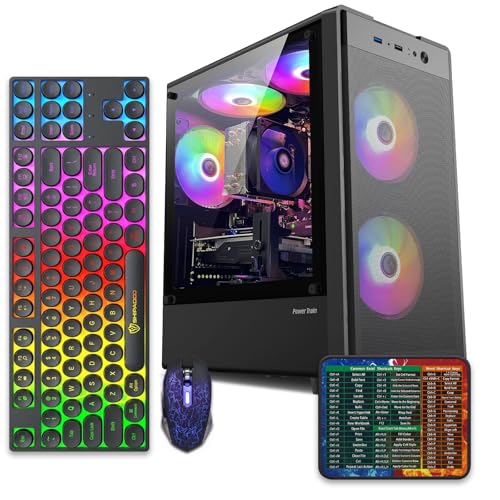
If you want a value-focused starting point, the abytespark Intel Core i7 prebuilt tower sits around $499.99 with a 4.4 rating, and it’s aimed at the office-and-casual-gaming crowd that mostly wants a quiet, tidy box on the desk. It’s a sensible baseline for someone who’s done fighting a noisy hand-me-down and wants a clean slate.
Pros
- 512GB SSD bot drive avoids the HDD bottleneck common in budget prebuilts
- RX 590 8GB VRAM buffer handles 1080p textures better than 4GB budget cards
- Complete bundle with RGB peripherals means no extra spend to start using
- Genuine Windows 11 Home 64-bit preinstalled, no activation hassle out of box
Cons
- Limited owner feedback at time of writing, verify seller reputation before purchase
- Core i7-4770 is Haswell era LGA150, no upgrade path and weak IPC versus modern CPUs
- Windows 11 on 4th-gen Intel is unsupported by Microsoft and may miss feature updates
- No CD/DVD-ROM support and RAM/GPU generation limits future workload headroom
This is an entry-tier prebuilt tower built around an Intel Core i7-4770 Haswell CPU, 16GB RAM, a 512GB SSD, and an AMD Radeon RX 590 8GB GDDR5 GPU. It targets budget buyers who need a working office and light gaming PC with peripherals bundled, not enthusiasts chasing current-gen performance.
The defining feature is the RX 590 8GB paired with a 512GB SSD, an uncommon combo at this price band. Cards in this class typically handle 1080p esports titles at 60+ FPS on medium to high, matching the vendor claim for CS:GO, League of Legends, Apex, and Overwatch. Newer AA titles will need lowered settings.
Trade-offs are significant. The i7-4770 launched in 2013, so IPC, single-thread performance, and platform features like NVMe bot, PCIe Gen4, and modern USB are limited. Windows 11 runs here but sits outside Microsoft's official supported CPU list. There is no realistic CPU or socket upgrade path on LGA1150.
Buy this if you need a plug-and-play 1080p esports and office tower with keyboard, mouse, and RGB included at a low outlay. Skip this if you want current-gen platform support, sustained AA 1440p gaming, or a build with a meaningful upgrade runway.
GPU class: The AMD Radeon RX 590 8GB GDDR5 is a Polaris-refresh card roughly equivalent to a GTX 1060 6GB tier. Expect 1080p 60+ FPS in esports titles like CS:GO, Overwatch, Apex, League, and Fortnite on medium settings, matching the listing's claims.
AAA and modern titles: The vendor lists GTA V, Warzone, Hogwarts Legacy, and The Division 2. Realistically, these run at 1080p low to medium with FSR upscaling where suported.Ray tracing is unsupported on RX 590. No DLSS, no frame gen, no AV1 encode.
CPU bottleneck: The Core i7-4770 quad-core with 8threads at up to 3.9GHz will bottleneck the RX 590 in CPU-heavy titles like Warzone and Escape from Tarkov. Expect frame time inconsistency in large team fights even when average FPS looks aceptable.
Storage and RAM fit: 512GB SSD holds Windows plus 3 to 5 modern game installs before space pressure. 16GB DR3-era RAM is adequate for current esports but leaves no headroom for heavy streaming, browser tabs, and OBS NVENC alongside a game session.
If you’d rather have discrete graphics and a bit more airflow-friendly layout, the WIWB Ryzen 5 tower runs about $569.99 with a strong 4.7 rating. It pairs a Ryzen 5 chip clocked up to 4.1GHz with an RX 560 4GB card, 16GB of DDR4, a 512GB SSD, and Wi-Fi 6, so it handles light 1080p gaming without the stock-cooler scream you get on the cheapest boxes. For a full comparison of layouts and airflow, our 1440p prebuilt gaming PC guide breaks down which chassis actually stay calm under load.

Pros
- Ryzen 5 3500X 6-core CPU bosts to 4.1GHz for smooth 1080p esports CPU load.
- Discrete RX 560 4GB handles DirectX 12 and Vulkan esports titles better than integrated graphics.
- 512GB SSD as bot drive keps Windows load times and app launches snappy out of box.
Cons
- Limited owner feedback at time of writing, no verified reviews to validate build quality.
- RX 560 is a legacy entry-tier GPU, skip if you want modern AAA at 1080p high.
- Ryzen 5 3500X sits on aging AM4, upgrade path is caped at Zen 3 with a BIOS update.
The WIWB is a budget prebuilt tower built around a Ryzen 5 3500X, RX 560 4GB, 16GB DDR4, and a 512GB SSD. It targets students, home office users, and casual gamers who want a plug-and-play box for esports at 1080p rather than a rig for current AAA titles.
The defining pairing here is the 3500X and RX 560. The 6-core, 6-thread CPU bosting to 4.1GHz is still competent for League, CS2, Valorant, and Overwatch, and typically pushes well above 100FPS at 1080p low-to-medium when paired with this GPU class. The RX 560 4GB is the bottleneck for anything heavier.
Trade-offs are typical at this tier. The RX 560 predates FSR frame generation and struggles with modern UE5 titles even at 1080p low. AM4 with a 3500X caps future CPU upgrades at Zen 3, and the case, PSU wattage, VRM phases, and included cooler are not specified, so headroom for a stronger GPU later is unclear.
Buy this if you need a cheap, pre-assembled Windows tower for schoolwork, browsing, and light esports at 1080p. Skip this if you plan to play current AAA releases, stream at 1080p60, or want a platform with a real multi-year upgrade path.
CPU workload: The Ryzen 5 3500X is a 6-core, 6-thread Zen 2 part with a 3.6GHz base and 4.1GHz boost. It stays viable for 1080p esports and light productivity like image editing and IDE work, but lacks SMT, which hurts streaming and modern CPU-bound AA titles.
GPU class and resolution fit: The RX 560 4GB GDDR5 is an entry esports card. Expect high frame rates in CS2, League, and Overwatch at 1080p low-to-medium, and playable frame rates in older AAA titles at 1080p low. 1440p and modern AA at medium are outside its envelope.
Memory and storage: 16GB DDR4 is the current baseline for gaming and multitasking, and the 512GB SSD covers Windows plus roughly 3 to 5 modern game installs. Exact DDR4 speed, dual-channel status, and SSD interface (SATA vs NVMe) are not specified.
Connectivity and upgrade path: WiFi 6 is included, and the board exposes an M.2 slot plus spare DDR4 slots for later expansion. PSU wattage, connector layout, case clearance, and waranty length beyond the stated 1-year coverage are not specified, so plan GPU upgrades cautiously.
Tools and parts you’ll want on hand
You don’t need much. A can of compressed air, a Phillips #2 screwdriver, and ten minutes are enough for a cleaning. If you’re swapping a fan, add a replacement 120mm or 140mm fan and maybe a couple of zip ties for tidy cable routing. That’s the whole kit. Anything past that (fresh thermal paste, a bigger aftermarket cooler) is optional and only worth it if the basics haven’t calmed things down.
A few more questions
Is it normal for a prebuilt to get loud during games?
Some ramp-up under load is completely normal, since more heat means more airflow. What isn’t normal is a constant roar at idle or the desktop. If your fans are loud before you’ve even opened a game, that’s a curve or a dust problem, not the hardware doing its job. A well-set-up machine should stay near-silent until you actually push it.
Will changing the fan curve make my PC overheat?
No, as long as you keep a sensible ramp. Modern CPUs and GPUs are designed to run comfortably in the 70 to 85 degree range, and they’ll throttle themselves before any damage occurs. A gentle curve that quiets things below 60 degrees and ramps up after is safe. Just don’t set every fan to a flat low percentage and walk away, because that removes the safety headroom.
Should I just buy a new PC instead of fixing this?
It depends on how deep the problem goes. A dust-out and a curve tweak are free and fix most machines, so try those first. If the tower has a genuinely bad thermal design and worn fans across the board, a better-built replacement can be the cheaper, saner path than piecemeal upgrades. Weigh the cost of parts against a clean system that’s quiet out of the box.


































Write Your Review
No reviews yet. Be the first to share your experience!