

Bad PC case airflow usually shows up as louder fans, higher CPU or GPU temperatures, heat-soaked glass panels, and performance that drops after 10 to 20 minutes of gaming. It doesn’t always mean your case is junk. Often, it’s a simple pressure, dust, cable, or fan-direction problem. We researched the common failure points builders run into, especially in compact mid-towers and glass-heavy cases, and the fixes below should help before you replace everything. If you’re planning a rebuild, our guides to the best PC case for airflow and budget airflow cases are useful reference points.
The quick goal is simple: bring cool air in, move it across the CPU cooler and graphics card, then exhaust warm air without making the fans fight each other. Easy on paper. Messy inside a real PC.
First check the obvious (the 30-second check)
Put your hand near the front intake and rear exhaust while the system is under a normal gaming or rendering load. You should feel air entering through the front, side, or bottom intakes and leaving through the rear or top. If the rear fan is blowing into the case, or the front fans are exhausting through a restricted panel, you’ve probably found the issue already. Fan frame struts usually sit on the exhaust side, while the open blade face is often the intake side, but arrows on the fan frame are better if they’re visible.
Next, check temperatures with a normal monitoring app and note the pattern. A CPU that jumps to 90C instantly suggests cooler mounting or fan curve trouble. A GPU that starts fine at 65C but creeps into the 80s after 20 minutes points more toward case heat buildup. If both rise together, the whole chassis is probably recycling warm air. That’s the big clue.
Cause #1: Intake path is blocked or too restrictive
The most common bad-airflow layout is a pretty front panel with tiny side vents, a dust-packed mesh, or fans mounted behind a thick solid face. Three 120 mm fans can still struggle if they only have a few narrow slots to breathe through. Static pressure helps, but it can’t turn a sealed front panel into a high-flow intake. If your temperatures improve by 5C to 12C when the front panel is removed for a short check, the intake path is the culprit. Don’t run it open forever, but use that result as evidence.
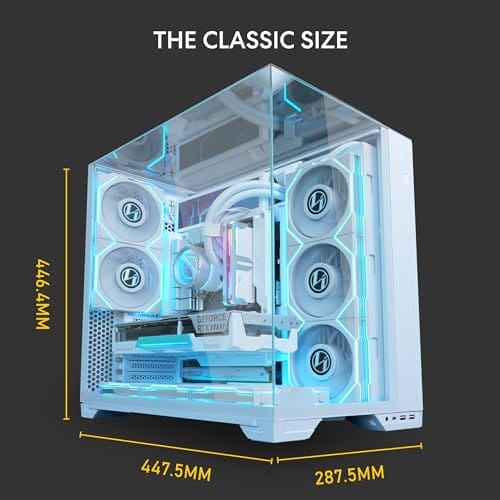
Fix it by cleaning the front filter, increasing intake fan speed, moving fans closer to the open mesh if the bracket allows it, or choosing a case with a more open front. For a full case swap, the Lian Li O11Vision Compact is a $124.99 ATX mid-tower with white steel, tempered glass, and back-connect support. Its 4.4 rating and compact dual-chamber style make it a real replacement-case candidate if your current chassis is choking modern hardware, though you’ll still need to plan fan placement because glass panels don’t magically create airflow.

Pros
- Patented three-panel tempered glass exposes front, top, and left views of the build.
- Native back-connect motherboard support for hiden 24-pin, EPS, and PCIe cabling.
- Second chamber hides side-mounted AIO tubing for a cleaner primary compartment.
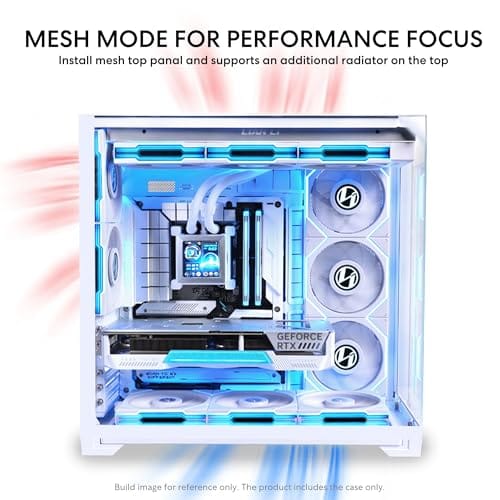
- Swappable top mesh panel suports a 360mm AIO when thermals take priority over glass.
Cons
- Limited owner feedback at time of writing makes long-term reliability signal thin.
- Full specs (GPU length, cooler height, fan count) not published in source data.
- Back-connect layout requires a compatible motherboard, narowing part selection.
The Lian Li O11Vision Compact is a mid-range ATX mid-tower positioned as a smaller sibling to the O11 Dynamic line, developed in collaboration with the PCMasterRace community. It targets showcase builders who want a dual-chamber layout, tempered glass on three sides, and native support for back-connect motherboards in a tighter footprint.
The defining feature is the patented three-panel tempered glass design covering the front, top, and left side. Paired with the second-chamber cable routing and back-connect motherboard compatibility, the front compartment stays visually clean. Builders wanting a 360mm AIO can swap in the included top mesh panel, trading a glass top for airflow.
Trade-offs are typical at this tier. Back-connect support only pays off if you buy a compatible board from ASUS, MSI, GIGABYTE, or similar, which narrows part selection and can raise motherboard cost. Concrete specs like GPU clearance, CPU cooler height, radiator sites, and included fan count are not specified in the source data, so verify against the official manual before finalizing parts.
Buy this if you want O11-family aesthetics with hidden cabling via a back-connect board and a side or top 360mm AIO. Skip this if you need a documented GPU length ceiling, bundled fans, or a traditional cable-visible motherboard build.
Motherboard support: The chassis accepts standard ATX boards and ads native routing for back-connect variants such as ASUS BTF, MSI Project Zero, and GIGABYTE Project Stealth. Cable cutouts on the tray align with rear-side connectors, keping the 24-pin, EPS, and PCIe cables out of the main chamber view.
Radiator and AIO: A swappable top mesh panel is included specifically to enable a 360mm AIO in the rof. When the AIO is mounted on the side instead, the dual-chamber layout routes the tubing into the second compartment, keeping the front-facing glass view unobstructed. Exact side radiator thickness limits are not specified.
Glass and panel layout: Three tempered glass panels cover the front, top, and left side. The top glass panel is the one you swap out when a 360mm radiator is installed, so builders choosing air cooling or a bottom-mounted AIO retain the full three-panel glass look.
Not specified in source: GPU length clearance, CPU cooler height, drive bay count, included fan count, front I/O (USB-C, USB-A), PSU length, and case dimensions are not listed in the provided data. Confirm these against the Lian Li O11VPW official spec sheet before finalizing parts.
Cause #2: Fan direction creates pressure fights
A case can have six fans and still cool poorly if half of them fight the other half. The usual mistake is top-front exhaust placed directly above front intake, which pulls fresh air out before it reaches the CPU tower or GPU. Another one: side fans exhausting while front fans intake, leaving the graphics card to pull air from random gaps instead of a clean path. You’ll hear turbulence, but the component temperatures won’t improve much. More fans, same heat.
A sane baseline is front or bottom intake, rear exhaust, and top exhaust only if it doesn’t steal air from the CPU cooler. For most mid-towers, two or three intakes plus one rear exhaust works better than a fan in every open slot. If your GPU is the hot part, prioritize lower front or bottom intake aimed at the card. If your CPU is the hot part, make sure the tower cooler pushes toward the rear exhaust instead of up against the GPU backplate or down into the motherboard. Simple path. Fewer conflicts. If your layout is unusual, sketch the path with arrows on paper before moving fans. It sounds basic, but it makes pressure mistakes obvious.
Cause #3: Dust filters and internal clutter reduce usable airflow
Dust doesn’t need to form a carpet before it hurts temperatures. A thin layer on a front mesh panel or bottom PSU filter can reduce airflow enough for fans to ramp harder. The PC then sounds like it’s working, but the extra RPM mainly pulls against resistance. Bottom filters are especially easy to forget because you don’t see them until the case is tilted. If the system lives on carpet, dust buildup can happen fast.
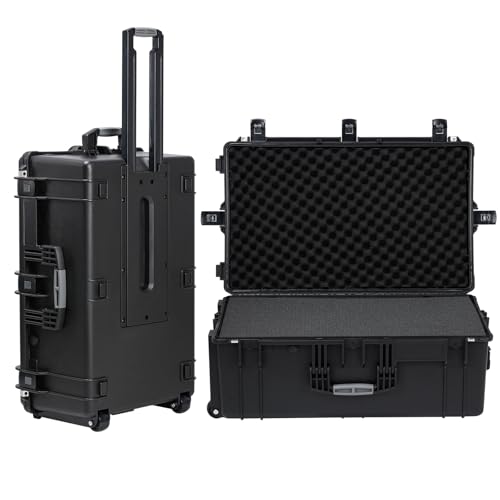
Power down the PC, unplug it, hold fan blades still, and clean filters with a soft brush or low-pressure air. Don’t let fans free-spin from compressed air. Inside the case, move excess front-panel and PCIe power cable length behind the motherboard tray where possible. A thick cable bundle directly in front of intake fans can create a dead zone near the GPU. Tiny change, real difference. If you need to transport or service a dusty system often, the Regetek rolling hard case is a $279.99 equipment case with foam, wheels, a retractable handle, shockproof construction, and a listed inner size of 28.94 by 17.72 by 9.65 inches. It’s not a cooling upgrade, but it’s a genuine tool-adjacent option for safely moving PC gear during deeper cleanups or shop visits.
Pros
- IP67 seal with air-lock valve keeps kit dry during rain, dust, or airline handling
- Pick-and-pluck foam in four layers adapts to cameras, lenses, tools, or medical gear
- Dual padlock holes on the latches allow TSA locks for checked-luggage transport
Cons
- No verified owner fedback at time of writing, so long-term wheel and latch durability is unproven
- Case with foam weighs 32.73 lb empty, which pushes loaded weight near airline checked limits
- Standard-density pluck foam is less protective than custom cut foam for heavy optics or precision instruments
The Regetek Rolling Hard Case is a mid-size wheeled transport case in the Pelican-style category, measuring 32.5 by 20.5 by 13 inch externally with a 28.94 by 17.72 by 9.65 inch usable interior. It targets photographers, drone operators, field service techs, and musicians who need airline-checkable protection for fragile gear.
The defining feature is the IP67 rating paired with a full-length steel hinge and double-latch closure. Cases at this size and seal class typically survive shallow submersion to about 3.3 ft, and the air-lock valve equalizes pressure after altitude changes so the lid does not vacuum shut. Owner feedback is unavailable, so real-world seal longevity cannot be confirmed.
Trade-offs are typical at this tier. The 32.73 lb empty weight with foam eats into airline allowances before gear is loaded, and standard-density pick-and-pluck foam is a compromise between adaptability and impact absorption compared with custom cut foam. Wheels and retractable handles on cases in this class are also the most common long-term failure points.
Buy this if you need a lockable, waterproof rolling case sized for a full mirrorless kit, mid-size drone, or field tolset. Skip this if your payload exceeds the28.94 inch interior length, or if you need documented drop-test certification for professional broadcast use.
Dimensions and weight: Exterior measures 32.5 by 20.5 by 13 inch with an internal usable volume of 28.94 by 17.72 by 9.65 inch. Total weight with foam is 32.73 lb, which is consistent with rotomolded polymer cases in this size class and leaves useful payload room for airline checked baggage.
Sealing and ingress protection: The case is rated IP67 with an O-ring gasket, watertight buckles, and an air-lock pressure equalization valve. Manufacturer states safe submersion to 3.3 ft, and the valve prevents lid suction after temperature or altitude changes during air transit.
Foam configuration: Interior includes four pick-and-pluck layers of standard density foam, one top egg-crate layer, and one bottom pad. The pluck grid lets you shape custom cavities without a knife, though density is not specified in pounds per cubic foot.
Structure and security: Shell uses high-impact polymer with one full-length steel hinge instead of two-point hinges, a double-latch system, dual padlock holes for redundant locking, a heavy-duty top handle, integrated whels, and a retractable pull handle. Waranty is stated at 2 years including replacement parts.
Cause #4: The CPU cooler or GPU cooler is dumping heat into a dead zone
Case airflow and component coolers work as a system. A tower CPU cooler pointed the wrong way can blow into the case roof, RAM area, or front panel instead of toward the rear exhaust. A large open-air GPU dumps most heat back into the case, so it needs enough intake and exhaust to keep that heat from looping through the card again. Blower-style GPUs behave differently, but most current gaming cards are open-air designs.
Check the CPU cooler orientation first. The fan should usually sit on the RAM side and push air through the heatsink toward the rear exhaust. With dual-tower coolers, make sure the middle fan isn’t blocked by tall memory. For the GPU, watch hotspot temperature as well as core temperature if your software exposes it. A core at 75C with a hotspot 25C higher can indicate cooler contact or paste aging, while a core that rises along with case ambient points back to chassis flow. Don’t guess from one number.
Cause #5: Fan curves are too quiet for the hardware
Quiet default fan curves are nice on a spec sheet, but they can let heat pile up before the case fans react. Many motherboards tie chassis fans to CPU temperature by default. That works for short CPU bursts, but it doesn’t always respond well to GPU-heavy gaming, where the CPU may sit at 55C while the graphics card dumps 250W or more into the case. The result is a warm GPU, warm glass, and fans that wake up late.
In BIOS or motherboard software, build a curve that raises intake and exhaust fan speed gradually as temperatures climb. If your board supports a GPU temperature source, use it for at least the front intake group. A balanced curve might idle around 30 percent, rise to 50 percent near moderate loads, and reach 70 to 80 percent under sustained gaming. You don’t need every fan at 100 percent. You need them to respond before the case becomes a heat box. Save the old profile first if your board allows it, because you’ll want an easy rollback if the new curve is too loud.
Preventive maintenance
Check filters every month if the PC sits near carpet, pets, or an open window. For cleaner rooms, every two to three months is often enough. Keep at least 3 inches of clearance behind the rear exhaust and avoid pressing the side intake against a wall or desk panel. If your case uses bottom intake, place it on a hard surface rather than thick carpet. Also review your fan screws once or twice a year, because loose fans can vibrate and sound like airflow trouble even when temperatures are fine. Small habits keep the PC from slowly drifting back into noisy, hot behavior.
When it’s not fixable: what to replace
Some cases are just too restrictive for high-power parts. If the front panel is mostly solid, the top vents are tiny, and the GPU has only a narrow gap to breathe, no fan curve will fully solve it. You can reduce noise and improve a few degrees, but a 300W graphics card and a hot CPU need physical intake area. That’s where a chassis swap makes more sense than buying extra fans. If you want a size-focused comparison before changing platforms, our ITX airflow case guide shows why small cases need even more careful vent planning.
Replace fans if bearings grind, blades wobble, or a fan doesn’t start reliably below 40 percent duty. Replace the case if removing the front or side panel drops temperatures dramatically and cleaning doesn’t help. Replace thermal paste or remount coolers only when the heat pattern points to contact trouble. One fix at a time. Otherwise you’ll spend money and still won’t know what actually worked.
Tools and parts needed
For basic airflow repair, you’ll want a Phillips screwdriver, zip ties or Velcro straps, a soft brush, low-pressure compressed air, and a monitoring app for before-and-after readings. Optional parts include additional 120 mm or 140 mm case fans, replacement dust filters, and a less restrictive case if the existing chassis is the bottleneck. If you’re choosing between mainstream tower layouts, our mid-tower airflow case research is a good way to compare open-front designs, glass-heavy layouts, and fan support without guessing from photos alone.
A few more questions
Is negative pressure always bad?
No. Negative pressure can cool well if the intake path is clean and filtered, but it often pulls dust through unfiltered gaps. Slight positive pressure, with more filtered intake than exhaust, is easier to maintain for most home PCs.
How many case fans do I actually need?
Most gaming PCs do well with two front intakes and one rear exhaust. Hotter GPUs may benefit from a third intake or bottom intake. Beyond that, placement usually matters more than the raw fan count.
Can bad airflow damage parts?
Modern CPUs and GPUs throttle before they cook themselves, so sudden damage is unlikely. Still, repeated high heat can increase noise, reduce boost clocks, and age fans faster. Fixing airflow is worth it even if the PC isn’t crashing.
A quick side-panel comparison helps too. If temperatures drop sharply with the panel removed, the case intake path is the issue, not the CPU cooler or GPU itself.


































Write Your Review
No reviews yet. Be the first to share your experience!