

Buying fast memory and dropping it into your motherboard is only half the job. Out of the box, most RAM runs at a slow JEDEC default, not the speed printed on the box, and gaming performance leaves frames on the table until you flip a setting in the BIOS. Setting up RAM for gaming means installing it in the right slots, enabling its rated profile, confirming the speed and timings stuck, and checking stability. It takes about twenty minutes and it’s one of the highest-value tweaks a builder can do. Here’s the full walkthrough.
What you’ll need
Not much. A Phillips screwdriver to open the case, your motherboard manual for the correct slot order, and the RAM kit itself. That’s it for hardware. On the software side you’ll want a monitoring tool like CPU-Z to confirm your speed and timings after the fact, and it’s free. If you’re still shopping for memory, a proven dual-channel kit such as the G.SKILL Ripjaws V DDR4 32GB (2x16GB) 3600 kit at $219.99, rated 4.1 stars, is a sensible gaming target with its XMP profile and CL18-22-22-42 timings at 1.35V. For picks across platforms, our guide to the best budget RAM of 2026 and the best 32GB kits break down the options.

Pros
- DDR4-3600 XMP at 1.35V is the Ryzen AM4 sweet spot, aligning FCLK 1:1 at 1800MHz for best latency.
- Matched 2x16GB kit is factory-tested as a pair, reducing dual-channel instability compared to mixing sticks.
- Compatible with both Intel XMP and AMD DOCP/A-XMP BIOS profiles without manual sub-timing adjustments.
- Ships with JEDEC SPD fallback so the system always boots safe at default clocks before XMP is enabled.
Cons
- CL18 primary latency is mid-range; DDR4-3600 CL16 kits exist for buyers prioritizing tighter timings.
- No ECC support, so workstation or Threadripper ECC builds need a different kit entirely.
The G.SKILL RipjawsV F4-3600C18D-32GVK is a mid-range DDR4 desktop kit targeting Intel and AMD mainstream platform builders who want 32GB capacity at DDR4-3600 without overpaying for CL14 or CL16 enthusiast kits. It ships as a matched 2x16GB dual-channel pair in the standard 288-pin U-DIMM form factor.
The defining spec here is the XMP profile: DDR4-3600 at CL18-22-22-42, 1.35V. On AMD AM4 Ryzen systems, 3600MHz is the well-documented sweet spot for achieving a 1:1 FCLK ratio at 1800MHz, which keeps infinity fabric latency in check and translates to measurable gains in lightly-threaded workloads and gaming frame times compared to DDR4-3200 or lower.
CL18 is a genuine trade-off at this speed. Competing DDR4-3600 kits with CL16 or CL14 exist and offer lower absolute latency, though they typically carry a price premium. Owners report stable XMP operation across a wide range of B450, X570, and Z490/Z590 boards, but reaching rated speed on some budget AM4 boards may require manual sub-timing adjustments or AGESA microcode updates.
Buy this if you are building or upgrading an AM4 Ryzen or Intel LGA1700 desktop and want reliable 32GB DDR4-3600 dual-channel performance without tuning. Skip this if you need CL16 or tighter for competitive latency, or if your board has a limited QVL and you have not verified compatibility via G.SKILL's configurator tool first.
Platform Support: This kit uses 288-pin DDR4 U-DIMM and is compatible with Intel LGA1700 (Z690/Z790) and AMD AM4 (B450/X470/B550/X570) platforms. AM5 uses DDR5 exclusively, so this kit is not compatible with Ryzen 7000/9000 series builds on AM5 boards.
XMP and DOCP Activation: Rated speed of DDR4-3600 CL18-22-22-42 at 1.35V requires enabling XMP (Intel) or DOCP/A-XMP (AMD) in BIOS. Default JEDEC SPD boots at DDR4-2133 or DDR4-2400. On AM4, DDR4-3600 aligns FCLK at 1800MHz for a 1:1 ratio, which is the recommended operating point for Ryzen 3000 and 5000 series CPUs.
Slot Population and Mixing: Install both sticks in the recommended dual-channel slots per your motherboard manual, typically A2 and B2 in a 4-slot board. G.SKILL explicitly warns against mixing this kit with other modules; doing so voids the matched-pair guarantee and risks instability at XMP speeds.
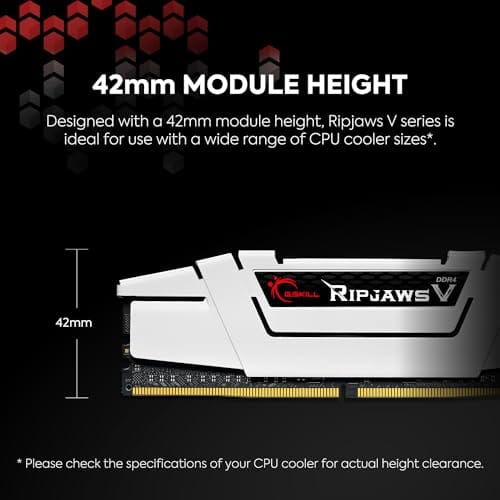
Cooler Clearance: Exact heatspreader height is not specified in the source data, but RipjawsV modules are noted for a lower profile than Trident Z or RGB variants, reducing conflicts with wide tower coolers. Verify clearance if using a low-clearance cooler on a tight ITX board.
Step 1: Install the sticks in the correct slots
Power down, unplug the PSU, and press the case power button to drain residual charge. Open the DIMM latches. Here’s the part people get wrong: with two sticks on a four-slot board, you almost never fill slots 1 and 2. You populate the second and fourth slots (usually labeled A2 and B2) to enable dual-channel mode, which is worth real gaming frames. The manual shows the exact pair, so check it.
Line up the notch in the stick with the ridge in the slot, since RAM only fits one way. Press down firmly on both ends until the latches snap shut on their own. It takes more force than beginners expect. A stick that’s seated on one end only will refuse to POST, so confirm both latches clicked before moving on.
Handle the modules by their edges and avoid touching the gold contacts, since skin oils and static can cause trouble down the line. If your case is cramped, it’s often easier to seat the RAM before installing a large air cooler, since tall coolers can overhang the first slot. Grounding yourself by touching a bare metal part of the case first is cheap insurance against a static zap on a fresh kit.
Step 2: Boot and enter the BIOS
Reconnect power and boot, then tap Delete or F2 during startup to enter the BIOS (the key varies by board, and the splash screen usually names it). First, confirm the system sees the full capacity. A 32GB kit should report 32GB (or 32768MB). If it shows half, a stick isn’t seated, so power down and reseat before going further.
At this stage your memory is almost certainly running slow. A DDR4 kit rated for 3600 will likely show up at 2133 or 2400 MT/s, the safe JEDEC default. That’s normal and it’s exactly why this walkthrough exists. You paid for 3600; right now you’re using a fraction of it. The next step fixes that.
Step 3: Enable XMP (or EXPO)
Find the memory profile setting. On Intel and most boards it’s called XMP; on AMD kits it’s EXPO. It’s often on the main BIOS page or under an overclocking or “AI Tweaker” menu. Switch it from Disabled to Profile 1. This single toggle loads the manufacturer’s rated speed, voltage, and timings in one shot, so the G.SKILL kit jumps to 3600 MT/s at CL18-22-22-42 and 1.35V without you typing a single number.
That’s the whole trick, and it’s why enabling the profile matters so much. Without it, expensive high-speed RAM behaves like the cheapest baseline memory. Save and exit (usually F10). The system reboots. If it posts and loads Windows, you’re most of the way there. If it hangs or won’t post, don’t panic; the troubleshooting section covers it.
Some boards offer more than one profile, or an “expo tweaked” option that pushes a touch further. Stick with Profile 1 for your first setup, since it’s the manufacturer’s validated spec and the most reliable. You can experiment later once you know the kit is stable. Also, if your board updated its BIOS recently, it may have reset this toggle back to Disabled, which is a common reason a previously fast system quietly drops to default speed after a firmware update.
Step 4: Verify the speed and timings in Windows
Open CPU-Z and click the Memory tab. Look at the DRAM Frequency reading. DDR is double data rate, so it shows half your rated number: 3600 MT/s displays as roughly 1800 MHz. If you see about 1800, the profile took and you’re running at full rated speed. The Timings column should match the CL18-22-22-42 on the box.
Check the capacity and channel readout too. It should say Dual for a properly paired 2x16GB kit. Single-channel means your sticks are in the wrong slots, and you’ll want to move them to the A2/B2 pair from Step 1. This verification takes thirty seconds and it’s the only way to know your tweak actually applied instead of silently reverting.
Watch out for one sneaky gotcha here. A profile can post fine, run for a bit, then quietly fall back to a lower speed after a cold boot or a BIOS reset. So it’s worth re-checking CPU-Z a day or two later, especially after any BIOS update, to confirm the profile is still active. If the DRAM Frequency dropped back toward 1067, the toggle reverted and you just re-enable it. Thirty seconds now, no mystery stutter later.
Step 5: Confirm stability before you game
A profile that posts isn’t automatically stable under load. Run a memory stability pass to be sure. MemTest86 from a USB stick is the thorough option; let it run at least one full pass, ideally overnight for peace of mind. For a quicker check, Windows Memory Diagnostic (type it into the Start menu) does a basic sweep on the next reboot. Zero errors means you’re clear.
If you’d rather stress it in a real workload, load a demanding game and play for an hour while watching for crashes to desktop or graphical corruption. Those are classic signs of an unstable memory profile. A stable kit will run for hours without a hiccup, and once you’ve confirmed it, you can forget about it and just enjoy the extra frames.
Troubleshooting common issues
The PC won’t post after enabling the profile
Most boards will retry a few times, then boot at default speed on their own. If it stays dark, clear CMOS (a jumper or a button on the board, or pull the coin battery for a minute) to reset the BIOS. Re-enter and try a slightly lower speed, like 3200 instead of 3600, or nudge the DRAM voltage up a hair toward 1.4V within the kit’s safe range.
Windows sees only half the RAM
Almost always a seating problem. Power down, pull the sticks, and press each back in until both latches click. If one slot still won’t read a known-good stick, the slot or a bent CPU pin may be the issue. Try each stick individually in the primary slot to find whether it’s a stick or a slot at fault.
Games crash randomly after the tweak
That points to an unstable profile even if it posted fine. Run MemTest86 to confirm. If errors show, drop the speed one tier, loosen the primary timing by a step, or add a small voltage bump within the rated ceiling. It’s better to run 3200 rock-solid than 3600 with random crashes eating your progress.
Before and after: what to expect
The gain is real but bounded. Moving from a 2133 default to a 3600 profile in dual-channel can lift average frame rates several percent and, more noticeably, smooth out the 1 percent lows that cause stutter, especially on Ryzen chips that love memory bandwidth. You won’t double your FPS. You will get a steadier experience that feels better than the raw average suggests, and it cost you nothing but twenty minutes.
Where you’ll notice it most is in CPU-bound moments: crowded scenes, physics-heavy sequences, and open-world traversal where the engine leans on memory. Those are exactly the spots where cheap default RAM produces micro-stutter. A properly configured dual-channel kit smooths them out. Pair that with the right slots and a verified profile, and you’ve squeezed real, free performance out of hardware you already paid for.
Variations and advanced setups
Once the basic profile is stable, tuners can push further: manual timing tightening, sub-timing adjustments, or a small frequency bump above the rated spec. On AMD platforms, keeping the memory and fabric clocks in sync matters for the biggest gains. That’s deeper water, and for most gamers the one-click profile captures the vast majority of the benefit. If you run a modern Ryzen chip and want to chase every frame, our notes on RAM for gaming and video editing cover higher-end kits worth the effort.
A word on capacity variations too. If you’re running a 4x8GB setup instead of 2x16GB, be aware that filling all four slots can make high speeds harder to reach, since it puts more load on the memory controller. Two larger sticks are usually the friendlier path to a stable high-speed profile. And if you ever add a second matching kit later, run the stability pass again, because mixing kits, even identical models, occasionally needs a small voltage nudge to stay rock-solid.
Common questions
Do I have to enable XMP or EXPO?
If you want the speed you paid for, yes. Without it your RAM runs at a slow JEDEC default and behaves like the cheapest memory available. Enabling the profile is a single BIOS toggle that loads the rated speed, voltage, and timings at once. It’s the difference between a 3600 kit acting like 3600 and it quietly running at 2133.
Which slots should I use for two sticks?
On a four-slot board, the second and fourth slots, usually labeled A2 and B2, to enable dual-channel mode. Filling slots 1 and 2 often leaves you in single-channel, which costs gaming performance. Your motherboard manual spells out the exact pair, so check it rather than guessing. CPU-Z will confirm “Dual” once you’ve got them right.
Is 32GB overkill for gaming?
Not anymore. 16GB still runs most games, but 32GB gives breathing room for background apps, streaming, and newer titles that lean harder on memory, and it’s cheap insurance against stutter from running low. A 2x16GB kit like the G.SKILL 3600 also keeps you in dual-channel while covering multitasking. For a fresh build, 32GB is the comfortable target.
Will faster RAM help if I’m GPU-limited?
Less, but it still helps the 1 percent lows. If your GPU is the bottleneck at 4K, memory speed barely moves the average frame rate. At 1080p or on CPU-heavy games, and especially on Ryzen, faster RAM in dual-channel smooths stutter and lifts minimums. Enabling the profile is free performance either way, so there’s no reason to leave it off.

































Write Your Review
No reviews yet. Be the first to share your experience!